How do I delegate meeting?
In HCL Verse, delegating a meeting allows you to hand off an invitation to a colleague while choosing whether to stay in the loop on future updates, responses, and reschedules.
How the Feature Works
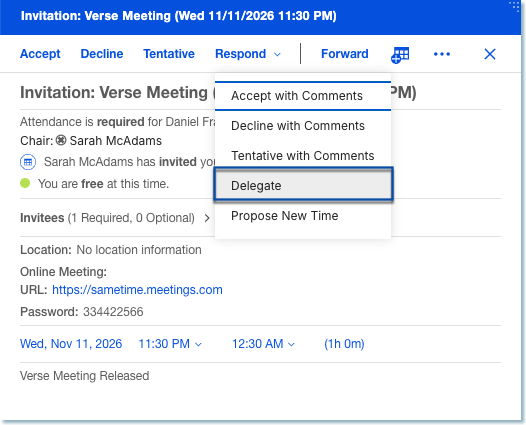
When you receive a calendar invitation, click on the Response dropdown menu and and select
Delegate. The delegation dialog will open.
Select a user for the delegation and optionally select the checkbox Keep me informed of updates.
Checked: You remain a passive recipient for future updates to that specific entry. If the meeting owner changes the time, location, description, or cancels the event, you will receive an updated notification in your inbox.
Unchecked (Default/Not Enabled): You completely transfer handling of the meeting. You will not receive subsequent change notifications or updates regarding that entry.
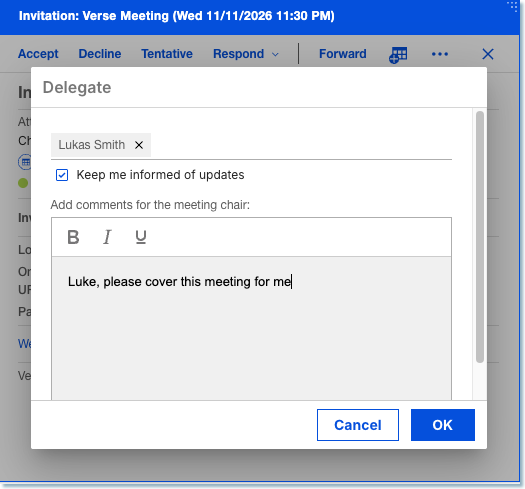
After clicking OK, the person you delegate to receives the invitation with an indication that it was forwarded/delegated by you. The meeting organizer sees that the invite was delegated to the new attendee.