Default and Override stylesheets in Presentation Designer
In Presentation Designer, stylesheets play a crucial role in defining the appearance and behavior of elements within a presentation. There are two types of stylesheets that work together to ensure flexibility and consistency in design: the Default stylesheet and the Override stylesheet. These stylesheets support the handling of type selectors and class selectors.
Default stylesheet
The Default stylesheet provides a foundational set of styles that are automatically applied to various elements, ensuring a consistent look and feel across the presentation. Default stylesheet support type selectors and class selectors. The default style options in Presentation Designer work as follows:
-
From the initial render of the Presentation Designer, a default style is loaded in the head of the HTML:
-
HTML head for default stylesheet:
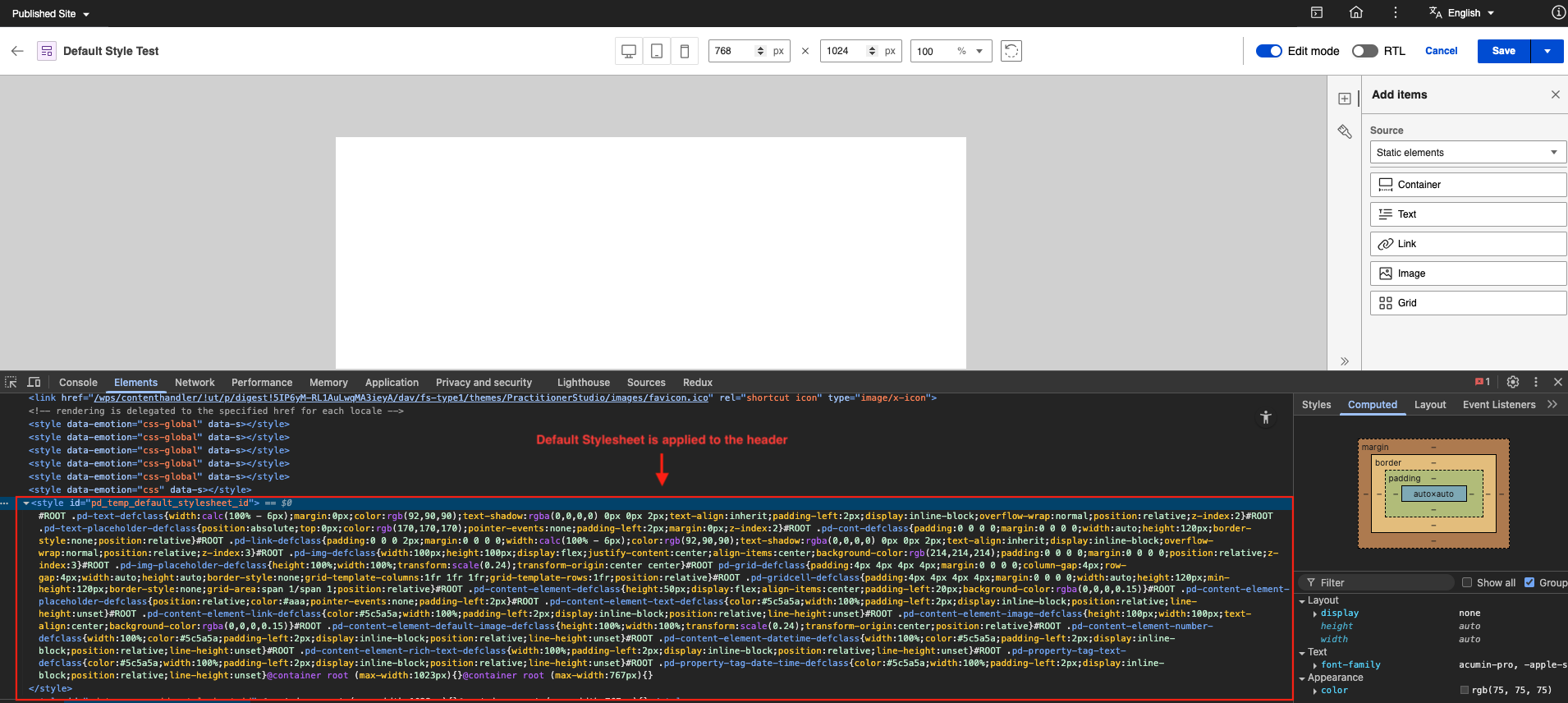
-
Element styles for the default stylesheet:
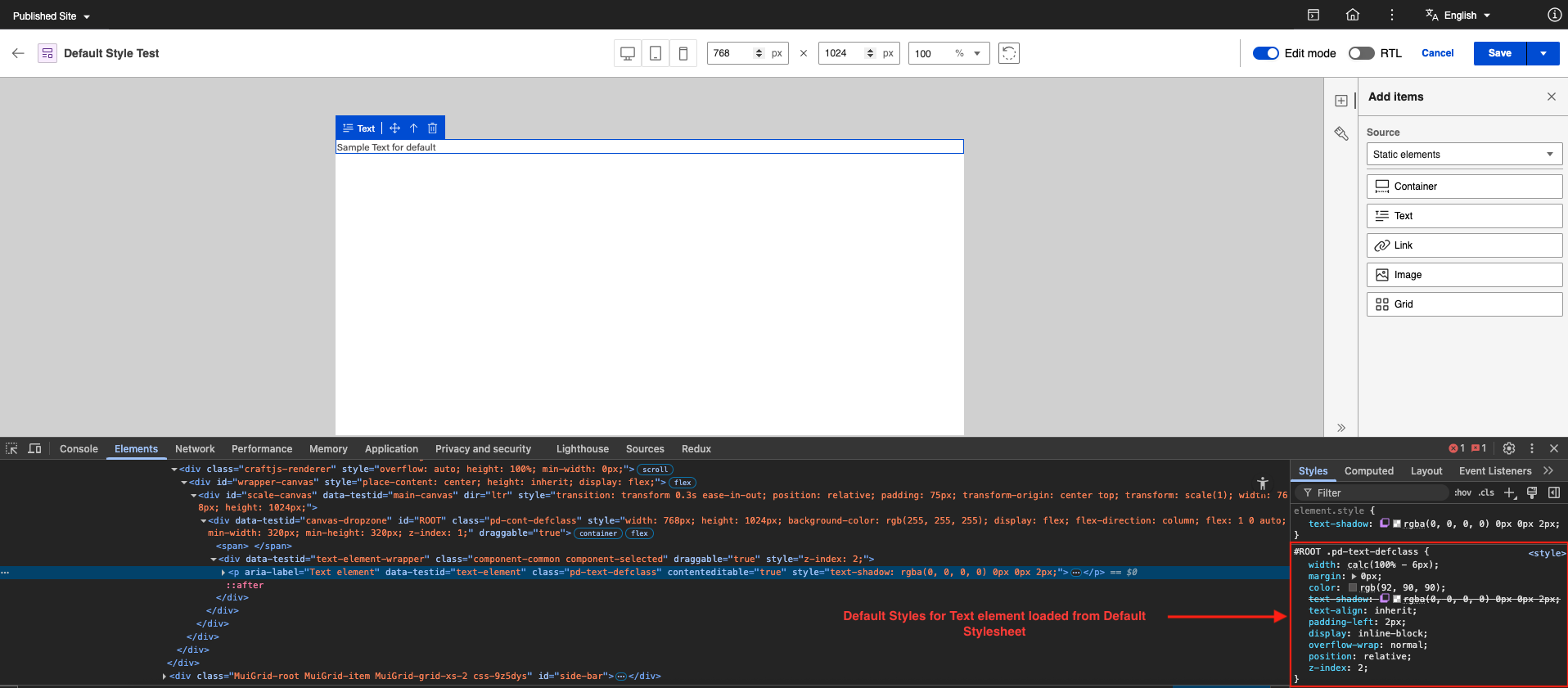
-
-
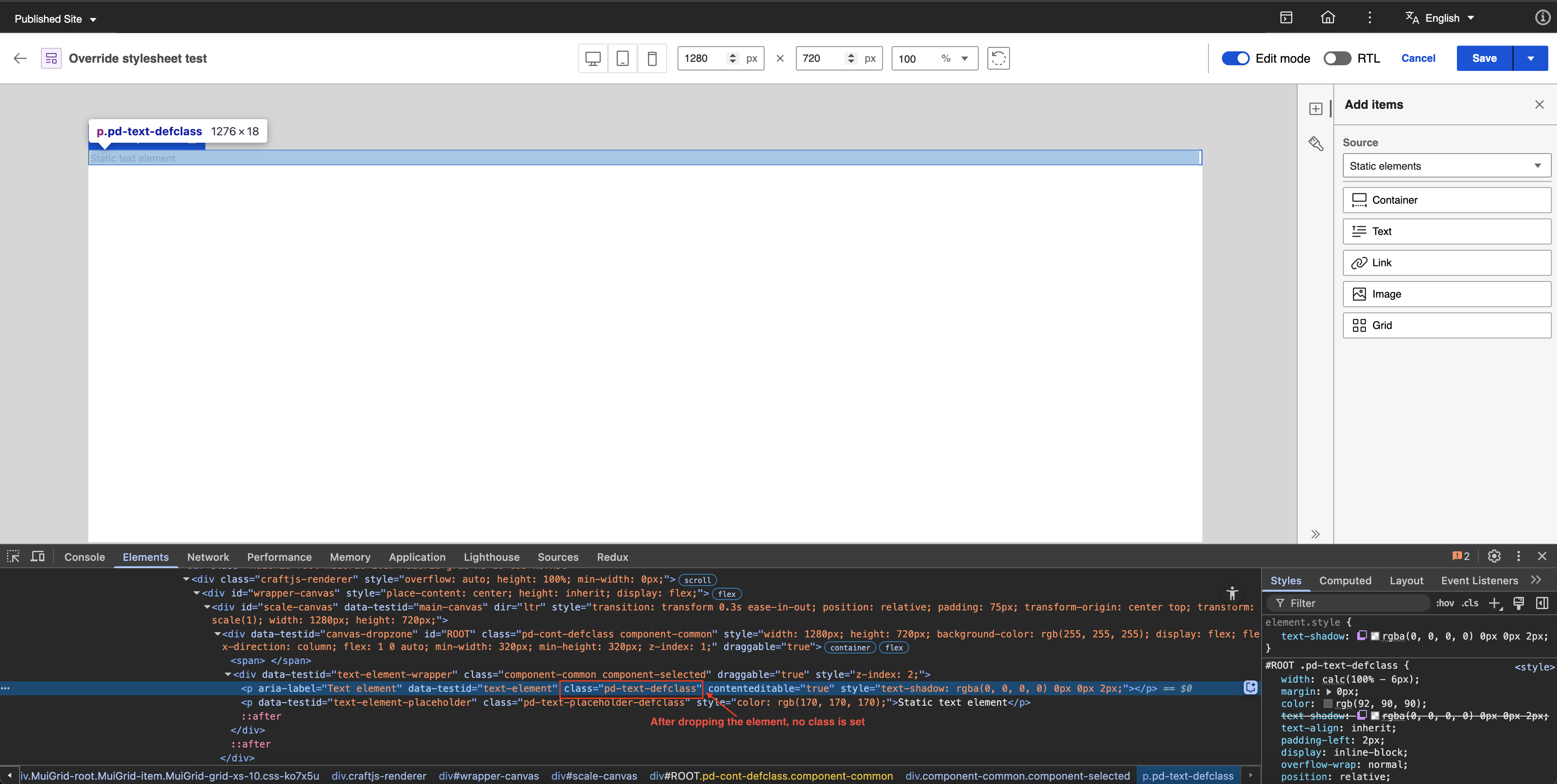
Each element has a corresponding classname for the default style.
Element Default Classname CSS Values Container element pd-cont-defclass padding: 0 0 0 0;
margin: 0 0 0 0;
width: auto;
height: 120px;
border-style: none;
position: relative;Text element pd-text-defclass width: calc(100% - 6px);
margin: 0px;
color: rgb(92, 90, 90);
text-shadow: rgba(0, 0, 0, 0) 0px 0px 2px;
text-align: inherit;
padding-left: 2px;
display: inline-block;
overflow-wrap: normal;
position: relative;
z-index: 2;Text placeholder pd-text-placeholder-defclass position: absolute;
top: 0px;
color: rgb(170, 170, 170);
pointer-events: none;
padding-left: 2px;
margin: 0px;
z-index: 2;Link element pd-link-defclass padding: 0 0 0 2px;
margin: 0 0 0 0;
width: calc(100% - 6px);
color: rgb(92, 90, 90);
text-shadow: rgba(0, 0, 0, 0) 0px 0px 2px;
text-align: inherit;
display: inline-block;
overflow-wrap: normal;
position: relative;
z-index: 3;Image element pd-img-defclass width: 100px;
height: 100px;
display: flex;
justify-content: center;
align-items: center;
background-color: rgb(214, 214, 214);
padding: 0 0 0 0;
margin: 0 0 0 0;
position: relative;
z-index: 3;Broken image placeholder pd-img-placeholder-defclass height: 100%;
width: 100%;
transform: scale(0.24);
transform-origin: center center;Grid element pd-grid-defclass display: grid;
padding: 4px 4px 4px 4px;
margin: 0 0 0 0;
column-gap: 4px;
row-gap: 4px;
width: auto;
height: auto;
border-style: none;
grid-template-columns: 1fr 1fr 1fr;
grid-template-rows: 1fr;
position: relative;Grid cell element pd-gridcell-defclass padding: 4px 4px 4px 4px;
margin: 0 0 0 0;
width: auto;
height: auto;
min-height: 120px;
border-style: none;
grid-area: span 1 / span 1;
position: relative;Content element pd-content-element-defclass height: 50px;
display: flex;
align-items: center;
padding-left: 20px;
background-color: rgba(0, 0, 0, 0.15);Content element placeholder pd-content-element-placeholder-defclass position: relative;
color: #aaa;
pointer-events: none;
padding-left: 2px;Content text element pd-content-element-text-defclass color: #5c5a5a;
width: 100%;
padding-left: 2px;
display: inline-block;
position: relative;
line-height: unset;Content link element pd-content-element-link-defclass color: #5c5a5a;
width: 100%;
padding-left: 2px;
display: inline-block;
position: relative;
line-height: unset;Content image element pd-content-element-image-defclass height: 100px;
width: 100px;
text-align: center;
background-color: rgba(0, 0, 0, 0.15);Default image placeholder pd-content-element-default-image-defclass height: 100%;
width: 100%;
transform: scale(0.24);
transform-origin: center;
position: relative;Content number element pd-content-element-number-defclass width: 100%;
color: #5c5a5a;
padding-left: 2px;
display: inline-block;
position: relative;
line-height: unset;Content datetime element pd-content-element-datetime-defclass width: 100%;
color: #5c5a5a;
padding-left: 2px;
display: inline-block;
position: relative;
line-height: unset;Content rich text element pd-content-element-rich-text-defclass width: 100%;
padding-left: 2px;
display: inline-block;
position: relative;
line-height: unset;Property tag text element pd-property-tag-text-defclass color: #5c5a5a;
width: 100%;
padding-left: 2px;
display: inline-block;
position: relative;
line-height: unset;Property tag datetime pd-property-tag-date-time-defclass color: #5c5a5a;
width: 100%;
padding-left: 2px;
display: inline-block;
position: relative;
line-height: unset; -
After saving the Presentation Designer, it automatically creates a default stylesheet.
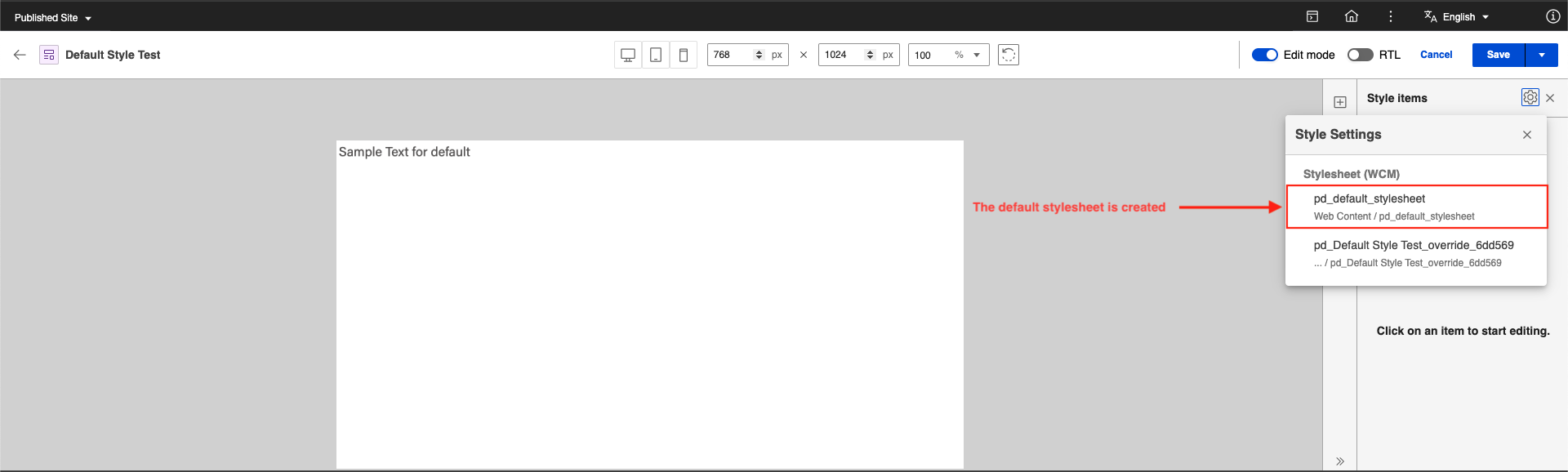
-
The default style is found in the Presentation Designer libraries. Its location is determined based on the location of the presentation template:
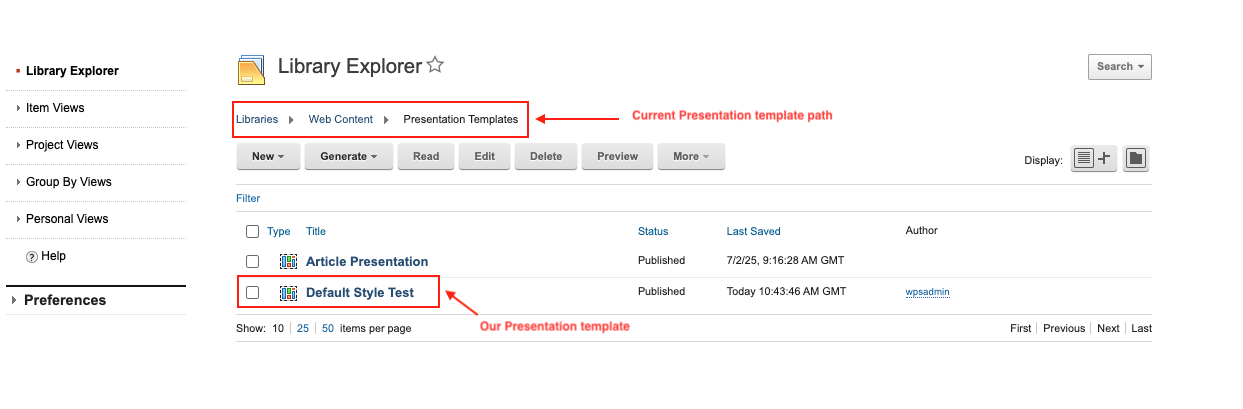
For example, the default style is located in the following path with the default style name pd_default_stylesheet:
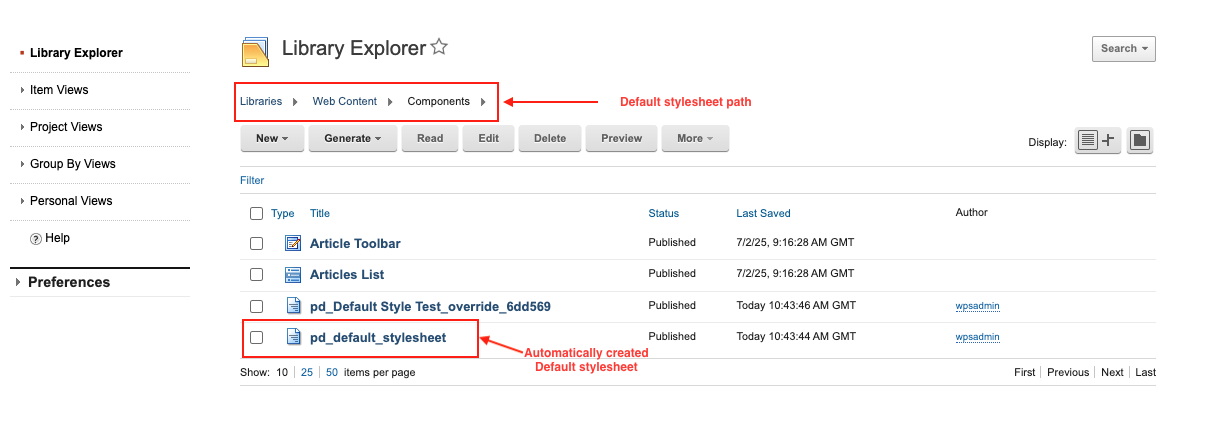
-
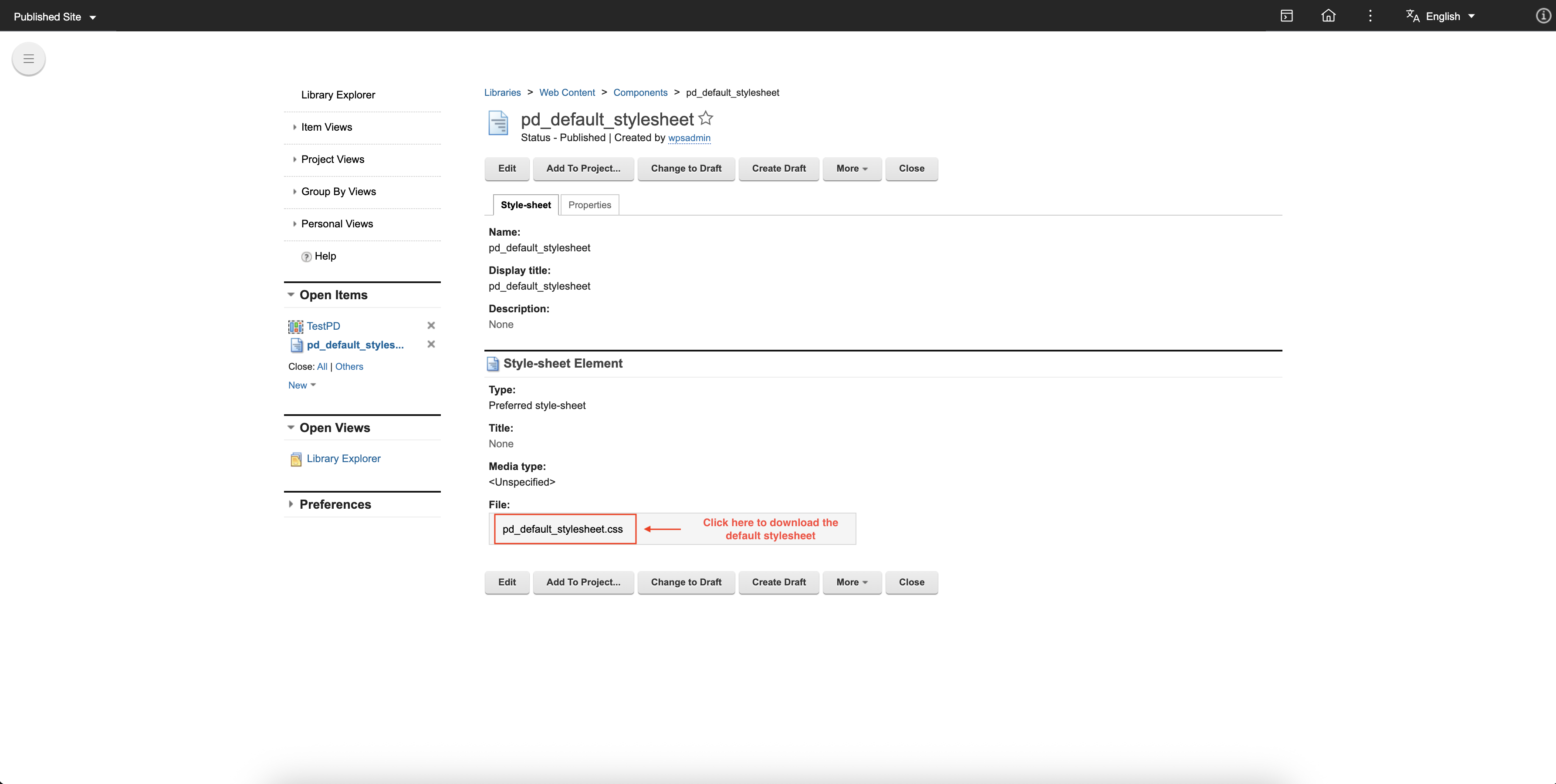
To validate the styles set in the default stylesheet:
- Select the file and click Edit.
-
Click pd_default_stylesheet.css to download the file.
-
Locate the downloaded file and open it. This contains the CSS data inside the default stylesheet.

Override stylesheet
The Override stylesheet allows users to customize styles for specific elements, enabling precise adjustments to meet unique design requirements. Together, the Default and Override stylesheets offer a powerful mechanism for managing presentation aesthetics effectively. The override style options in Presentation Designer work as follows:
-
Override styles can be applied to different resolutions, and each resolution has its own style. If the style is set for Desktop, it applies the change to all devices. If the style is set for Tablet, it applies the change to tablets and mobile devices only. If the style is set for Mobile, it applies the change to mobile devices only. If there are specific changes to the style for a particular device, those changes will not take effect on other devices since the specific device already has a defined value for the style.
-
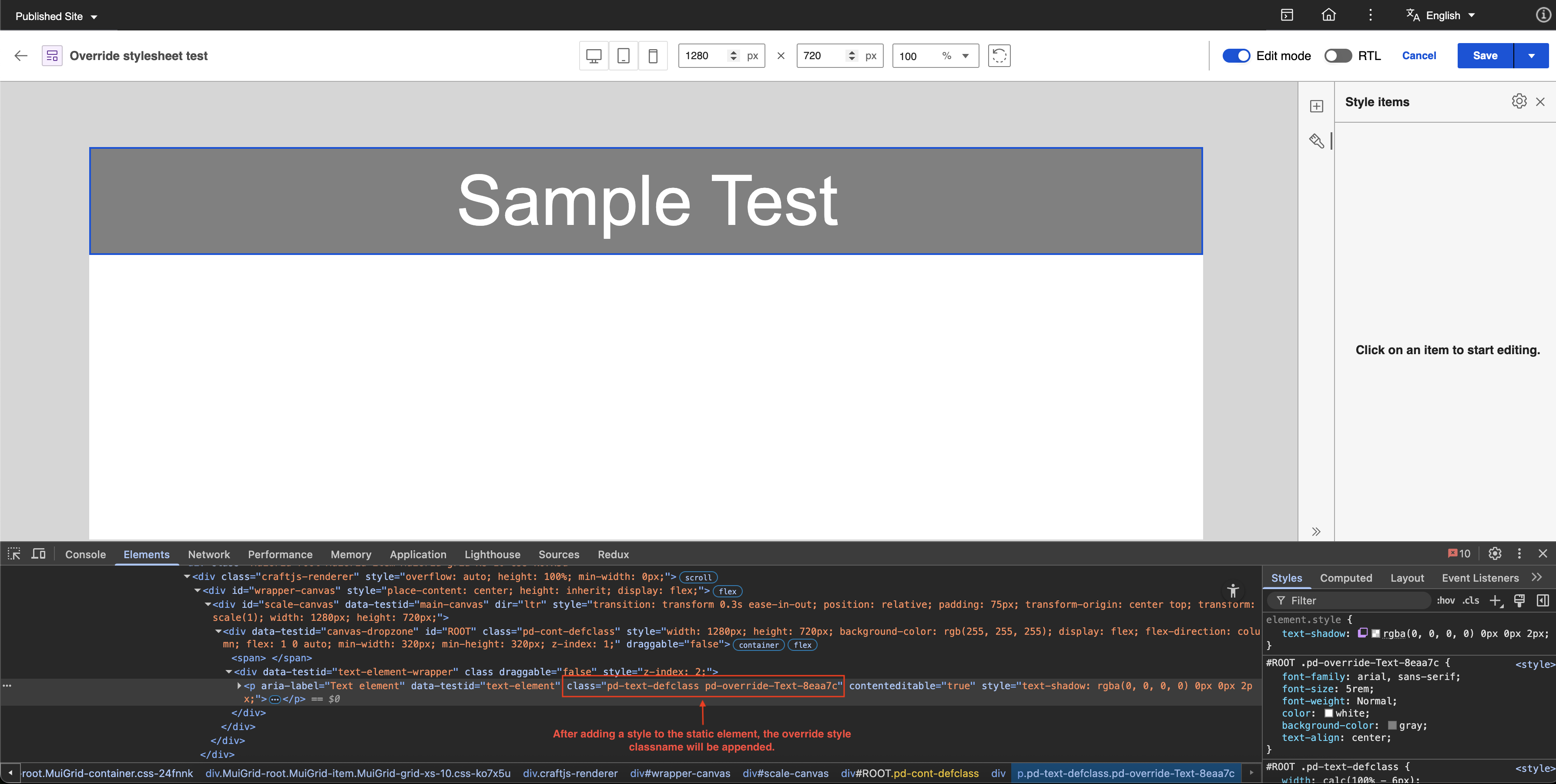
The classname for the override stylesheet on the selected element apply when a style is edited. For example:
After dropping the element:
After adding a style on that element:
-
For each element, there is a corresponding classname convention. For example,
pd-override-[Element]-[(6)uuid]. -
After saving the Presentation Designer, it automatically creates an override stylesheet:
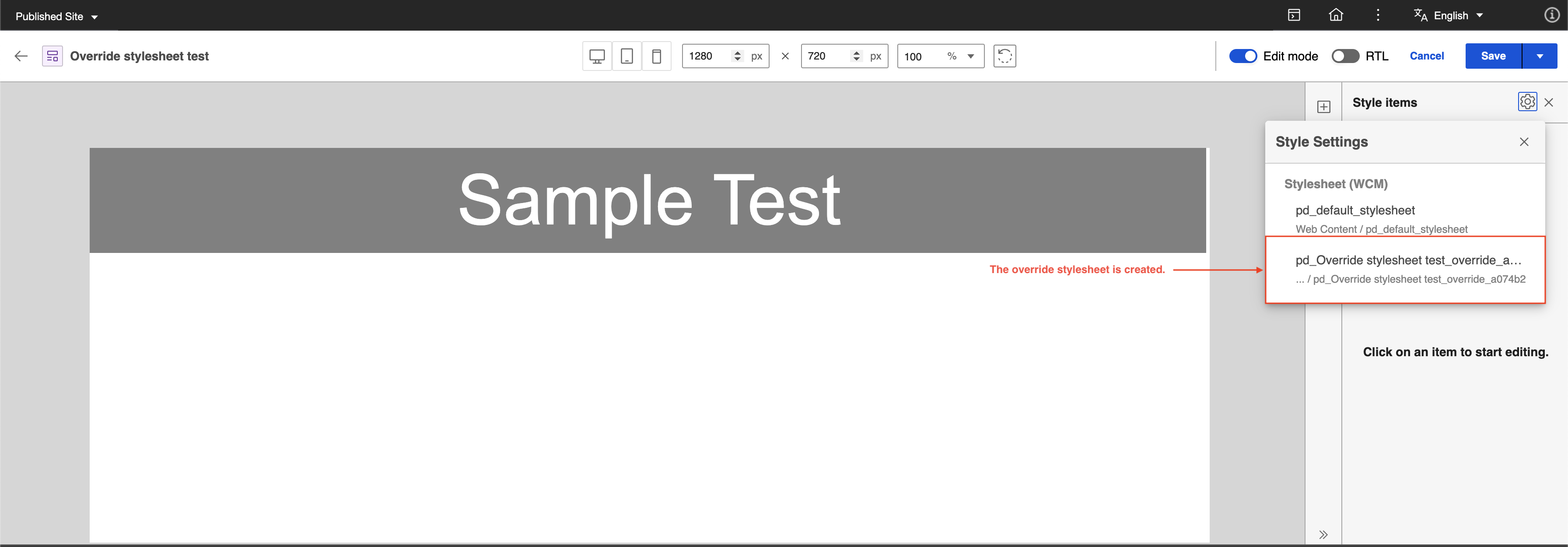
-
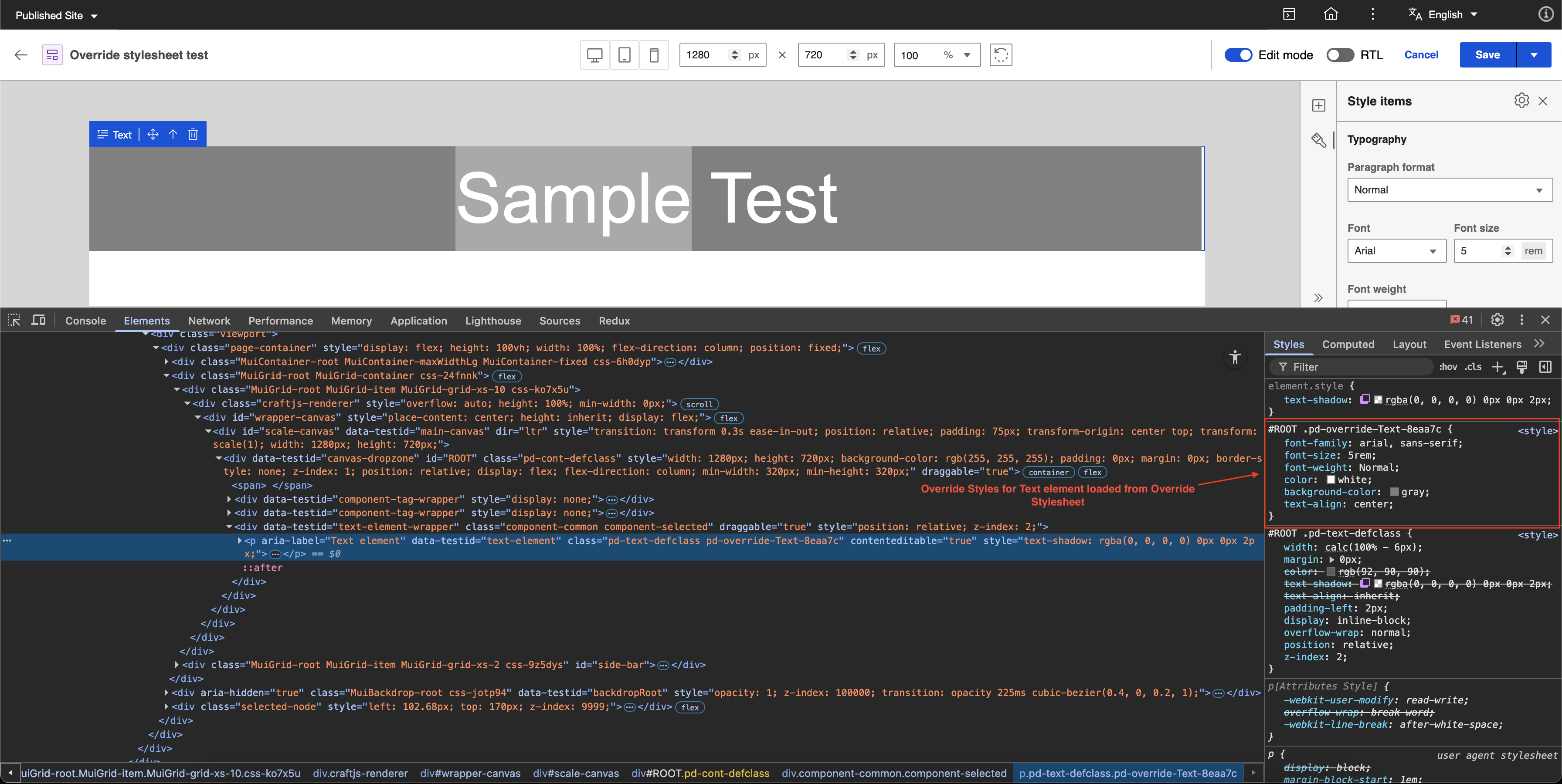
To validate the override style, you can inspect and visit the header and the element. For example:
HTML head for override stylesheet:
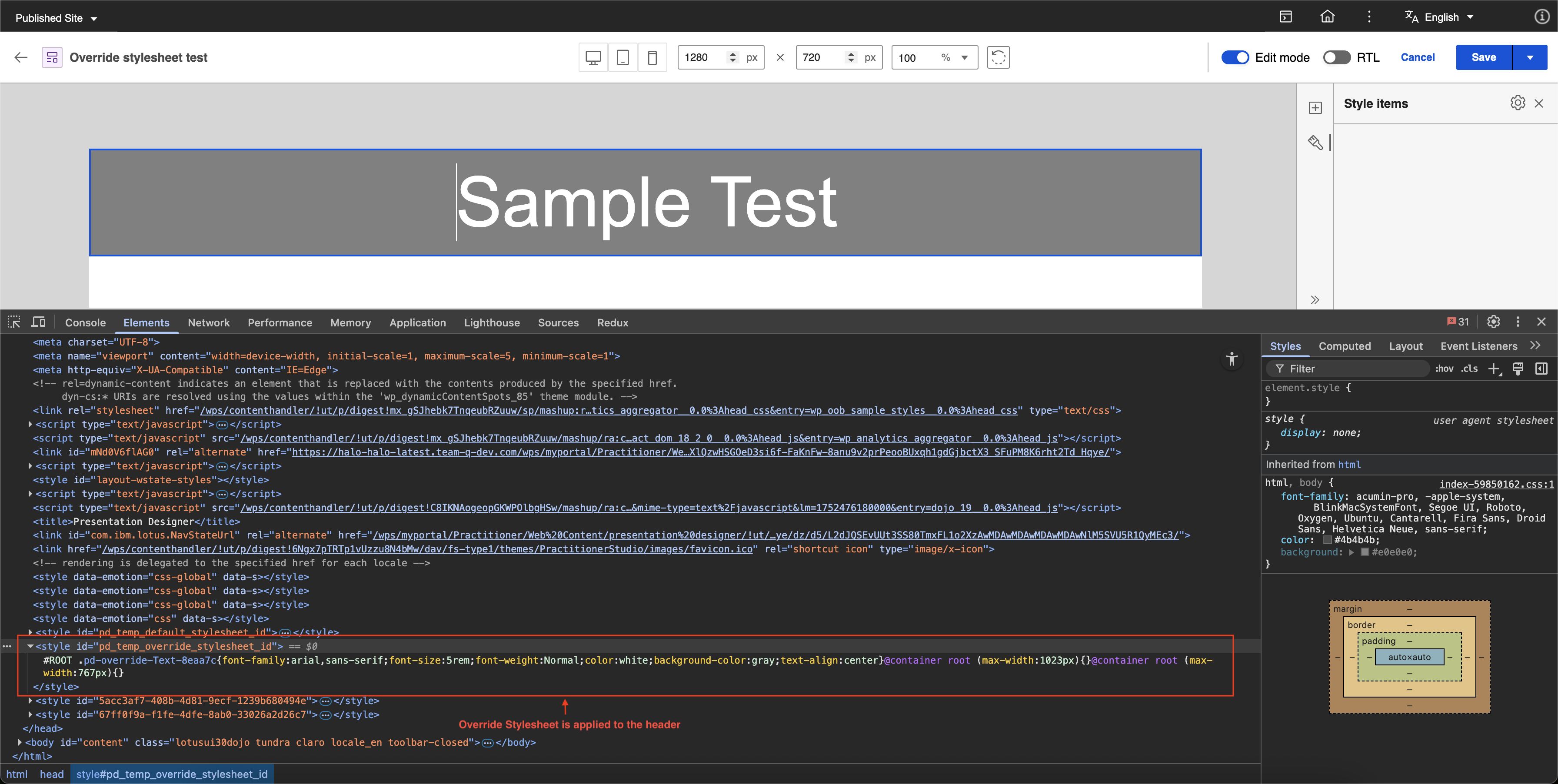
Element styles for the override stylesheet:
-
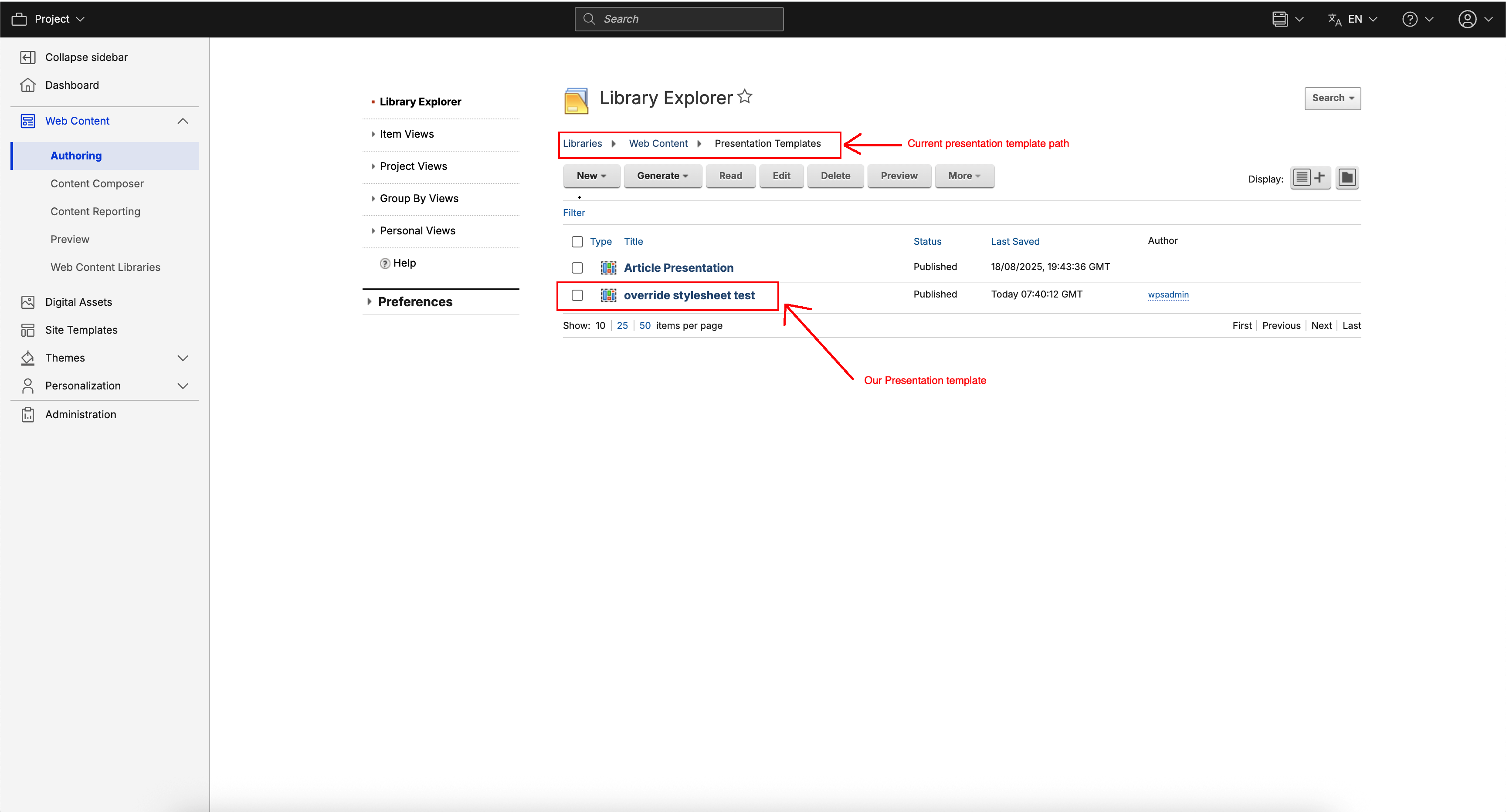
The override style is found in the Presentation Designer libraries. Its location is determined based on presentation template's location:
-
The override style is named based on the following naming convention:
pd_[Presentation template name]_override_[(6)uuid]. For example: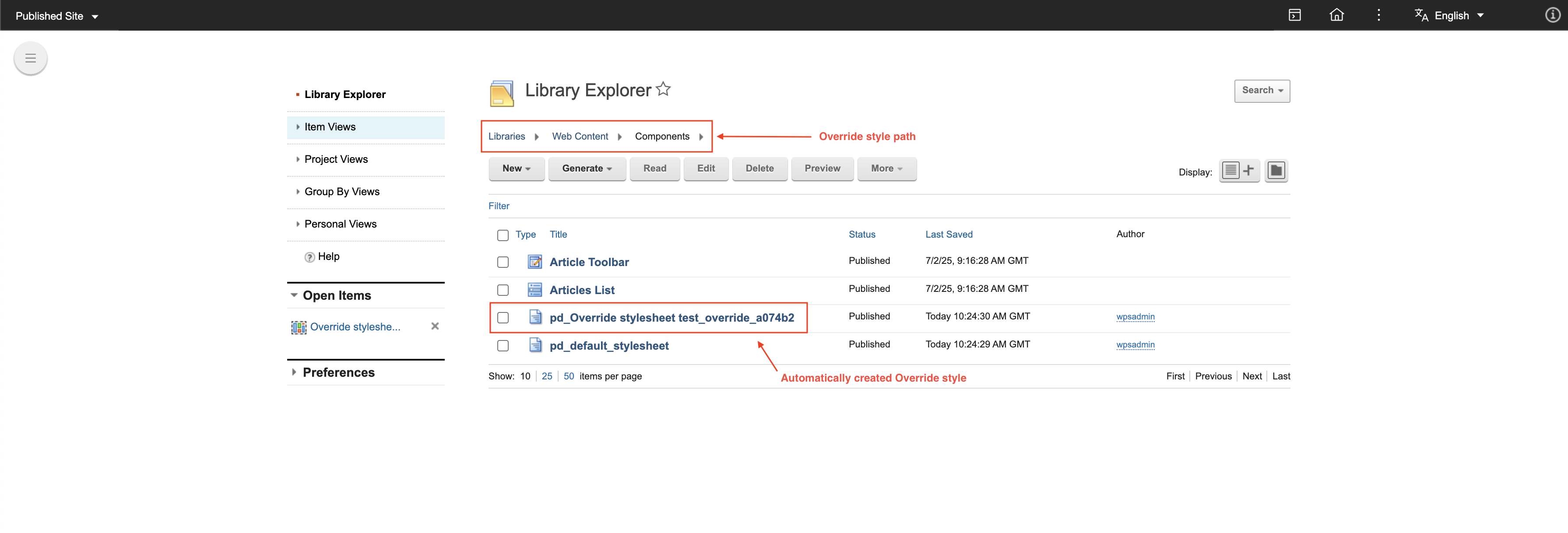
-
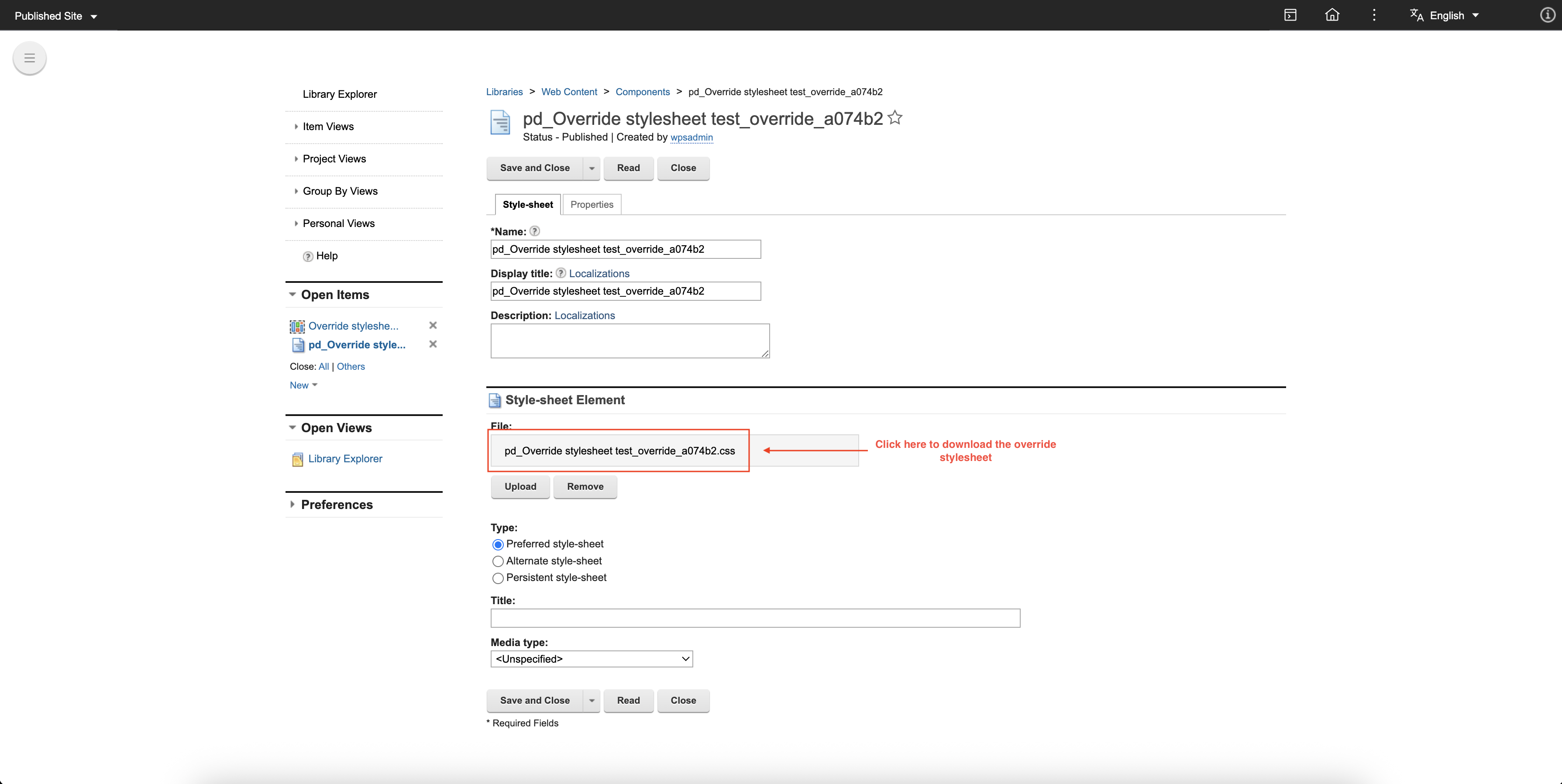
To validate the styles set in the default stylesheet:
- Select the file and click Edit.
-
Click pd_Override stylesheet test_override_a074b2.css to download the file.
-
Locate the downloaded file and open it. This contains the CSS data inside the override stylesheet.
