Implementing the UIC
The HCL Discover Web UIC JavaScript library that captures visitor interactions with your web applications. Implementing the UIC within your web application is a simple process that can be achieved through various standard methods.
You can integrate the UIC into any web application that uses standard HTTP and HTTPs protocols. It is also compatible across all current stable browsers, including Google Chrome, Microsoft Edge, Safari, and Mozilla Firefox.
Embedding
Discover requires that the UIC is loaded on every page with your application to ensure the visitors journey and actions are captured correctly. To achieve this the UIC can be embedded within the page <head></head> tags using any of the following approaches:
- Manual addition of the script tag defining the library
- Using a TagManager (e.g. Tealieum, Adobe Launch, Google Analytics, etc ...)
- Using a CMS component
- Programmatically
<script type="text/javascript" src="/path-to-js/discoverui.js"></script>
UIC script tag
Discover does not prescribe how you add the UIC script tag to your application/pages, only that it is added to all pages you require capturing. There is also no need to be prescriptive with the UIC filename, discoverui.js is widely used, however another example may be discoverui_28072025a.js
Recommendations
To make implementation faster and easier, consider these recommendations for your application. These will be covered as part of any Discover product on-boarding workshops.
- Discuss in advance with your team the tracking of primary use case journeys and any associated data to capture.
- Ideally, assign unique static IDs to all HTML elements you want to track and to all sensitive user input fields.
- Preferably, use static container elements (div) with unique HTML IDs as placeholders for subsequent dynamic AJAX updates.
Static vs. dynamic content
To minimize the amount of data to process, the UIC doesn't capture (store or download) static content, this includes
- images
- videos
- CSS, Note: the UIC may if configured capture SPA inline based JSS, React-JSS, Styled-CSS in the response document
- scripts (e.g. JavaScript, include files, ...)
- other static files ...
At Replay time, all content is downloaded.
Tip
It is suggested applications separate the static and dynamic content into different container elements to take the best advantage of the replay feature.
Check for large blocks of inline CSS in the source of your pages. If possible, move styles to external stylesheet files that can be cached by the browser. Do not inline large data URIs in the HTML. Consider moving them into their own resource file or an external CSS file.
DOM & Shadow DOM
- Consolidate DOM changes to minimize the number of mutation records that need to be processed.
- Make DOM node insertions and removals to the innermost container elements instead of outer elements, like the document body.
- When using data binding for element attributes such as
id,name,classetc., ensure that these values will also be reflected in the HTML DOM. An example of this is the Polymer framework's reflectToAttribute flag.
Shadow DOM
If your application uses Shadow DOM, create Shadow roots in the open mode. Minimize the number of Shadow DOM trees. UIC and Replay performance is proportional to the number of Shadow DOM trees and the size of the HTML DOM content.
Testing the UIC
It can be useful to validate if the UIC has been deployed successfully within a page or site after embedding the script. The following provides approaches to test if the UIC is loaded and validate functions are returning the correctly. This can be achieved in any browser 'developer console' using Command+Option+J on the Apple Mac or Control+Shift+I on Microsoft Windows, then using the Console tab
UIC functions
The Discover UIC provides a number of functions that can be called by referencing them in the browsers developer consoles, console tab. In the example below, typing DCX. will show a list to select a function.
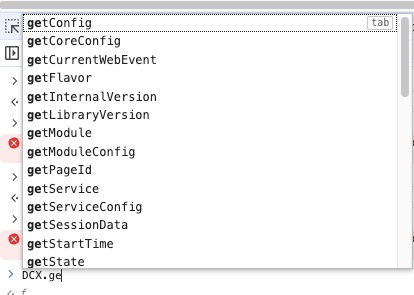
| Function | Returns | Description |
|---|---|---|
| DCX.getState(); | loaded | Returns the state of the UIC. |
| DCX.isinitalized(); | true | Returns true if UIC init. |
| DCX.getLibraryVersion(); | 12.2.3 | Returns the UIC release version. |
| DCX.flushAll(); | true | Flushes buffered data that is gathered by the UIC to its configured endpoint URL. Useful when using TamperMonkey or Fiddler as helpful to send the current data state to the endpoint. |
| DCX.getState() | loaded | Returns the state of the UIC. |
getcoreConfig/getConfig - There are several getcoreConfig and getConfig function calls that return data objects from the UIC, an example of some useful ones are listed below.
| Function | Returns | Description |
|---|---|---|
| DCX.getCoreConfig().version | {author: 'HCL Discover', date: 'April 21, 2026', revision: 'rev 1.5'} | Version of the UIC. |
| DCX.getConfig().services.queue.queues[0].endpoint | /DiscoverUIPost.php | Targetpage and any path |
UIC inclusion
A common request is to locate the UIC within the page, using the browsers Developer Tools it is possible to see the assets loaded within the Sources tab or by following the Networking tab. The Networking tab can be filtered to easily locate the JavaScript files loaded.
Tag manager
The UIC may be loaded within a Tag Manager and may not be immediately visible without additional investigation.
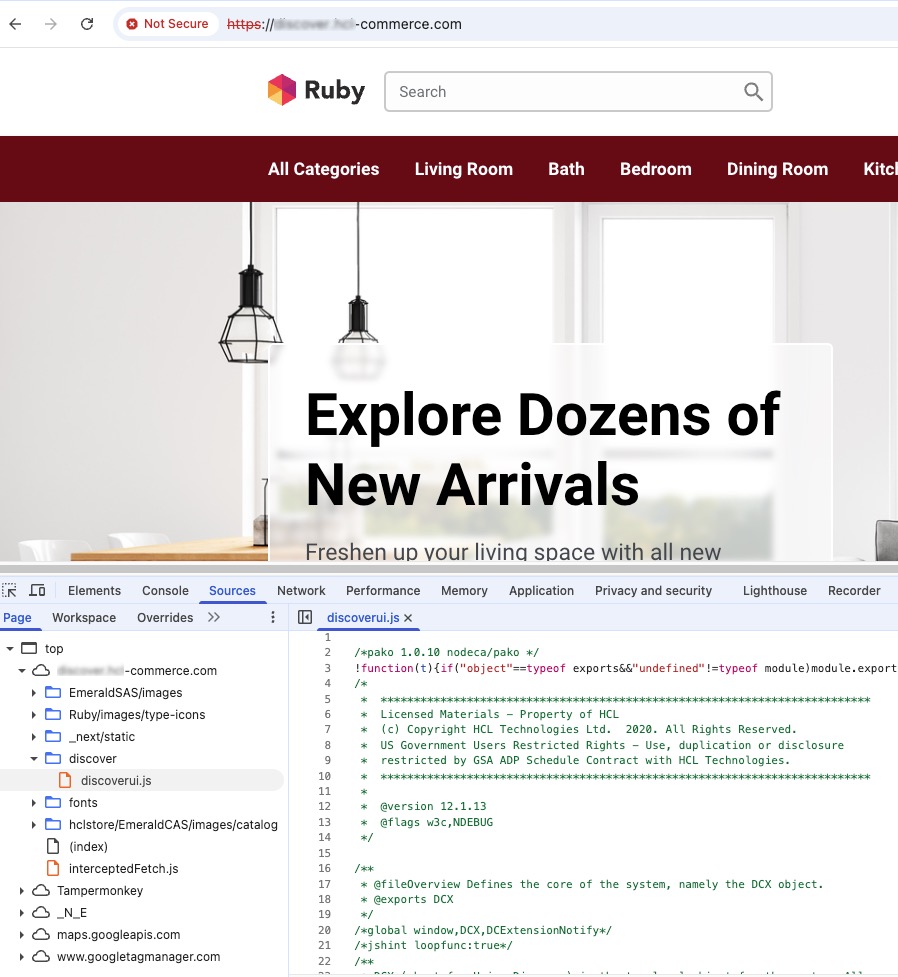
UIC data posting
Using the DCX.flushAll() function will cause the Discover to empty cached data and post to the defined UIC endpoint. Using the Discover Portal, search the Active sessions for the visitor session.
CORs
If there are CORs or POST'ing issues, the DCX.flushAll() function will highlight data posting issues.
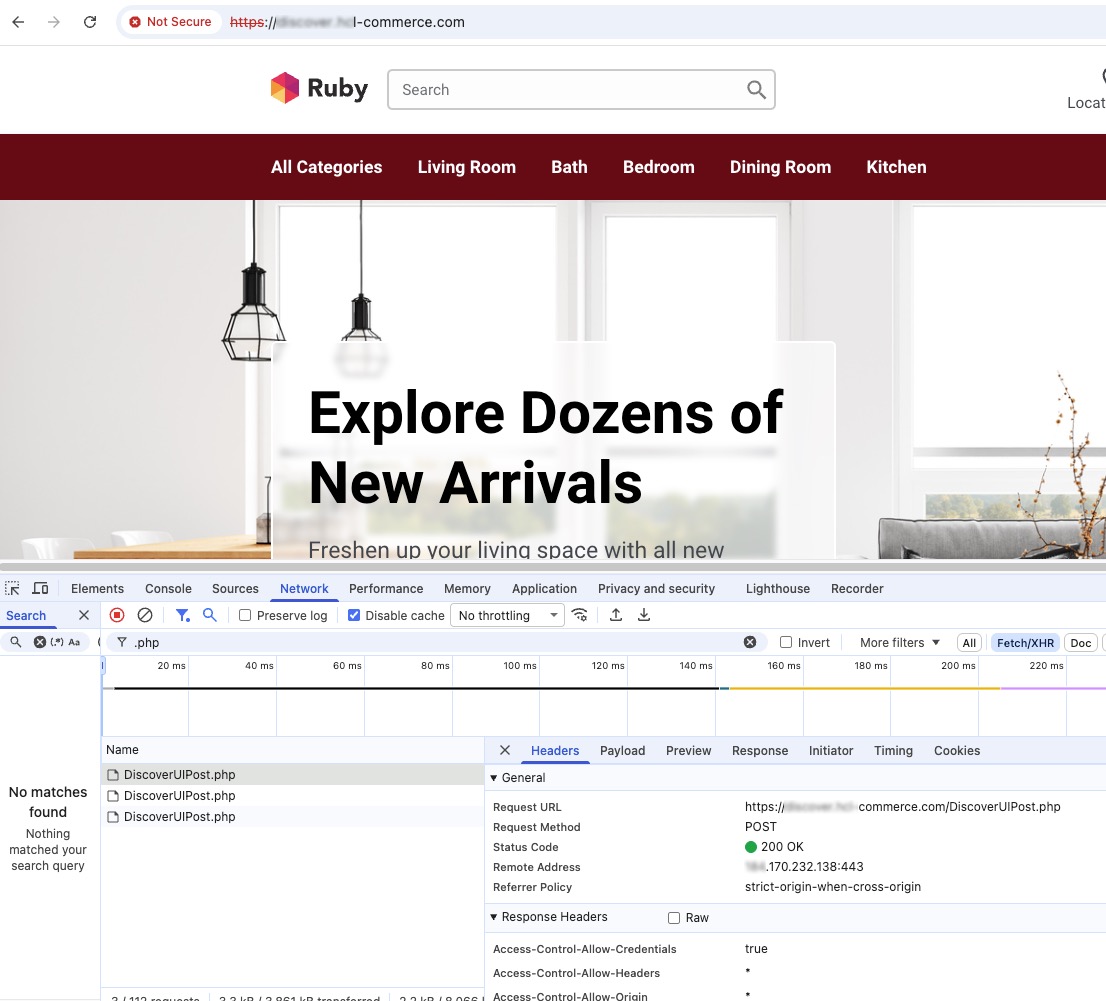
When using the web developer console the Network tab withe the Fetch/XHR option selected highlights AJAX posts from all JavaScript files, including the UIC. By filtering with the string .php the DiscoverUIPost.php can be seen. Selecting the DiscoverUIPost.php and Headers tab will show a Status Code of 200 Ok.
- Cross Domain CORs issues by the web server, or
- Wrong endpoint specified in the UIC
UIC Troubleshooting
- No data
- Is the UIC / SDK deployed and loaded correctly?
- Is the endpoint configured correctly? Check the UIC / SDK deployed?
- Lazy loading
- Increase the DomCapture Triggers: eventload delay. Increase this above the
300msdefault and review - Implement a DOMObserver module, identify when lazyload is removed / added and capture a DOM snapshot
- Increase the DomCapture Triggers: eventload delay. Increase this above the
- No image of fonts
- Make sure the files (e.g. style assets) are reachable from the replay server
- Formatting of layout
- Make sure the files (e.g. style assets) are reachable from the replay server
- Is the site using JSS, implement DomCapture options: CaptureJSS, set to
true
- Seeing PII / SPII
- Implement Privacy Patterns in the UIC