Creating a UIC File
UIC Structure
The Discover UIC is composed of three seperate area:
- PAKO Library
- CORE SDK
- Configuration
PAKO Library
The PAKO library is a third party JavaScript library used with the Discover UIC to compress the visitor payload prior to transmitting to the defined endpoint.
PAKO is available from https://github.com/nodeca/pako. It is recommended to use the minified version of the PAKO code, this is located in the directory dist and names pako.min.js
CORE SDK
The main component of the Discover UIC is defined as the CORE. This is the central minified (does not have to be, but recommended) code of the UIC. It is responsible for capturing the DOM and any visitor interactions on the site the UIC is defined on.
Warning
You MUST NOT change anything within the CORE section of the UIC, any changes to the CORE SDK could break the functionality and is not support by HCLSoftware.
Configuration
This section is where any configuration or tuning changes to the UIC will occur, it is where all of the settings that affect how the UIC works are located.
Accessing the code for the UIC
On-Premise/Cloud Deployments
For on-premise and cloud deployments the UIC files can be located in the Installer zip file. The files can be downloaded from the My HCLSoftware portal. If you are unsure of how to access your software installer files after purchasing Discover then raise an HCLSoftware support ticket, or contact your local/assigned (PSS) directly.
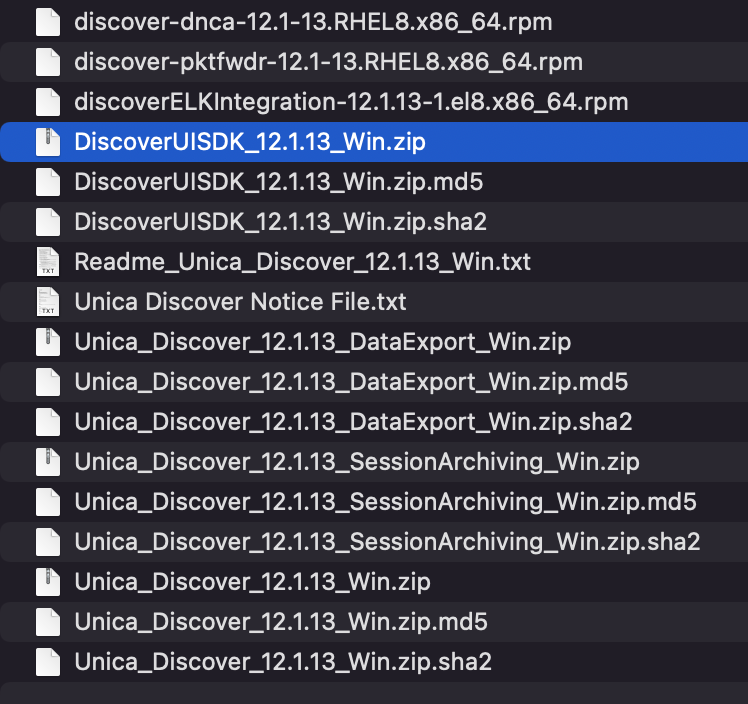
Within the DiscoverUISDK_currentversion.zip you will find various files related to the UIC:
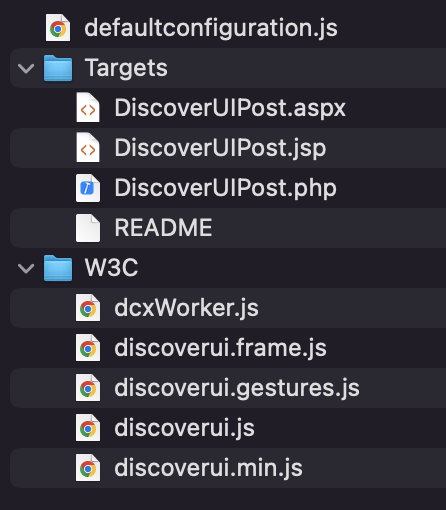
The two files we are interested in here are the CORE SDK discoverui.min.js and the config file defaultconfiguration.js
HCL Now Deployments
Contact your local/aligned PSS or the HCL Now team
Creating your custom UIC file
- Using a text editor and open a new file
- Copy the contents of the minified PAKO Libary
pako.min.jsand paste it at the top of your new file - Next copy the minified CORE code from the
discoverui.min.jsfile and paste it into your new file after the PAKO code - Copy the contents of
defaultconfiguration.jsand paste it in at the bottom of your new file after the CORE code - Finaly,
saveyour file as a .js file, e.g. DiscoverUISDK.js
A newly created UIC should be similar to:
// PAKO LIBRARY minified
!function(t){if("object"==typeof.....

// CORE SDK minified
if(window.DCX)throw"Attempting to......

// UIC Config
(function () {
    "use strict";
        // DCX is expected to be defined in the global scope i.e. window.DCX
    var config, isReinitialized = false,
        DCX = window.DCX,
        .......
Configuring the UIC for DOM Capture
Follow the Quick Start guide to get started capturing data.