Database
Info
The guided steps below do not include the installation of the Postgres or Microsoft SQL software, this should be installed and licensed as per your organisation's standards and processes.
Configure
-
Stop All Discover Services on the Portal server, validate this using the Windows Services
-
Add or update the Windows registry values at
Computer\HKEY_LOCAL_MACHINE\SOFTWARE\WOW6432Node\UnicaDiscover\DataStore\ReportServer. Configure the registry keys based on your chosen database
- Host: Set to your hostname or IP address
- DatabaseType: MSSQL
- Port: 1433 (or the SQL Server instance port if different)
- SQL Mode: MSSQL
- Host: Set to your hostname or IP address
- DatabaseType: POSTGRES
- Port: 5432 (default PostgreSQL port; may vary)
- SQL Mode: POSTGRES
- PostgresUser: PostgreSQL superuser (usually postgres)
- PostgresPassword: Password of the above user
Microsoft SQL Only
This section is only required for organisations using Microsoft SQL for the reporting database.
- Validate that the SQL Server instance has been installed with the default name of MSSQLSERVER and not as a named instance.
-
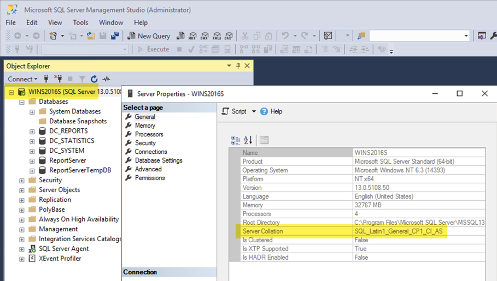
Ensure that the collation setting SQL_Latin1_General_CP1_CI_ has been set during installation of the SQL Server product, it cannot be amended afterwards. You can validate this by accessing the SQL Management Studio logged in as the SQL-SA user, right-click on the server's name > Properties.
-
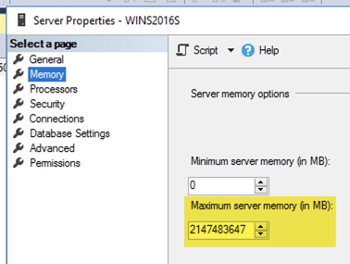
Set the Maximum server memory (in MB) for the SQL Server instance. A suggested best practice is no more than 50% of RAM when co-located on the Discover Reporting server; 75% or less when on a dedicated server.
-
Restart the SQL Server instance.
-
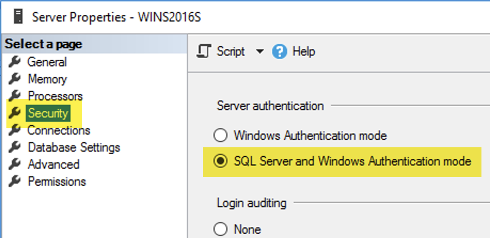
From the same properties menu as step 6 and 7, configure SQL Server for Mixed Authentication Mode.
-
Restart the SQL Server instance.
-
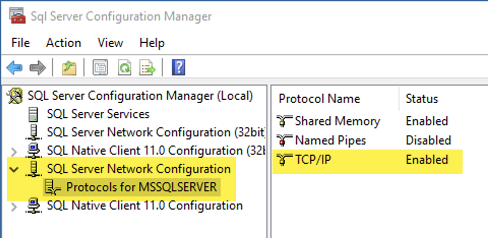
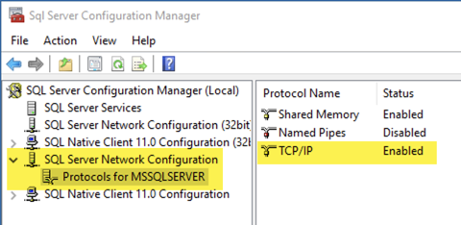
Start the SQL Server Configuration Manager and ensure TCP/IP is enabled for the MSSQLSERVER, if not enabled, right-click and enable.
-
Ensure the SQL Server instance listens on the default port 1433.
-
Restart the SQL Server instance if changes have been made.
-
The folders listed below should be populated post the installation of the Reporting Server:
SQLData <DRIVE>:\SQLData\SQL Log <DRIVE>:\Tlog\Info
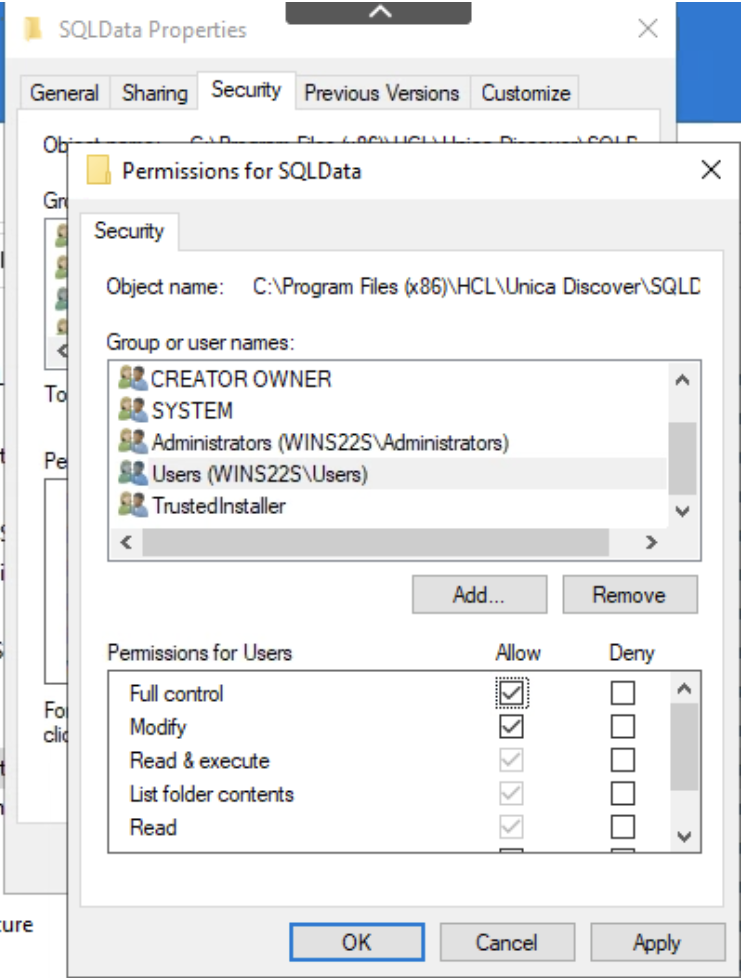
OS permissions for the folder location of the database should be updated to allow for creation of files and folders. Failure to set correct permissions will return an error message of Access Denied during the installation phase.
-
Ensure file permissions on the directory give full access to Users.
Install
- Run the Discover database installer
Discover Install Directory\Reporting\DatabaseInstaller - Execute the installer command based on your database choice:
Tip
You may need to update the Postgres pg_hba.conf file to allow access to connect with the DC_REPORTS, DC_SYSTEM and DC_STATISTICS databases. When running the command below the error ERROR DBM Initialization failed ... no pg_hba.conf entry for host ... or similar is seen, additional Postgres permissions are required. For example: host DC_SYSTEM all 10.0.0.1/32 scram-sha-256
DiscoverDatabaseInstaller.exe -xPOSTGRESx -xinstallx
DiscoverDatabaseInstaller.exe -xmssqlx -xinstallx
installation
During installation, Search Server and Data Service must be running. The installer will attempt to start these services automatically. If Search Server does not start, kill the service executable from Windows Task Manager and start it manually.
Switch Database
The steps outlined below covers the scenario where Discover has been installed to use a database such as Microsoft SQL Server and there is a requirement to switch to Postgres, or visa versa (SQL → PostgreSQL or PostgreSQL → SQL). This is not a migration but a change of database after the initial setup. This also applies if Discover was installed without a database or an additional database is required.
- Stop All Discover services
- Update the registry values under Computer\HKEY_LOCAL_MACHINE\SOFTWARE\WOW6432Node\UnicaDiscover\DataStore\ReportServer use the same registry values listed above
- Start All Discover services again