HITs
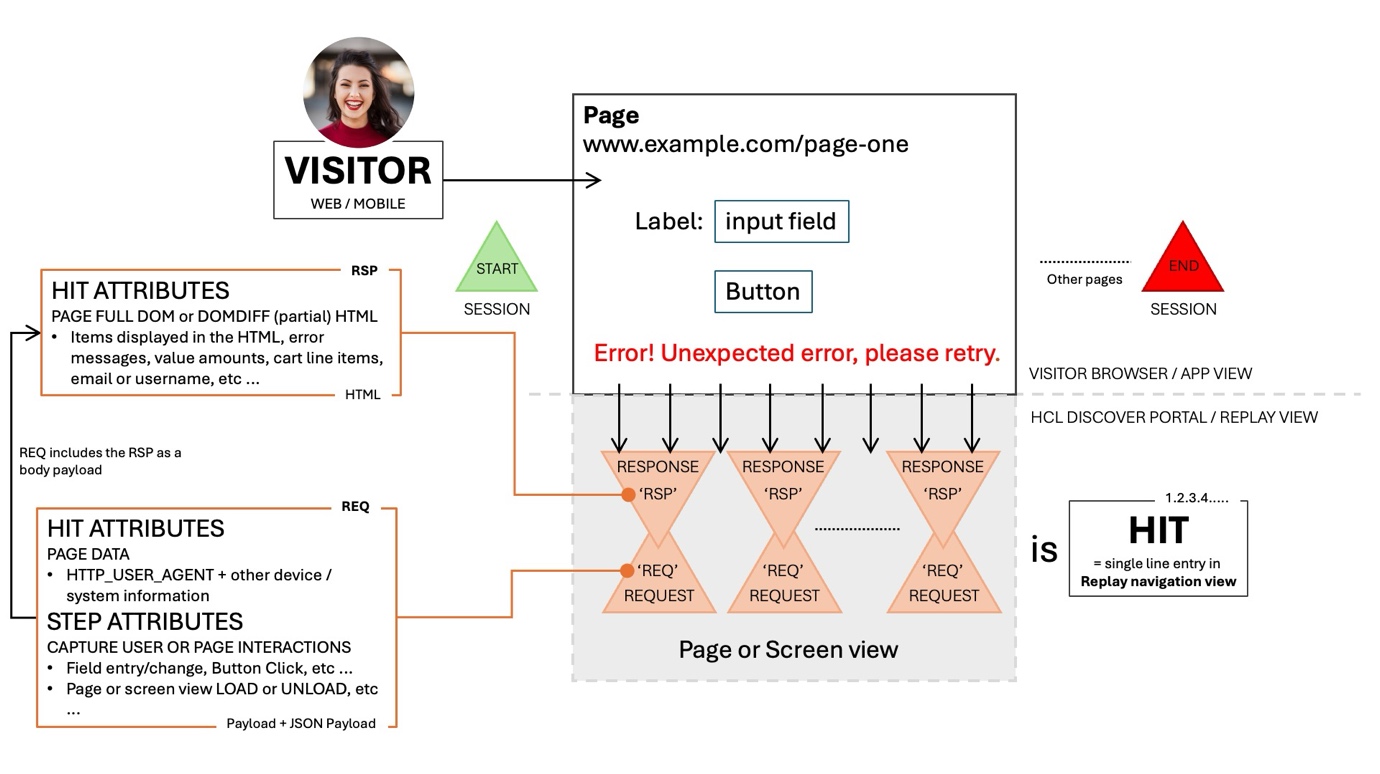
As the Discover solution has evolved and grown over releases the term HIT (not Hit Attribute) has become less relevant, however still a useful term and can be seen within the product UI and documentation currently.
Previously network traffic focused, the solution now supports browser (DOM) and app-based traffic which means it encompasses a wider technical field.
To best visualise the HIT term is to view this from within the session replay capability of the Discover solution. From the screenshot below the navigation pane when expanded the line entries shown correspond to the hit number. This correlation is also shown when viewing the request document with the [HitType] section identifies the HitNumber.
HitNumber
The HitNumber may not always correlate to the entry line-item number as it's possible with system configuration to have other information shown at the start of the session replay. This is a useful point to understand as this will become more relevant when defining an events Evaluation timing.
Events, Hit Attributes and STEP Attributes
As previously stated, Events save information from sessions for use throughout the HCL solution. Realising value from these Discover relies upon precise and careful event creation.
Before we start to build more complex and useful events, it is essential to understand their interaction.
Components: Events, Hit and STEP Attributes
Events are used to record information when defined patterns of behaviour occur within a session, e.g.,
- Page A is viewed.
- An order is placed for an amount.
- An error message is seen for a browser type and version.
- Page A is seen with error message X.
- Page 1 is followed by page 3 and then page 2.
Many different behaviours can be understood and tracked. Events are the logical casing that combine these behaviours together and records information about them.
Hit Attributes are used by 'events' to find specific patterns within the session data. They identify and locate URLs, order amounts, or error messages within a page. Once a HA identifies the information, it makes that available to the 'event' for recording.
They can serve as conditions, 'event' values or 'Dimension' values, identifying matches and providing data for the 'event' to store.
Hit and STEP
Hit and STEP attributes are the foundational building block for Events.
Hit Attributes
Hit Attributes look for specific text strings that can be found within the request (REQ) or response (RSP) documents. They can be:
- A confirmation message Thank you for your purchase,
- a user entry fernando_garcia1971_@gmail.com
- ...
Anything that is visible on the replay page or found in the Request or Response buffers can be defined as a Hit Attribute.
Each Hit Attribute looks for only one value. When it finds the value, it holds it in temporary storage for the duration of that hit's processing.
Unless an Event records the value, the information in a Hit Attribute is lost when the next hit is processed.
STEP Attributes
STEP Attributes look for specific text strings or user/page interactions that can be found ONLY within the request (REQ) document. The request document is denoted by sections as well the JSON notated STEPs themselves. They can be:
- a screen view name #?formShopingCart
- or page URL such as /faq/returning-a-purchase
- button clicks
- field value changes
- ...
In the screenshot below from the Request document available in Replay, there are four key STEP attributes available and useful for building events.
- The name and dcType, useful to ensure that the event will run against the specific user interaction
- The currState.value, the current input value of the textbox by the visitor
- The prevState.value, as the current state but useful to know if previously it was blank or if it had a prior value.
- The dcEvent and type, values that allow you to know if this was a change event or not.
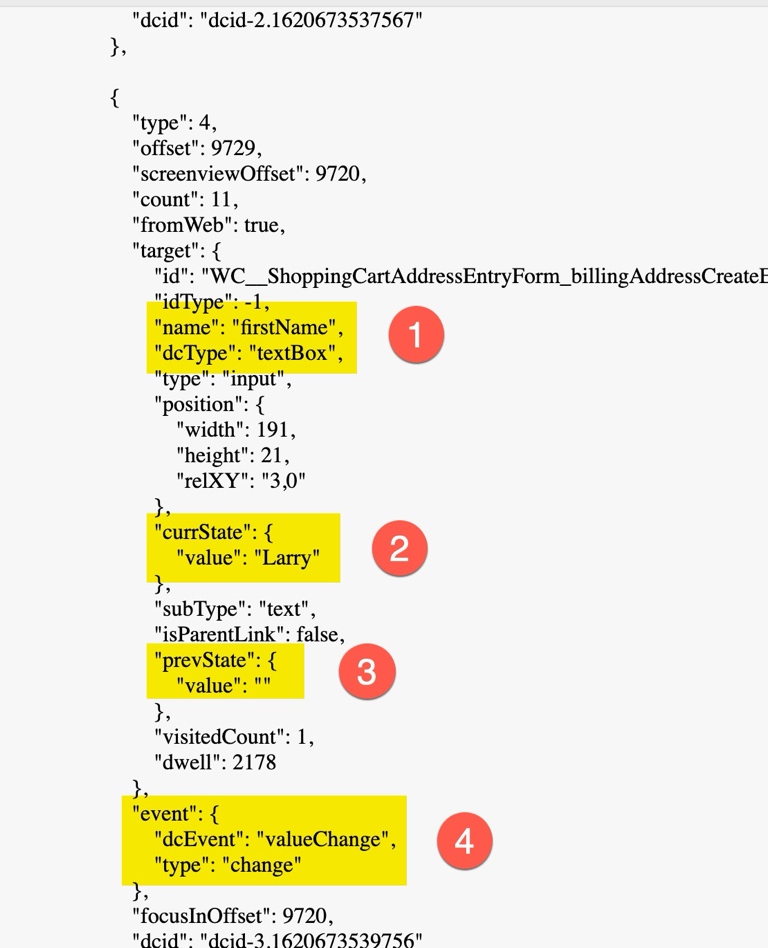
Each STEP Attribute looks for only one value. When it finds the value, it holds it in temporary storage for the duration of that STEPs processing.
Unless an Event records the value, the information in a STEP Attribute is lost when the next hit in the session's navigation is processed. Let's take a closer look at how Events work.
Events
As previously stated, Events define a specific behaviour to track within the session. They consist of three basic elements that correspond to the steps outlined previously in the Event Wizard.
| Key | Description |
|---|---|
Condition |
Evaluates whether the defined behaviour occurred within the session. |
Value |
Records information about the behaviour that occurred. |
Dimension |
Records related information about the session when the defined behaviour occurred. |
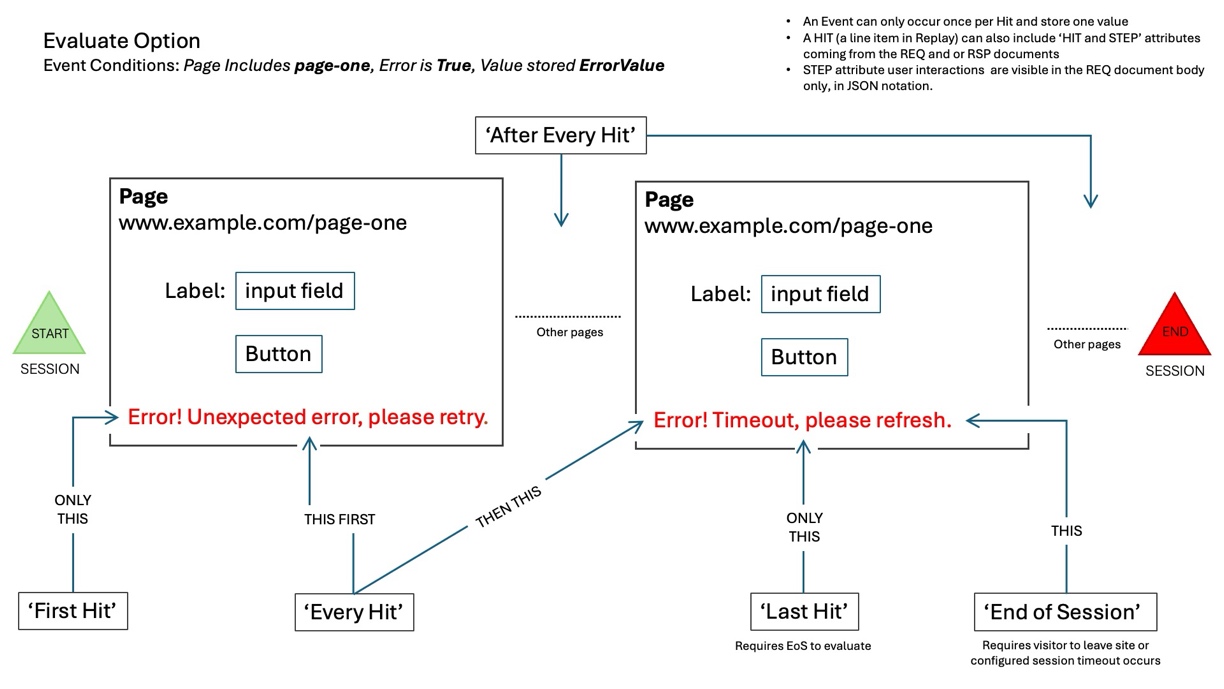
Events are configured when to consider executing their evaluation criteria, this is when the Event will cycle through each evaluation according to its condition and when it is to occur.
If the condition is true, the Event occurs and captures the Event Value and the associated Dimension Values at that moment in the session.
For the example below, the diagram shows when an Events option will evaluate based upon it's being set to:
- First Hit -- When the first Hit occurs, and conditions are all met
- Every Hit -- As above but remember an Event can only store a single Hit value
- After Every Hit
- Last Hit - When the last Hit occurs, and conditions are all met. The end of session must have also been seen
- End of Session (EoS) -- When the session ends for whatever reason
How Do Events Work?
As each hit in the session is processed, Events use HAs to identify required patterns. When the patterns are located, the HAs provide the Event with temporary access to the defined values. The Event stores the values provided by the HA as per the Events definition.
Finally, 'event' and 'Dimension' data is saved to long-term storage, including counts (how many times it occurred), and assigned values.
Limitations of Hit Attributes
HA data is [only available while processing the current hit]{.underline}, once the current hit has been processed entirely all HA values are erased and the HA continues to identify further matches on the next hit.
Using a retail example of this, to track [how many]{.underline} orders are submitted including their [payment method]{.underline}, a single 'event' uses two HA:
- HA looks for the Order Review Page URL
- HA looks for the Payment Method
- When HA1 locates the matching Order Review Page URL, the 'events' condition is satisfied. HA1 then causes the 'event' value to increment by one.
- The Payment Method is identified on the same 'hit', and so HA2 provides that value (Credit Card or PayPal) for use as a 'Dimension' value.
- Finally, the 'event' and 'Dimension' information is saved to long-term storage and the HA are reset to prepare for the next 'hit'.
Exercise - Basic Event Creation
The Scenario
The marketing team needs to track the ratio of mobile visitors to the website who use January sales promotional codes.
In Preparation
Think through these questions and answers, be clear about how you would answer them:
| # | Question | Think about ... |
|---|---|---|
1 |
How will the Event be used? | The scenario description above indicates this will be used for a ratio report showing mobile visitors who use a specific promotional code. |
2 |
What do you want to measure? | The report will track mobile visitors using a promotional code. |
3 |
Where is that data displayed within a session? | Because all 'events' are based on text within sessions, we need to determine what text will indicate that this 'event' occurred. |
4 |
How should the Event be counted? | We need to count either the first or last time this event occurs. Whether or not the visitor entered a promotional code 1 or 10 times, we need to count just one. |
Event Methodology
You should now have an understanding how the different components interact and know how to use the 'Event Wizard', you can start to build more sophisticated Events. Remember, the way an event is configured depends entirely on how it will be used.
Using the right settings requires a clear definition of the information you expect the event to produce. To ensure you're setting the 'Event and Dimension' values correctly, as well as building good conditions, it is important to think through some key questions we highlighted earlier before starting.
Useful Event Definition Questions
Think through the questions below before starting to create an event:
-
How will the event be used?
- Will the Event be used primarily for a Report? Or will this Event be used for searches? Another purpose for Events is to serve as Session Attributes, which can be displayed on the session list page. Session Attributes allow you to see at a glance some extracted information from a customer's session, such as which browser they used or what search term they entered.
-
If for a report,
-
What do you want to measure?
- First, consider what metrics are of value to your organisation. Do you track sales? usability or process conversions? Some common metrics are:
- Conversion rate. Struggle score (occurrence of behaviours that indicate confusion and frustration). Usability issues and error rates
- How do you want to measure those items? Do you track the number of sales or their values? What actions indicate customer struggle? Are they single actions such as visiting a help page, or repeated ones such as re-entering billing information?
- What you want to measure must be the Event value. The Event has to be configured differently to capture the number of occurrences versus the value of those occurrences. Similarly, repetition of a behaviour is captured differently than a single occurrence of that behaviour. It is necessary to determine the exact desired Event value in order to configure it correctly.
-
How do you want to segment the Report?
- Dimensions allows you to segment the report data. By default, reports are segmented by day and time. If you want to use a different value for either the 'x' or 'y' axis, or display a subset of value(s), those must be recorded as dimension values.
- Dimensions act like a session snapshot, recorded at the time the specific event occurred. If your event recorded a visitor error, you may want to record some technical information to support what happened (e.g., the browser or operating system). If your event recorded a process step, you may want to record business level information such as whether a marketing campaign referred the visitor, or the value of the items in the cart, or the step in the bank transfer.
-
-
If NOT for a report,
-
What information do you need to search on, or view within the session list?
- The event value gets saved to the session data, which enables you to search for a specific value, or search simply on whether an Event occurred or not. Another search feature is that you can narrow your search to a particular Dimension value. For example, if you want to search on 500 errors over the span of an hour, you may want to search only on the traffic type 'browser' which is a Dimension value.
- Events also serve the 'session list' page where they can display whether the event occurred or not (via an Icon defined through the event wizard). If an event is consumed into a 'Session Attribute' it can also display its value, which can be useful for quick diagnosis or tracking.
-
-
Where is that data displayed within a session?
- Previously highlighted, all events are based upon 'Hit Attributes', which look for text strings in the 'Request' (REQ) or 'Response' (RSP) document, or on other events that have previously occurred during the session. Before building an event, you must first determine how to define it by using text strings within a hit, or other events up to that point in the session.
-
How should the Event be counted and valued?
- There are settings that determine the value events record. They include whether an event is tracked every time it occurs within a session, or only the first time, and which value to use. These settings primarily impact reports but can also affect search results.
-
What Data Is Available When?
- Events can become much more powerful when values from different points in the session are used. This section describes in detail the timing of Events and values within the session, and how that impacts Events.
Let's Practice
It's a great idea now to take the time now to practice what you have learned so far.
Hit Tips
What is a Hit count?
It can be easily assumed that this number is accumulative and directly related to totalling all visitor hits, much like a session count which is a useful ratio number for reporting.
The Hit count refers to the sequential number of the hit(s) being seen by Discover. This number can easily be visualised by expanding a visitors session Replay, the Hit count number referring to each session navigation line in a descending order, 1 to n.
What are the uses?
A primary use of this can be to understand the basic order of when something occurred during a visitors journey, did B happen before A or specifically did the visitor review the registration FAQ before starting the registration process?
Some other use cases might be:
- Did an activity / action occur at the start, end or within X hits of an event.
- Was specific content (FAQ, Orientation, Page, Banner, Video, etc ...) viewed or fields completed prior to a specific activity, for example a Login.
- Did and error occur at the start of the visitors journey, before or after an event.
- Was a field or button clicked prior to Login or starting a form process? Useful in a UX / CX review.
Question
Can you think of other use cases for where a hit count number could be useful?