Upgrading the servers
Review the upgrade manual steps
Upgrade Order
graph LR
  A(**Portal**) ==> B(**Reporting**) ==> C(**Replay**) ==> D(*Processing*) --> E(*HBR*) --> F(*DNCA*);
Windows Server Upgrades
Info
It is recommended to upgrade one server at a time on distributed environments to minimise any potential data loss
Pre-upgrade
-
The HBR, Processing, Reporting, Portal, and Replay servers should be backed-up up as per your organisations standards, by default the installed file / directory location is
x:\Program Files (x86)\HCL\Unica Discover\on all Windows servers, however it may be installed elsewhere.- SQLData and PostgresSQL data locations including Discover log directories can be excluded from the backup is space if at a premium.
- Backups will take up a greater amount of disk space on the Processing servers due to the visitor session data being stored
- It is advised to back-up the following databases on the database server(s):
- DC_SYSTEM
- DC_REPORTS, this may be large
- DC_STATISTICS
-
Copy and extract the downloaded Discover upgrade package
HCL_Discover_12.2.x_Upgrader.zipto a temporary directory on all Windows servers (HBR, Processing, Reporting, Portal, Replay). Extract theHCL_Discover_12.2.x_Upgrader_Win.zipfile which contains the upgrade executables to a suitable folder e.g.x:\HCL_Upgrade\or shorter to avoid the Microsoft Windows OS limitation of 256 characters folder path length.README
Review any upgrade package README
Readme_HCL_Discover_12.2.x_Upgrader_Winfile requirements and tasks, these include mandatory steps. Optional steps may be and should be applied depending upon your environment; for example for the Data Export and Session Archiver components.
Upgrade
-
Ensure you take a backup of configuration files prior to upgrade as they could contain customisations which will not persist during upgrade. A list of the configuration files to backup can be found in the Release package -
HCL_Discover_12.2.x_Upgrader.zip- in the READMEReadme_HCL_Discover_12.2.x_Upgrader_Win -
Stop all Discover services with Administrator privileges.
-
Review the Windows Services application to ensure all Discover services are stopped. Right-click and stop any and all remaining non-stopped Discover services.
-
Run the upgrader by right-click and Run As Administrator -
C:\HCL_Upgrade\HCL_Discover_12.2.x_Upgrader_Win\DISK1\DCSetup.exe- Follow through the Upgrader steps
-
If upgrading the Portal server, before moving onto the next steps run the Database Upgrade
-
At this point, return to the README file and follow the instructions to restore the config files backed up in step 1
-
Start all Discover services with Administrator privileges.
-
Repeat for remaining Windows Servers
Database Upgrade
-
Upgrade all databases
<Discover_Home_Folder>\Reporting\DiscoverDatabaseManager.exeon the Reporting server, see the README for database upgrade steps for Microsoft SQL and Postgres SQL. For the following upgrade steps immediately below, do not start the Discover services on the upgraded server(s).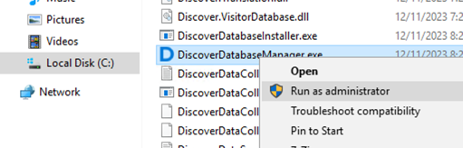
-
Login with SA user
-
Navigate to
Mode -> Database Setup -> All Databases -
Ensure that the
Actiondrop down is set toUpgradethen clickOK -
Once complete, check for errors then exit from the
Discover Database Mangerapplication and return to the Windows Server Upgrade steps.
Linux Server Upgrades
DNCA Upgrade
-
Login to the Linux server as root
-
Copy and extract the downloaded Discover upgrade package
HCL_Discover_12.2.x_Upgrader.zip. Copy thediscover-dnca-12.2-x.RHEL8.x86_64.rpmfile to/root/. -
cd /root -
Stop the Discover DNCA Services:
discover stop all -
Run the upgrade package:
rpm -Uvh discover-dnca-12.2-x.RHEL8.x86_64.rpm- where x = new DNCA version - e.g. discover-dnca-12.2-2.RHEL8.x86_64.rpm
-
Once complete, Start the Discover DNCA services:
discover start all- ensure both HTTPD and Capture are running:
discover status
- ensure both HTTPD and Capture are running:
-
Repeat if more than one DNCA server.
Target Page Upgrade
- Update the Endpoint Target Page, copy and extract the downloaded Discover upgrade package
HCL_Discover_12.2.x_Upgrader.zip. Copy theDiscoverUIPost.phpfile fromDiscoverUISDK/DiscoverUISDK_12.2.x/Targetsto/var/www/.
Troubleshooting upgrades
If running into the error Discover Transport Service - Service could not be deleted, Discover Transport Service should then appear as 'Disabled' in the Windows Services snap-in, use the following to troubleshoot:
- Reboot the server, the Discover Transport Service will disappear.
-
Re-create the Discover Transport service using the below commands, to be run from a Windows Command prompt with Administrator access:
sc create "DC_Transport" DisplayName="Discover Transport Service" binpath= "C:\Program Files (x86)\HCL\Unica Discover\DiscoverCaptureSocket.exe"sc description "DC_Transport" "Receiver for data captured on remote machine(s) and sent to this machine via the network"
Post-upgrade
Review the post upgrade steps
iFixes
Download and apply any iFix updates to the appropriate server component, this is typically the Portal server but is outlined in the package README.
README
Review any upgrade iFix package README file requirements and tasks, these will include mandatory steps and will be critical to the successful application.