Google Overrides
Chrome override is a powerful and useful feature built into the Google Chrome that facilitates the local override of the HTML, JavaScript or other aspects being presented in the browser. For Discover this is useful to allow for modification to the UIC SDK to redirect visitor traffic data to an alternative endpoint.
Tip
If you are not using Google Chrome as your browser, Mozilla Firefox and other browsers have a similar function.
As an example, https://www.discoverstore.hclcx.com/wcs/shop/en/auroraesite is a public HCL demo environment with an embedded UIC. The override feature can be used to change the UIC value of the endpoint for Discover endpoints. This does not affect visitor traffic other than your own.
    // within the UIC JavaScript file.
    endpoint: "https://hclcx.discoverstore.hclcx.com/DiscoverUIPost.php",
This video video is also listed as part of the Discover Tech Snippet series on HCLSoftware U.
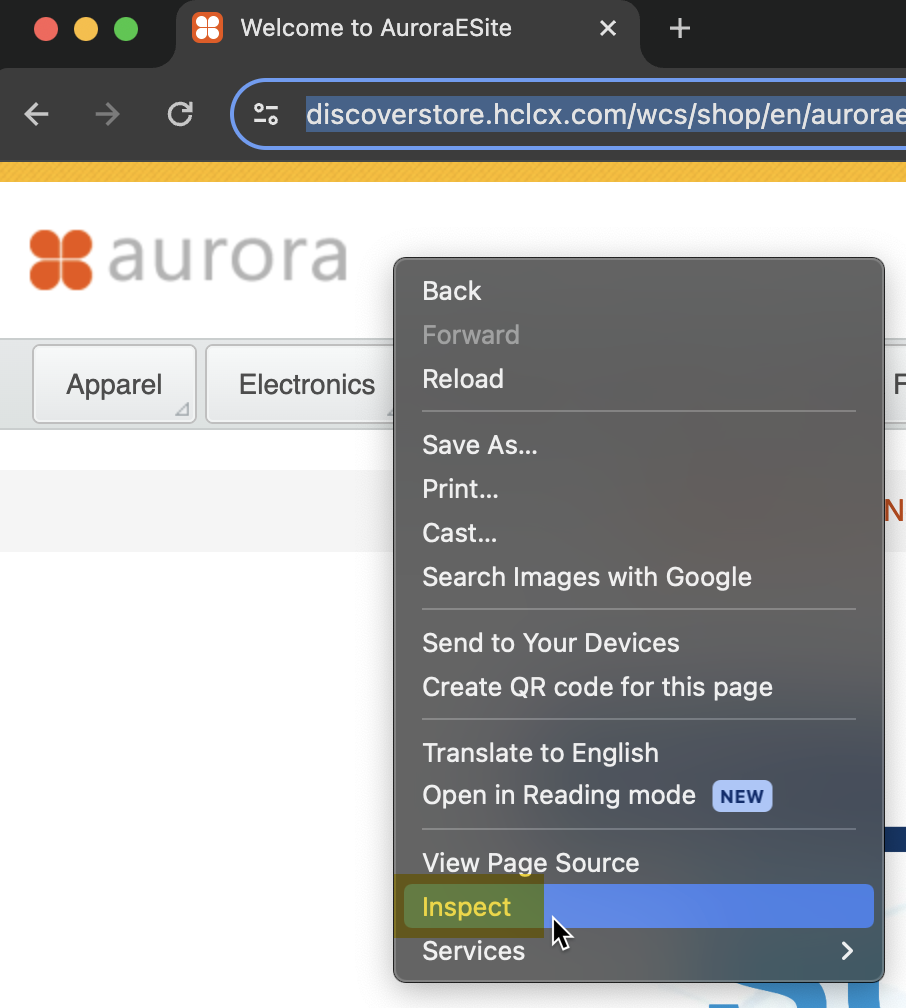
Access the example website provided above and right-click, selecting the Inspect option. This will give you access to the web developer tools in the browser for this website so you can put an override into effect.
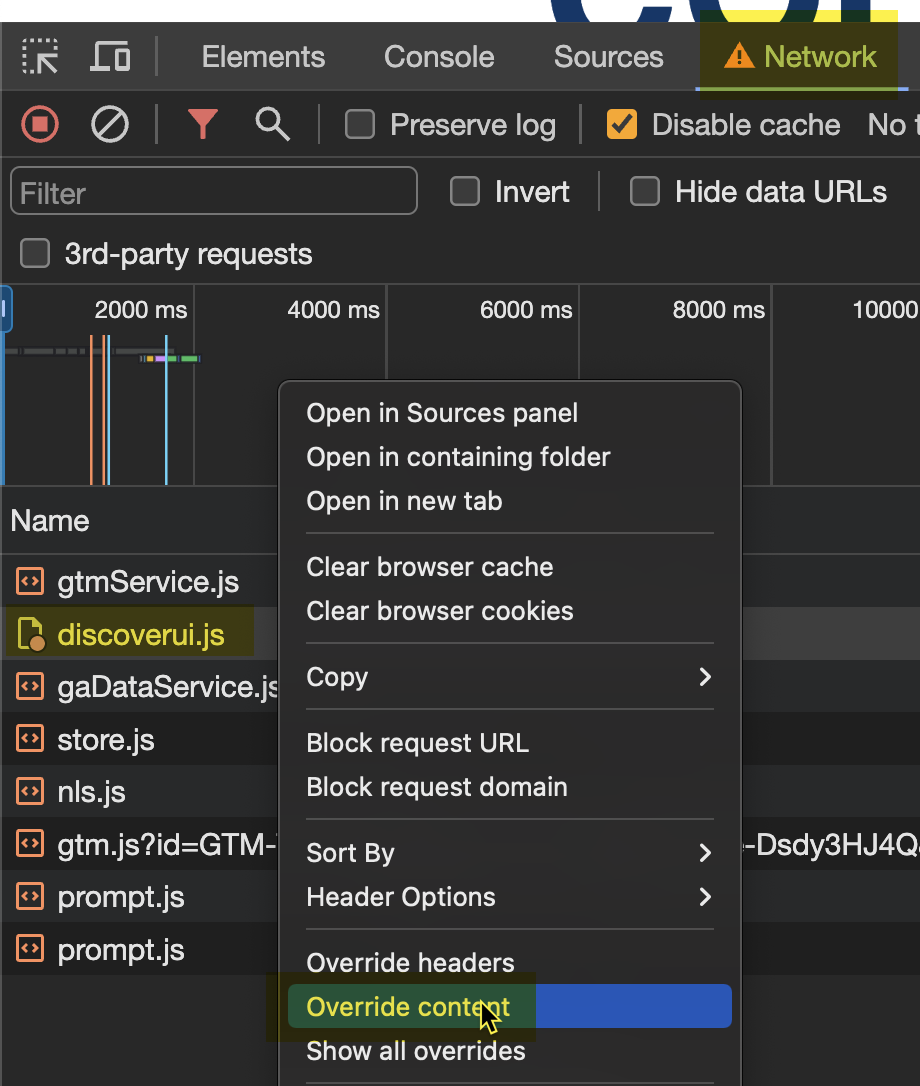
Click the Network tab, at this point you may need to refresh the browser page to show the list of files shown in the Name column. Right-click the file listed as 'discoverui.js' and select the Override content option.
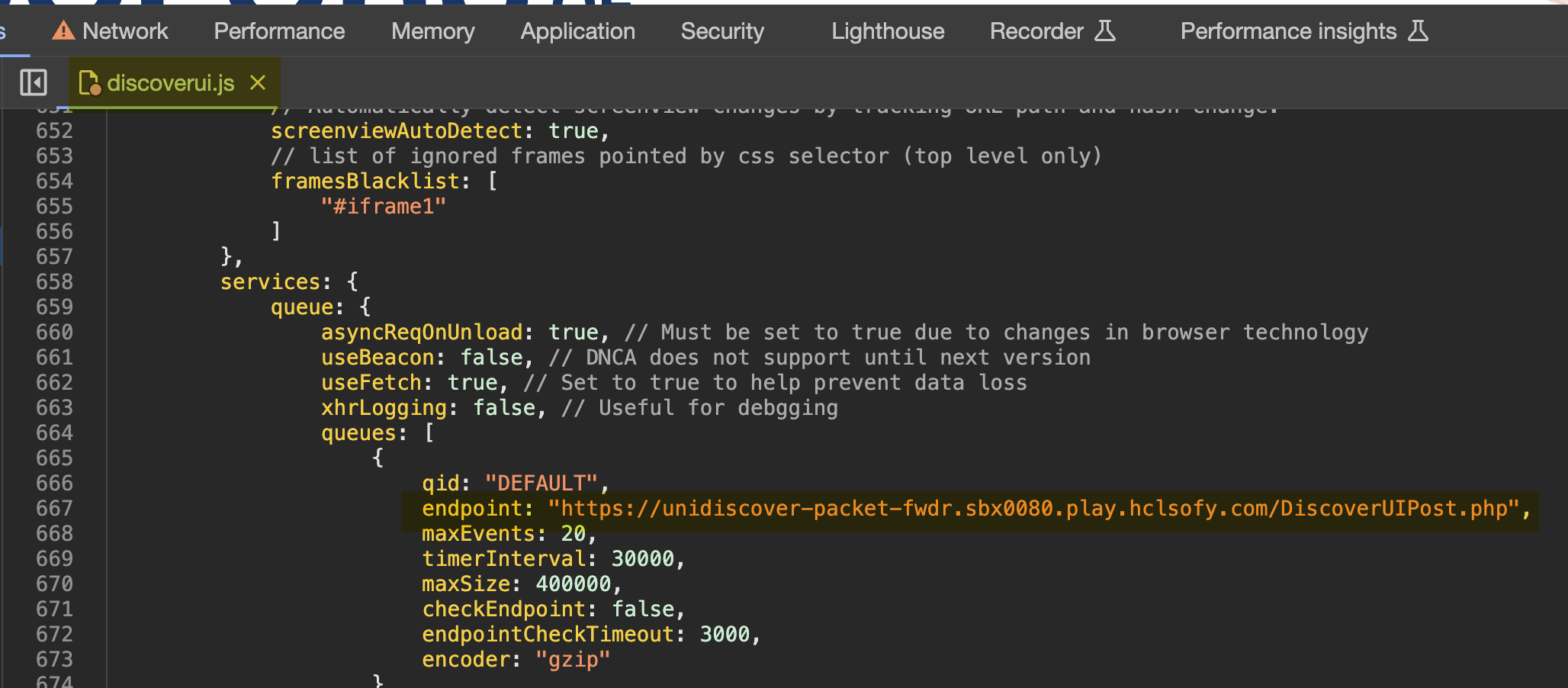
The discoverui.js file will now be shown, it contains many lines of code however you are only required to change one setting shown in the screenshot below. Replace the endpoint url only with the once listed as your packet forwarder or endpoint.
Use Ctrl+S on Windows or Alt+S on Mac to save the file and place the override in effect. Close the web developer tools and refresh the page, your override should now be in effect and any traffic from this site will now be directed to your Discover system on HCLSoftware Marketplace.