Tracking Time
Tracking time within process steps
It is often a requirement to understand the time taken between two steps of a process. You may want to know how long on average do people dwell on a step that may be particularly complex and have the potential for validation errors or be difficult for non native language visitors.
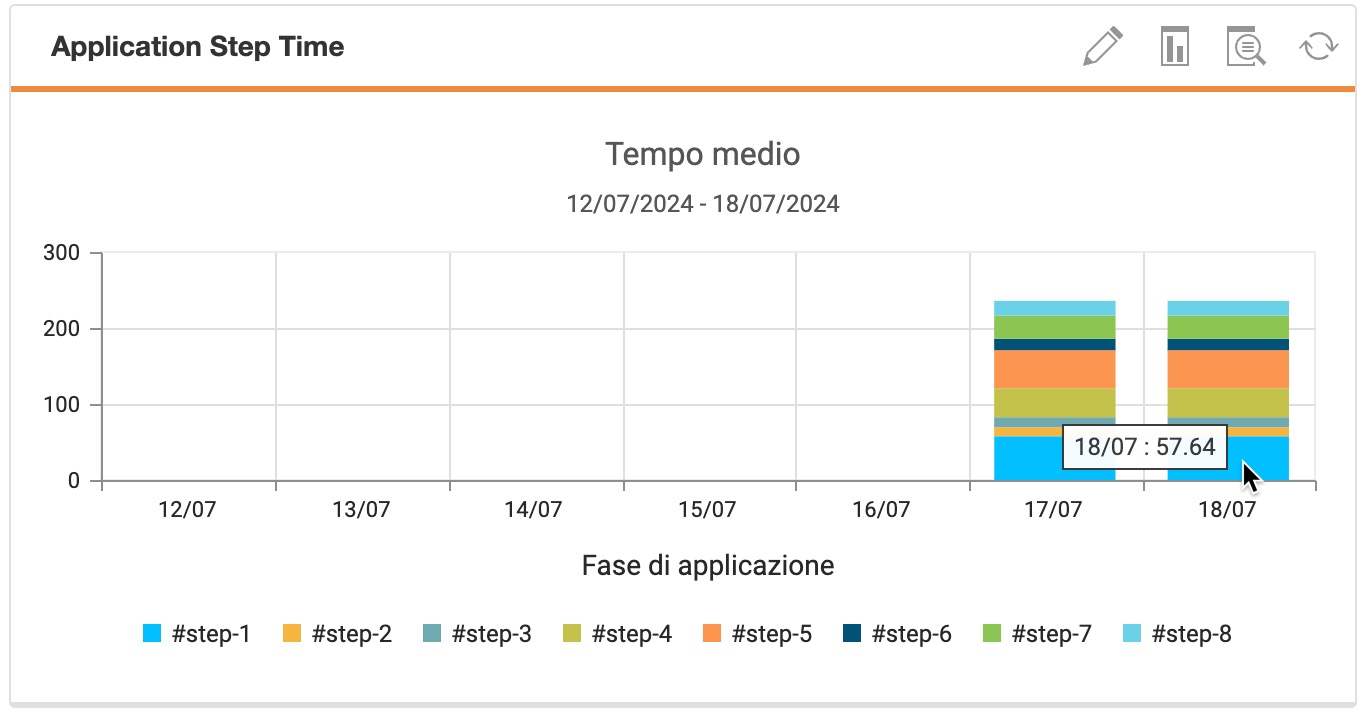
An example, this may be between two pages in a form shown below, between the LOAD (when the page is instantiated) of the ScreenView called #step-4 and the UNLOAD before #step5’s LOAD.
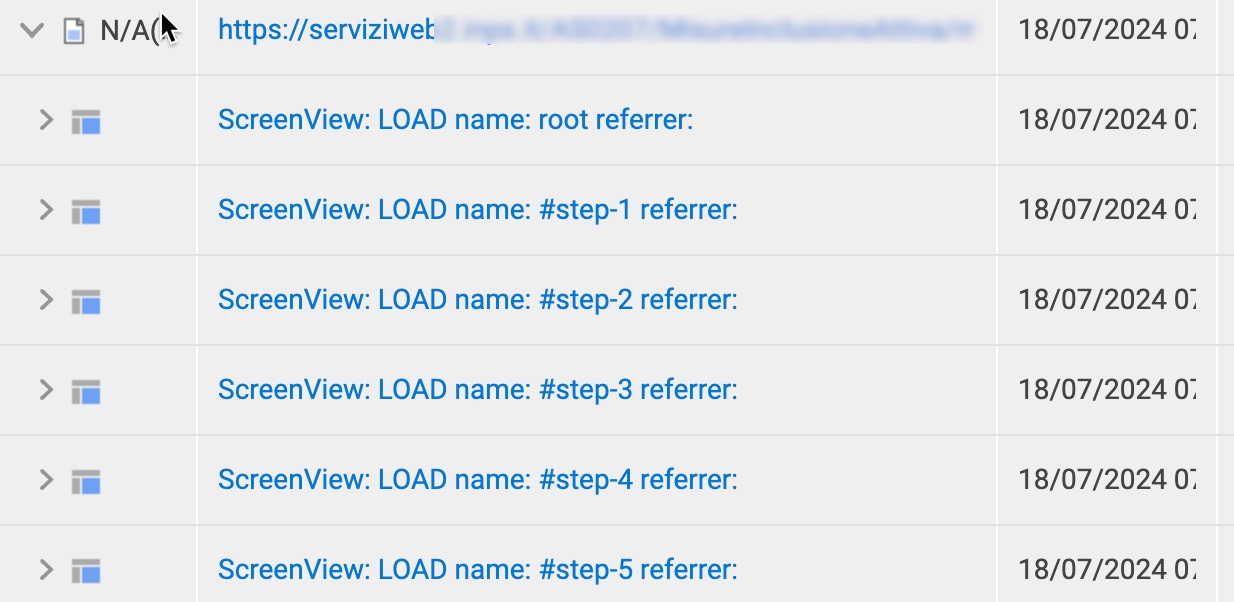
To achieve this an advanced event is required because we require a calculation. Additionally we need to have the Step - ScreenView as a dimension of the advanced event and to track the value of Step - ScreenView Offset, both step HA’s are available to be used by default.
The event below is:
| Evaluate | Track | Published | Value Type |
|---|---|---|---|
| Every Step | Every Occurrence | Immediate | Numeric |
| Value | Dimension | ||
| Step - ScreenView Offset | Step - ScreenView |
At the non-scripted event UI (aka Basic Event), add the HA Step ScreenView Type, set the first value to equal UNLOAD. Set the Value tab to track the Step ScreenView Offset. This basic event configuration will capture the numeric value listed in ALL UNLOAD events.
Select the Advanced button and the configuration will be converted to advanced code, similar to that shown below.
// Generated by Discover Event Manager
// NOTE: Do not change event name

function CUST$E_STEP1_TIME__638568240936102395()
{
    if ($P["TL.STEP_SCREENVIEW_TYPE"].firstValue().toUpperCase() == "UNLOAD")
    {
        // Set fact for Report Group: No Dimension Report Group
        var steptime = $P["TL.STEP_SCREENVIEW_OFFSET"].firstValue()/1000;

        $F.setFact("CUST.F_E_STEP1_TIME__638568240936102395", steptime);
        $F.setFact("CUST.F_E_STEP1_TIME__638568240936102395_FACT1", steptime);
    }
}
The code is updated with a variable steptime= and the offset value being divided by 1000 (/1000) as the offset time is in milliseconds and should be converted to seconds. The variable is added to the end of the Facts storing the value.
The report is configured as:
| Events | Dimensions | Y-Axis | |
|---|---|---|---|
| Name of your event | Step - ScreenView | Step - ScreenView |
The Y-Axis dimension is filtered to only show the process steps you want to show.