Page building guide
This guide covers the essentials for building pages in HCL Connections Engagement Center.
Supported page templates
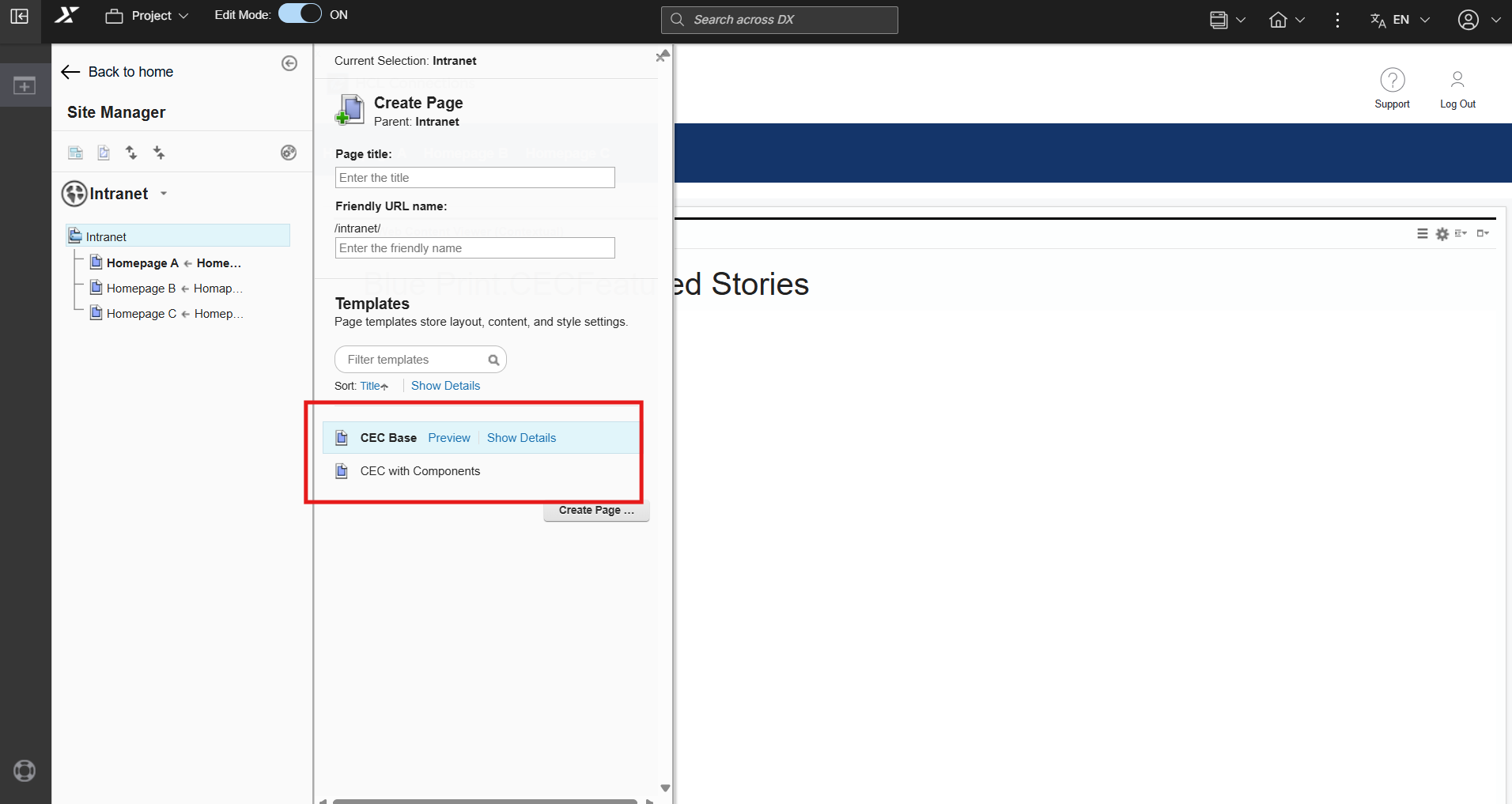
CEC (WebEngine) supports only the following two page templates:
| Template | Description |
|---|---|
| CEC Base | Basic CEC page template without pre-configured components |
| CEC with Components | CEC page template with pre-configured CEC components |
When creating a new page, select one of these templates from the template picker.
Supported layouts guide
For the best experience when building pages with CEC components, use only the following layouts:
| Layout Type | Works With |
|---|---|
| Single-Column (Full-Width) | All CEC components ✅ |
| Home Layout | All CEC components ✅ |
| Full-Row / Horizontal | Featured Stories, Upcoming Events |
| Balanced Rectangular / Single-Square | News Overview, Mega News |
Available layouts
The following layouts are available in the layout picker:
- Single-Column (Full-Width)
- Home Layout
- Full-Row / Horizontal
- Balanced Rectangular / Single-Square
To view the layouts, go to Page settings and then the Layouts tab.
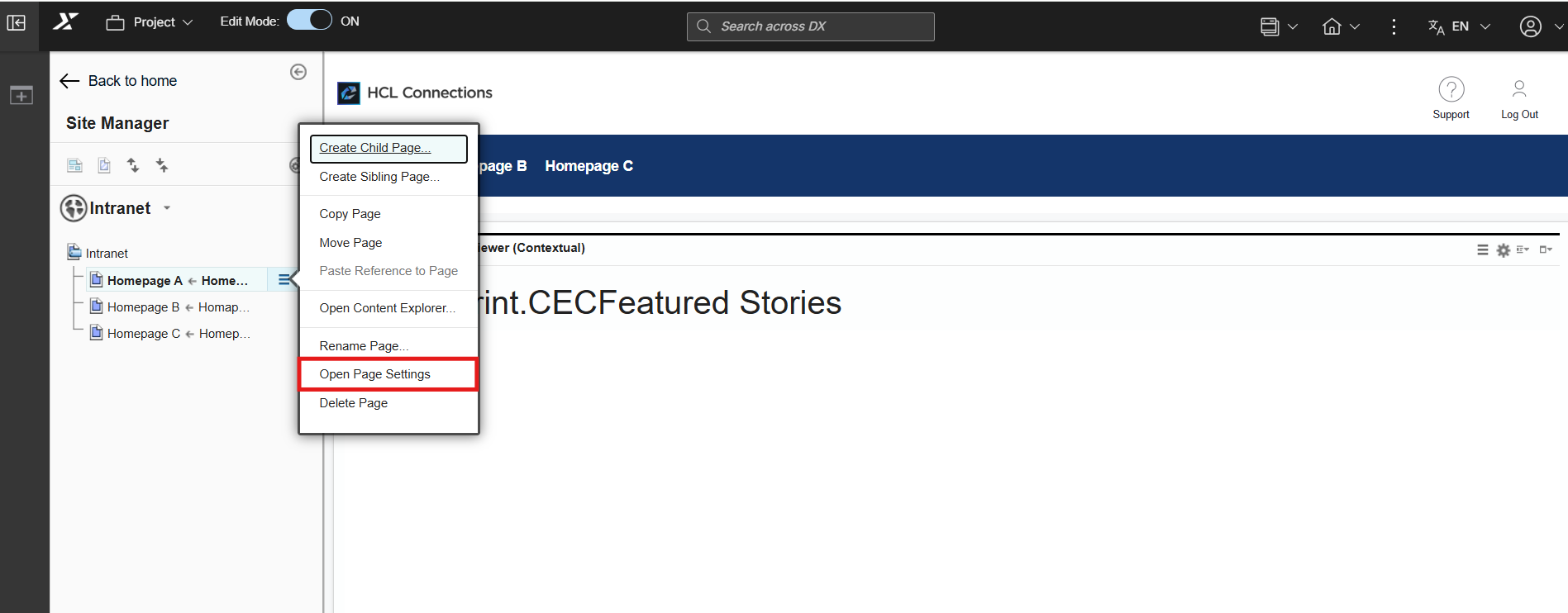
Below are the supported CEC layouts shown in the layout picker:
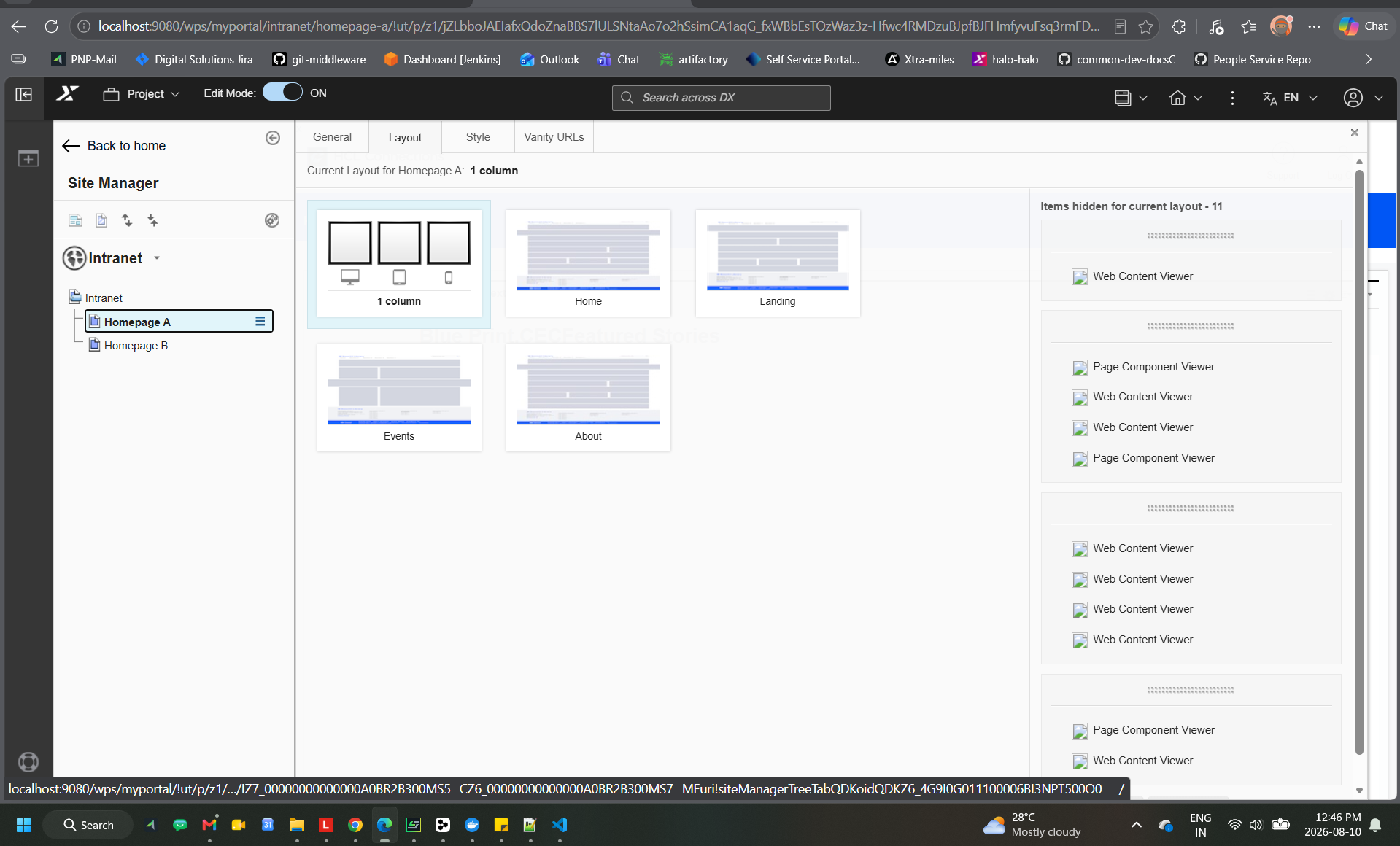
- Single-Column (Full-Width) is recommended for all components.
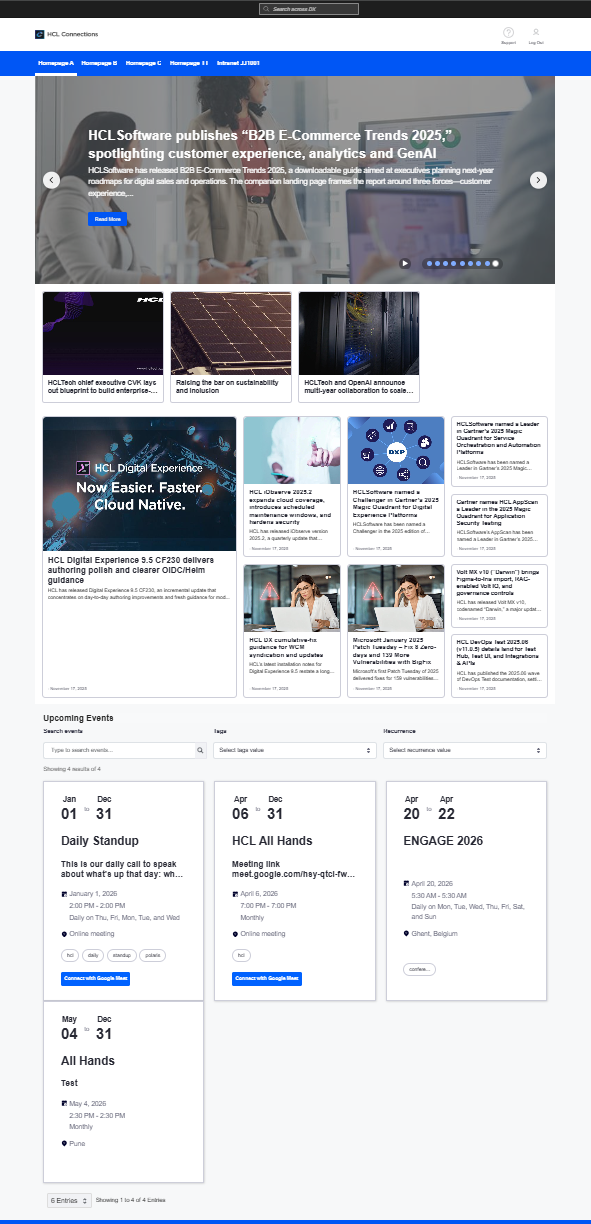
- The image below shows a Single-Column layout for the CEC Featured Stories component:
Important notes
-
Avoid narrow multi-column layouts. Components like Featured Stories and Upcoming Events require maximum available width — placing them in narrow columns will cause the UI to break or distort.
-
Safest default: When in doubt, always use the Single-Column layout. It works correctly with all CEC components.
-
Incompatible layouts are being phased out from the layout picker in an upcoming update.
Creating a page
- Turn on Edit Mode from the Action Bar
- In Site Manager, select a parent page
- Click the context menu → Create Child Page or Create Sibling Page
- Enter a Page Title and Friendly URL
- Select CEC Base or CEC with Components template
- Click Create Page
Adding components
After creating a page:
- Click Add page components and applications in the Site Toolbar
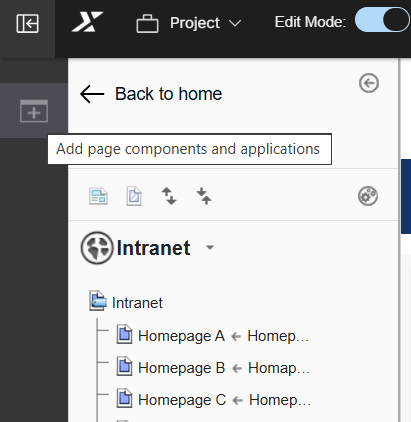
- Drag and drop CEC components onto your page
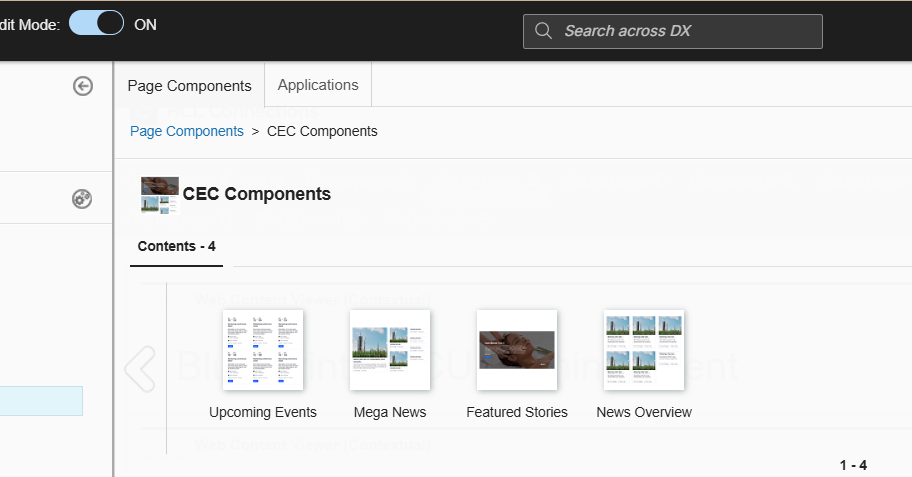
- Configure each component using the content menu
Pre-configured default intranet pages
The default Intranet already includes pre-built starter pages: Homepage A, Homepage B, and Homepage C to start quickly. While these pages come pre-added to the project structure, Homepage A, Homepage B and Homepage C are provided as empty baseline templates with components but without active data. Before deploying Homepage A, B, or C as your primary landing page, ensure you configure the component settings and link your desired data sources so content displays correctly to end users.
Best practices
- Use supported templates only — Other templates may not render CEC components correctly
- Use full-width layouts — Narrow columns can break component display
- Preview before publishing — Check how the page appears to end users