Create a Tiny Editors Services specific SSL configuration
This task outlines the process for creating a Tiny Editors Services specific SSL configuration from the web-aware trust store. This procedure includes updating the application.conf to add the SSL configuration attributes.
Before you begin:
- An existing application.conf for the Tiny Editors Services is required. See: Create an application.conf for the Tiny Editors Services.
-
A suitable trust store is required. See: Create a web-aware trust store for the Tiny Editors Services for details.
-
Log in to the web interface of the WebSphere Application Server Console.
The default address is: https://host_name:9043/ibm/console
-
Expand Security and click the SSL certificate and key management link.
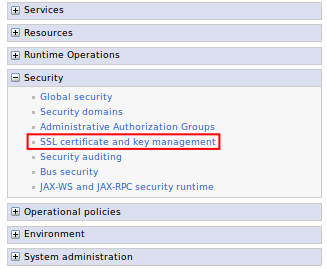
-
Click the SSL Configurations link.
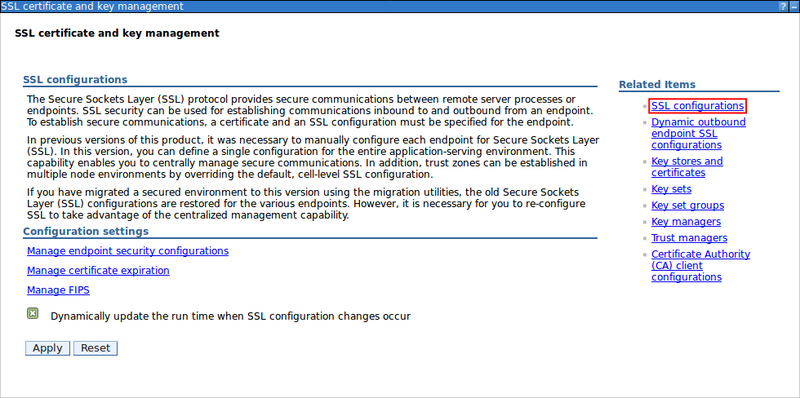
-
Click New.
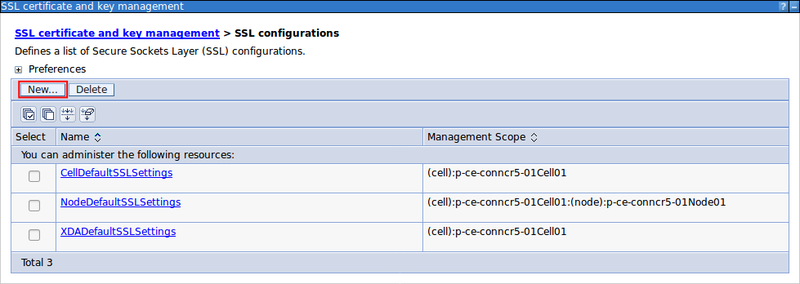
-
Define the SSL configuration.
-
Enter a Name for the Tiny Editors Servers SSL configuration
-
From the Trust store name list, Select the Tiny Editors Services trust store.
-
Click OK.
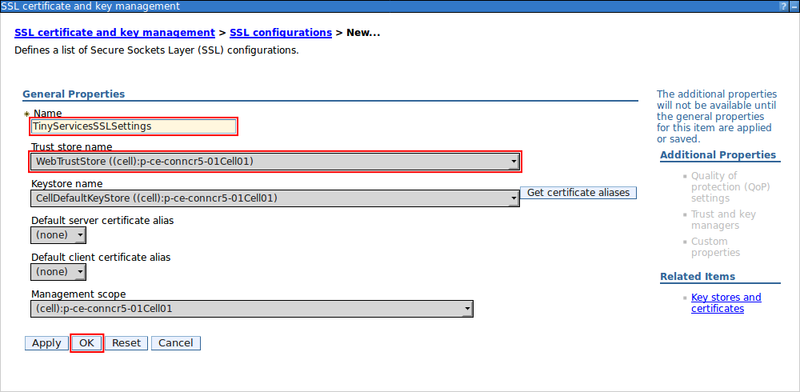
-
-
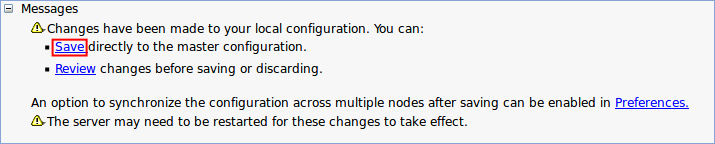
Click the Save link.
-
Open the Tiny Editors Services configuration file application.conf in a text editor.
Note
Use a plain text editor to avoid inserting invalid formatting or symbols into application.conf. Do not use a rich text editor such as Microsoft Word for editing configuration files.
-
Under the
ephoxroot element, define the SSL configuration for the Tiny Editors Services by adding the following elements:-
ephox.http.websphere.ssl-config-name: The name of the Tiny Editors Services SSL configuration set in step 5.a. -
ephox.http.websphere.use-ssl-config: Set to true. -
ephox.http.trust-all-cert: Set to false.
ephox { # ... other settings not shown http { websphere { ssl-config-name = "TinyServicesSSLSettings" use-ssl-config = true } trust-all-cert = false } } -
Parent topic: Configuring the SSL certificates for the Tiny Editors Services