Create a web-aware trust store for the Tiny Editors Services
This task outlines the process for creating a web-aware trust store for the Tiny Editors Services.
-
Log in to the web interface of the WebSphere Application Server Console.
The default address is: https://host_name:9043/ibm/console
-
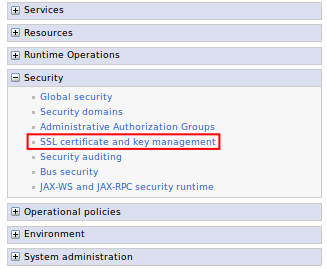
Expand Security and click the SSL certificate and key management link.
-
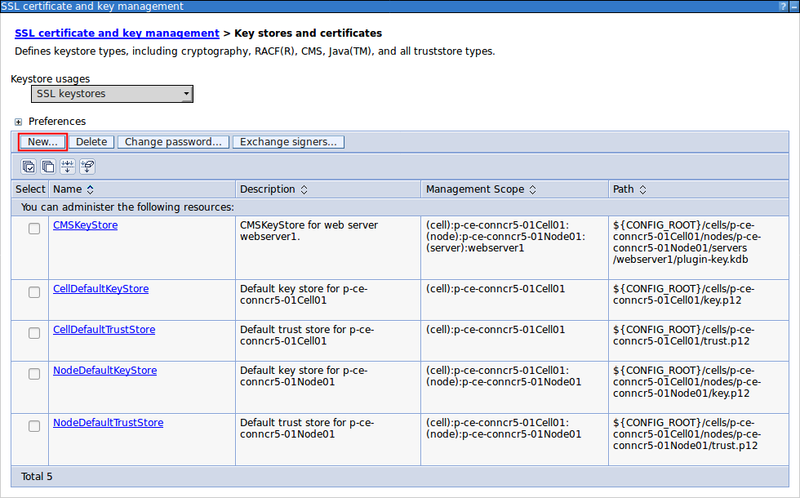
Click Key stores and certificates link.

-
Click New.
-
Create a trust store.
-
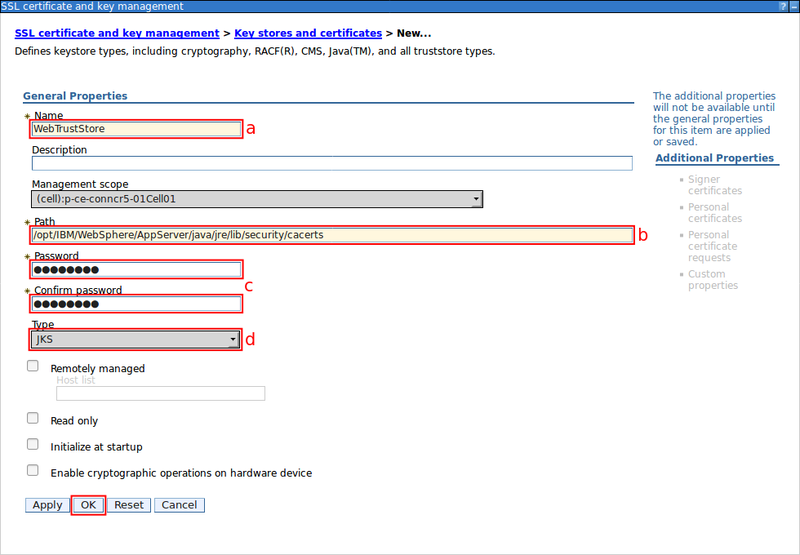
Enter a Name for the Tiny Editors Services trust store.
-
Enter the Path to the WebSphere JVM trust store.
For example:
/opt/IBM/WebSphere/AppServer/java/jre/lib/security/cacerts -
Enter the password for the WebSphere JVM trust store into the Password and Confirm password fields.
Tip
The default password for the WebSphere JVM trust store is changeit .
-
Set the Type to JKS .
-
Click OK.
-
-
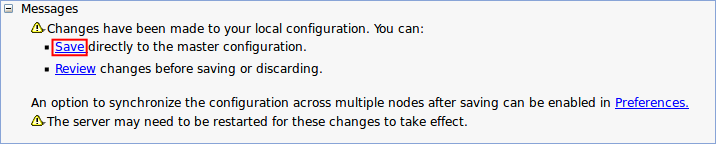
Click the Save link.
-
Export in-house root certificates for use with the Tiny Editors Services trust store.
-
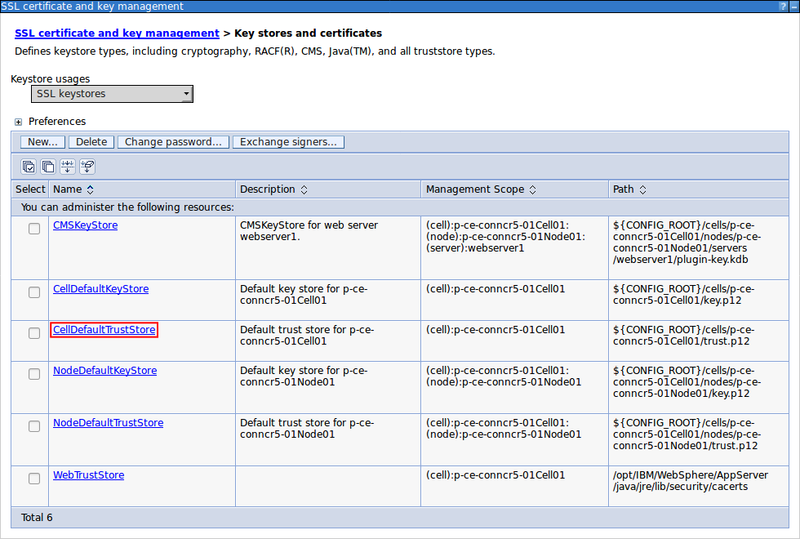
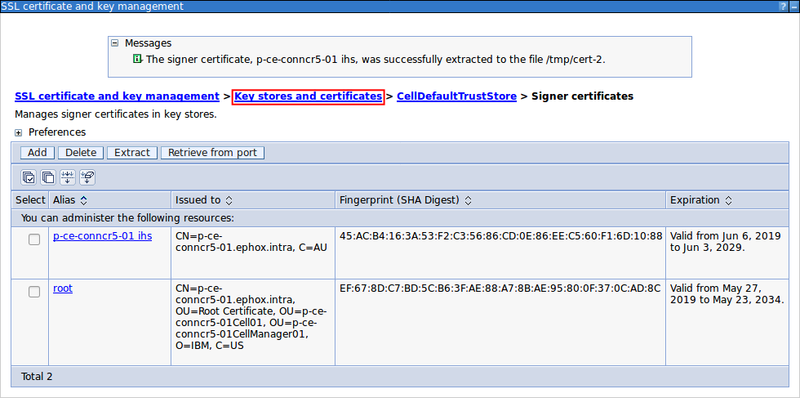
Click the CellDefaultTrustStore link.
-
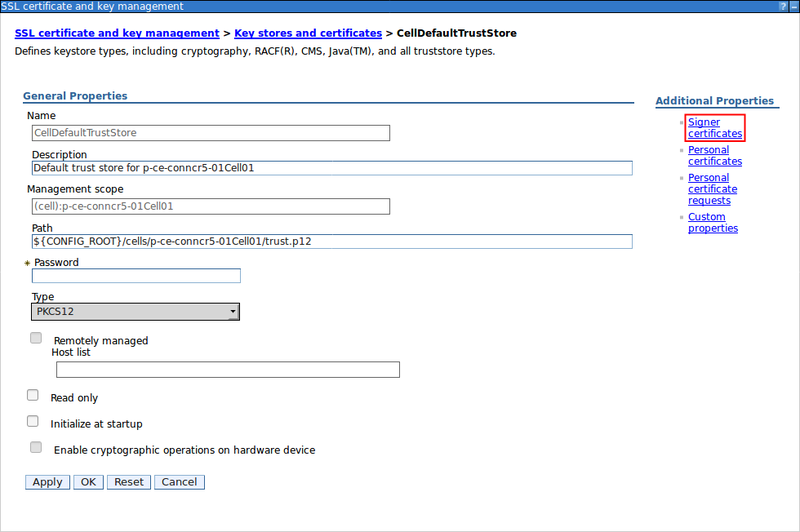
Click the Signer certificates link.
-
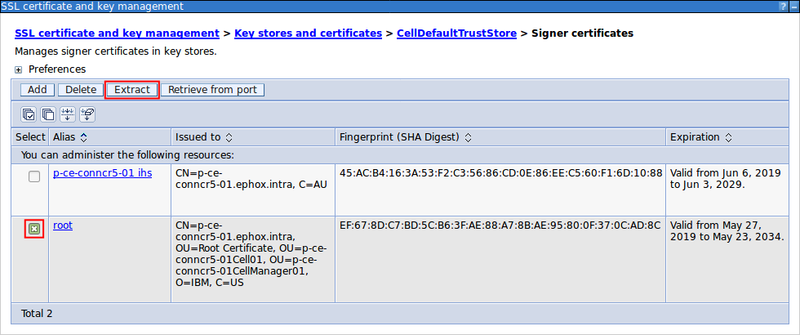
Select the checkbox for a required certificate and click Extract.
-
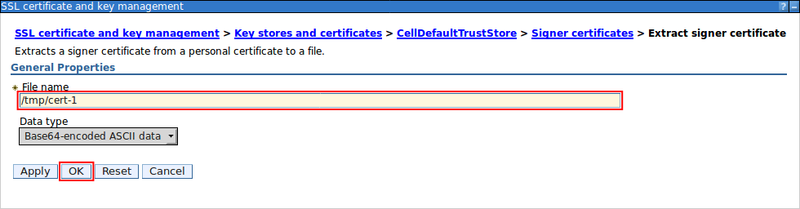
Specify a file name for the certificate and click OK.

-
If additional certificates are required, repeat steps 7.c and 7.d, otherwise click the Key stores and certificates breadcrumb link.
-
-
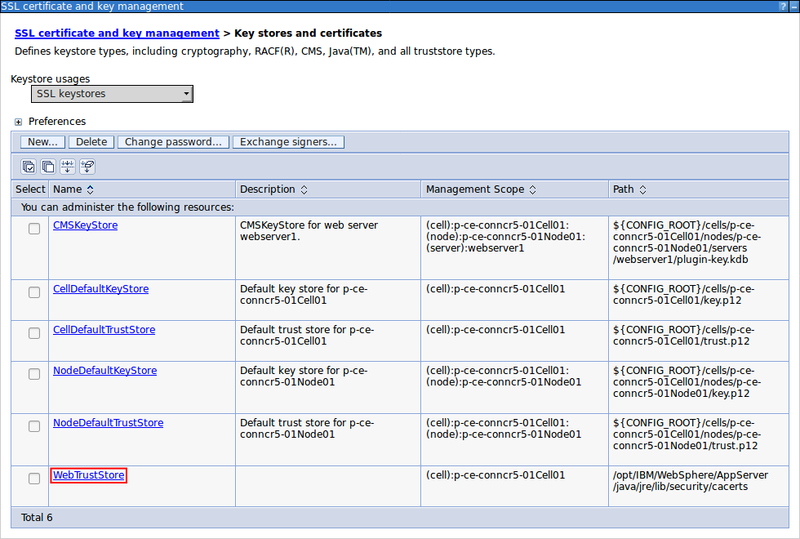
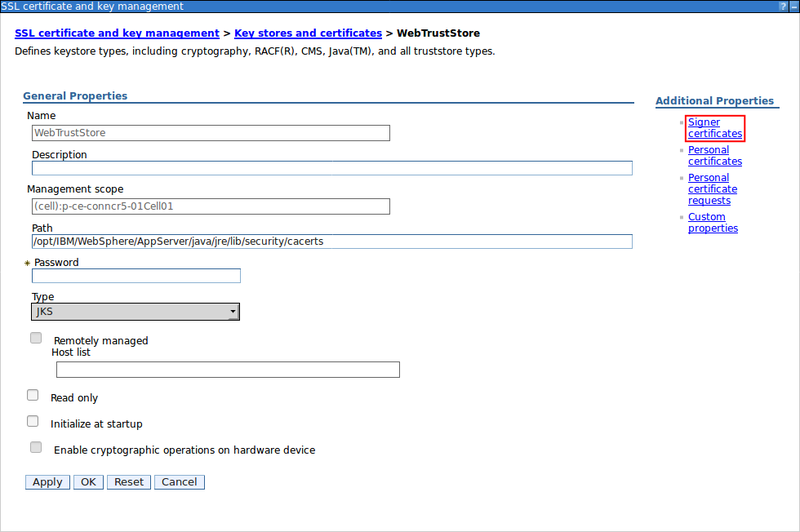
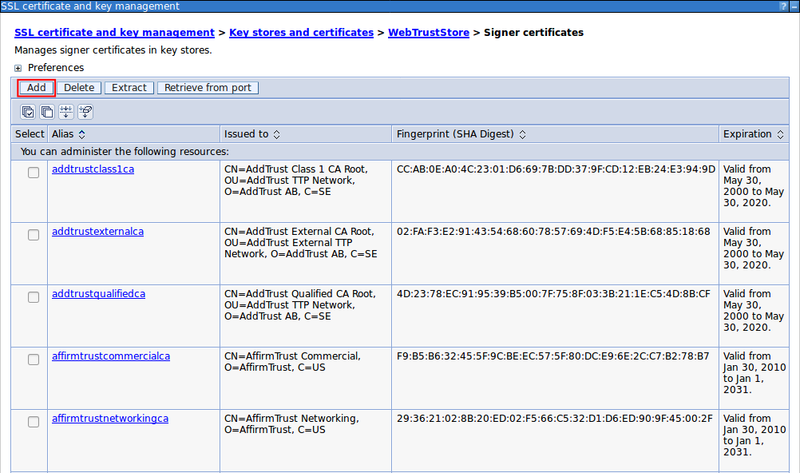
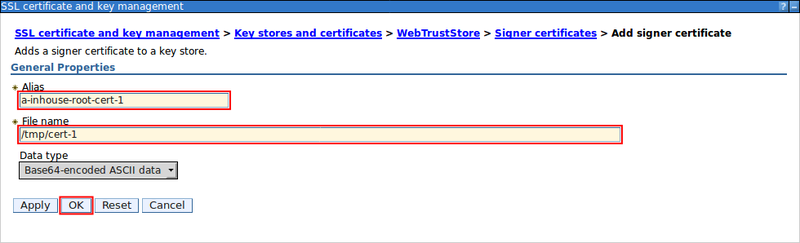
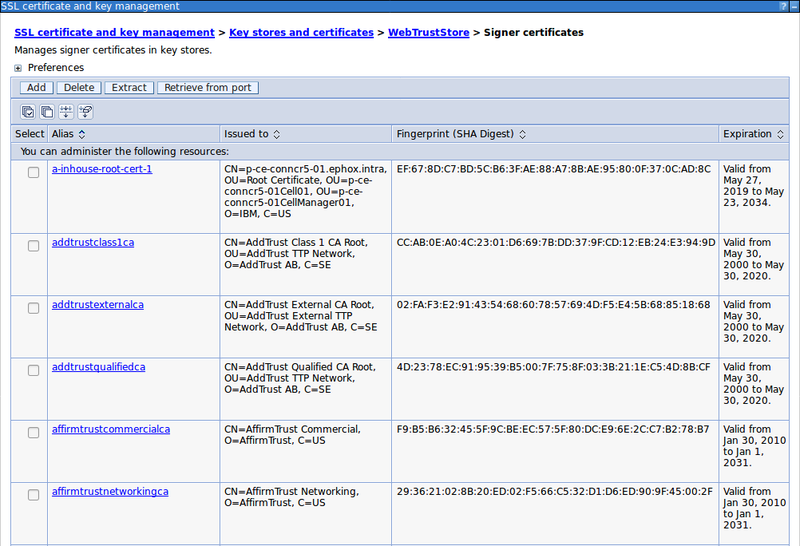
Import in-house root certificates.
Parent topic: Configuring the SSL certificates for the Tiny Editors Services