Install on Windows
The Window installation uses a Windows installer program.
Before you begin:
- Determine the host_name of the server hosting HCL Connections™.
-
Get user access as the HCL Connections installer or higher administrative permissions, on both:
- The host server.
- The WebSphere Application Server Console.
-
Determine the Connections paths (customization_path and provision_path).
-
Log in to the web interface of the WebSphere Application Server Console.
The default address is: https://host_name:9043/ibm/console
-
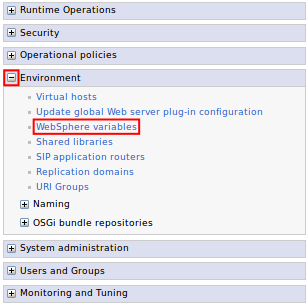
Expand Environment and click the WebSphere variables link.
-
Find the CONNECTIONS_CUSTOMIZATION_PATH in the variables list and record the value which will be referred to as customization_path from this point.

-
Find the CONNECTIONS_PROVISION_PATH in the variables list and record the value which will be referred to as provision_path from this point.

-
-
Stop the Common WebSphere enterprise application.
-
Log in to the web interface of the WebSphere Application Server Console.
The default address is: https://host_name:9043/ibm/console
-
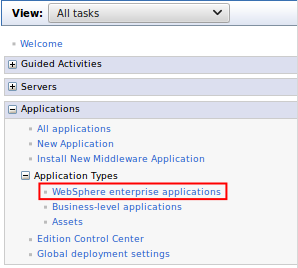
Navigate to Applications > Application Types > WebSphere enterprise applications.
-
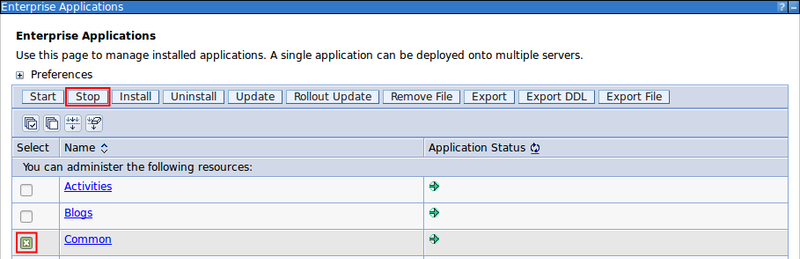
Select the checkbox for Common from the list of applications and click Stop.

-
-
Run
install.exe.The installer,
install.exe, is located in the root directory of the Tiny Editors for HCL Connections package.Note
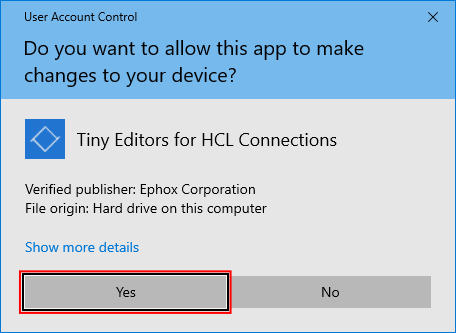
The installer may require System Administrator privileges. If prompted, click Yes.
-
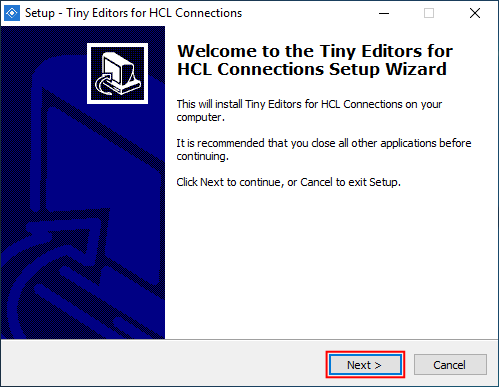
Click Next on the Welcome screen.
-
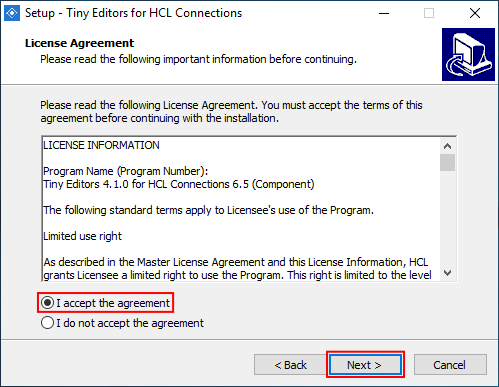
Review the license agreement, select I accept the agreement and click Next.
-
Add the customization_path and provision_path to the relevant input fields and continue.
Note
Default paths are initially provided.
-
Input the provision_path with \webresources appended, into the Web Resources Provisioning field.
-
Input customization_path into the Customization field.
-
Click Next.

-
-
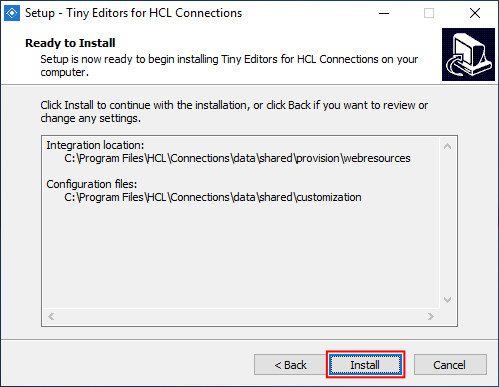
Review the installation details and click Install.
-
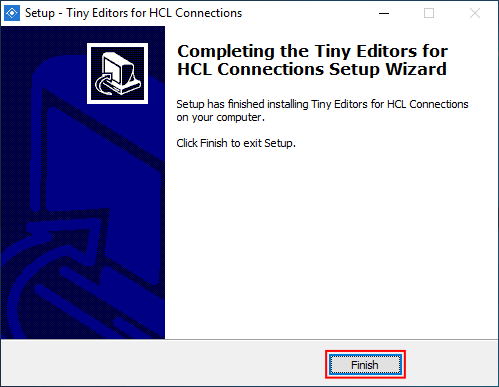
Once the installation process is completed, click Finish.
-
Follow the post-customization steps to ensure the server cache is updated.
-
Start the Common WebSphere enterprise application.
-
Log in to the web interface of the WebSphere Application Server Console.
The default address is: https://host_name:9043/ibm/console
-
Navigate to Applications > Application Types > WebSphere enterprise applications.
-
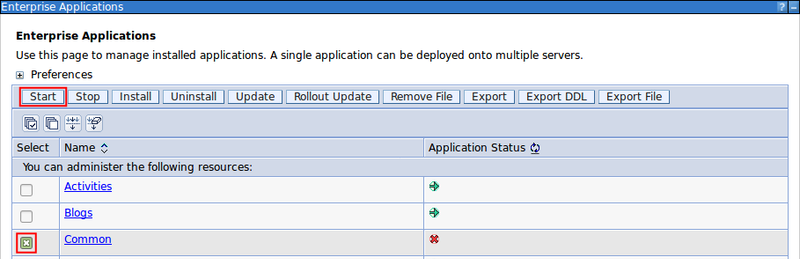
Select the checkbox for Common from the list of applications and click Start.

-
-
Verify the install:
-
Browse to the following URL: http://host_name_and_port/connections/resources/web/tiny.editors.connections/verify.html
If the installation was successful, a confirmation message appears alongside the installed version numbers.
-
Browse to the edit screen for a wiki or blog.
If the installation was successful, the Tiny editors will be loaded.
Note
If Tiny Editors for HCL Connections is not available, restart the Common enterprise application to force a cache update.
-
Parent topic: Installing Tiny Editors integration