Updating the LotusConnections-config.xml file
Edit the LotusConnectionsConfig.xml file to add the Connections Engagement Center widget bundle.
To do this, follow these steps:
-
Open a command window and execute the following script to check out the
LotusConnectionsConfig.xmlfile. Leave the command prompt open for the next step.Tip
Alternatively, you can modify the
LotusConnectionsConfig.xmlfile manually and then synchronize the nodes in the WebSphere Integrated Solutions Console.cd C:\IBM\WebSphere\AppServer\profiles\Dmgr01\bin wsadmin -lang jython -user <wasadmin> -password <password> execfile("connectionsConfig.py") LCConfigService.checkOutConfig("<TEMP_DIRECTORY>", AdminControl.getCell()) -
Open the checked-out
LotusConnectionsConfig.xmlfile in an XML editor of your choice and add thewidgetBundlesection to the resources node, as shown in the following image.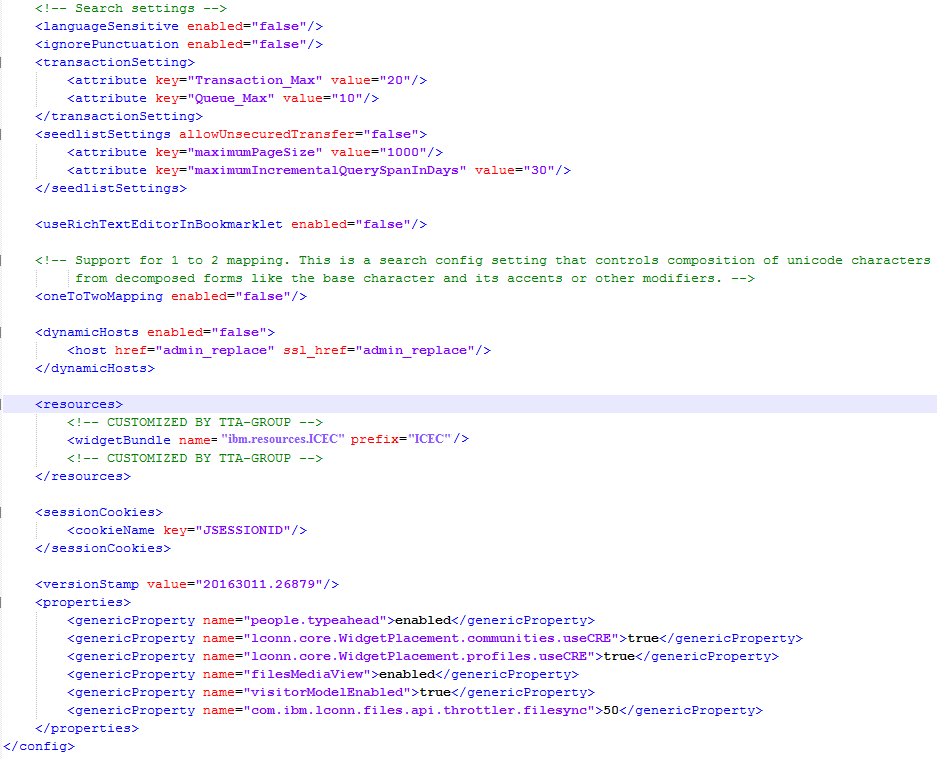
Use the following code for the
widgetBundlesetting:<resources> <widgetBundle name="ibm.resources.ICEC" prefix="ICEC"/> </resources> -
Execute the following scripts:
CommunitiesConfigService.checkInwidgetsConfig("<working_directory>","<cell_name>")LCConfigService.checkInwidgetsConfig("<working_directory>","<cell_name>")
Here, working_directory is the temporary working directory to which configuration files are copied. The files are kept in this working directory while you edit them, and cell_name is the name of the WebSphere Application Server cell that hosts the HCL Connections application.
If you do not know the cell name, display it by typing the following command in the wsadmin client:
print AdminControl.getCell()
Note
When you specify a path to the working directory on a system that is running Microsoft Windows, use a forward slash for the directory. For example: C:/temp. On Linux the directory must grant write permissions or the command fails.
Parent topic: Community on-premises mode configuration
Previous topic: Updating the widgets-config.xml file
Next topic: Creating string properties files