
Work Item Board
List Personalization and Saved Filters
Introducing rich list view personalization across all Work Item Board sub-menus (Tasks, Fulfillment, Incident, Problem, Change, Interaction, Appointment, Walk-up, Action), allowing support users to control which columns they see and how lists behave for their roles.
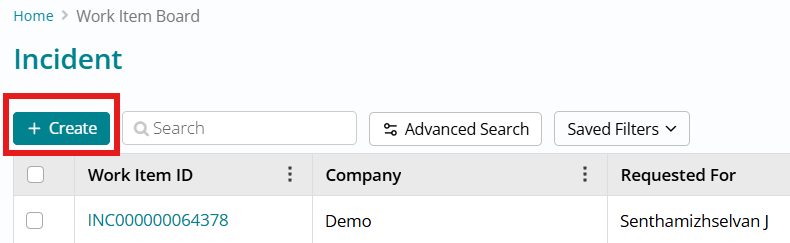
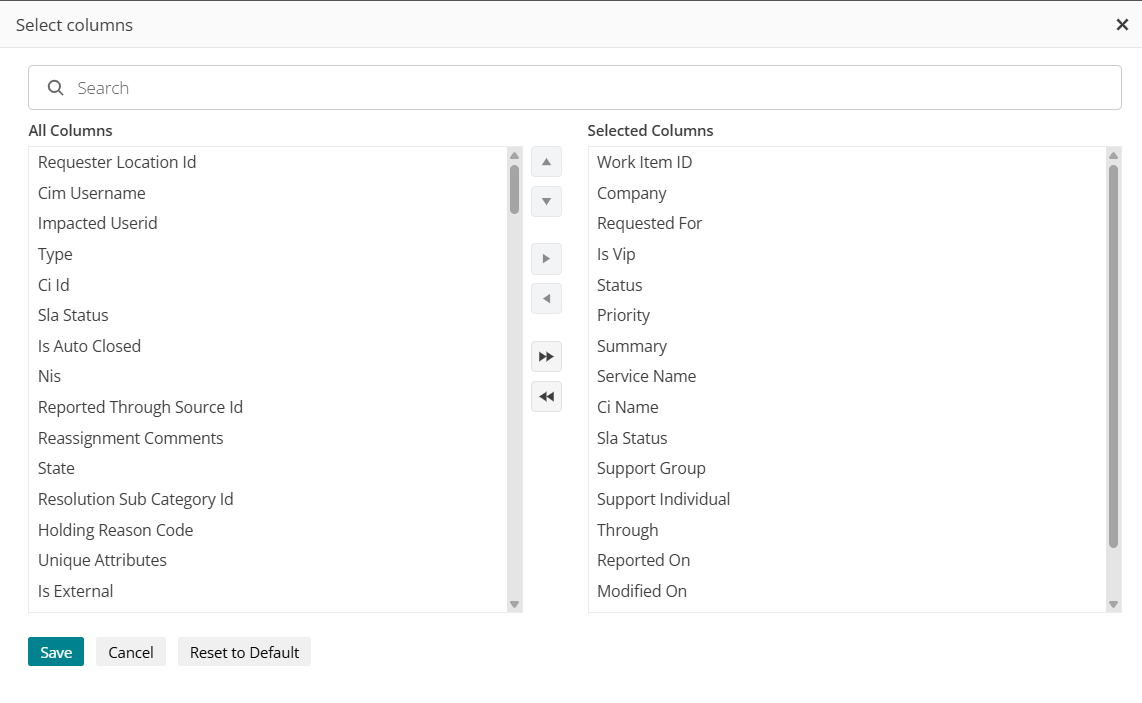
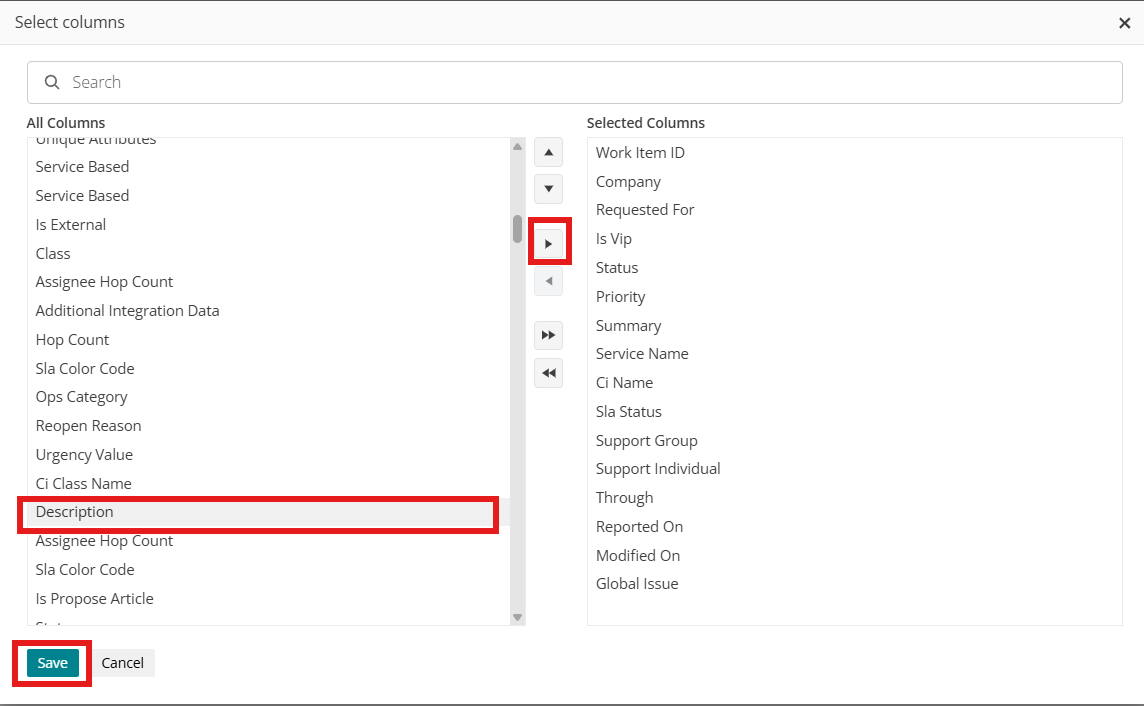
From a chosen module list, users can search via the basic Search box, use Advanced Search, access Saved Filters, and click Columns to open the “Select columns” dialog where they can search for fields, add or remove individual or all columns, reorder them with up/down arrows or drag-and-drop, and then Save, Cancel, or Reset to Default; column order can be adjusted horizontally or vertically as needed.
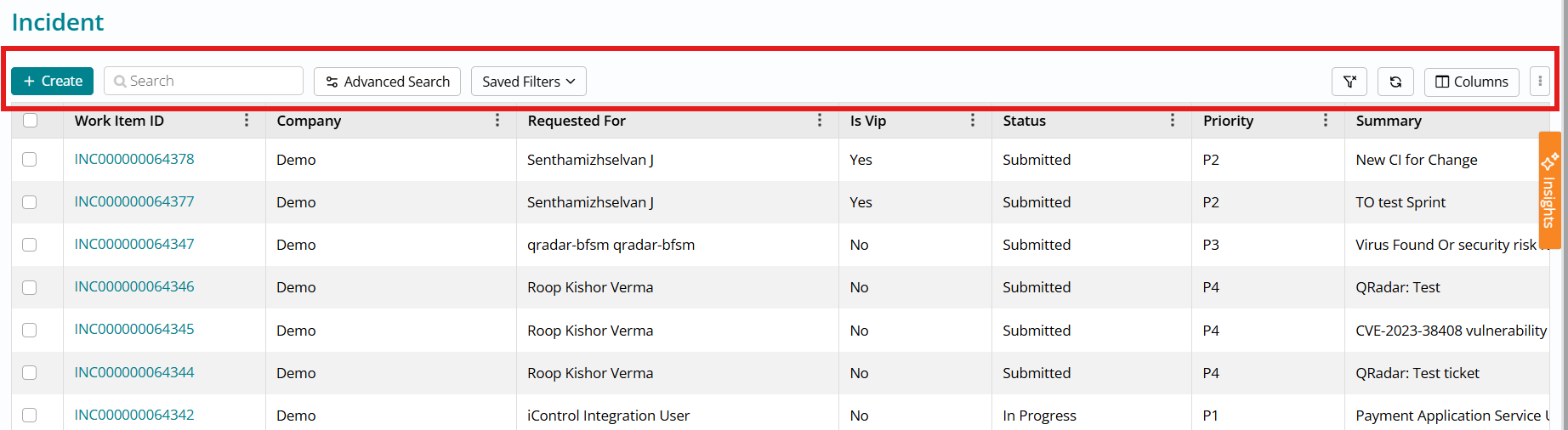
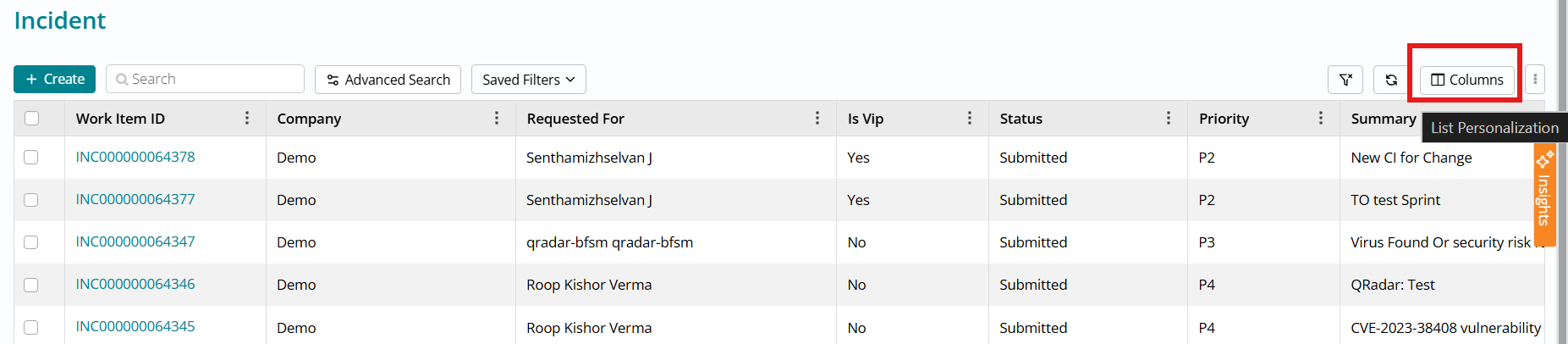
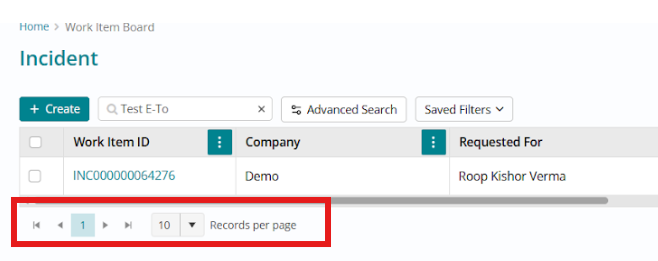
Users can manage views and pagination directly from the list. Using the ellipse menu next to Columns, they can switch between configured Views (for example, INCIDENT LIST) and administrators can control available page-size options per View from the View configuration page, letting users choose how many records to display per page.
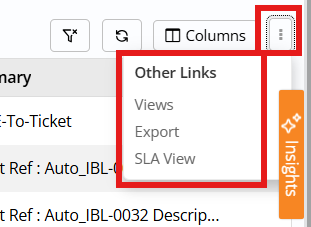
The same ellipse menu also exposes quick links: Export (download all records rendered on the page, currently without respecting filters), SLA View (navigate to SLA view for that module), Calendar View for Change and Appointment lists (plus a dedicated calendar icon on Change lists to launch the Change Calendar), and Reset Filters to clear all applied filters and return to the default list.
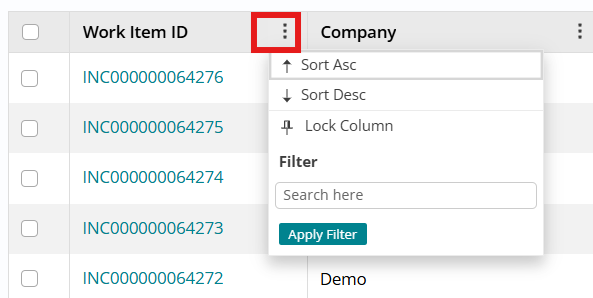
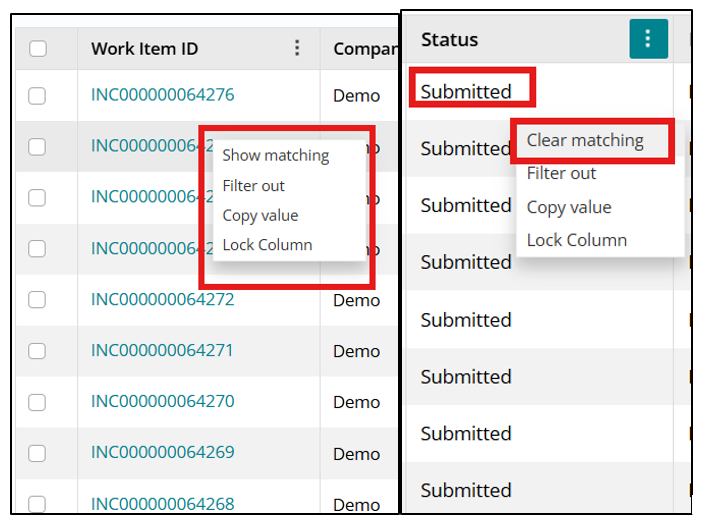
Per-column Context Menus and Column Filters give more granular control. Admins can enable a context menu icon per column from the Column configuration page under View; when enabled, users see a menu icon in that column header and can sort ascending/descending, Lock/Unlock Column to freeze it during horizontal scrolling (also governed by an “Is Locked” property), and use a right-click context menu on any cell to Show Matching/Clear Matching, Filter Out, Copy Value, or Lock Column.
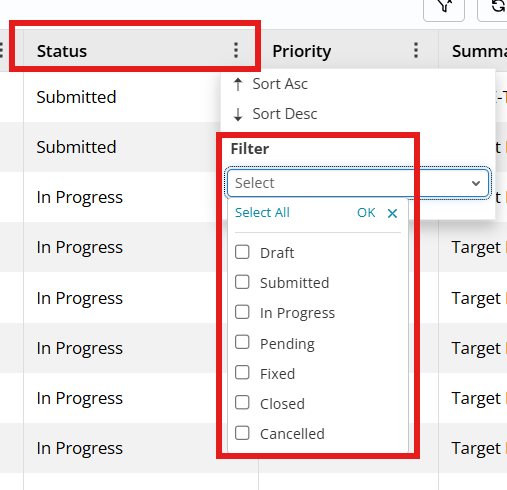
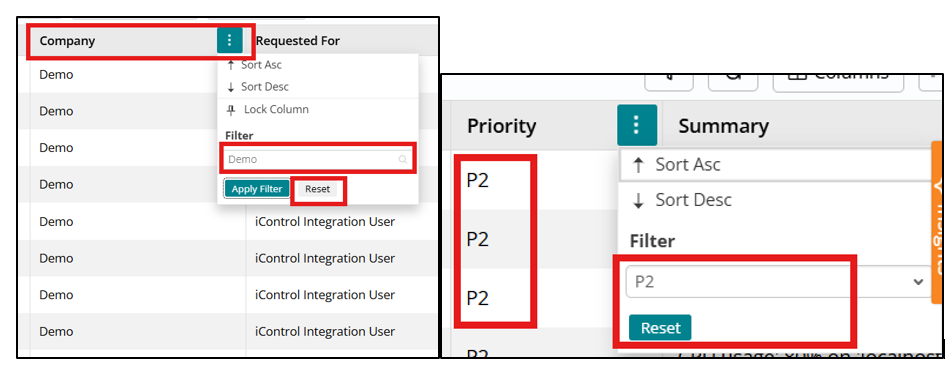
Column filters, also controlled by admin configuration, let users filter list data by column values and reset those filters via a Reset button that appears once any column filter is applied.
The enhancement also adds improved keyboard and mouse navigation plus changes to global search. Users can right-click to open context menus, drag-and-drop columns left/right to add/remove from the list, drag up/down to reorder, use Ctrl+click to multi-select columns, and Shift+click to select a range.
Global search options like Requester Email, Employee ID, and External Reference Number have been removed from the global search dropdown; now, users search by Work Item number in the respective lists, use column filters on Requester Email and Employee ID (after adding those columns via personalization), and use Advanced Search for External Reference Number.

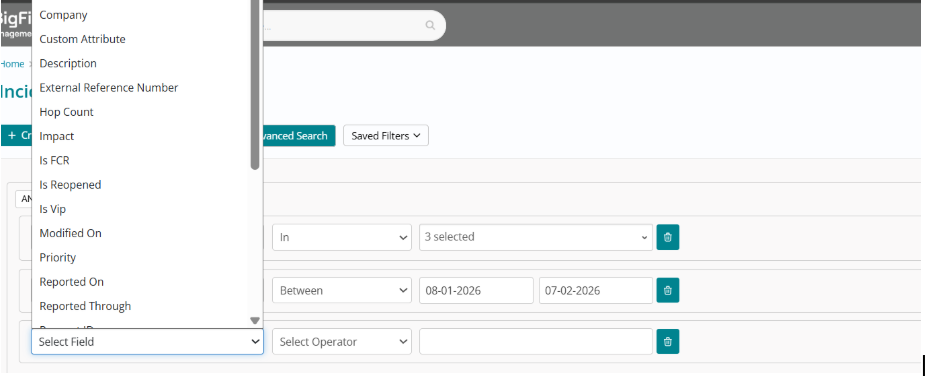
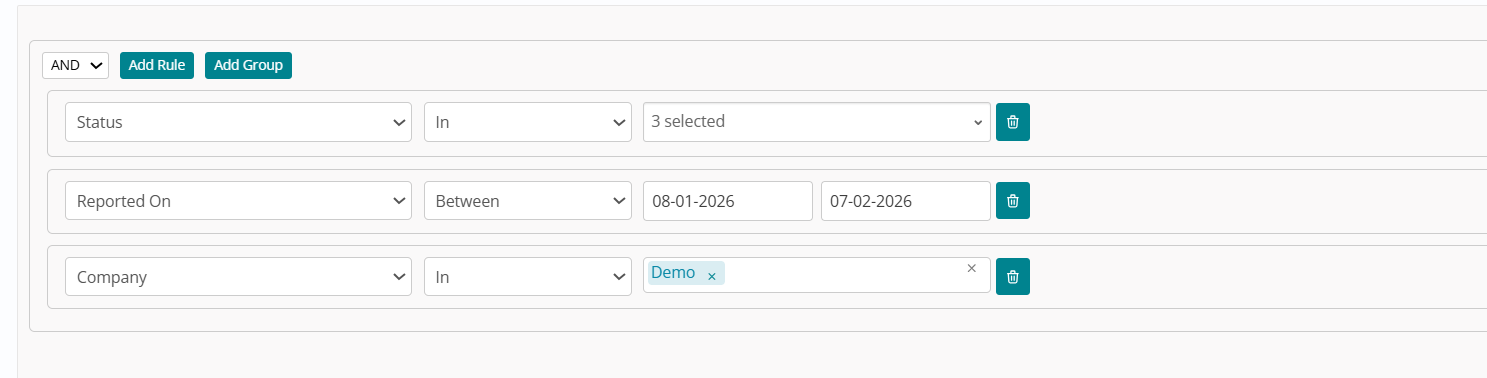
For filtering, an enhanced Advanced Search and Saved Filters experience lets support users build and reuse complex conditions. Clicking Advanced Search opens a condition builder where users add rules and groups, choose AND/OR logic, and select fields, operators, and values, on top of default conditions that restrict lists to tickets within 30 days and open statuses.

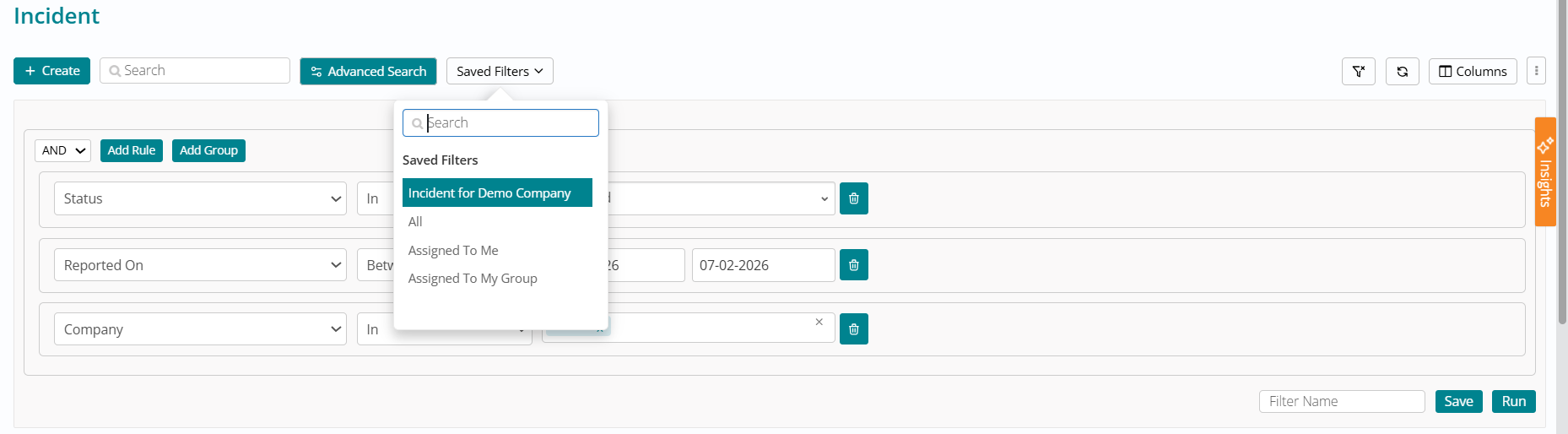
Users can modify or extend these rules, give the condition a Name, and click Save so it appears in the Saved Filters dropdown, or click Run to apply filters without saving. Saved filters can be selected (or searched) from the dropdown, immediately applying the condition; the same condition is visible again when reopening Advanced Search, and three default filters (All, Assigned to Me, Assigned to my Group) are always available, with data constrained by user access rather than role-based visibility on the filter names.
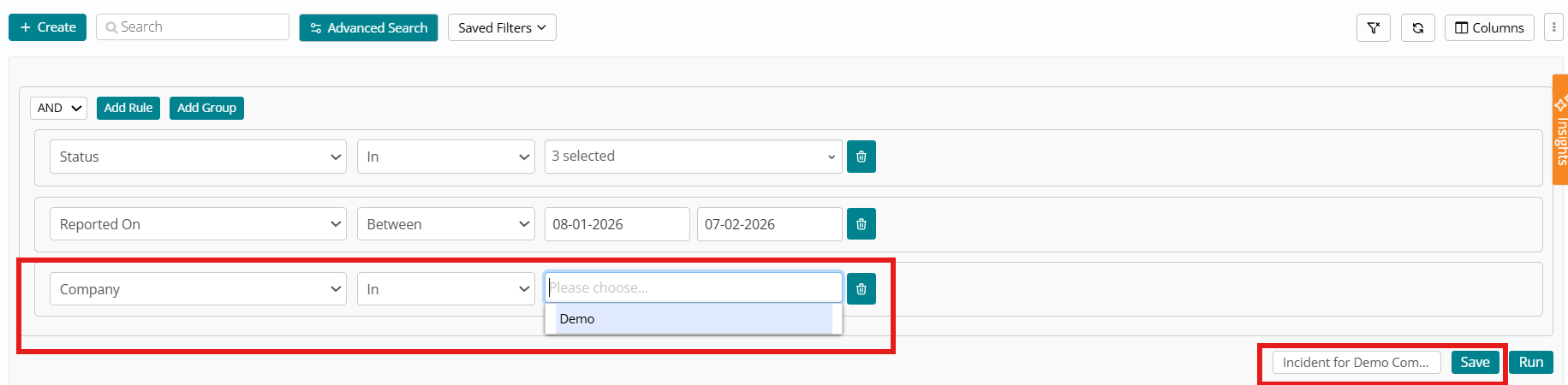
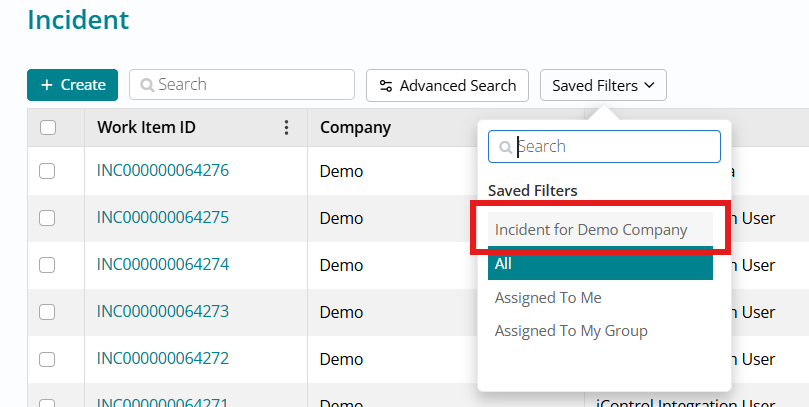

Finally, applied filters are now retained across navigation. Filters set via Advanced Search or column filters remain active while the user navigates to other Work Item Board pages or even other application pages, with a retention period of up to 4 hours of active use or until logout or a hard browser refresh, whichever comes first.
Work Item Board Fields Standardization
UI and functional requirements for standardizing the Summary and Description fields across all Work Item Board (WIB) modules, including Incident, Problem, Change, Task, and Fulfillment.
1.Edit Page Standardization
The following UI specifications apply to the Edit pages of all modules to ensure cross-platform consistency.
| Feature | Specification |
| Summary Label | Renamed to Summary

|
| Summary Height |
Fixed at 1-line height by default . Users can expand the section to view more
|
| Summary Character Length |
Default length is 500 Characters for All modules .
|
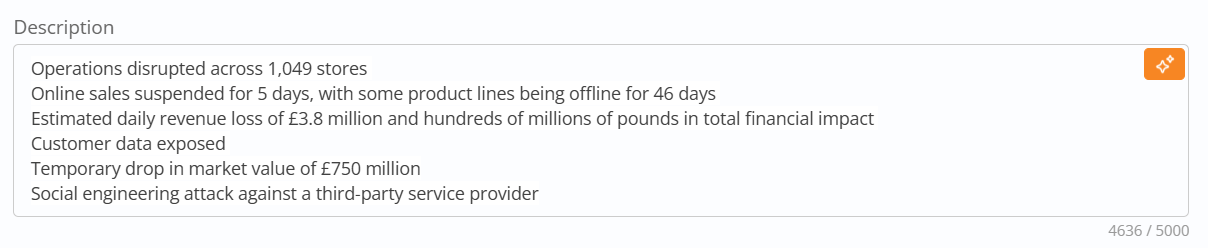
| Description Label | Renamed to Description
|
| Description Height |
Fixed at 5-line height by default . Users can expand the section to view more
|
| Description Length | Default length is 5000 Characters for All modules .
|
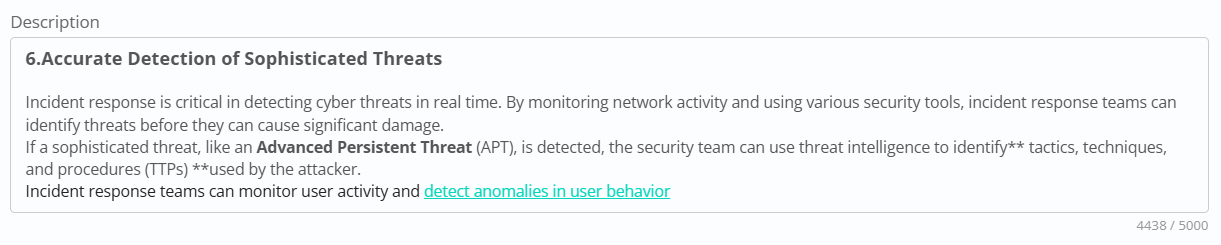
| Description Input |
Changed to Rich Text editor field
|



2. List View Standardization
To optimize the data grid and dashboard views:
- Summary and Description Column Width: Limit display to 40 characters.
- Overflow Handling: Append triple dots (...) for text exceeding the 40-character limit.
3. Task Module Specific Requirements
The Task module requires specific alignment and field mapping to align with the global standard.
-
Field Renaming: Change "Additional Information" to Description.

- Field Realignment: Position the Description field directly below the Summary field.
-
Character Limits:
-
-
- Set Summary to 500 characters.
- Maintain Description at 5000 characters.
-
-
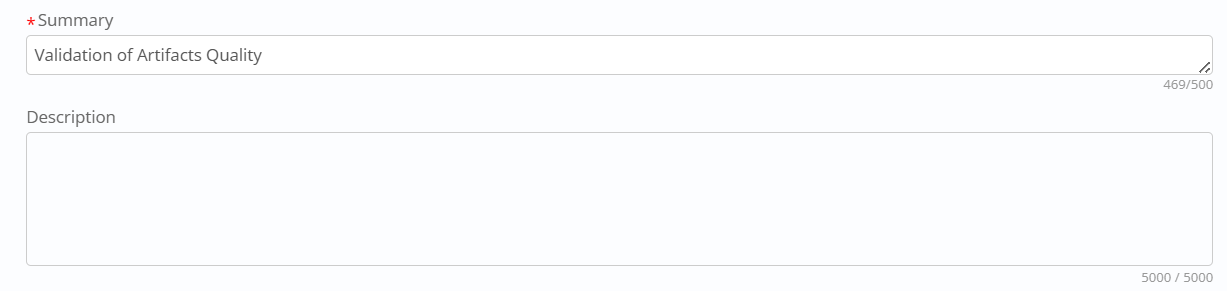
- Editor Type: Enable the Rich Text editor for the Task Description field.
4. Task Template Specific Requirements
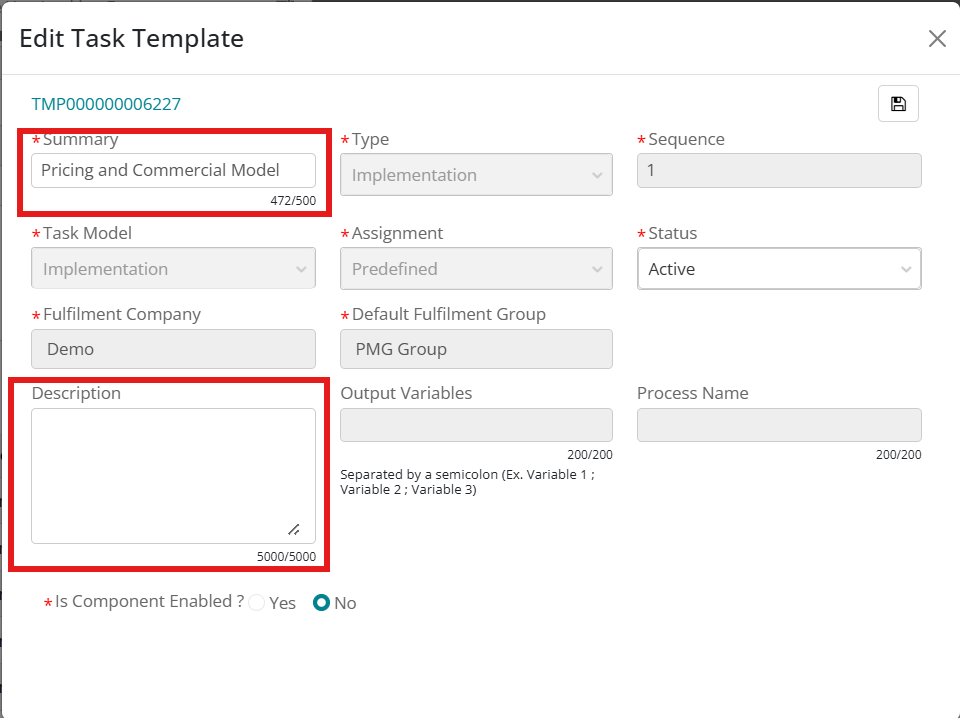
Summary : Character Length of the Task template Summary field changed to 500 Characters
Description :Character Length of the Task template Summary field changed to 5000 Characters
5. Change Plan Standardization requirement
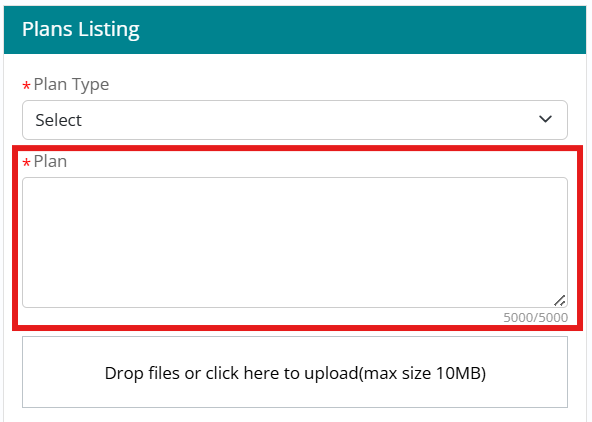
Plan : Character Length of the Plan field changed to 5000 characters on Change Plan section
VIP User Indicator
Users marked as VIP in Foundation are now identified with a VIP indicator displayed on the Requested For field, enabling fulfillers to expedite high-priority requests and apply appropriate service level treatments.
This capability spans Incident, Fulfillment, and Interaction modules, providing consistent VIP visibility across all service management workflows.

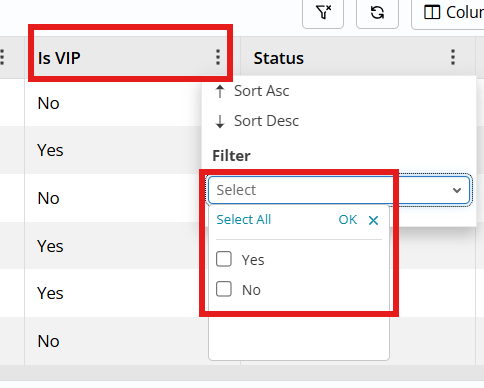
The "Is VIP" column can be added to list views for all three modules through standard list personalization using the column selector, enabling fulfillers to identify VIP requests at a glance when reviewing work queues.
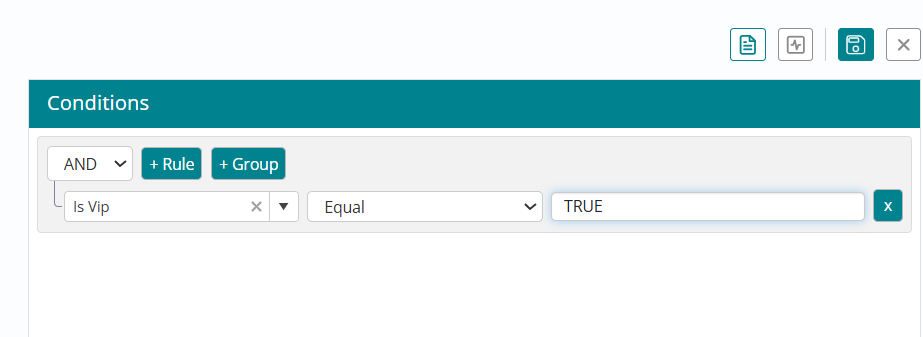
Reports can be created using the "isVIP" attribute for all mentioned modules, enabling analytics on VIP request volumes, resolution times, and service quality metrics. Administrators can also create automated rules based on the "Is VIP" attribute, supporting workflows such as automatic priority escalation, specialized routing, or enhanced notification patterns for VIP requestors.
This enhancement enables immediate identification of VIP requestors, supports differentiated service delivery, facilitates compliance with VIP service level agreements, improves customer satisfaction for high-value users, enables VIP-specific reporting and analytics, supports automated VIP handling through rule-based workflows, and ensures consistent VIP treatment across all service channels.