Interaction Management
The new Interaction module provides a dedicated way for the Service Desk to record every customer conversation as an Interaction ticket, independent of incidents and service requests. Conversations can originate through multiple channels such as phone calls, chat, virtual agent, walk-in visits, email, web, monitoring, integrations or eBonding, and all of them can now be captured consistently in one place. This ensures that what was discussed and what actions were taken are always recorded, including whether the conversation resulted in a new Incident or Service Request.
By centralizing these conversations, the Interaction module helps keep a complete record of customer contacts, improves support quality and enables better tracking of time spent on interactions. Managers gain a clearer view of performance, volume and response times, which supports coaching and continuous improvement across the Service Desk.
The module is role-aware and available to multiple personas in the organization. Service Desk Users, Interaction Users and Interaction Managers can create, view and edit interactions, while Interaction Viewers have read-only access and can only view existing interaction records. All these users access the module from the Work Item Board by clicking on the Interaction option, which opens a list of interaction tickets created by the Service Desk.
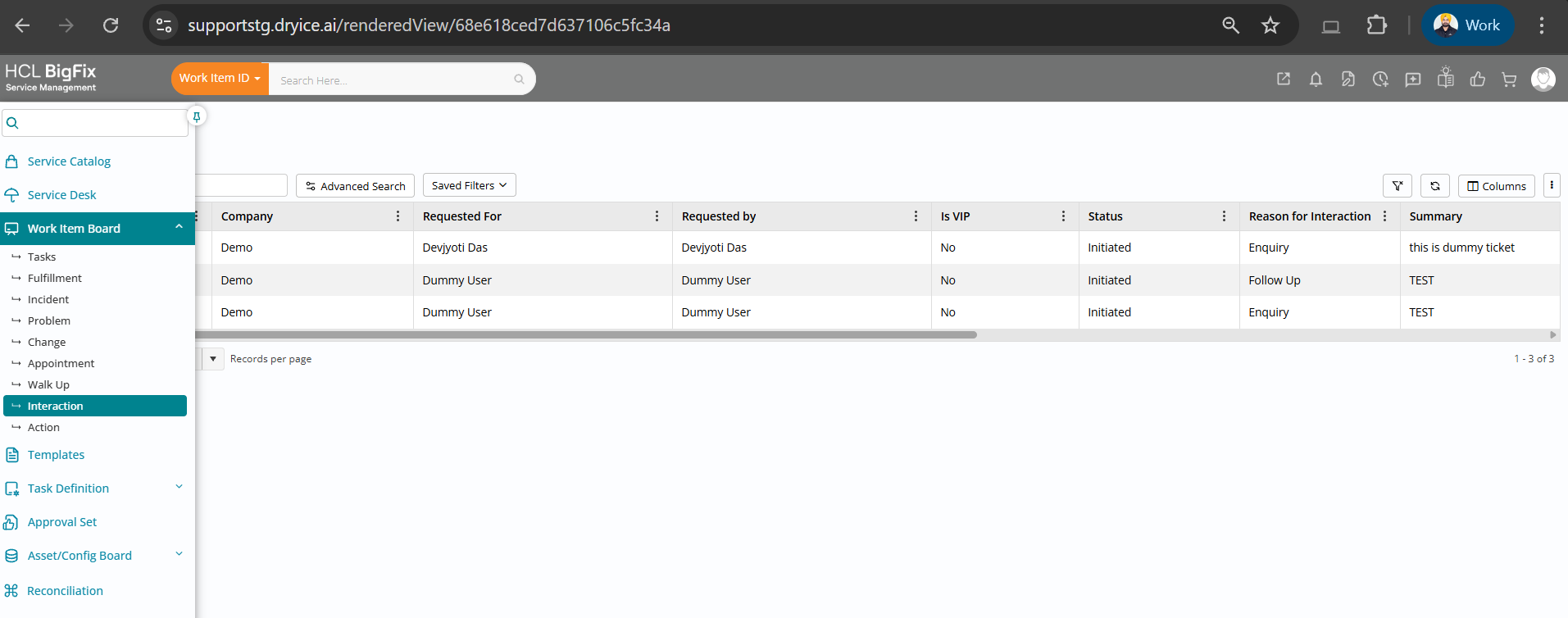
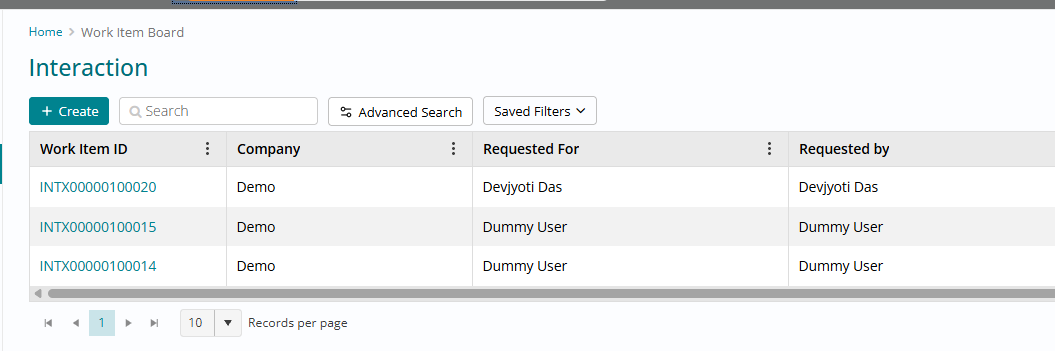
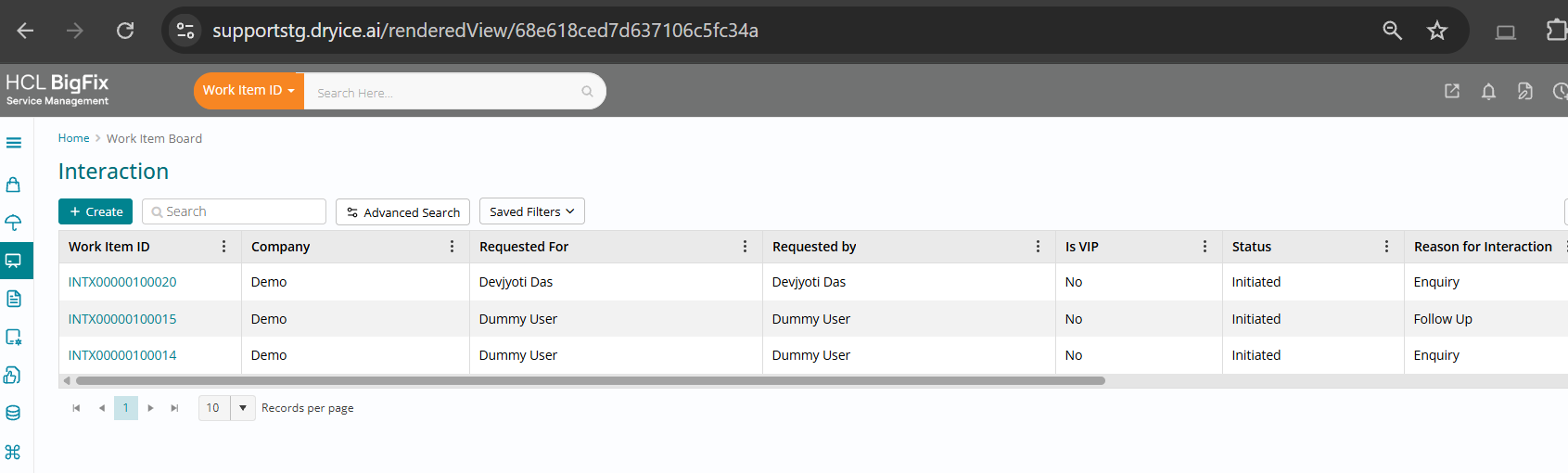
Once inside the module, the Interaction list view presents all interactions in a tabular layout with clear columns. The list shows Work Item ID, Company, Summary, Status, Group, Individual, Requested For, VIP User flag, Requested By, Reason for Interaction and Created On, giving agents a quick snapshot of key details at a glance.
To help agents work efficiently, several list controls and filters are available. They can use “Assigned to me” to focus on their own work, “Assigned to my groups” to see items for their team, or “All” to view every interaction. The view also includes a basic Search bar (to search by Interaction ID, user name, summary and more), Advanced Search with multi-filter options, a convenient “Last 30 days” filter for recent activity, and pagination to move through large result sets.
Agents can create new interactions directly from the list. Clicking the + (plus) icon opens a new Interaction form, and each record automatically receives a unique Interaction number in a dedicated, making it easy to track and reference over time.
The Interaction add page is designed to capture both required and contextual information. Mandatory fields include Company, Reason for Interaction (company-configurable, with default values such as Enquiry, Follow Up, New Incident and New SR), Requested For (the person who needs help), Requested By (the person who contacted the Service Desk) and a short Summary with a 500-character limit.
The form also enforces classification and channel details for better reporting and routing. Category / Sub-category / Type are company-configurable so customers can align them with their own taxonomy, and the Through field records the channel used, with default options including Integration, Monitoring, MyService, Virtual Agent, Phone, Email, Web, EBonding and Walk-in. An Assignment section lets agents select the Group (from self and C2G associated groups) and Individual (users associated with the selected group), ensuring ownership is clearly defined.
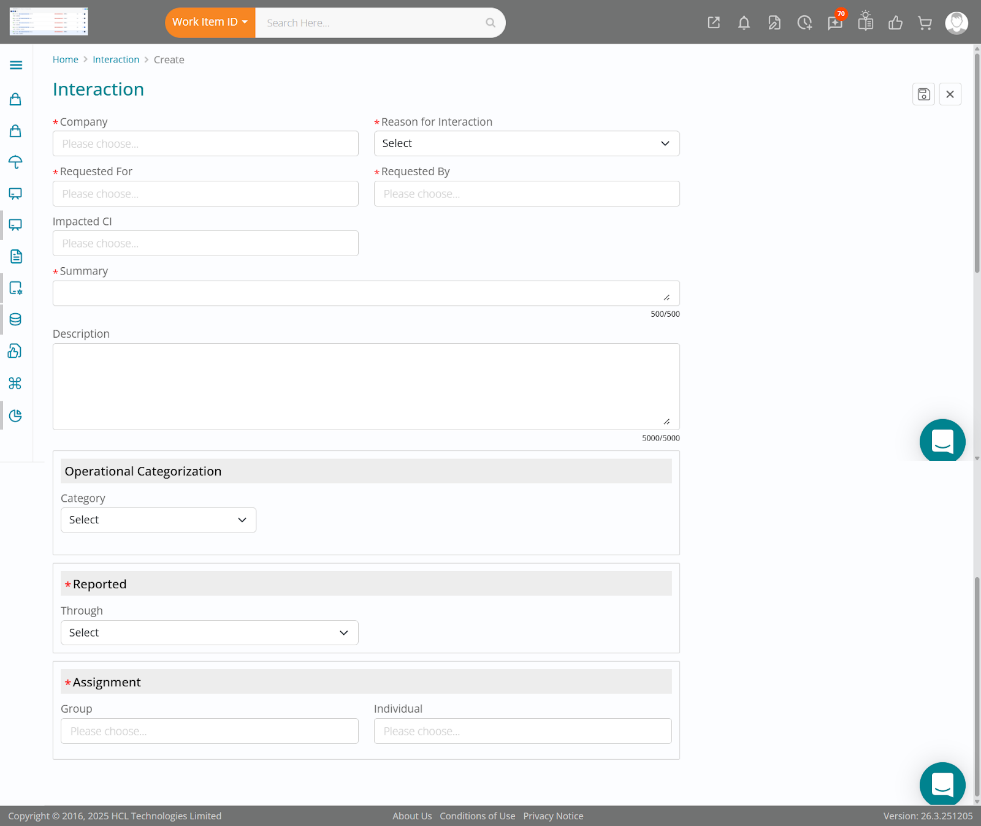
Additional fields allow richer context where needed. Agents can select an optional Impacted CI to identify the affected configuration item, and they can provide a detailed Description, up to 5000 characters, to capture the full story behind the interaction. The Reported On field is automatically filled by the system and is read-only, ensuring consistent time capture without manual input.
After saving, the Interaction edit page enables updates as the conversation evolves. Agents can modify fields such as Reason for Interaction, Requested For, Requested By, Impacted CI, Group and Individual assignment, Summary, Description, Category/Sub-category/Type, Through and Status, so the record always reflects the current state.
The right-hand side of the Interaction edit page provides powerful context through historical records. For the relevant user, agents can see lists of historical Incidents, Service Requests and Interaction tickets, all accessible in a scrollable panel.
Agents can click any historical record to open it and review details, which helps them avoid duplicate logging and understand previous issues before proceeding. When there is no history for that user, the system displays a clear “No records found” message so agents know there are no prior records to review.
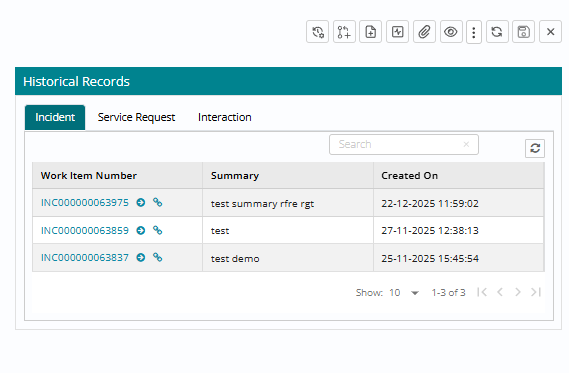
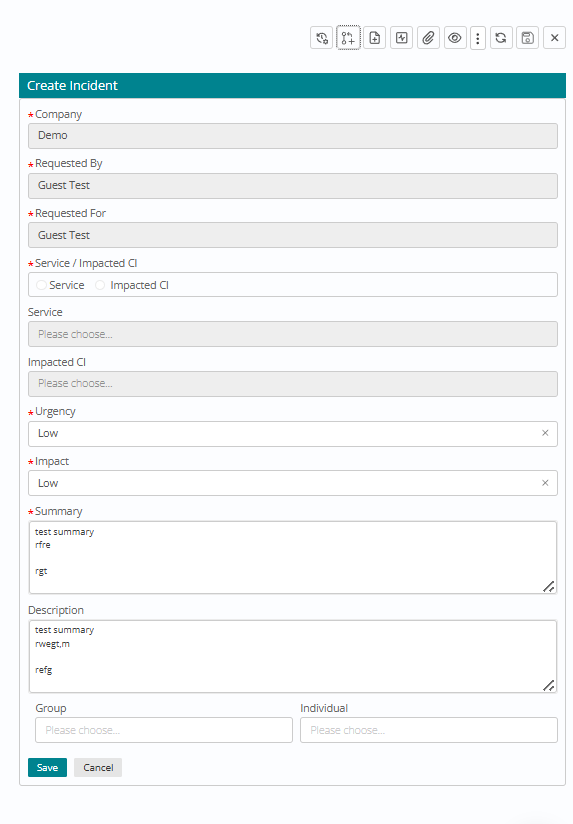
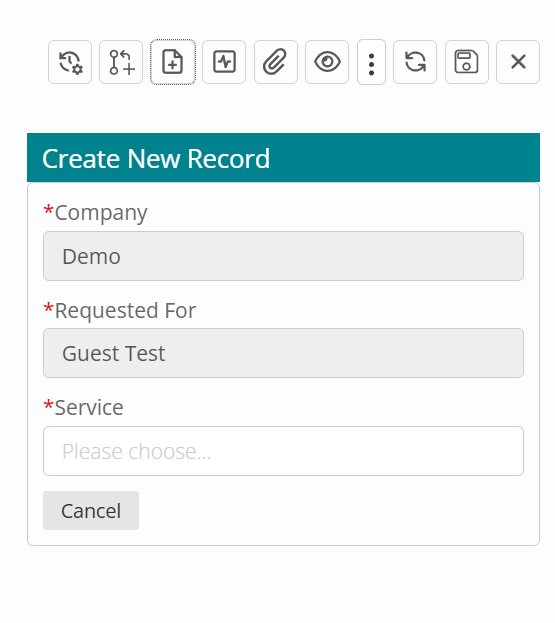
From the same right panel, the system offers two key shortcuts to create downstream work. The Create Incident option allows agents to create an Incident ticket directly from the interaction, reusing data and filling only the remaining required details. The Create New Record option lets agents navigate to the relevant offering details page and order any Incident or Service Request service on behalf of the Requested For user, supporting assisted service for end users.
Notifications are also part of the interaction lifecycle. The system sends notifications when an Interaction is Dropped (Abandoned) and when it is Completed, ensuring that stakeholders remain informed about how the conversation has been closed out.
On the self-service side, a new Interaction section has been added under My Requests, so end users have visibility into their interactions with IT. This section includes two tabs: Self, which shows interactions created for the logged-in user, and Others, which shows interactions that user has created for someone else. This distinction makes it simple for users to track both personal and delegated requests.
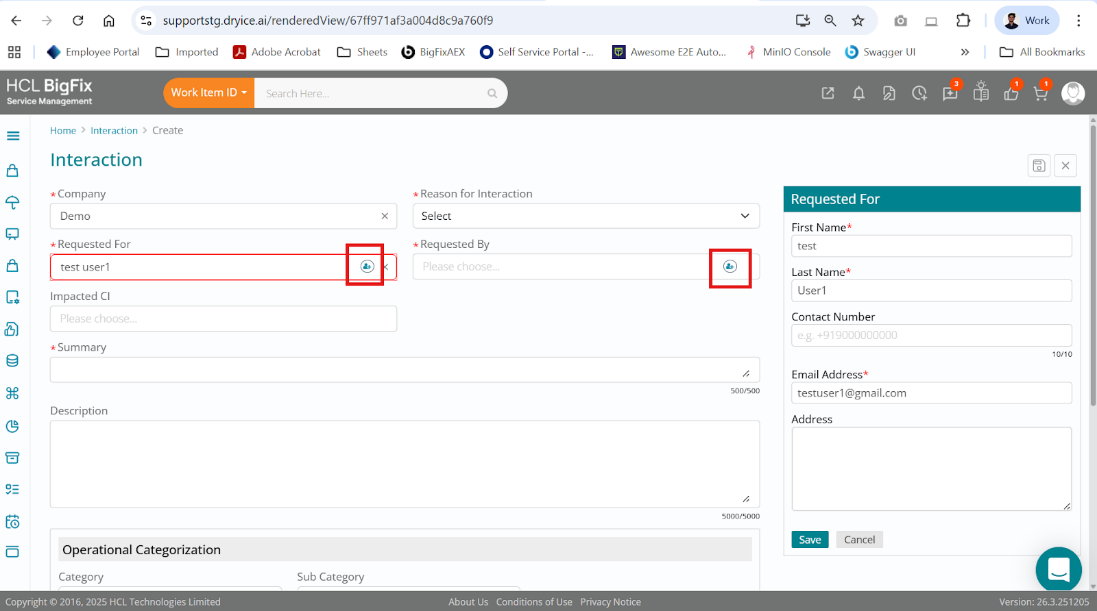
The module also supports scenarios where the Requested For user is not yet in the system. In such cases, the application shows a “User not found” message and offers an Add User icon so the agent can quickly register the person as a guest user.
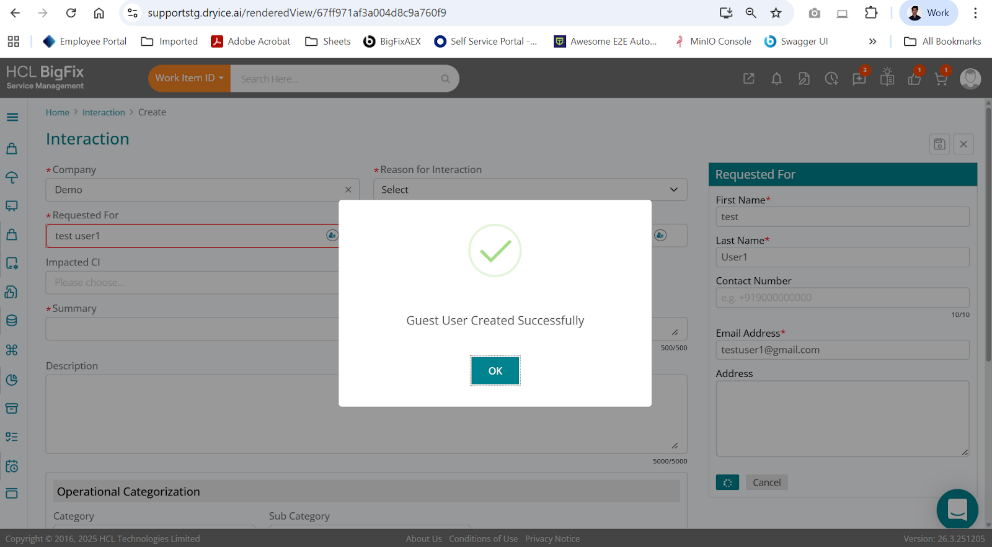
When adding a guest user, the agent fills in First Name, Last Name, optional Contact Number, Email Address, optional Address and Company (inherited from the Interaction’s Company field), then submits the form. The system automatically creates the guest user record, and if a user with the same email already exists, an “Email already exists” validation prevents duplicates.
To streamline routing, the Interaction module supports auto assignment rules. These rules can be configured based on attributes such as Status, Through (channel) and Reason for Interaction, so that new interactions are automatically assigned to the most appropriate group.
This is particularly useful for interactions created via EBonding, where group details may not be present in the payload. In those cases, the system evaluates the best-fitting rule and assigns the Interaction to the corresponding group, ensuring that new records never remain unassigned.
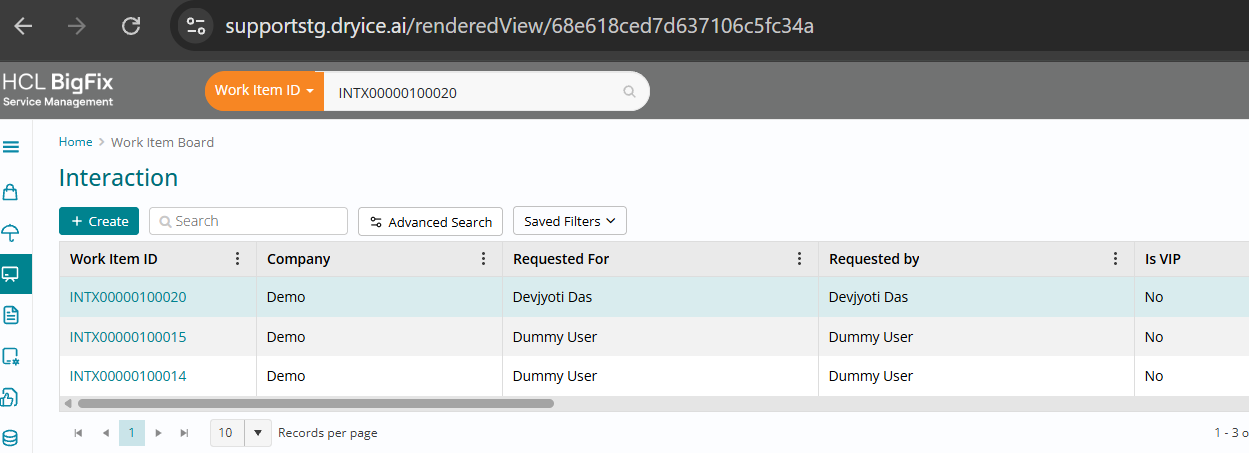
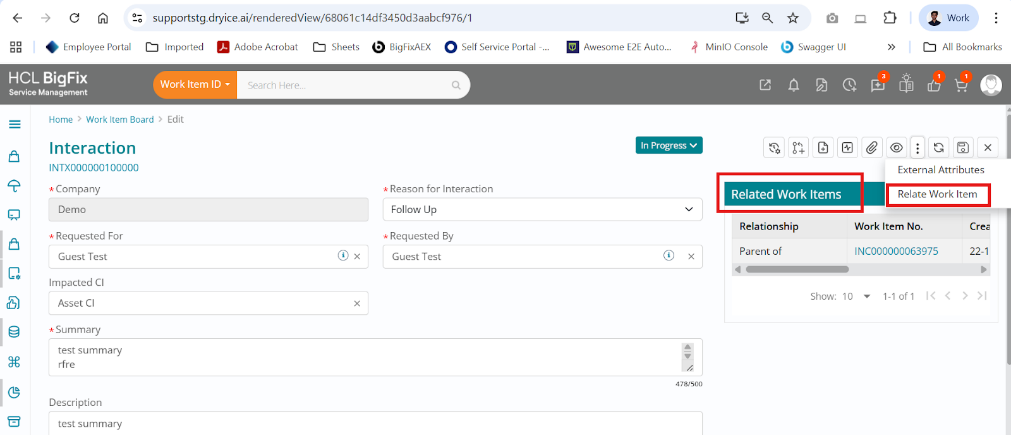
Interaction tickets are fully integrated into the broader workspace experience. They are searchable through Global Search, allowing users to find interactions quickly using global queries. The module also supports parent-child relationships, with relationship options available via the three-dot menu on the interaction record so users can model linked or dependent conversations where needed.
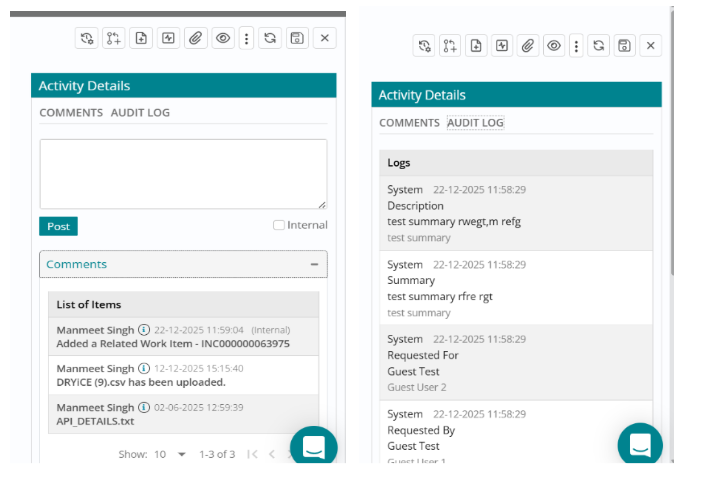
The Activity Details section on each Interaction helps teams track communication and change history in one place. Within Comments, users can add updates, ask questions or share additional information by typing in the comment box and clicking Post, and they can mark a comment as Internal so that only internal support users can see it. All comments are listed below the input area for easy reference and auditing of the conversation trail.
The Audit Log complements comments by automatically recording every change made to the interaction. It tracks what was changed, who made the change and when it occurred, providing a complete history for review, compliance and analysis.
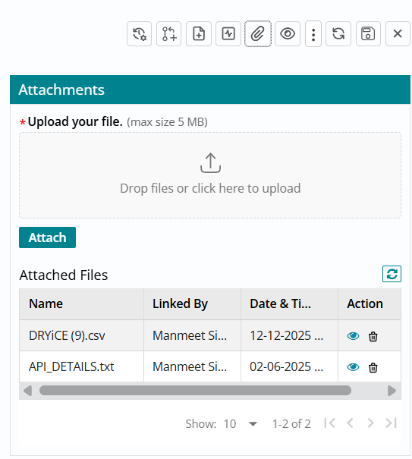
Files related to an interaction can be captured using the Attachments section. Users can drag and drop files or click to upload, with a maximum file size of 5 MB per attachment.
Once uploaded, attachments are listed with file name, who uploaded them and the date and time of upload, and users can view or download files as needed. This ensures that all supporting evidence—such as screenshots, logs or documents—is stored alongside the interaction record.
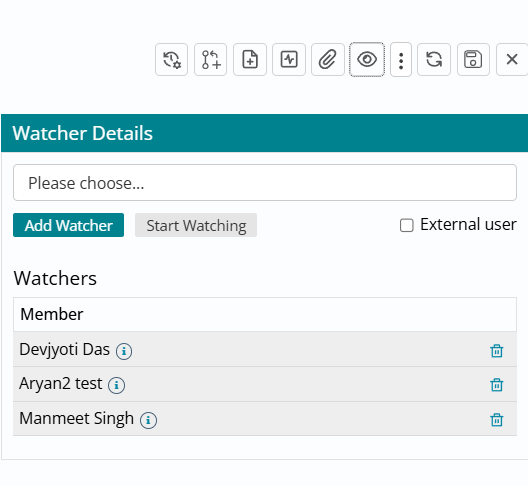
Finally, the Watcher section helps keep the right people informed about the interaction’s progress. Agents can select a user and click Add Watcher so that person receives updates whenever changes are made.
Users can also click Start Watching to add themselves as watchers, and, if allowed, they can add external users as watchers as well. All watchers are displayed in a list and can be removed when they no longer need to follow the interaction, providing flexible stakeholder visibility without changing ticket ownership.