Knowledge Management
Scheduled Publish & Auto-Publish
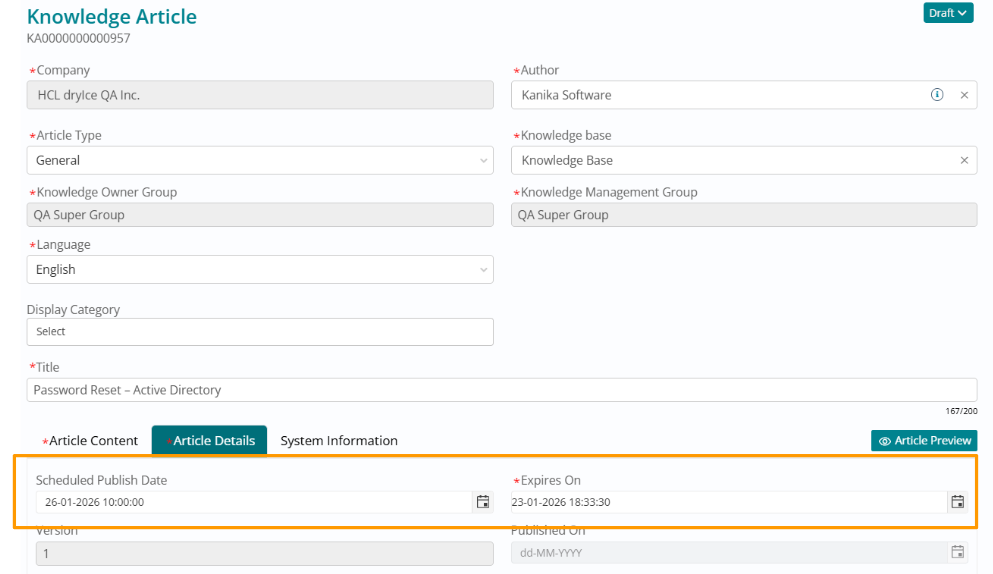
The 'Scheduled Publish Date' field has been introduced to automate the release of knowledge articles, enabling content planning and coordinated publication aligned with product launches, process changes, or communication campaigns.
Authors can now set a future date for publication, allowing knowledge content to be prepared in advance and released automatically at the optimal time without requiring manual intervention.
Once an article is submitted for publication (and approved through the review workflow, if applicable), it enters a 'Scheduled for Publish' state. The hourly system scheduled job [Publish scheduled articles] validates these records. When the scheduled date is reached, the article is automatically transitioned to the 'Published' state, making it visible to end users based on their access permissions.
Schedule Expiry & Auto-Retirement
The 'Scheduled Expiry Date' field has been introduced to enable better lifecycle management by automatically retiring content that is no longer relevant, ensuring the knowledge base remains current and trustworthy.
Authors can set a future expiry date for articles at the time of creation or during updates. This is particularly valuable for time-sensitive content such as temporary procedures, seasonal information, version-specific instructions, or policy documents with known revision dates.
Automated Retirement Process:
- Transition to Outdated: The hourly system scheduled job [Set KA to Outdated status] scans for 'Published' articles that have passed their expiry date. When detected, these articles are automatically transitioned to the 'Outdated' state.
- Final Closure: The daily scheduled job [Set KA to Closed status] identifies articles that have remained in the 'Outdated' state for more than 30 days. These articles are automatically moved to the 'Closed' state, removing them from active user-facing views while preserving the historical record.
To prompt timely review before an article becomes outdated, the system triggers email notifications to the Knowledge Owner Group, Knowledge Management Group, and the article's Authors at the following intervals:
- 30 Days before expiry - [KA about to expire in 30 days]
- 15 Days before expiry - [KA about to expire in 15 days]
- 7 Days before expiry - [KA about to expire in 7 days]
The frequency of all these scheduled jobs can be adjusted to match organizational workflows and content management practices.
Ensures users see current information, reduces risk of following outdated procedures, maintains knowledge base credibility, eliminates manual tracking of expiration dates, and supports compliance requirements for document currency.
Article to Article Relationship
A content linking capability has been introduced to create contextual relationships between related knowledge articles, improving content discoverability and providing readers with comprehensive information pathways.
A new 'Relate Knowledge Articles' tab has been added within the article edit page, providing a dedicated interface for managing article relationships.
Users can search for and link multiple articles to the current article record using the link action button. The search functionality intelligently restricts results:
Company Scoping: Search is strictly limited to the same Company as the current article
Publication Status: Only 'Published' articles appear in search results
Once linked, the related articles appear in the 'Attached Articles' section. End users viewing the article can easily navigate related content.
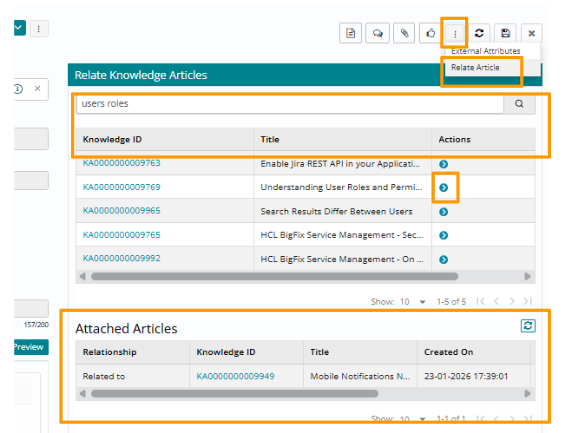
Relationship Type: Article 'Relates to' article. This indicates the content is contextually connected, such as prerequisite knowledge for advanced procedures, complementary information on related topics, alternative approaches to solving similar problems, or component-specific details related to a system-level overview.
Article to Change Relationship
The article linking capability has been extended to Change records, enabling clear traceability between knowledge content and the changes they support or document.
The 'Relate Knowledge Articles' tab has been introduced on the Change record edit page, providing change coordinators with the ability to associate relevant documentation directly with change records.
Users can search for and link one or more knowledge articles to the change record using the link action button. Search behavior is consistent with article-to-article linking:
Company Scoping: Search is strictly limited to the same Company as the current change record
Publication Status: Only 'Published' articles can be linked
Once linked, the related articles appear in the 'Attached Articles' section on the Change record.
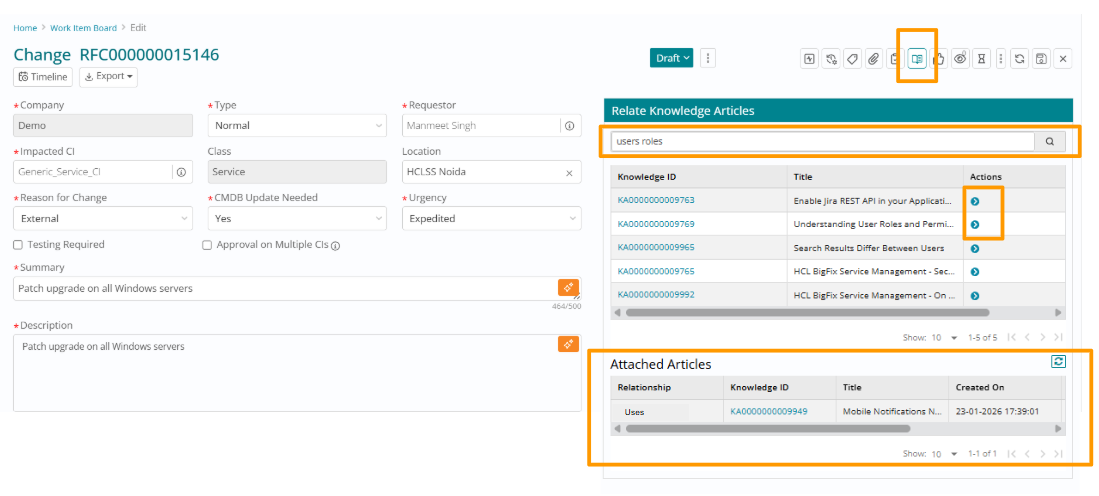
Relationship Type: Change 'Uses' article. This indicates the change process utilizes the knowledge article for implementation instructions, rollback procedures, configuration reference documentation, impact analysis information, or testing procedures.
Ensures change implementers have immediate access to correct procedures, improves change quality by linking to standardized approaches, facilitates knowledge reuse across multiple changes, creates audit trail showing which documentation was consulted, and supports post-implementation review.
Knowledge Articles Open in New Tab
To prevent users from losing their place in their current workflow, Knowledge Articles will now open in a new browser tab when accessed from key operational interfaces.
This behavior enhancement applies when knowledge articles are accessed from:
- Work Item Board: Agents can reference knowledge without losing their position in the work queue
- Service Board: Service desk teams can consult documentation while maintaining context on active service requests
- Offering details page: Users can review supporting documentation without navigating away
- Incident checkout page: Users can access knowledge articles for research while keeping the incident form populated
This preserves data and user context, enables comparison between multiple knowledge articles simultaneously, supports research patterns where users need to consult several articles before taking action, and improves efficiency.
Attachments Visibility on Article View Page
An Attachments section has been made available on the Article View Page, providing readers with direct access to supplementary resources and downloadable materials that enhance the knowledge content.
Any files attached to the knowledge article during authoring are now prominently displayed in a dedicated Attachments section on the article view page. Readers can see all attached files with filenames and file types, download files directly for offline reference or use, and access supplementary materials such as templates, scripts, configuration files, diagrams, or reference documents.
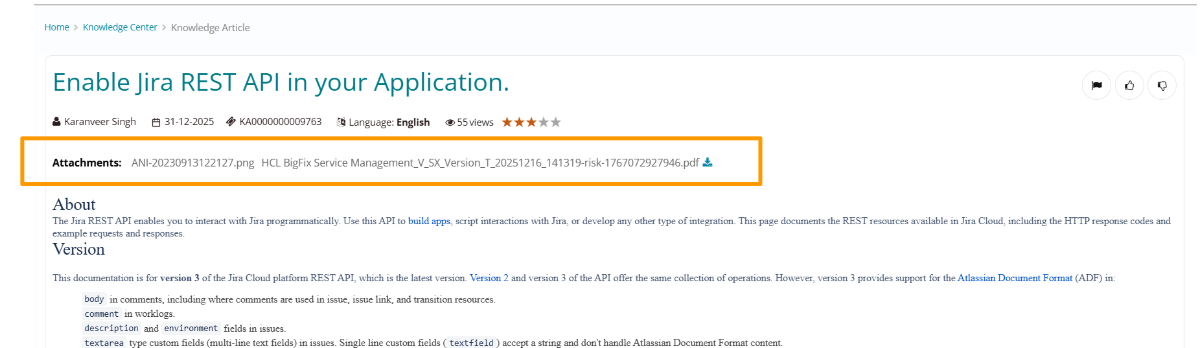
This capability enables knowledge authors to provide Excel templates for data collection, PowerPoint templates for presentations, configuration file examples, scripts for automated procedures, PDF documents with detailed specifications, or diagrams and architecture documents.
This reduces the need to embed large images inline, provides downloadable resources users can customize, supports offline work scenarios, enables version control of complex supplementary materials, and maintains knowledge completeness.
Feedback on Knowledge Articles
Comprehensive feedback mechanisms have been introduced to capture user perspectives on knowledge availability and content quality, enabling continuous improvement of the knowledge base.
Provide feedback - Multiple feedback channels are now available to users:
Star Rating - Users can rate the content quality on a 5-star scale, providing quantitative assessment of article usefulness and quality.
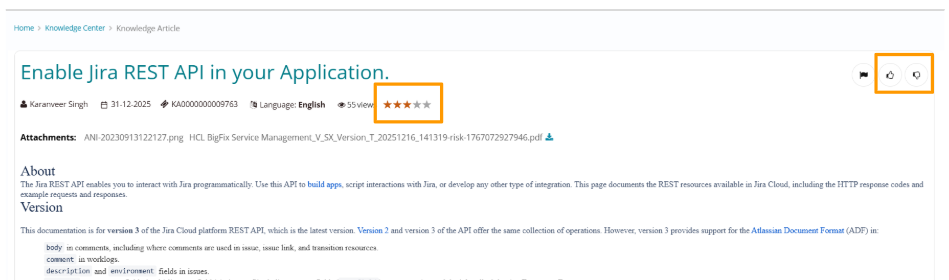
Helpful / Not Helpful - Users can mark articles as "Helpful" (Thumbs Up) or "Not Helpful" (Thumbs Down), providing quick binary feedback on whether the article solved their problem.
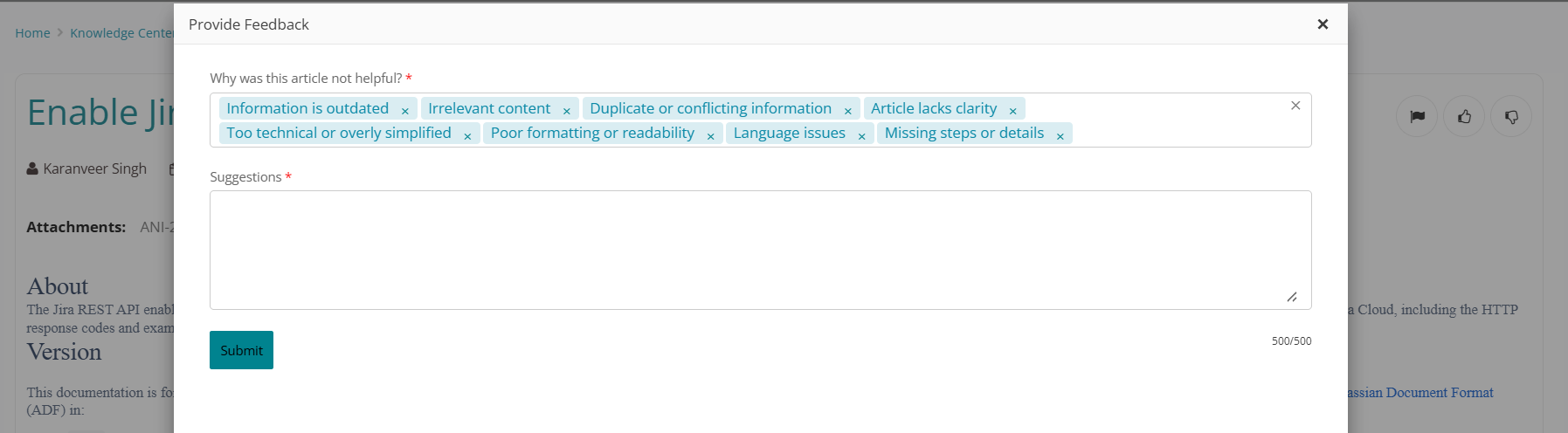
When marking an article as Not Helpful, users are prompted to select specific reasons from a configurable list and provide suggestions for improvement.
Flagging for Incorrect Content
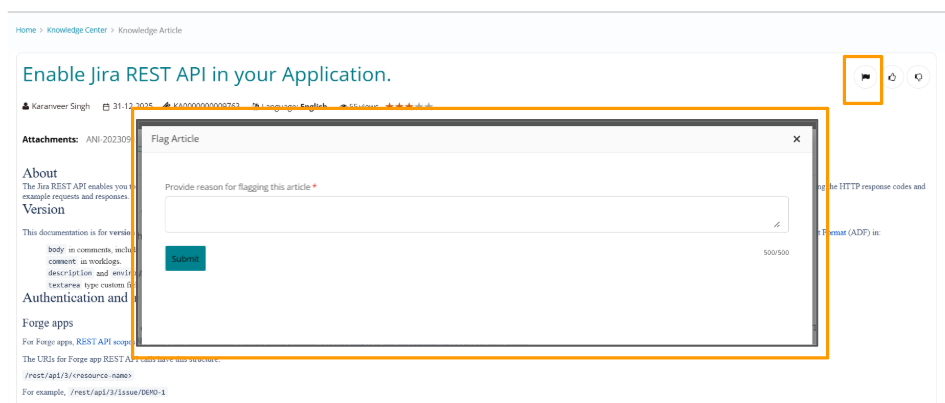
Users can Flag an article if they identify incorrect information, outdated procedures, broken links, or other accuracy issues. A reason must be provided to guide the correction.
Flagging an article automatically creates a Feedback Task assigned to the Knowledge Owner group, ensuring the issue is addressed promptly.
Content Gap Reporting
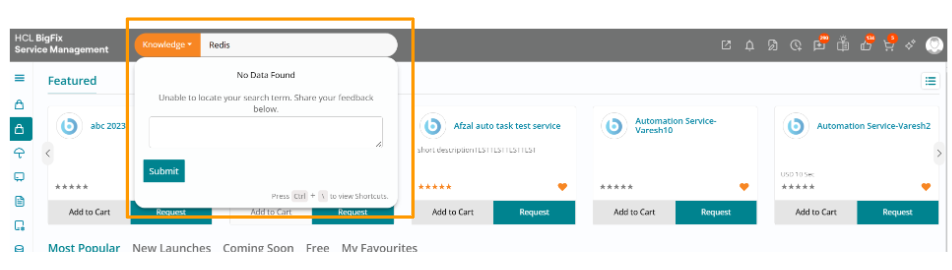
When searching for an article from the global search box, if no article returns for the entered search term, the user can provide feedback on the unavailability of the content. This helps Knowledge Managers identify information gaps and prioritize content creation efforts based on actual user needs.
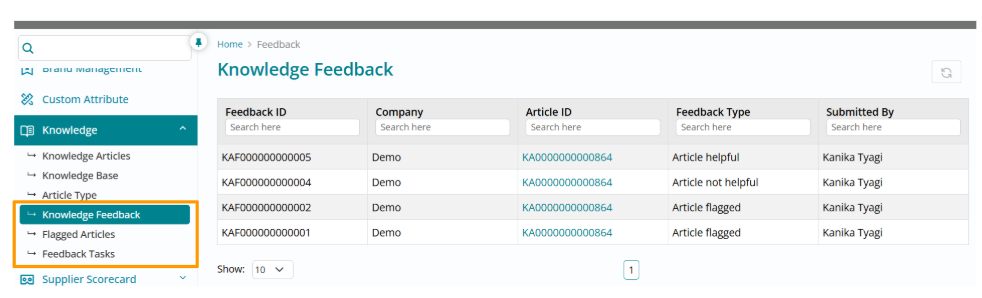
Capture feedback - Three new menus have been made available for users with knowledge owner, knowledge manager, or knowledge author roles, under the Knowledge module:
Knowledge Feedback Menu
All feedback records submitted by readers are consolidated in this view, providing knowledge owners with a comprehensive dashboard to review user feedback and prioritize improvement actions.
Flagged Articles Menu
Feedback records specifically for articles that have been flagged by readers for incorrect content are available under this dedicated menu, highlighting critical quality issues requiring immediate attention.
Feedback Tasks Menu
When an article is flagged, a feedback task is automatically created and assigned to the knowledge owner group. These knowledge feedback tasks are visible under this menu for tracking and resolution. These tasks get created with the following details -
- Requester User who flagged
- Priority P4
- Assignment group Knowledge Owner group
- Task type; Task model Feedback
- Summary <Feedback ID> <Flag comment>
- Status Assigned
Benefits: Continuous quality improvement driven by actual user experience, data-driven content prioritization, clear accountability for content quality, identification of knowledge gaps preventing self-service success, and measurable improvement in knowledge base effectiveness over time.
Hierarchical Display Categories & Filtering
A hierarchical categorization system has been introduced to improve how knowledge is organized and discovered, enabling users to navigate complex knowledge bases through intuitive category structures.
The 'Display Categories' attribute allows administrators to define a multi-level category tree at the Company level for knowledge articles. This hierarchical structure can reflect product lines, service areas, organizational functions, or any taxonomy relevant to the organization's knowledge structure.
Display categories are configured via the company menu list API, providing programmatic control over the category hierarchy.
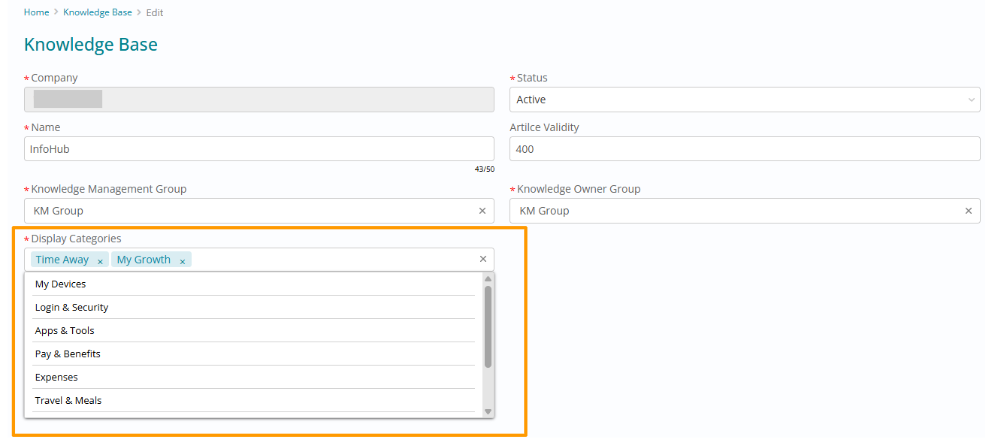
Once display categories are defined, administrators can link multiple Root categories (where Parent is null, i.e., top level in the hierarchy) to specific Knowledge Bases. This determines which category structures are available for articles within each knowledge base.
Only categories that map to the company of the Knowledge Base are available for selection, maintaining multi-tenant data integrity.
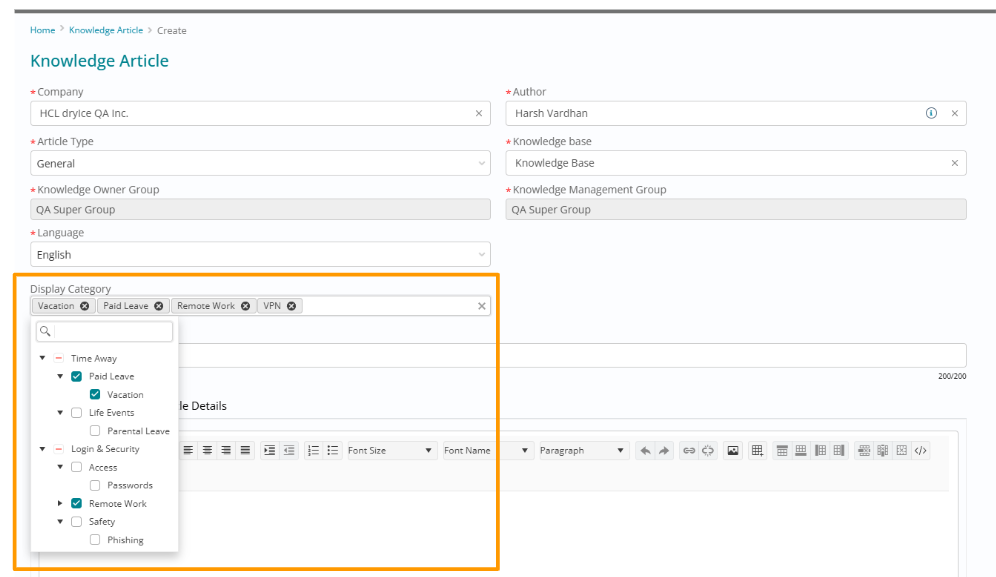
When categorizing an article, the system dynamically filters the available categories based on the article's assigned Knowledge Base. Only categories belonging to the hierarchy linked to that knowledge base can be selected and mapped with the article.
Important Note: These Display categories are distinct from the Operational categorization (Category - Subcategory - Type) used for incident routing and reporting. Display categories focus on user-facing content organization and discovery, while operational categories support workflow automation and analytics.
With this enhancement, we bring Improved content discoverability through intuitive navigation, reduced search time for users familiar with organizational taxonomy, support for large knowledge bases with thousands of articles, and flexible categorization supporting multiple organizational perspectives.
In-article Anchoring and Section Linking
Knowledge authors now can create anchors within article content and link directly to specific sections, improving navigation within long-form articles and enabling precise cross-referencing.
Anchoring is especially valuable for long procedural documents with many steps, troubleshooting articles with multiple scenarios, reference documents with distinct sections, FAQ articles where users want to jump to specific questions, or technical specifications with multiple components.
Creating Anchors - Step by Step:
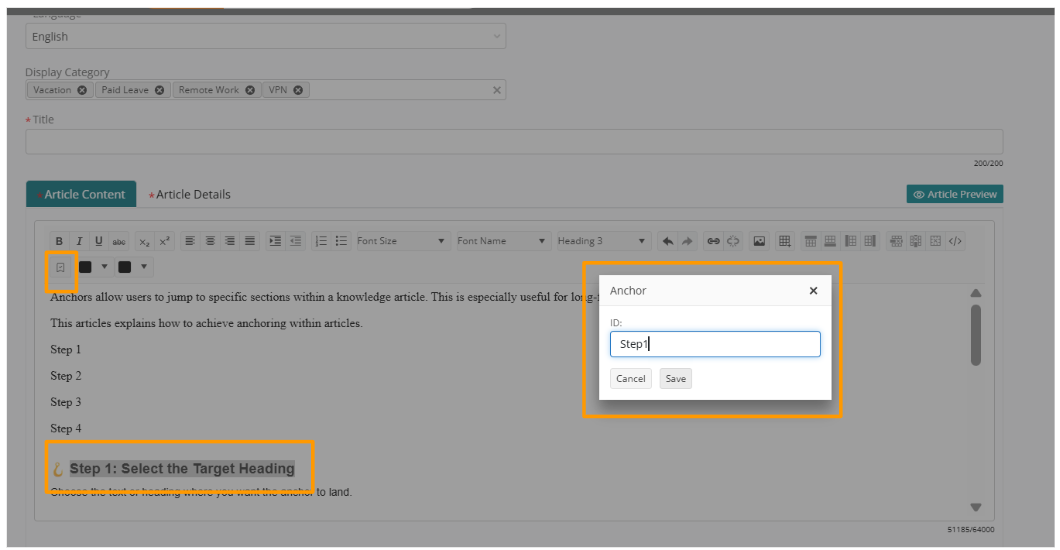
Step 1 - Select Anchor Location: Choose the text or heading where you want the anchor to land (the destination point users will jump to when clicking the link).
Step 2 - Insert Anchor: Click the Anchor button in the rich text editor toolbar after selecting the heading or text.
Step 3 - Name the Anchor: In the pop-up window, enter a unique name in the ID field and save. Use descriptive names like "prerequisites," "step1," "troubleshooting," or "rollback" for clarity.
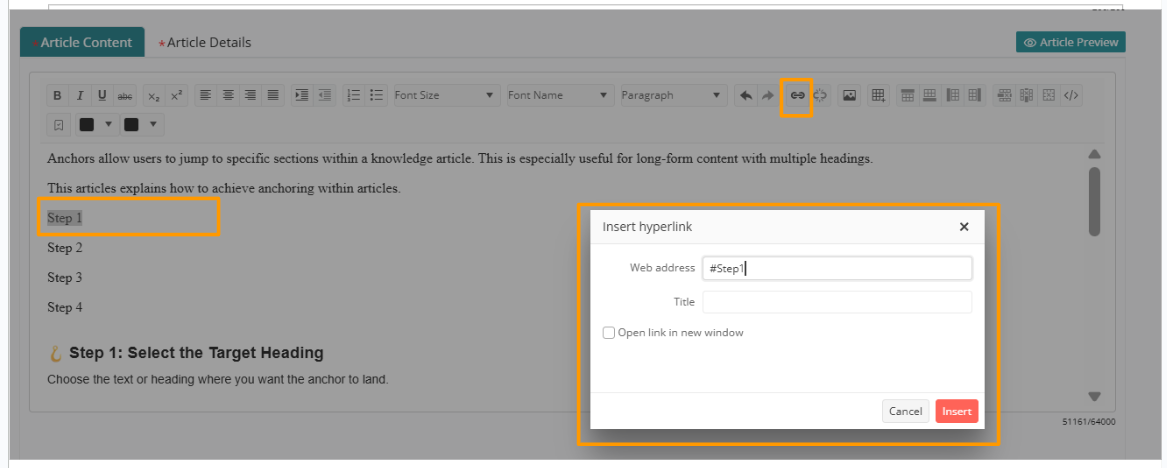
Step 4 - Create Hyperlink: Select the text that will serve as the clickable hyperlink (can be in the same article or even in a different article). Click the Insert Hyperlink button. In the pop-up, enter the anchor name prefixed with # (e.g., #section1 or #prerequisites), and Insert.
This feature brings Improved user experience for long articles, reduced scroll time to find relevant information, support for modular content that can be accessed non-linearly, enhanced accessibility for users navigating with keyboard or assistive technologies, and ability to share direct links to specific sections with colleagues.
Knowledge Landing Page
Knowledge Center has been introduced, a dedicated hub designed to streamline self-service and information discovery.
Users can now browse and search through a consolidated view of all knowledge articles they have permission to access, and find answers and solutions to their queries.
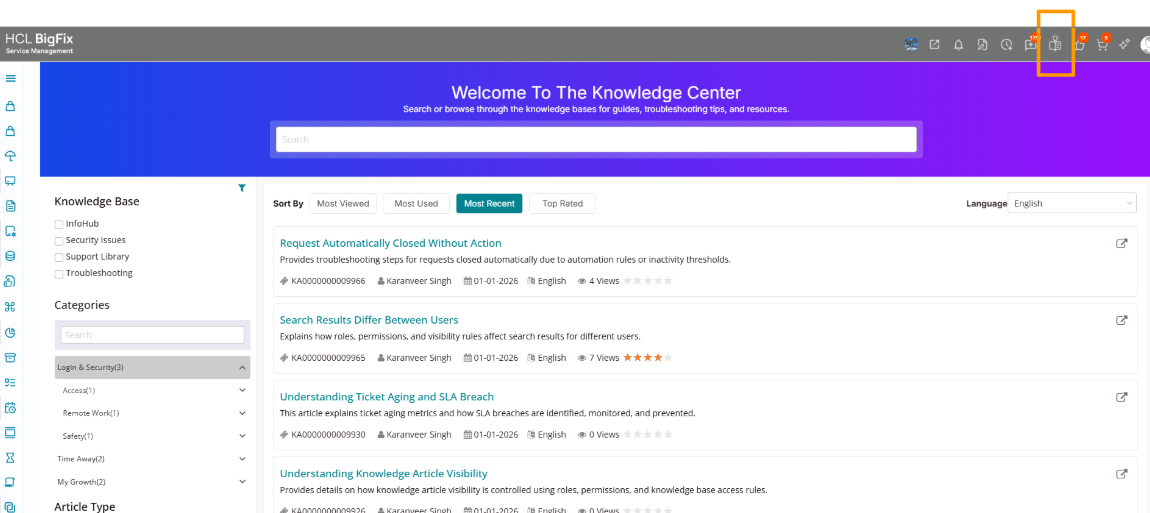
The Knowledge book icon added to the global header bar can be used to instantly navigate to the Knowledge Center from any page in the application with a single click.
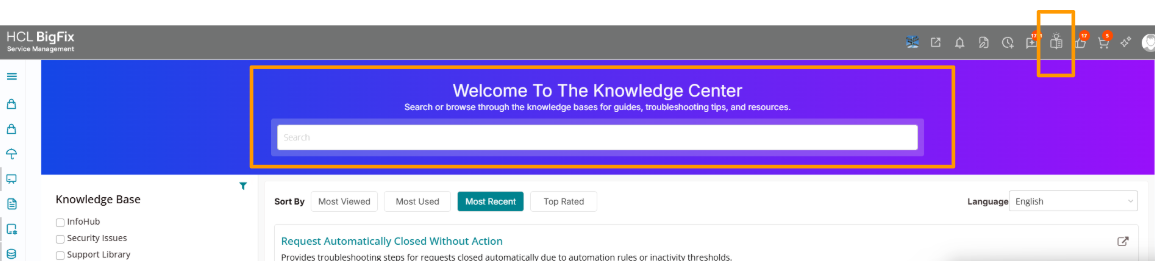
Welcome and Search Bar
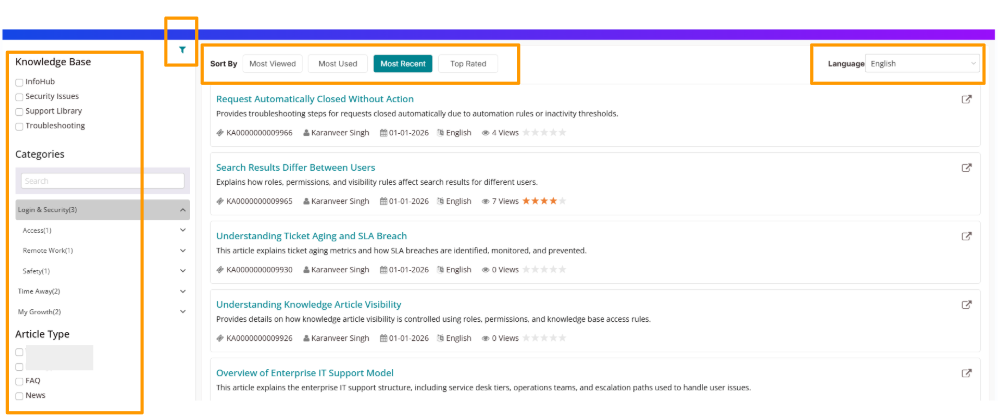
A search bar accompanied by a welcome text is available for users to find relevant articles using keywords. Search results are based on article titles, content, categories, and meta tags.
User must input a minimum of 3 characters to initiate the search.
Sorting Options
Users can sort the article results based on one of the following criteria:
- Most Recent -- Sorts articles by the Published Date, showing the most recently published articles first.
- Most Viewed -- Sorts articles by the Total View Count, with the highest-viewed articles appearing first.
- Top Rated -- Sorts articles by the Average Rating (from user feedback), displaying the highest-rated articles first.
- Most Used -- Sorts articles by the Total Use Count, prioritizing articles that users have accessed and used most frequently.
Filters Panel
Users can filter the articles based on following available options:
Knowledge Base Filter
- Users can select one or more knowledge bases whose articles they are interested in.
- Only those knowledge bases (KBs) will be visible to which the logged in user has access to according to authorization rules.
- If no authorization rules are set up, users can see knowledge bases of their company as well as associated companies.
Categories Filter
- Users can filter articles based on category selection. The categories are organized in a hierarchical structure. Each knowledge base visible to the user is associated with one or more parent categories shown in this filter.
- A search bar is available as well to quickly search the known categories and apply
filter. Note:Users will only be able to see categories which are associated with the knowledge base(s) they have access to.
Article Type Filter
- Users can select one or more article types and filter the articles.
Language Filter
- The language filter is available in the top right section. Users can select a language and filter article results accordingly.
One-Click Filter Reset
To enhance usability, a 'Remove Filter' icon dynamically appears whenever filters or search criteria are applied. This will allow users to instantly clear all active filters and return to the default view with a single click.
Results Section
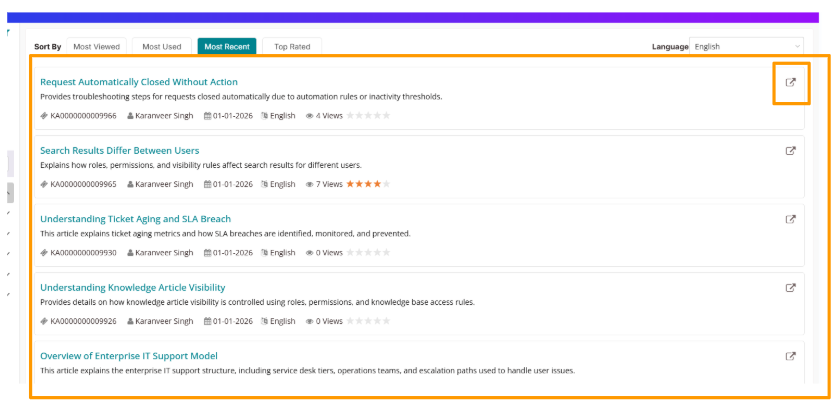
All article cards based on the selected filters and sort options are displayed in this section. By default, the results are sorted by view count (highest first).
Each article card contains the following elements:
- Article Title and Description - The first 300 characters of the article content are visible. Any formatting of text or images are not shown in this preview. Title and description are clickable to open the article in the same tab.
- Article Meta Data - Article ID, Author of the article, Published date, Language, View Count, Average Rating.
- Open in New Tab - This button can be used to open the article in a new tab.
Pagination is available for navigating through all available articles. The top 10 results are shown by default.
Relate Knowledge Articles Directly to Configuration Items
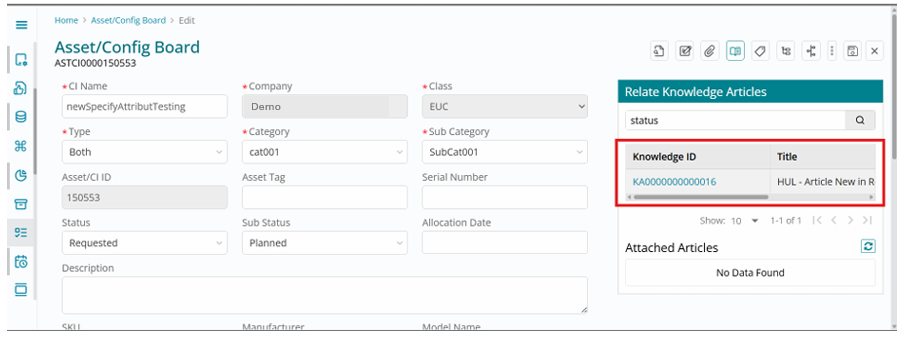
This enhancement allows users to link Knowledge Articles (KAs) directly to Configuration Items (CIs) in the CMDB from the Asset/CI Board, so knowledge becomes contextual to each asset’s lifecycle instead of remaining a standalone library.
By relating KAs to CIs, all stakeholders can immediately see relevant troubleshooting and how-to content whenever a CI is impacted, while the KA remains available in Knowledge Management and still requires a KM Admin role for editing.
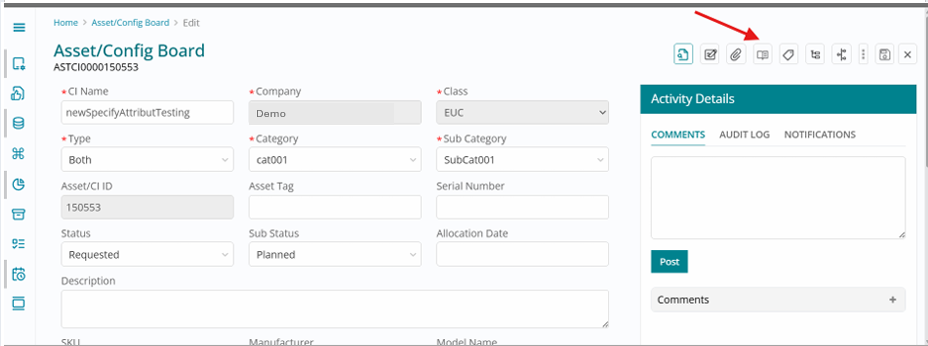
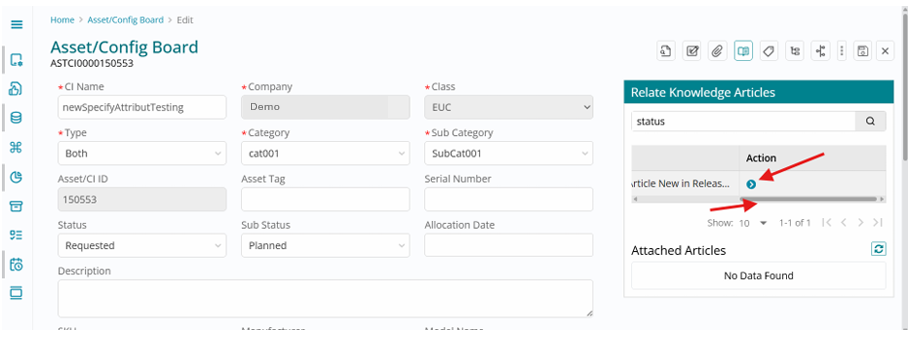
From the Asset Config section, users go to Asset/CI Details, select a CI, click the pencil icon to open the edit view, and then use the Relate Knowledge Article icon to search and link content.
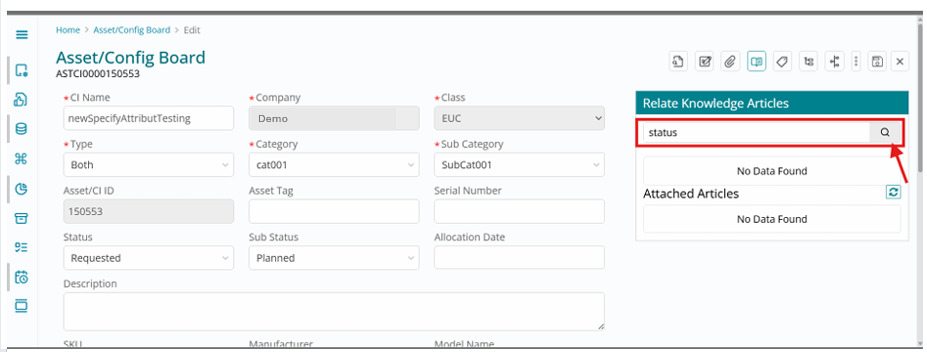
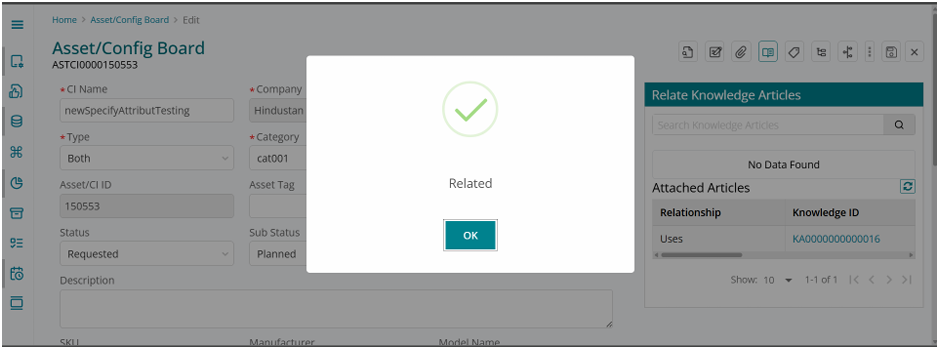
A panel opens where they can type and search for KAs, view the list of matching articles, scroll through results, and click the Relate button on the desired article so it becomes associated with the selected CI, enabling agents to see KA suggestions for CI-related incidents and enabling portals to surface CI-specific knowledge for end users.
Public Knowledge Access
We have introduced public access to Knowledge Articles, allowing users to view content without requiring a system login. Access controls are applied at the article and Knowledge Base (KB) level.
Public Knowledge base & Article Access
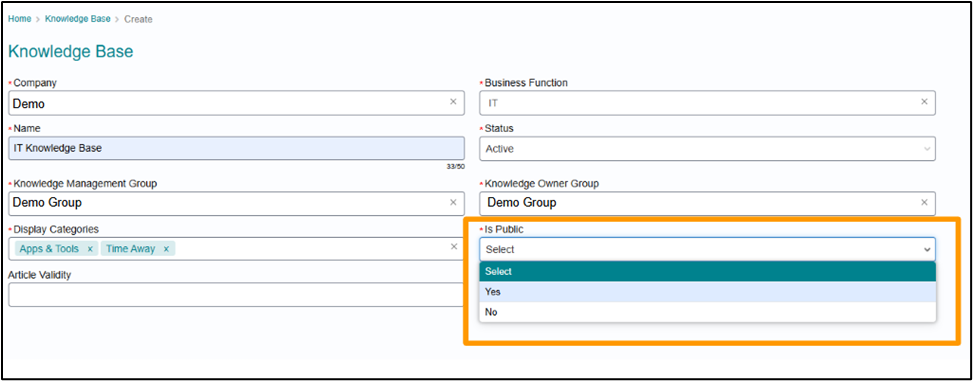
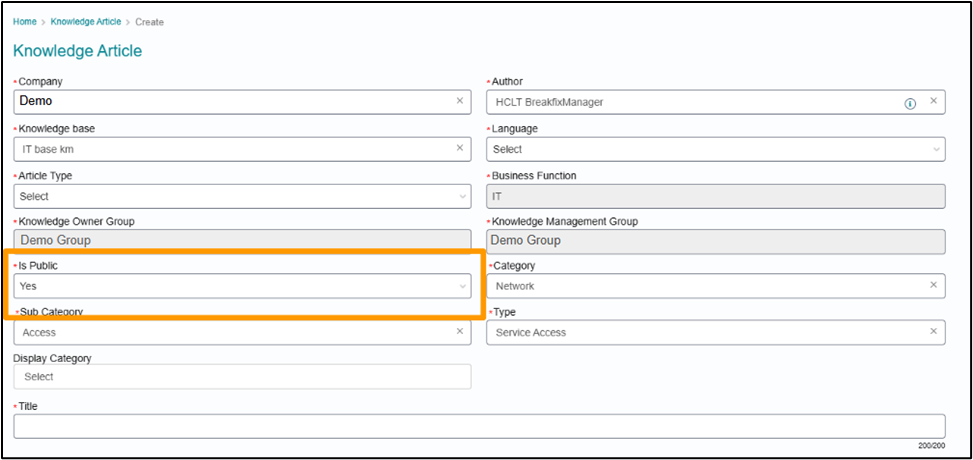
An 'Is Public' field has been added to both Knowledge Base and Article forms to control the access of articles by public (unauthenticated) users.
- If a Knowledge Base (KB) is marked as Public, all new and existing articles within it are automatically set to Public by default.
- The article-level setting can override the KB-level setting. An article can be explicitly marked as Not Public, even if the parent KB is Public, or explicitly marked as Public, even if the parent KB is Not Public.
Anonymous Visibility and Filtering
- Public articles are visible on the company's Knowledge Landing Page without a user login.
- Users can access and view the full article content directly from the landing page.
- Public Knowledge Bases appear in the filter section. Anonymous users can use filters for KB, category, and article type to locate public content.
- If no articles are marked Public, the landing page will display no content.
Anonymous User Access to Public Articles
While anonymous users can view public articles, the following interactive feedback features are restricted:
- Flagging an article
- Marking an article as helpful or not helpful
- Rating an article
- Commenting on an article
Article view counts will continue to track engagement from anonymous users. These views are recorded and attributed to a generic anonymous user ID.
Login option is available on both the Knowledge Landing Page and individual Article Pages when accessed anonymously.
Login Prompt on Knowledge Pages
Access URLs have been enhanced for user experience by removing backend IDs.
In multitenant environments, anonymous users can access company-specific articles directly from the Knowledge landing page. These URLs now include company and business function aliases for identification. Please note that if these aliases are missing from the URL, users will be redirected to the login page.
- Landing Page URL Structure: Host/km/<company_alias>
- Article Page URL Structure: Host/km/<company_alias>/<business_function_alias>/{article-slug}
This URL functions as a deep link. If an anonymous user clicks "Login" while viewing an article, they will be seamlessly redirected back to the same article as a logged-in user.
Articles remain accessible via direct links. Access controls are strictly enforced: private articles require authorization, while public articles are available to all users.
Display Categories on Article Pages
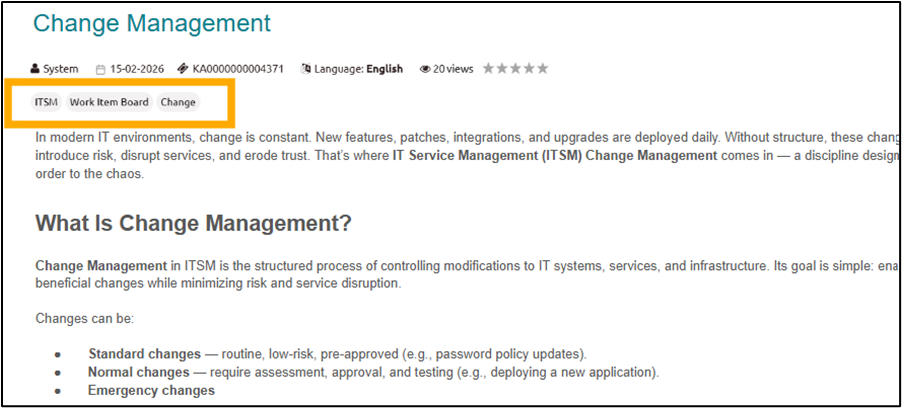
Article display categories are now visible beneath the article title on both the knowledge landing page and the article view page, providing improved context and clarity.
Comments on Knowledge Article
Authenticated users with article access can now post, edit, and pin comments.
- Each comment displays the author's name and the date/time of the last modification.
- Users can edit their own comments; edited entries are marked with an 'Edited' label to maintain transparency.
- Comments are displayed in reverse chronological order, ensuring the most recent feedback appears first.
- Knowledge Owners, Managers, and article authors can pin critical comments to the top of the list for high visibility.