Notifications & Surveys
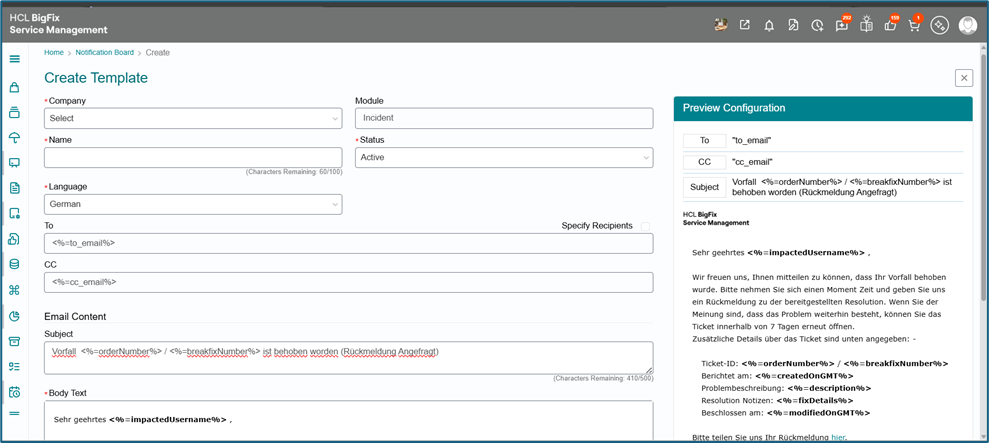
Notify Subject Line Format
This feature allows changing the email subject format when the support team sends emails using the “Notify” option; Helping improve email readability
Subject should appear as:
- Subject Name + SR Ticket Number
Instead of: SR Ticket Number + Subject Name
This change is configurable. It does NOT affect all emails system-wide 🔹 (Solution) 👉 The subject format is controlled through the Notification Template
Steps: Go to Notification
- Go to Notification Template Configuration
- Identify the template used for Notify option
- Update the Subject Line format
Update Format as:
- {Subject Name} - {Ticket Number}
Replacing {Ticket Number} - {Subject Name}
Important Notes
- Configuration is template-based
- Can be applied: Per customer requirement
- No code change required
- Works only for selected catalog/customer
Configurable Survey Response Time per Tenant
This enhancement lets administrators configure survey reminder frequency and count per customer/tenant for both the Incident and Fulfillment modules, using company-specific admin properties. For each module, admins set Survey Reminder Frequency (daily, every 2–7 days) and Reminder Count (1–6 or “Specify your own” for any positive integer); D2C reads these values per company, calculates the total survey window as
Survey Reminder Frequency x Reminder Count
and sends reminder emails on that schedule, stopping automatically if the ticket auto-closes before the next reminder.

The Notification Engine uses Total Days For Reminder in the updated survey templates so Incident (modId breakfix) and Fulfillment (modId item) emails clearly show how long users have to respond. Admins should set Auto Close to match or exceed this window (for example, 7 days vs a 6-day reminder window); after auto-close, surveys cannot be filled and no further reminders are sent.
External Notification Flag for Watchers
This feature gives you control over whether people in the CC field of an email should be automatically added as watchers when a ticket is created via email. It helps avoid unnecessary watchers.
What is “Add to Watcher”?
It is a dropdown setting available in Email-to-Ticket (E2T) Mailbox Configuration.
Available Options:
| Value | Meaning |
|---|---|
| True | CC users will be added as watchers |
| False | CC users will NOT be added as watchers |
Where to Find It:
- Go to Email-to-Ticket Mailbox Configuration
- Look for the field: Add to Watcher
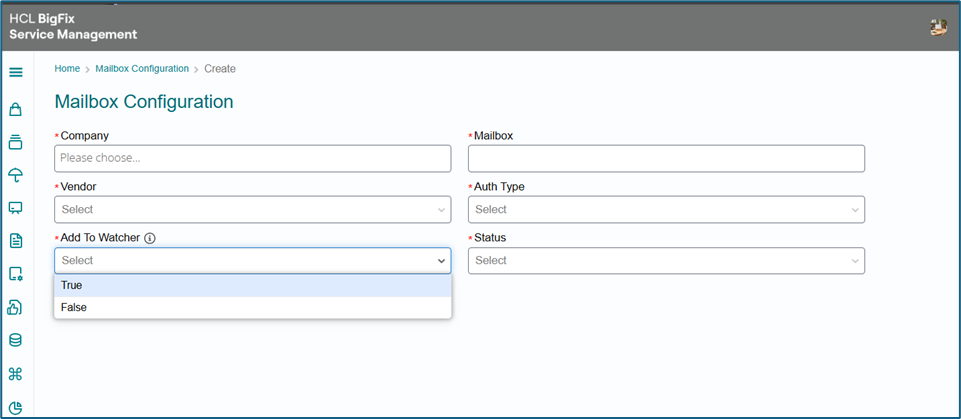
When “Add to Watcher = True”, all users in the CC field of the email are added as watchers & become part of ticket communication
When “Add to Watcher = False”; All users in the CC field are NOT added as watchers
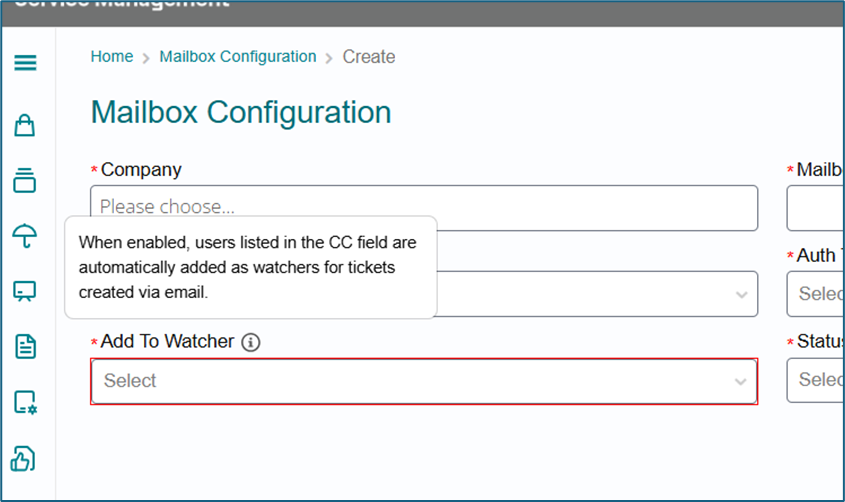
Tooltip Information:
ℹ️Info Icon Message:
When enabled, users listed in the CC field are automatically added as watchers for tickets created via email.
Important Notes:
- This setting works at the tenant level
- Applies to all tickets created via that mailbox
- Does not affect existing tickets
- Does not change other E2T behavior
Default Recommendation
- Use True → when you want CC users involved in updates
- Use False → when you want to avoid unnecessary watchers
This feature Controls whether CC users become watchers, Helps reduce noise and unwanted emails and is a Simple ON/OFF configuration at mailbox level.
Rejection Notification to Assignment Group on Fulfillment
This feature ensures that whenever a request is rejected, the support team (assignment group) is automatically notified. This helps avoid delays in follow-up, improve response time, and increase customer satisfaction.
When any request (in Fulfillment or Change module) is rejected; A notification email is automatically sent. The email goes to the assignment group (support team).
Earlier, no automatic notification was sent on rejection. Support team continued to be unaware and this caused delays and poor user experience. But now, the Support team gets instant alerts and can take quick actions.
How It Works:
- User raises a request
- Request is processed
- Request gets Rejected
- System triggers “Rejected - Item (Fulfillment)” notification
- Email is sent to: Assignment Group (Support Team)
Who Receives the Notification?
| Role | Receives Notification? |
|---|---|
| Assignment Group (Support Team) | Yes |
| Requester | Depends on existing setup |
| Watchers | As per notification rules |
The notification email, automatically triggered, typically includes Request ID, Request details, Rejection status, Possible reason (if available). It uses default notification template and works for Fulfillment module & Change module.
It assists in Immediate awareness of rejected requests, Faster issue resolution, Better coordination with users with Improved service quality.
Survey Restricted to “Requested For” User Only
This feature ensures that survey emails are sent only to the “Requested For” user, preventing
- Watchers receiving survey emails
- Unnecessary email clutter
- Confusion among users
Earlier, Survey emails were sent to Requester & Watchers (in CC).
Now, Survey emails are sent ONLY to the “Requested For” user. This feature applies to:
- Incident (INC)
- Service Request (SR)
- Change
- Problem
- Interaction
| User Type | Receives Survey Email? |
|---|---|
| Requested For (Requester) | Yes |
| Watchers | No |
| Other Users | No |
Email Behavior
-
Main Survey Email
- Sent only to Requested For user
- No one is added in CC
-
Reminder Survey Email
- Sent only to Requested For user
- No one is added in CC
To understand how it works: Ticket is resolved / fulfilled / fixed, System triggers survey email- Email is sent:
- TO → Requested For user
- CC → No one
Key Benefits:
- Reduces unnecessary emails
- Avoids confusion for watchers
- Ensures only the correct user gives feedback
- Cleaner communication