User Experience
Revamped Self Service Portal
Enable the user to quickly find help, raise issues/requests, access knowledge, and view their current work items and assets from a single, personalized landing page.
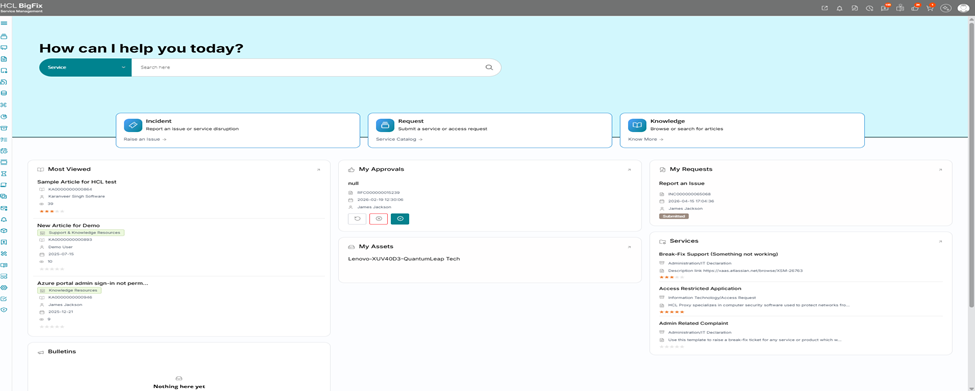
- User lands on the Home page after login.
- User sees the “How can I help you today?” search panel and selects the required search scope (Service / Knowledge / other catalogs) and enters a keyword to find services or articles.
- If the user needs to raise something new, they select one of the primary tiles:
- Incident to report an issue or disruption.
- Request to submit a service or access request.
- Knowledge to browse or search articles.
- The user reviews personalized widgets in the lower area:
- Most Viewed – to quickly open popular knowledge articles.
- My Approvals – to view and approve/reject pending approvals.
- My Requests – to track status of their submitted incidents and requests.
- My Assets – to view the devices/assets assigned to them.
- Services – to access frequently used or recommended service offerings.
- Bulletins – to see important announcements (e.g., outages, advisories).
- From any widget, the user clicks through to the detailed page (e.g., request details, asset details, service form) and performs the required action.
- After completing actions, the user can return to the Home page as a central navigation point.
Default Incident Service for ‘Report an Issue’
A new feature on Consumer Home Page allows end-users to raise an issue directly from the Consumer home page without going through available catalogs.
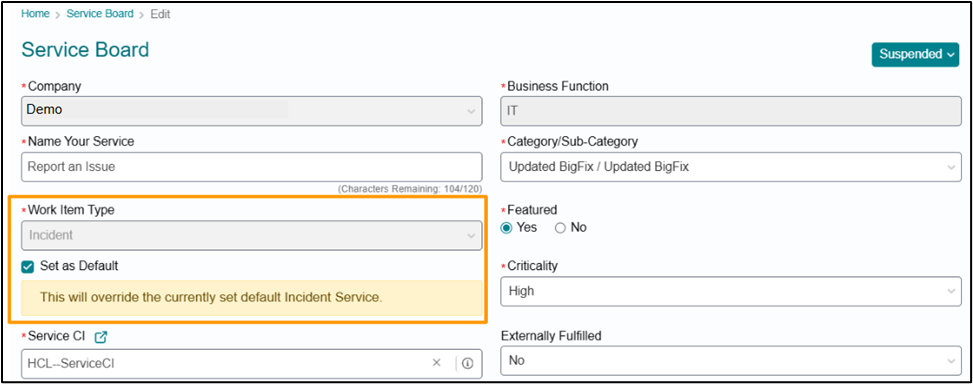
- Catalog Managers can now designate a Service as the default incident type service for its company using the new 'Set as Default' checkbox on Incident type services.
- Only one service can be set as the default Incident Service per company.
- Setting a new incident service as default will automatically override the previously configured default for that company.
Admin and user preferences for catalog page
The Catalog page now supports configurable display preferences, allowing admins to define global defaults and users to personalize how catalogue items are shown.
Admin View – Catalog Display Settings
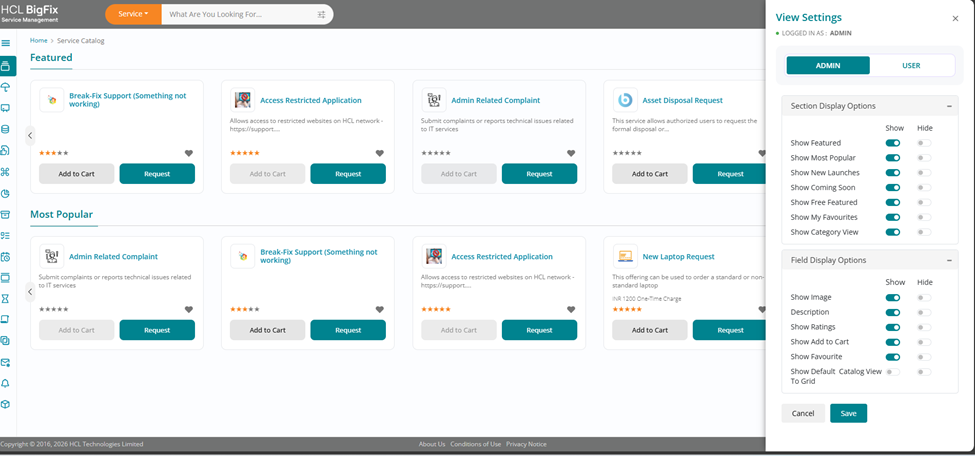
New Admin configuration panel on the Catalog page. Where admin can choose to “Show” or “Hide” the sections/fields on the catalogue page .
If the Admin hides a section or field, it is not available to any user in that company and the user cannot enable it in their personal view.
If the Admin shows a section or field, it becomes available in the user’s display settings, after which the user may choose to keep it visible or hide it for their own view.
This follows a standard Global-default-plus-user-override model where global settings define availability boundaries and personal preferences only operate within those boundaries.
- Admin = Hide → Feature is hidden for everyone, user preference is ignored.
- Admin = Show + User = Show → Feature is visible for that user.
- Admin = Show + User = Hide → Feature is hidden for that user only.
Admins can toggle the visibility of following Sections
- Featured
- Most Popular
- New Launches
- Coming Soon
- Free
- Favorites
- Category View
Admins can toggle the visibility of following fields
- Image
- Description
- Ratings
- Add to Cart
- Favorite
- Default Catalog View To Grid
A section or feature is available to end users only when it is enabled by the Admin at company level. When the Admin disables a section or feature, it is removed from all user views and cannot be enabled through personal preferences.
When the Admin enables a section or feature, users may further decide whether to display it in their own personal view, allowing user-level personalization within the boundaries set by company-level configuration.
User / Consumer View – Personal Preferences
- Users get a personal Catalog View settings panel with the same toggles.
- A single Save action stores the layout only for that user.
- Once saved, user preferences override the admin global defaults for that user’s Catalog page.
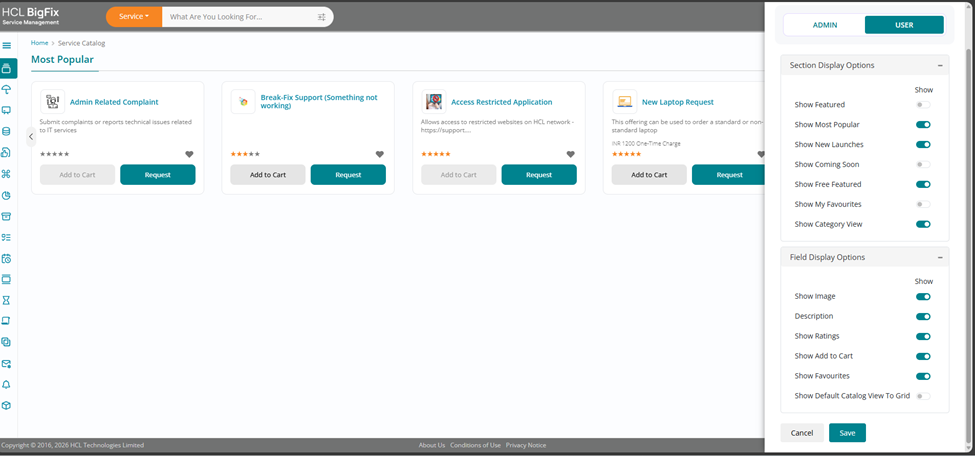
Behavior:
- Global defaults from Admin are applied to:
- All new users.
- Existing users without personal preferences.
- When a user saves their own preferences:
- Their personal settings are used on all future visits.
- Changes to admin global defaults no longer affect that user.
Benefits:
- Admins can standardize the default Catalog experience across the organization.
- Users can tailor the Catalog layout to their own way of working without impacting others.
Reduces dependency on code changes for simple display adjustments and improves usability of the Catalog page.