Toil Configuration
This section describes how to perform component configurations and control the behavior of each individual component within iAutomate.
To configure the components, perform the following steps:
- On the main menu bar, click Advance Configuration, and then click Toil Configuration.
- The Toil Configuration page appears.
- Toil Value (For Manual Execution) is the maximum manual execution time of runbook (in minutes). By default, it is set to 60 which users can change.
-
Toil Value (For Auto Execution) is the maximum auto execution time of runbook (in
minutes). By default, it is set to 6 which users can change.
Figure 1. Product Configurations 
- To update any of these values, enter the updated value and click on Update. Below alert
appears.
Figure 2. Product Configurations 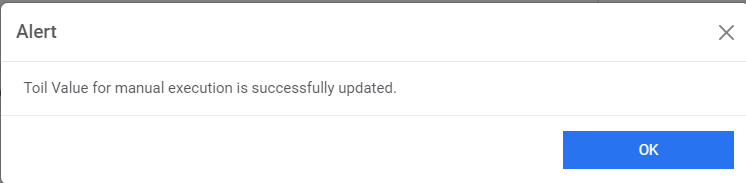
Load Balancer Configuration
Users can check the accessibility of provided URL from service and can update the Load balancer URL of any service.
- Select a component from the drop-down list next to the Component Name field.
Figure 3. Load Balancer Configurations (Cont.) 
- Type the Load Balancer URL for the selected component to evenly distribute the workload among multiple instances, increasing system throughput.
- Click on Test Connection to check accessibility of provided URL from service.
- To test connection, the URL of the service should be whitelisted else it will throw alert stating ‘Use only WhiteListed URL ‘. To whitelist the URL kindly refer ‘HCL iAutomate KRS Guide’.
- Select Recommendation or Entity as a component. This will prompt you to
provide the folder location to create the recommendation or an entity model in the
Recommendation or Entity Model Location field.
Figure 4. Load Balancer Configurations (Cont.) 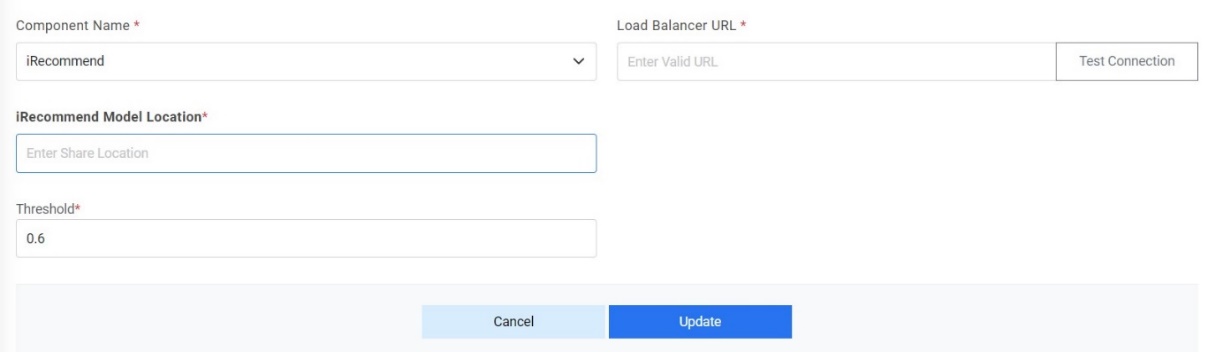
- Click Save. Below alert appears.
Figure 5. Load balancer Configurations (Cont.)