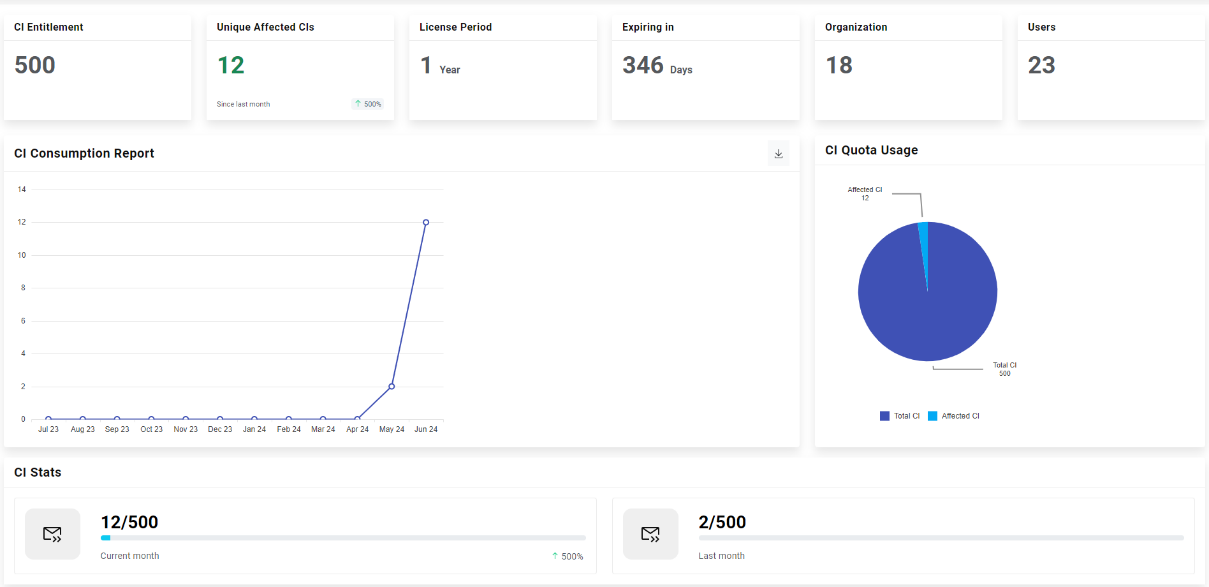
Home
On the home screen, there is an option to search for menus for easy accessibility of the same. For that, on the home screen, there is a search bar given in which type at least 3 letters to search for a menu.
If the logged in user is super admin, an organization dropdown is also visible on the header of the home page. Once user selects any organization then that organization will be applicable on all the pages for any configuration. To configure for any other organization, users should change the organization from top dropdown.
Also, for easy accessibility of user, the initial steps are mentioned on the home page that need to be performed to begin with iAutomate.
-
Day one steps for Super Admin: Below are day one steps that need to be completed to
begin with iAutomate (For Super Admin):
- Manage Organization: Create, edit, and manage details related to your organization.
- RBAC: Define user roles and configure group policy for users within your organization.
- Manage SMTP: Manage SMTP configurations for your organization.
- Day one steps for Organization Admin: Below are the day one steps that need to be
completed to begin with iAutomate (For Organization Admin):
- Data Source Management: To retrieve ticket data from your ITSM tool, you need to configure it in this section.
- Manage Runbook Tool: Configure the tool you will use to execute your runbook.
- Manage Runbooks: Runbooks can be viewed, created, and managed by the users.
- Map Runbooks: Map runbooks you will use to execute.
- Build Models: Create a model that recommends runbooks.
- User Management: To control who has access to the system, access privileges can
be configured and managed.
Figure 1. Home Screen Before Completion of Day One Steps 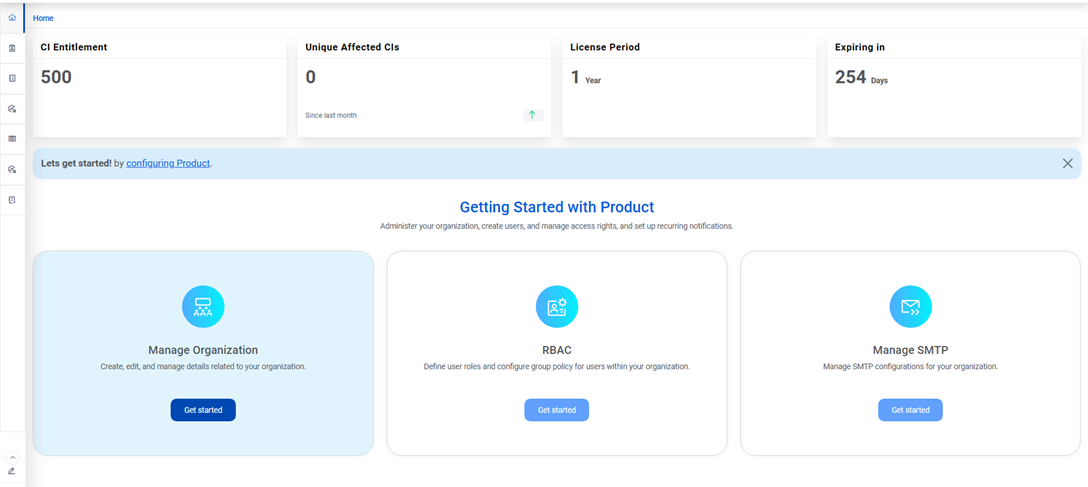
Once the user completes one step all day, he is redirected to the License Report page next time he navigates to home page.