This section describes how users can add rules to fine tune Runbook recommendations
depending on the client’s environment. Also, how the user can define regex so that Runbook
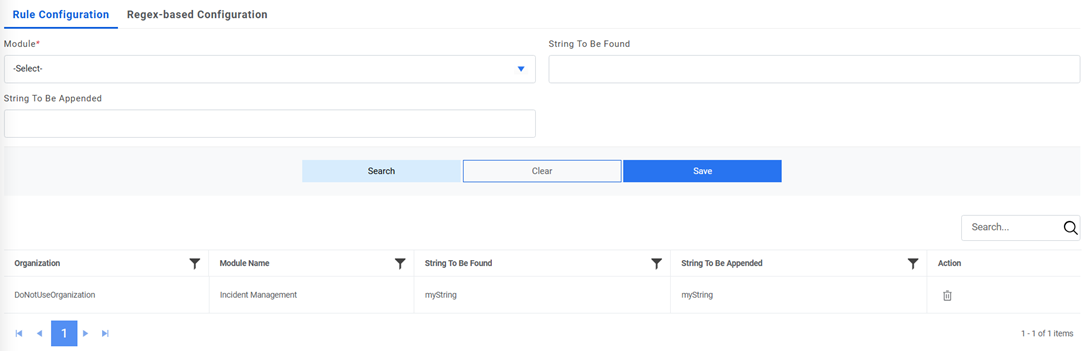
recommendations get more precise from the ticket description itself.Figure 1. iRecommend Rule Configuration
Rule Configuration:
To define the rules, perform the following steps:
On the main menu bar, click Advance Configuration iRecommend Rule
Configuration. The iRecommend Rule Configuration page appears.Figure 2. iRecommend Rule Configuration
Select Module
Enter the string that needs to be searched for in the ticket description, against
String to be Found field.
Enter the string that needs to be appended in the ticket description, against String to
be Appended field.
On the main menu bar, click Advance Configuration iRecommend Rule
Configuration. The iRecommend Rule Configuration page appears. Click on Regex-based
Configuration tab.Figure 4. iRecommend Rule Configuration (cont.)
If you want to apply the regex-based configuration at Organization, then login with
organization admin and if it needs to be applied at admin level then login with super admin
(For Analysis purpose).
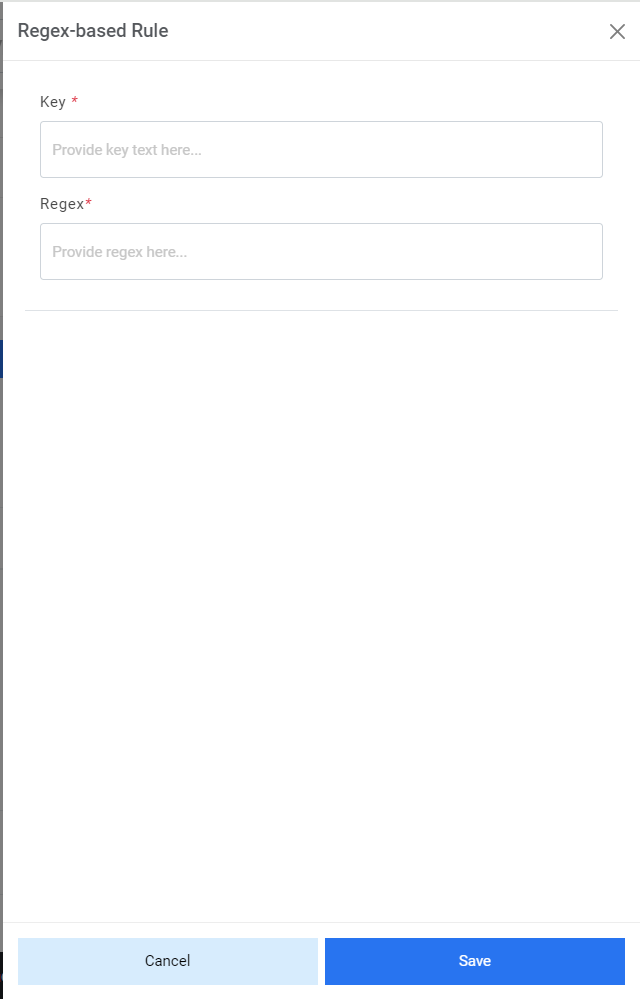
Select the module. Click on Add Rule to add new regex rule. Below pop up will appear:Figure 5. iRecommend Rule Configuration (cont.)
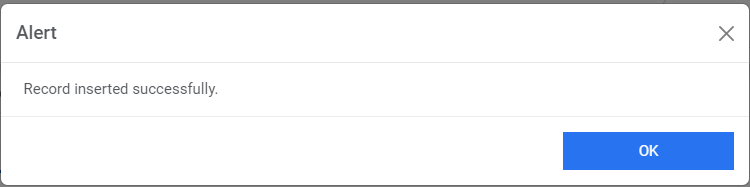
Enter the key and its regex and click on save. Below alert will be generated.Figure 6. iRecommend Rule Configuration (cont.)
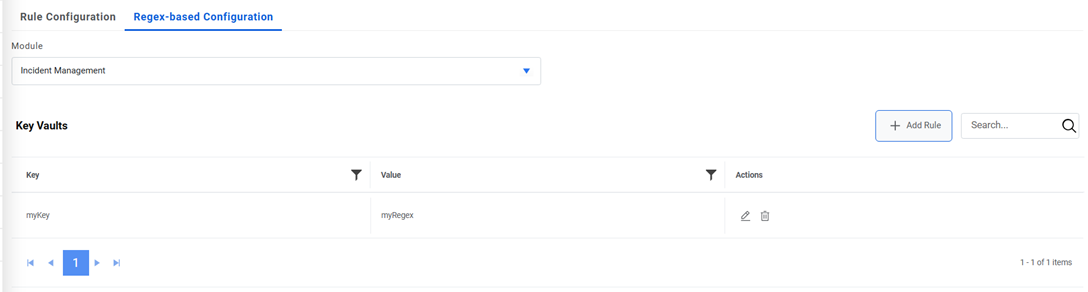
The record inserted will appear in the grid.Figure 7. iRecommend Rule Configuration (cont.)
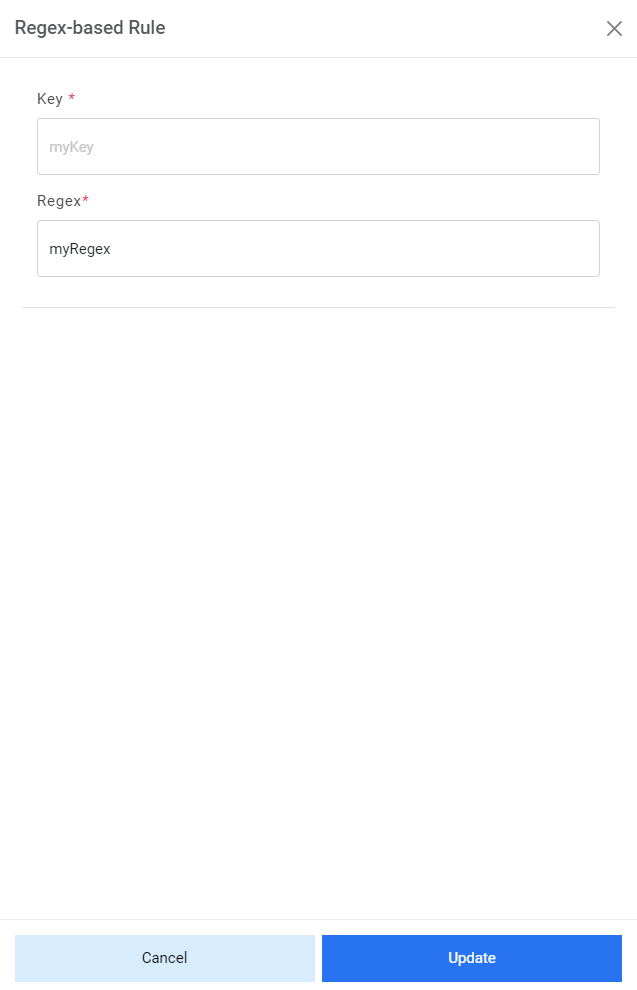
To edit any rule, click on icon corresponding to that rule. The Regex-based Rule popup appears. Enter the updated
regex and click on Update.Figure 8. iRecommend Rule Configuration (cont.)
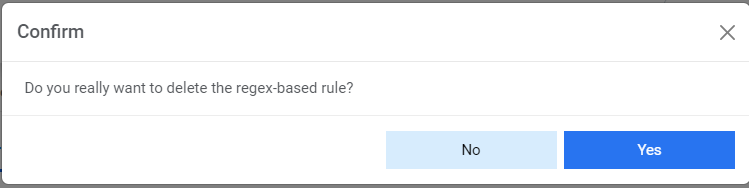
To delete any rule, click on icon corresponding to that rule. The following confirmation message appears:Figure 9. iRecommend Rule Configuration (cont.)
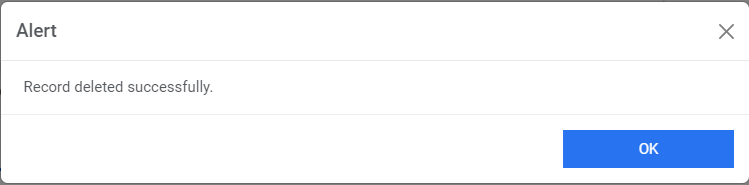
Click Yes. The following success message appears:Figure 10. iRecommend Rule Configuration (cont.)




 corresponding to that rule. The Regex-based Rule popup appears. Enter the updated
regex and click on Update.
corresponding to that rule. The Regex-based Rule popup appears. Enter the updated
regex and click on Update.
 corresponding to that rule. The following confirmation message appears: