Manage Column
This step describes how to perform the organization specific configurations of ticket data columns, used for ticket parsing and recommendation.
To manage the ticket data column, perform the following steps:
- On the main menu bar, click Advance ConfigurationParameter, and then
click Manage Column. The Manage Column page appears.
Figure 1. Manage Column 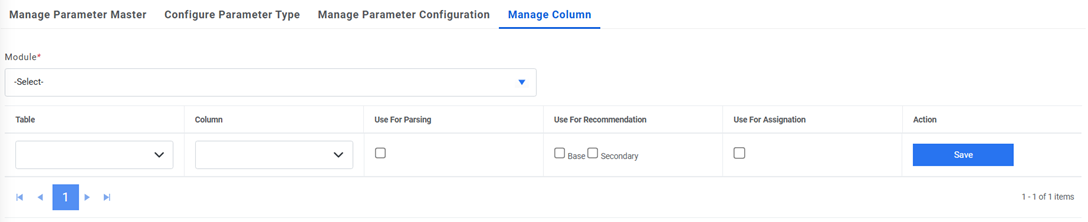
- Select Module.
Figure 2. Manage Column (Cont.) 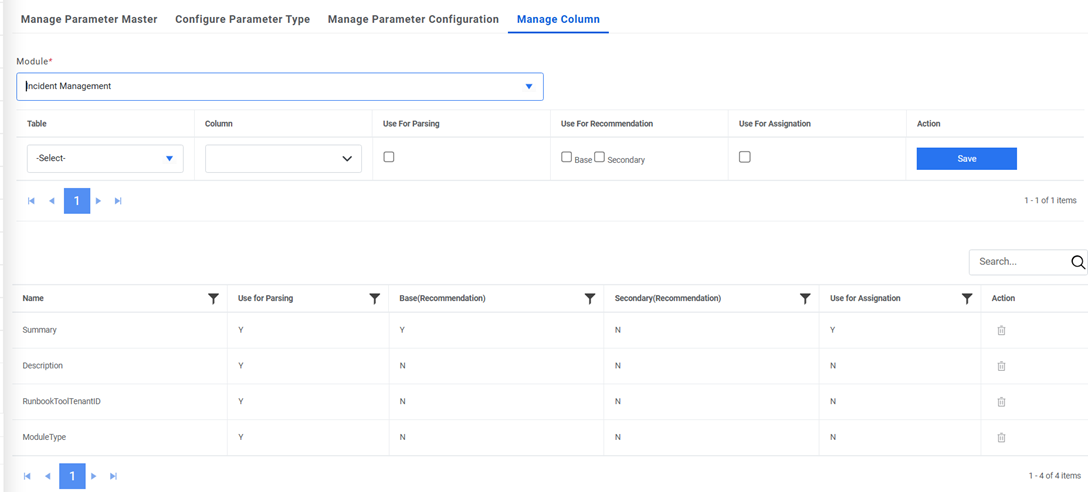
This lists the existing parameters used for parsing and recommendation in a tabular view for the selected organization. Users can also add a new configuration or delete the existing configuration.
Add Configuration
Users can add a new configuration in an organization by performing the following steps:
- On the Manage Column page, select the data table from the Table
list, and then select a Column from the selected table.
Figure 3. Add Configuration 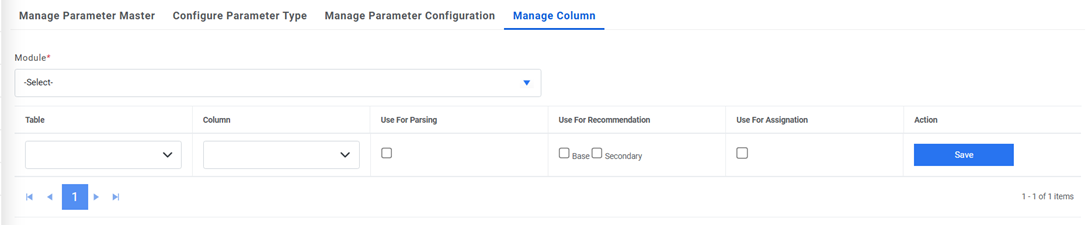
- Select Use for Parsing for enabling the current column to be used for ticket parsing.
- Select Use for Recommendation for enabling the current column to be used for
runbook recommendation.
- Base holds priority over Secondary while performing the recommendation.
- While recommendation processing, the columns for which Base is enabled will be considered first, followed by ones marked as Secondary.
- Select Use for Assignation for enabling the current column to be used to fetch the assignment group from GenAI studio.
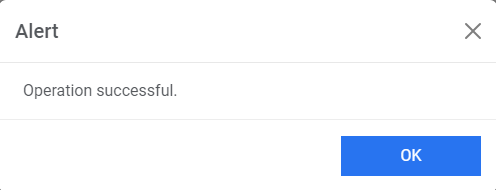
- Click Save to save settings. A confirmation dialog box appears.
Figure 4. Add Configuration (Cont.) 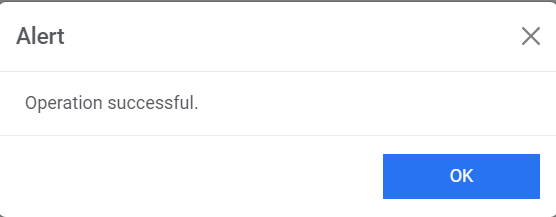
This adds the new configuration and lists it in a tabular view.
Figure 5. Add Configuration (Cont.) 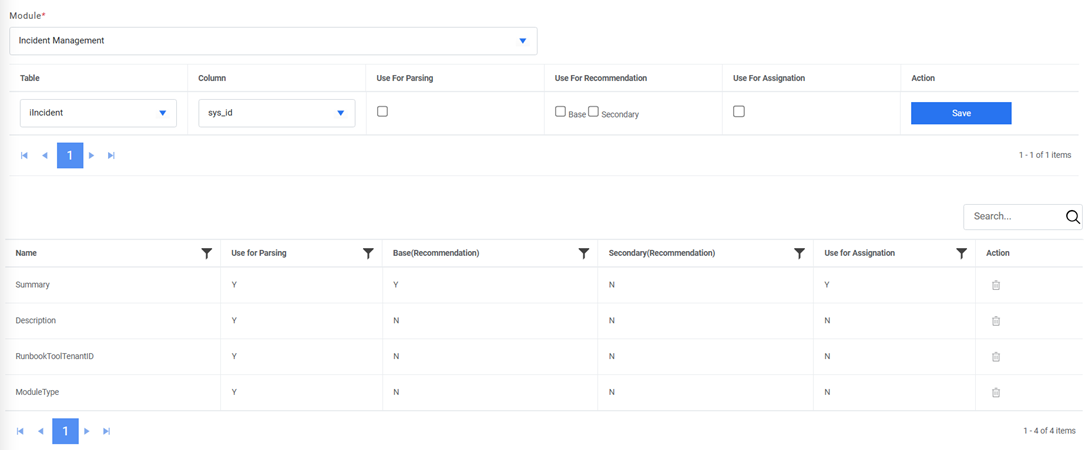
Delete Configuration
If the user no longer needs a certain configuration in an organization, it can be deleted from the environment.
To delete a configuration, perform the following steps:
- On the Manage Column page, click
 icon to delete the configuration.
Figure 6. Delete Configuration 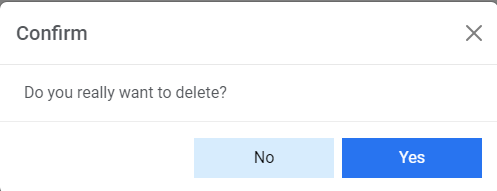
- Click Yes to confirm. A confirmation dialog box appears.
Figure 7. Delete Configuration (Cont.)