Users can create custom scripts in Python that can be executed from iAutomate
through the API.
Note:
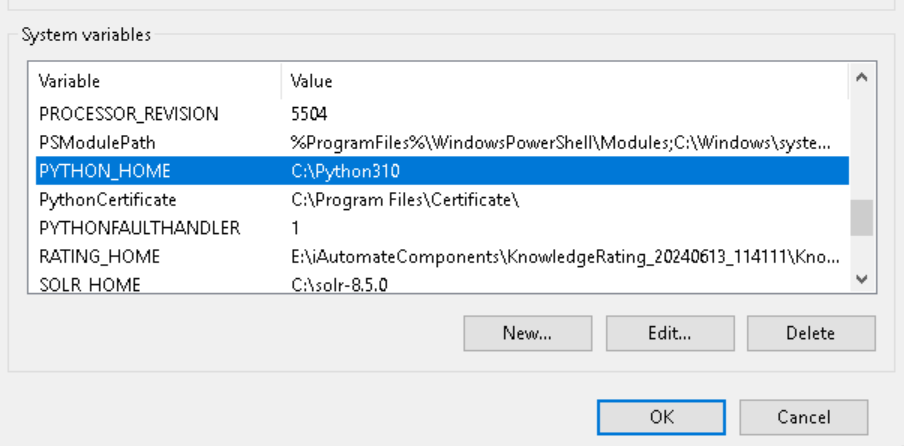
To execute Python scripts, it is required that
Python is installed on the web server and its Environment Variable is set with name
‘PYTHON_HOME’ and its value will be the path where python.exe is present.
Figure 1. Environment Variables
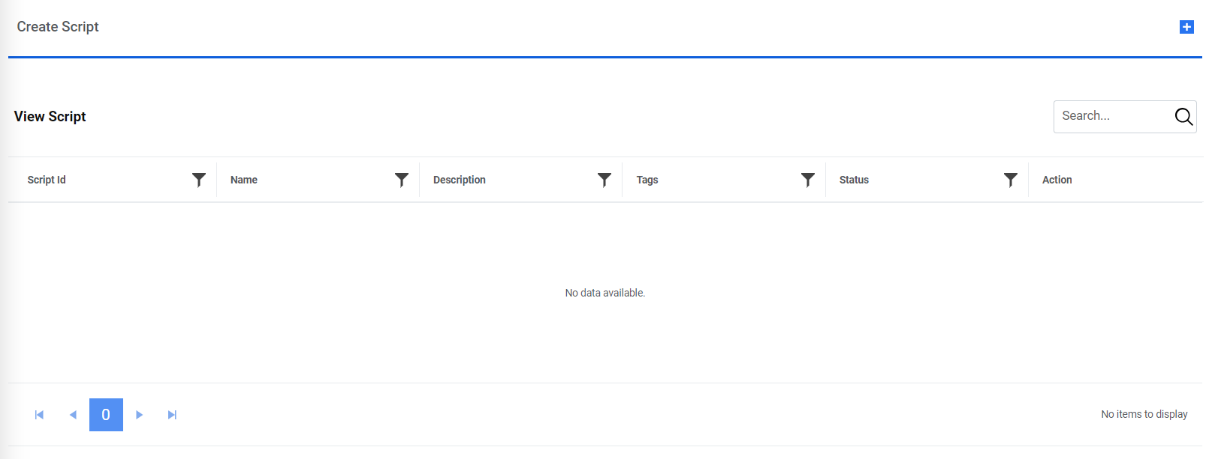
To create/manage custom scripts, click on Advance ConfigurationScript
Menu and then click on Manage Custom Script. The following page will
appear:Figure 2. Manage Custom Script
The user can view and create scripts here.
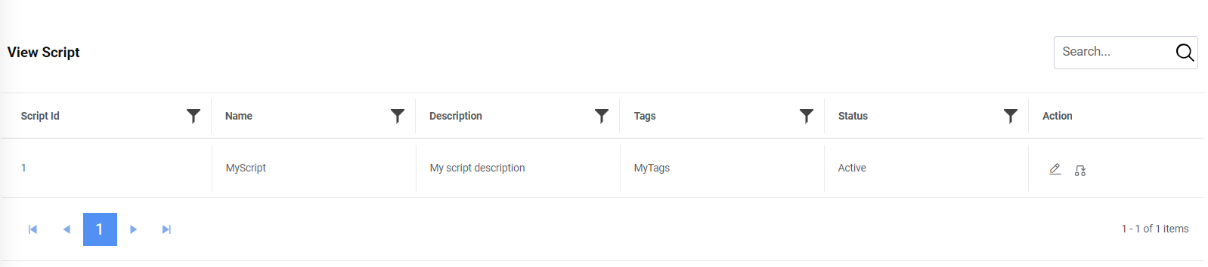
On the View Script tab, below the grid appears.Figure 3. Manage Custom Script (cont.)
The table shows the Script Id of that script saved in the database,
Name of the script, Description given for the script, the Tags
defined while script creation, the Status of the script whether active or inactive
and some Action buttons.
To edit any script, click on icon:
Figure 4. Manage Custom Script (Cont.)
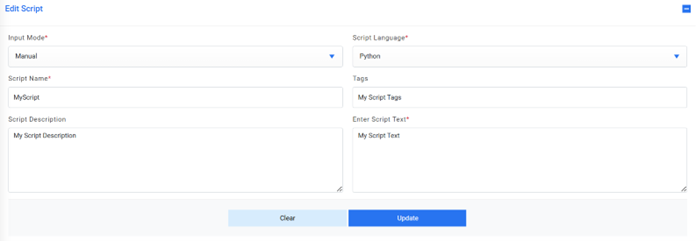
Create Script tab will be active with all the details of the script filled in the
fields of this page:
Figure 5. Manage Custom Script (Cont.)
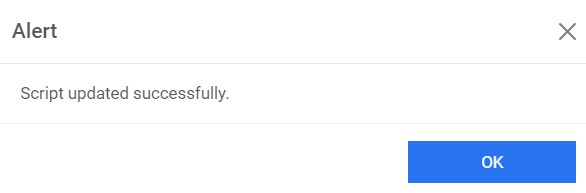
Edit the script as per the requirement and click Update. A confirmation box will
appear as below:Figure 6. Manage Custom Script (Cont.)
To change the status of any script, click on icon:Figure 7. Manage Custom Script (Cont.)
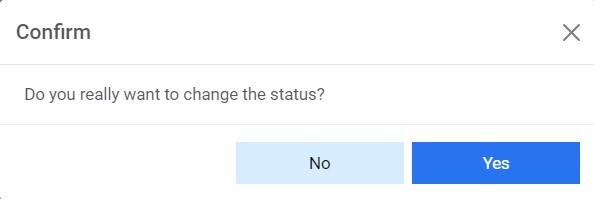
A dialog box will appear to confirm whether user wants to change the status of the
script:Figure 8. Manage Custom Script (Cont.)
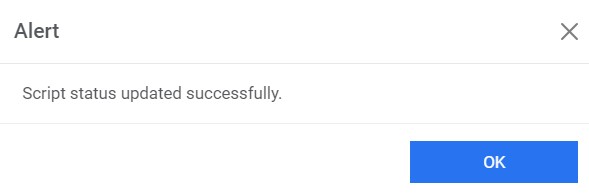
If yes, then the confirmation dialog box appears as below:Figure 9. Manage Custom Script (Cont.)
To create a script, click on tab
and the below page appears:Figure 10. Manage Custom Script (Cont.)
The Input Mode dropdown has two following options:
Manual: user can fill all the details on this page manually
Json: User can import a valid json file to fill all the details through that file
only.Figure 11. Manage Custom Script (Cont.)
Note:
Click on Download Template button to get the template for a
valid Json file.
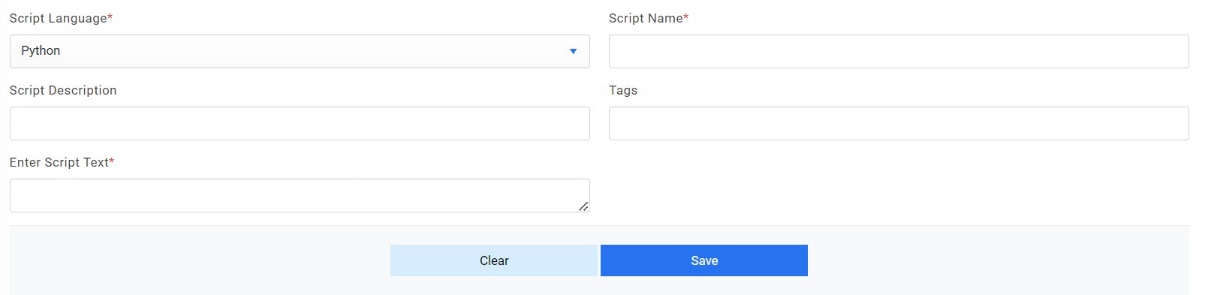
The Script Language dropdown has the following options:
Python: To create a script in Python languageFigure 12. Manage Custom Script (Cont.)
Enter the script name in the Script Name text box.
Enter the suitable script description corresponding to Script Description text
box.
Enter the tags for better filtering of scripts.
Enter the script text as per the language chosen in Script Language dropdown.
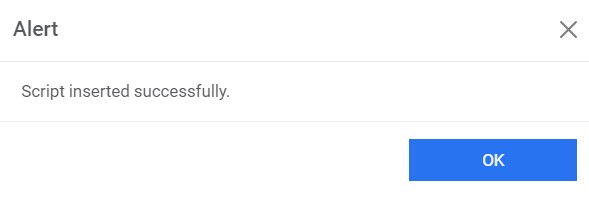
Once all entries are filled, click Save. A confirmation dialog box will appear.Figure 13. Manage Custom Script (Cont.)
Note:
This feature can be used to support complex third-party
system integration where the script can be simply created for the complex logic and this
script can be used via API wherever needed.

 icon:
icon:.png)
 icon:
icon: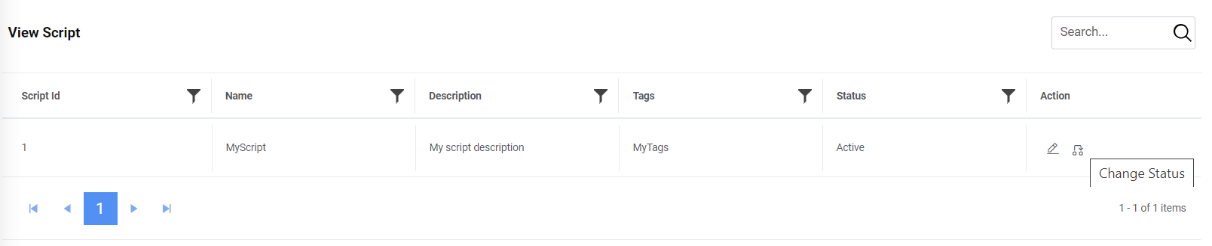
 tab
and the below page appears:
tab
and the below page appears: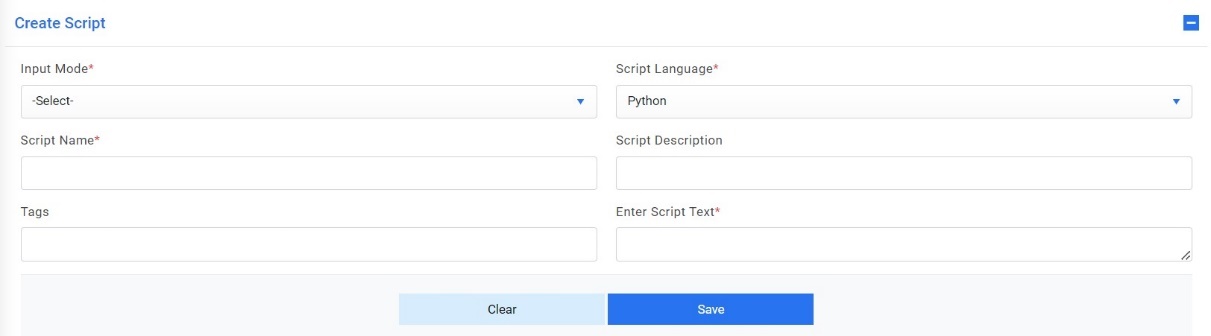

 Note:This feature can be used to support complex third-party system integration where the script can be simply created for the complex logic and this script can be used via API wherever needed.