
Manage Parameter Configuration
This section describes how to perform the customer specific advanced parameter configuration for data parsing.
To manage parameter configuration, perform the following steps:
- On the main menu bar, click Advance Configuration Parameter, and then click
Manage Parameter Configuration. The Manage Parameter Configuration page appears.
Figure 1. Manage Parameter Configuration 
- Select the Data Source from where the data will be fetched for parsing.
- Select the Parameter Type, to be used for data parsing. This populates the existing
configuration for the selected organization in a grid.
Figure 2. Manage Parameter Configuration (Cont.) 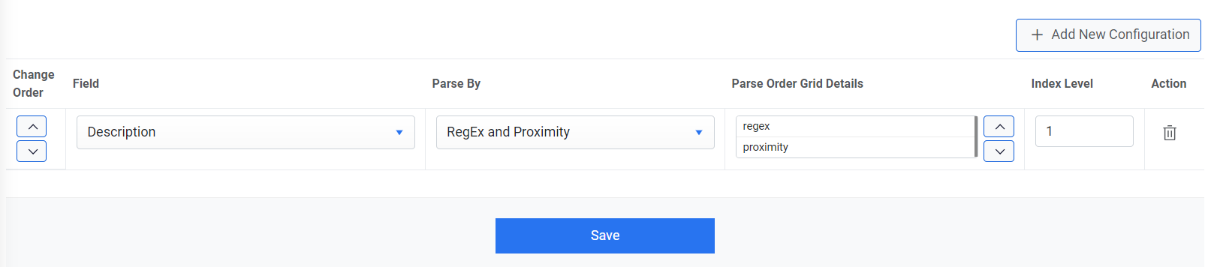
This allows users to add a new configuration using Add New Configuration and edit or delete the existing configuration.
Add New Parameter Configuration
Users can add a new parameter configuration in an organization by using the following steps.
- On the Manage Parameter Configuration page, select Organization.
- Select the Data Source from where the data will be fetched.
- Select the Parameter Type to be used for data parsing. This enables the Add New Configuration button.
- Click Add New Configuration button.
Figure 3. Add New Parameter Configuration 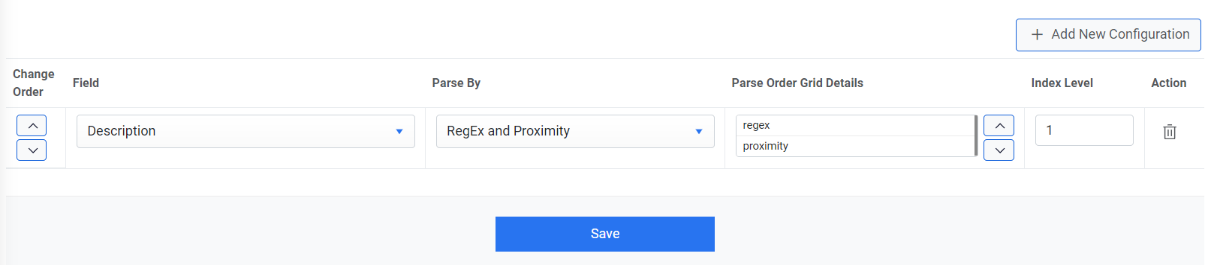
This adds a new row below the existing parameter configurations.
Figure 4. Add New Parameter Configuration (Cont.) 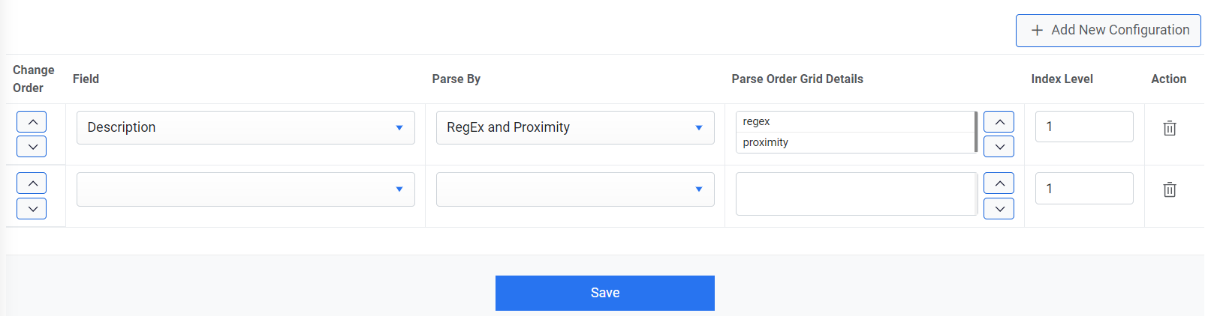
- Select a Field to define the ticket fields. For e.g. description, short description, etc.
- Select a Parse By method. This includes the following parse by methods:
- Equal Search- Specify a value or keyword resembling the words mentioned in the ticket for parsing.
- Only Regex- Regex is a special text string for describing a search pattern while ticket parsing and all parameter types have predefined regex. In this method, the parsing is done from ticket fields only.
- Only Proximity- It is a parsing method to extract values based on the proximity of words.
- Regex and Proximity- It is a parsing method to extract values based on a combination of the proximity of words and regex.
- The Parse Order Grid Details field specifies the parse order in case of selecting Regex and Proximity.
- If a word is found multiple times using the regex, a sequence of the word must be picked during parsing by Index Level.
- Click Save to update the configured parameters.Note:User can rearrange the order of parameter configuration using Change Order in the left column of the parameter grid.
- A confirmation dialog box appears.
Figure 5. Add New Parameter Configuration (Cont.) 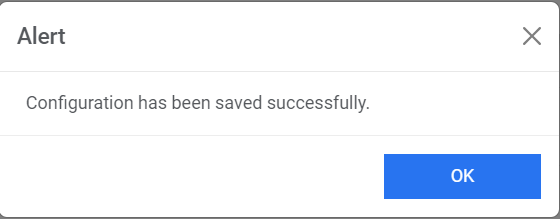
Edit or Delete Parameter Configuration
User can open an existing parameter, review the available information, change the parameter configuration, and delete the existing configuration by performing the following steps:
- On the Manage Parameter Configuration page, select Organization
Data Source Parameter Type. A list of the parameters under the selected
parameter type appears in a tabular view.
Figure 6. Edit Parameter Configuration 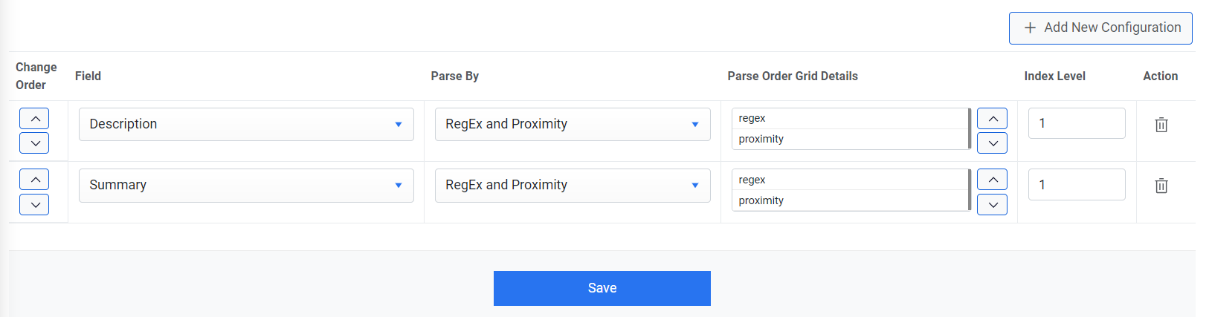
- Edit the required details and click Save. A confirmation dialog box appears.
Figure 7. Edit Parameter Configuration (Cont.) .png)
- You can delete a parameter by clicking
 for the parameter and clicking Yes to confirm.
Figure 8. Edit Parameter Configuration (Cont.) 