

Device Groups
Device groups help you organize devices and target actions, policies, or maintenance settings. BigFix UI supports two types of device groups:
- Dynamic device groups: Update memberships automatically as devices start or stop matching the defined conditions.
- Static device groups: Allow you to manually organize devices by explicitly adding or removing individual devices. Membership in a static group does not change automatically and remains exactly as defined by the user.
Key Capabilities
-
Visual Insights: Use interactive donut and pie charts to view the ratio of static to dynamic groups and identify the largest groups by member count.
-
Automatic Updates: Dynamic groups update memberships automatically as devices start or stop matching defined filter conditions.
-
Centralized Management: View, edit, or delete existing groups directly from a single dashboard.
-
Targeted Actions: Organize devices to streamline the deployment of actions, policies, or maintenance windows.
Device Groups Page Interface
You can navigate to the Device Groups page using one of two methods:
-
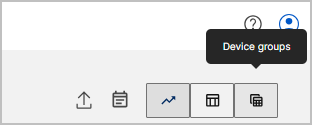
Click the Device groups icon located in the top-right corner of the Device explorer - Overview page.
-
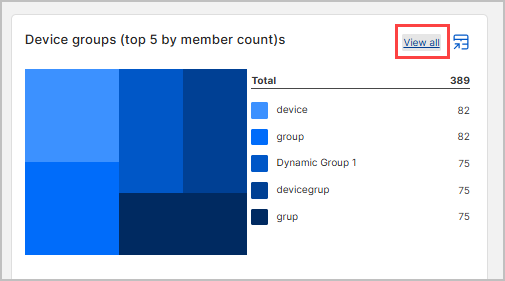
Click the View all link next to the Device groups (top 5 by member count) chart.
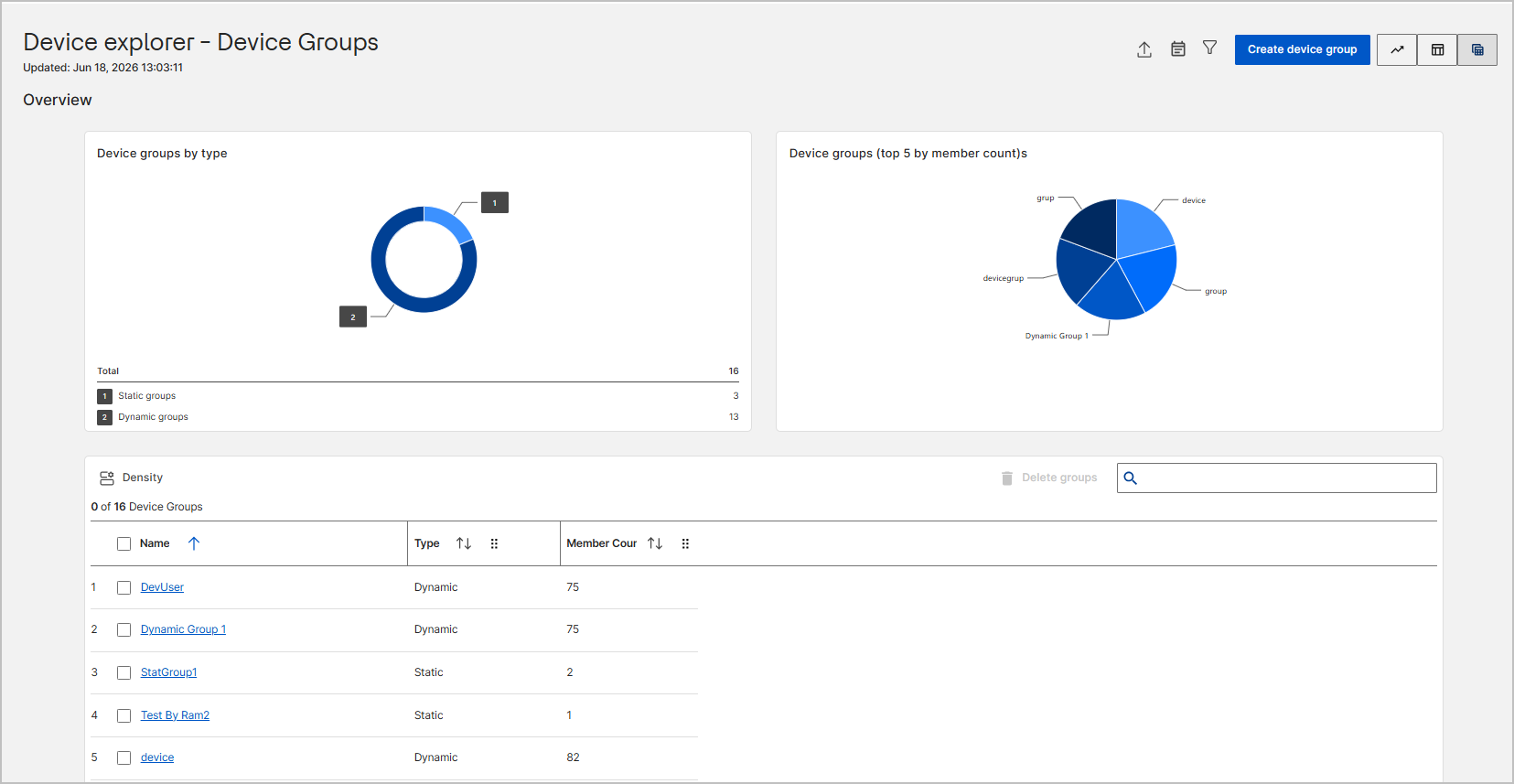
Once on the Device explorer - Device Groups page, you can interact with the following elements:
-
Overview Charts: Includes a "Device groups by type" donut chart and a "Device groups (top 5 by member count)s" pie chart to provide high-level distribution insights.
-
Device groups by type: A donut chart that displays the total count and distribution of static versus dynamic device groups in your environment.
-
Device groups (top 5 by member count): A pie chart that identifies the five largest device groups based on the number of member devices, allowing you to quickly spot your most populated groups.
-
-
Device Groups Table: Lists all available groups, displaying their Name, Type, and Member Count. Use the following controls to manage the table view and actions:
-
Sort: Click the up or down arrows next to any column header to sort the data in ascending or descending order.
-
Density: Click the Density icon to adjust the table row spacing. Choose from Compact, Standard, or Comfortable.
-
Delete groups: Select the checkbox next to one or more device groups, then click this button to permanently remove them.
-
Search: Enter text in the search bar to quickly filter and find specific device groups.
-
-
Device Group Details Page: Clicking a specific group name in the table redirects you to its details page, which contains:
-
Overview Tab: Displays core properties (Group name, Group type, Current members) and a table listing all current members of the group. You can click the Manage group button here to edit the group's conditions or name.
-
Relevant Fixlets Tab: Lists the Fixlets that apply to the devices in the group. You can select Fixlets and click Deploy directly from this tab.
-
Deployments Tab: Shows a history of deployments targeted at this group, allowing you to monitor status or use the Delete and Stop buttons for active or expired deployments.
-
- View and Utility Bar: Located at the top right of the Device
explorer - Device Groups page:

-
Export: Click the Export icon to download the device groups list in CSV or Excel format for offline analysis or record-keeping. For detailed steps, see Exporting Data and Exporting Charts.
-
Prescriptive Guidance: Click the Prescriptive Guidance icon to view actionable recommendations, highlight risks, and streamline remediation steps based on your environment's current state. For detailed steps, see Prescriptive Guidance.
-
Filter: Click the Filter icon to narrow down the device groups displayed in the table based on specific properties and conditions. For detailed steps, see Filtering Data.
- Create device group: Click this button to open the configuration side panel and define a new dynamic or static device group. For detailed steps, see Creating and Managing Device Groups and Managing Static Group Membership.
- Overview: Click the Overview icon (chart symbol) to switch back to the Device explorer - Overview page.
- List: Click the List icon (table symbol) to switch back to the Device explorer - List view page.
-