

Deployments
Monitor and manage deployments across your environment from the Deployment Manager page - view deployment status, filter and search the list, and stop or delete existing deployments.
The Deployment Manager in BigFix UI provides a centralized view to monitor and manage deployments. It enables you to view deployment status, stop or delete existing deployments, and review configuration and device-level details for each deployment.
The Deployment Manager displays all deployments associated with your environment in a table view. Each deployment represents an action initiated on one or more devices. These actions are called deployments. The complexity of a deployment can vary significantly. Some deployments complete in minutes, while others take days to run successfully on all targeted devices.
Viewing the Deployment Manager
To access the Deployment Manager app, expand Explore from the side navigation, and select Deployments.
This page displays a table of all deployments executed in your environment, including open, expired, or stopped ones. Each row represents a single deployment record. The page title shows an Updated line with the date and time the table data was last refreshed.
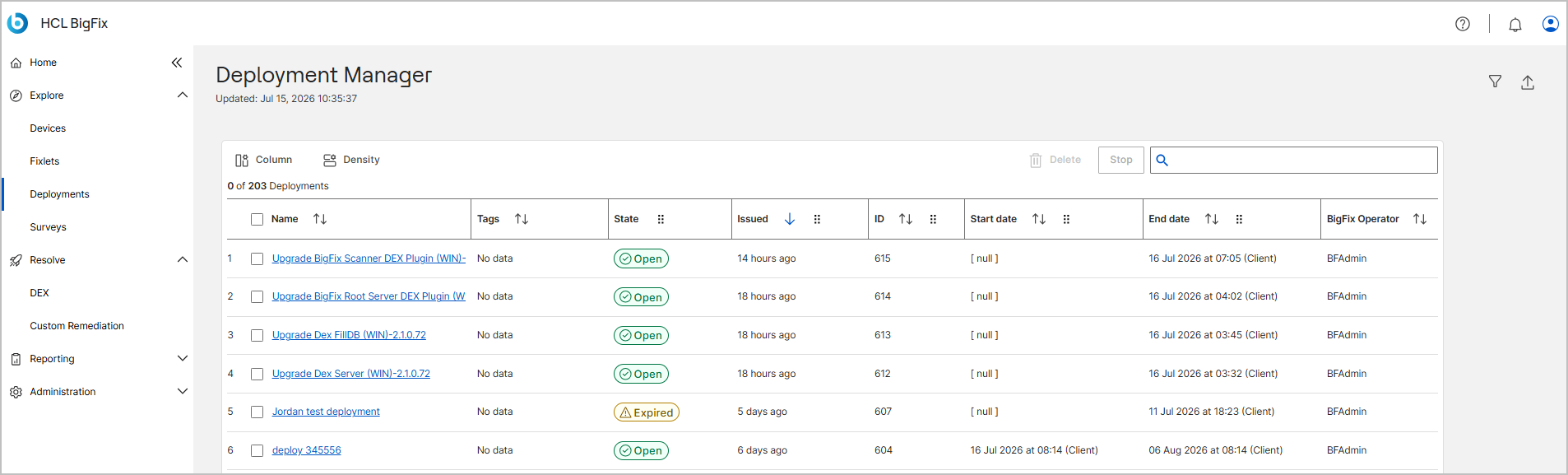
Data table columns:
| Column | Description |
|---|---|
| Name | The deployment title or action name. Select the name to open its detailed page. |
| Tags | Tags applied to the deployment. Shows a tag value, a count link (for example, 2 tags) if more than one tag is applied, or No data if no tag is applied. |
| State | Shows the current status of the deployment - Open, Expired, and Stopped. |
| Issued | Time when the deployment was created, shown relative to now (for example, 1 day ago). |
| ID | Unique deployment identifier assigned by BigFix. |
| Start date | Scheduled start time of the deployment. Shows [ null ] if no start date is scheduled. |
| End date | Completion or expiration time of the deployment. |
| BigFix Operator | The operator account that initiated the deployment. |
| Issuer full name | User who created or owns the deployment. |
The Deployment Manager also offers the following controls:
| Control | Description |
|---|---|
| Column | Customizes which columns the data table displays. For more details, see Columns. |
| Density | Adjusts the row height of the data table. For more details, see Density. |
| Filter icon | Opens the filter panel. Using the filter tool makes it possible to reduce the number of deployments displayed in the data table. For more details, see Filtering Data. |
| Export icon | Opens the Export panel. Select either CSV or Excel format, and then select Download to export and save the deployment data. For more details, see Exporting Data. |
| Column header sort | Sorts the data table using the values in that column. Move your cursor near the column header name and select it to sort; select again to reverse the sort order. For more details, see Sorting Data. |
| Count line | Shows the number of deployments selected in the data table out of the total associated with your account, in the form X of Y Deployments (for example, 0 of 375 Deployments). Selecting deployments is required for actions such as stopping or deleting them. |
| Stop | Stops the selected open deployments. |
| Delete | Deletes selected deployments from the data table so that they no longer display. You can delete only expired deployments. To delete an open deployment, you must first stop it. |
| Search box | Filters the deployments list by a keyword, such as a name or ID. The list updates automatically as you type. |
Select the deployment name to drill down to the deployment details page, which has extensive details about that deployment's configuration and status.