

Creating and Managing Device Groups
Short Description: Create new dynamic or static device groups, and edit or delete existing groups to organize your endpoints effectively.
Prerequisites
-
You must have the appropriate permissions to manage devices and device groups.
-
For dynamic groups, the device properties used for filtering must be reported by the BigFix agent.
Create a Device Group
-
From the BigFix UI side navigation, expand Explore and select Devices.
-
Navigate to the Device Groups page by clicking the Device groups icon in the top-right corner, or by clicking the View all link next to the Device groups (top 5 by member count) chart.
-
Click Create device group in the top-right corner.
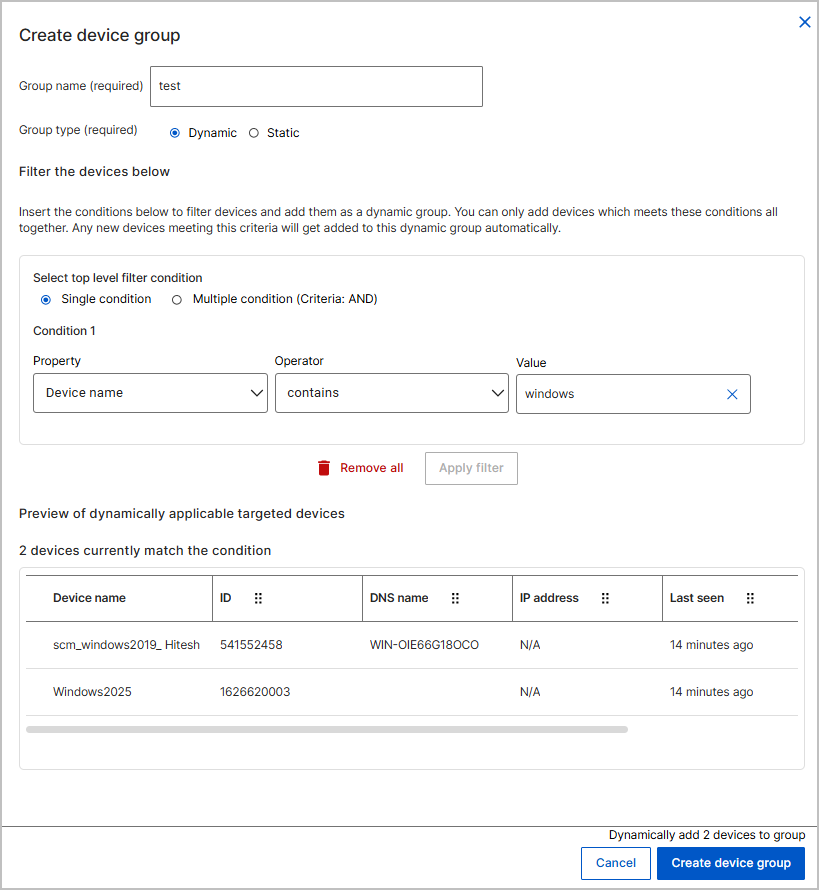
The Create Device Group widget page opens.
-
In the Group name (required) field, enter a unique name for the device group.
-
In the Group type section, select one of the following options:
-
dynamic: Enables filter conditions for automatic membership updates. Devices that match the defined filter conditions are automatically added to the group and updated dynamically over time.
-
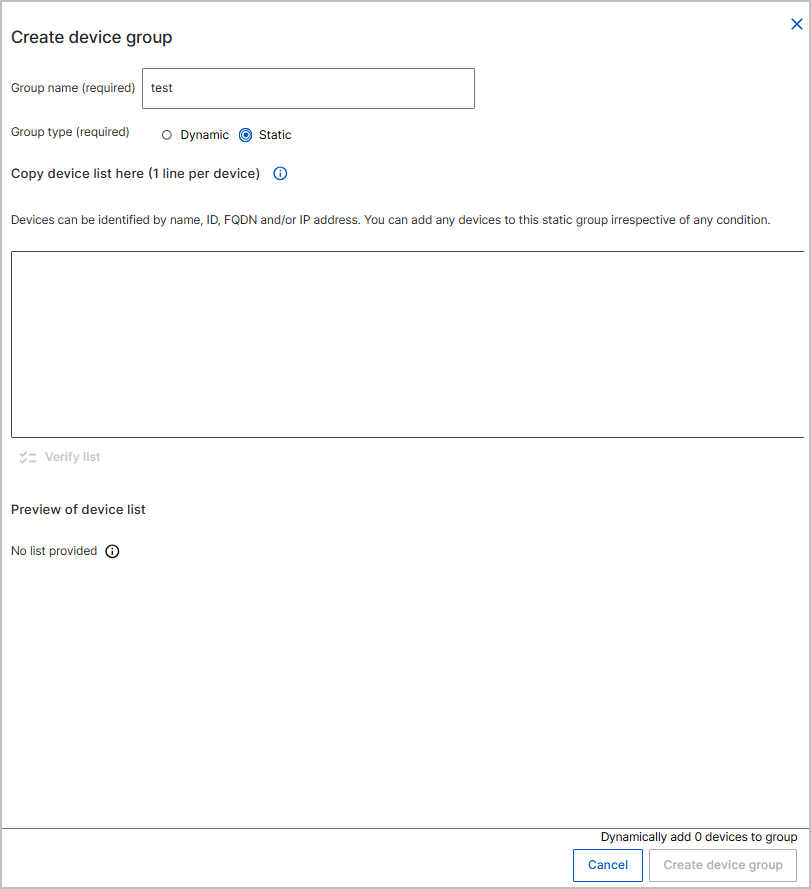
static: Static device groups allow you to manually organize devices by explicitly adding or removing individual devices. Membership in a static group does not change automatically and remains exactly as defined by the user.
-
-
Perform the appropriate steps based on your selection:
-
To configure a Dynamic group:
-
Under Filter the devices below, select Single condition to define one filter rule, or Multiple condition (Criteria: AND) to combine multiple filter rules.
-
Select the Property from the drop-down menu.
-
Select the comparison Operator.
-
Enter or select the matching Value.
-
Click Apply filter to preview the dynamically applicable targeted devices.
-
-
To configure a Static group:
-
Under Copy device list here (1 line per device), enter the target devices by name, ID, FQDN, and/or IP address. Enter each device on a separate line.
-
Click Verify list to review the preview of the device list.
-
-
-
Click Create device group.
Result The device group is created and appears in the data table.
Edit a Device Group
Modify the properties, filter conditions, or device list of an existing dynamic or static device group to update your targeted endpoints.
-
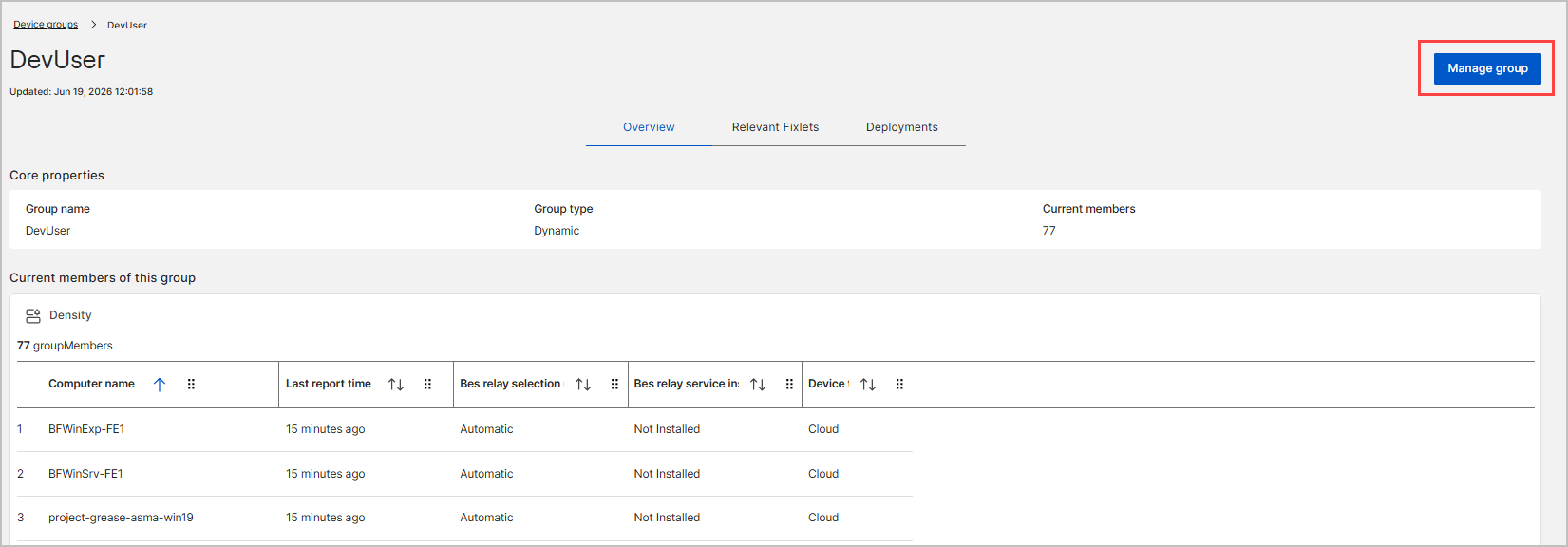
From the Device explorer - Device Groups page, click the name of the group you want to edit.
-
On the group details page, click the Manage group button in the top-right corner.
-
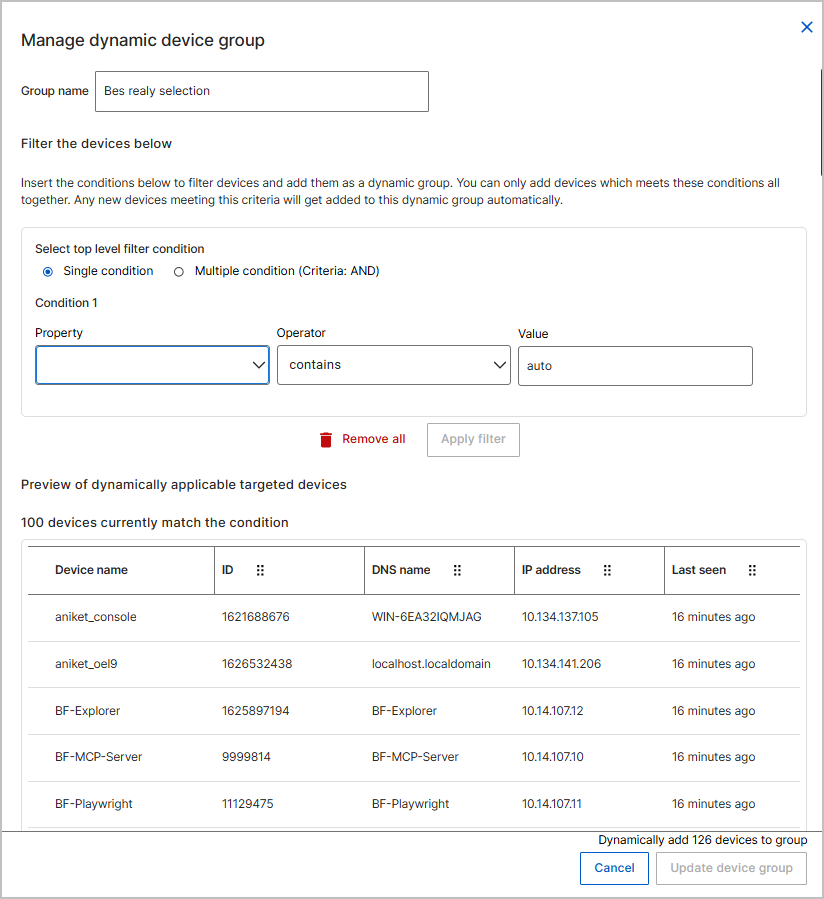
In the Manage device group side panel, update the Group nameif necessary.
- Update the group membership criteria based on the group type:
-
If editing a Dynamic group:
-
Under Filter the devices below, modify the top-level filter and individual conditions by updating the Property, Operator, and Value fields. (Optional) Click Remove all to clear the existing conditions and start over.
-
Click Apply filter to generate a new list of dynamically applicable targeted devices.
-
Review the Preview of dynamically applicable targeted devices section to ensure the correct devices match your new conditions.
-
-
If editing a Static group:
-
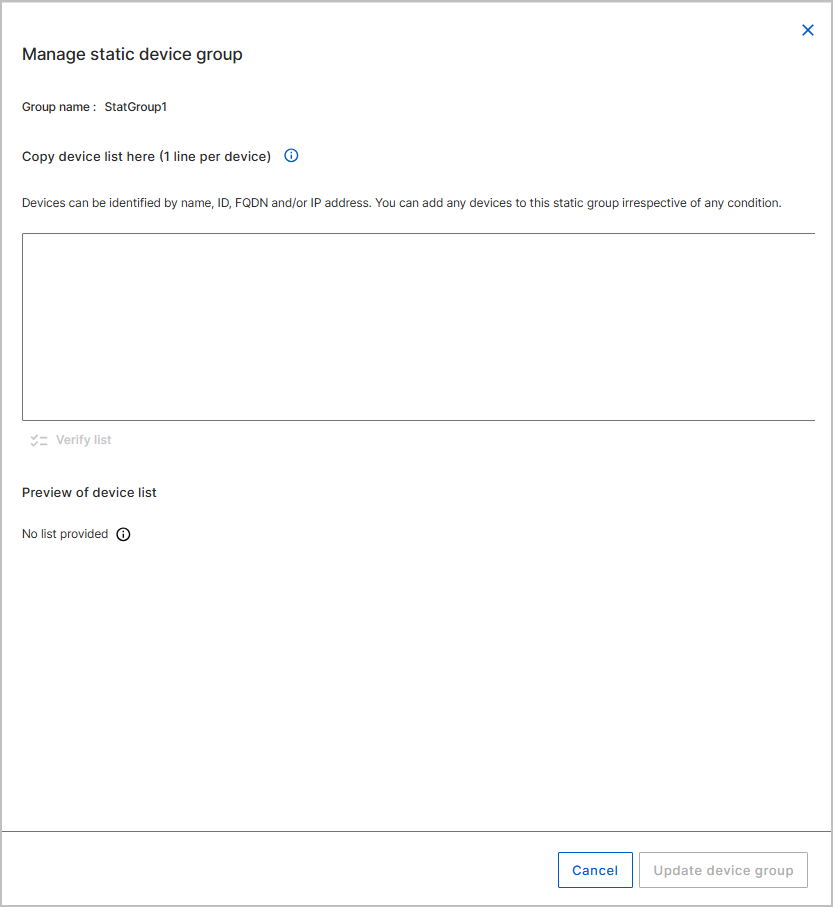
Locate the Copy device list here (1 line per device) text box.
-
Add or remove target devices in the text box. You can identify devices by their name, ID, FQDN, and/or IP address. Ensure each device is entered on a separate line.
-
Click Verify list to validate the entered devices.
-
Review the Preview of device list section to confirm the endpoints are correctly identified.
-
-
- Click Update device group.
Result The device group's criteria and properties are updated immediately. For dynamic groups, the BigFix UI automatically recalculates the group's membership based on the new conditions. For static groups, membership is updated to reflect the explicitly defined device list.
Delete a Device Group
-
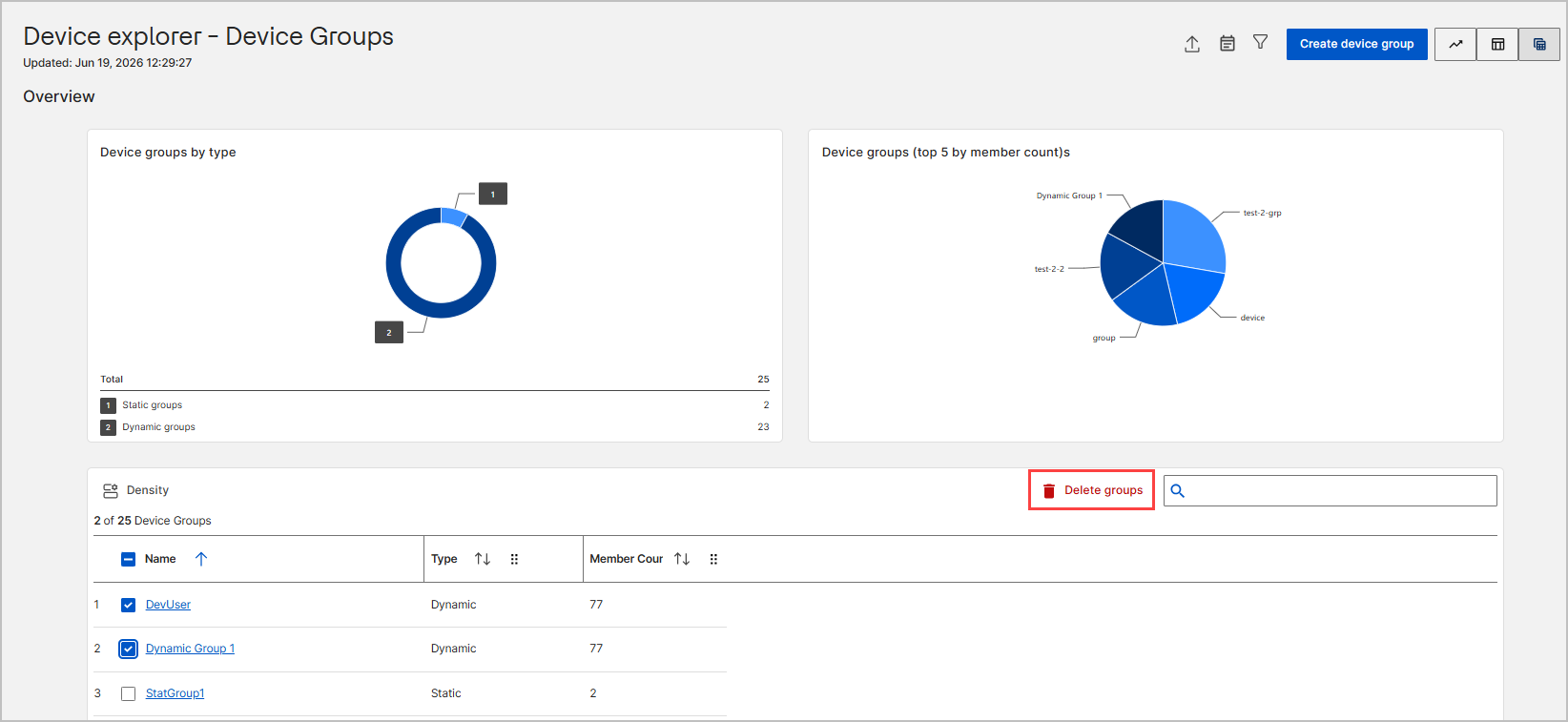
From the Device explorer - Device Groups page, locate the group(s) you want to remove in the data table.
-
Select the checkbox next to the group name(s).
-
Click the Delete groups button located above the data table.
- In the confirmation dialog, review the warning message.
The dialog indicates that you will no longer be able to manage or remediate the entity, and all associated history will be deleted. This action cannot be undone.
- Click Delete device group to confirm and proceed with the deletion.
Result The device group is permanently removed from the BigFix UI and will no longer appear in the Device Groups data table.