

Fixlets
Fixlet Explorer enables users to view and manage Fixlets, which are sets of instructions for the BigFix agent to execute on devices. Users can filter and deploy Fixlets, access detailed information on CVEs, and navigate through a data table displaying relevant Fixlet details.
BigFix data is based upon Fixlets. A fixlet is a set of instructions that the BigFix agent executes on an enrolled or onboarded device. Examples include updating installed software, remediating particular CVEs, or removing malware. These are only a very small sample of BigFix’s capabilities. BigFix customers benefit from end-to-end security, protection, monitoring, and management delivered through this out-of-the-box content.
Besides using out-of-the-box content, you can create your own custom Fixlets with your own detection rules and actions. For more information, see Managing custom Fixlets.
Fixlets are lines of code that contain instructions to perform a set of actions on relevant devices. A Fixlet will also define what those actions are and specify the criteria that determine whether those actions are relevant for a specific device.
After installation, BigFix agents continuously evaluate the relevance criteria on the enrolled device. They then determine whether a Fixlet is relevant to that device, e.g., whether it is relevant or not.
Fixlet Explorer – Overview
The Fixlet Explorer – Overview page provides a consolidated view of all Fixlets in your BigFix environment. At a glance, you can see the patch landscape through summary pallets and detailed charts. From here, you can also drill down into individual Fixlets, view their details, and deploy them directly.
To access the Fixlet Explorer app, expand Explore from the side navigation, and then select Fixlets.
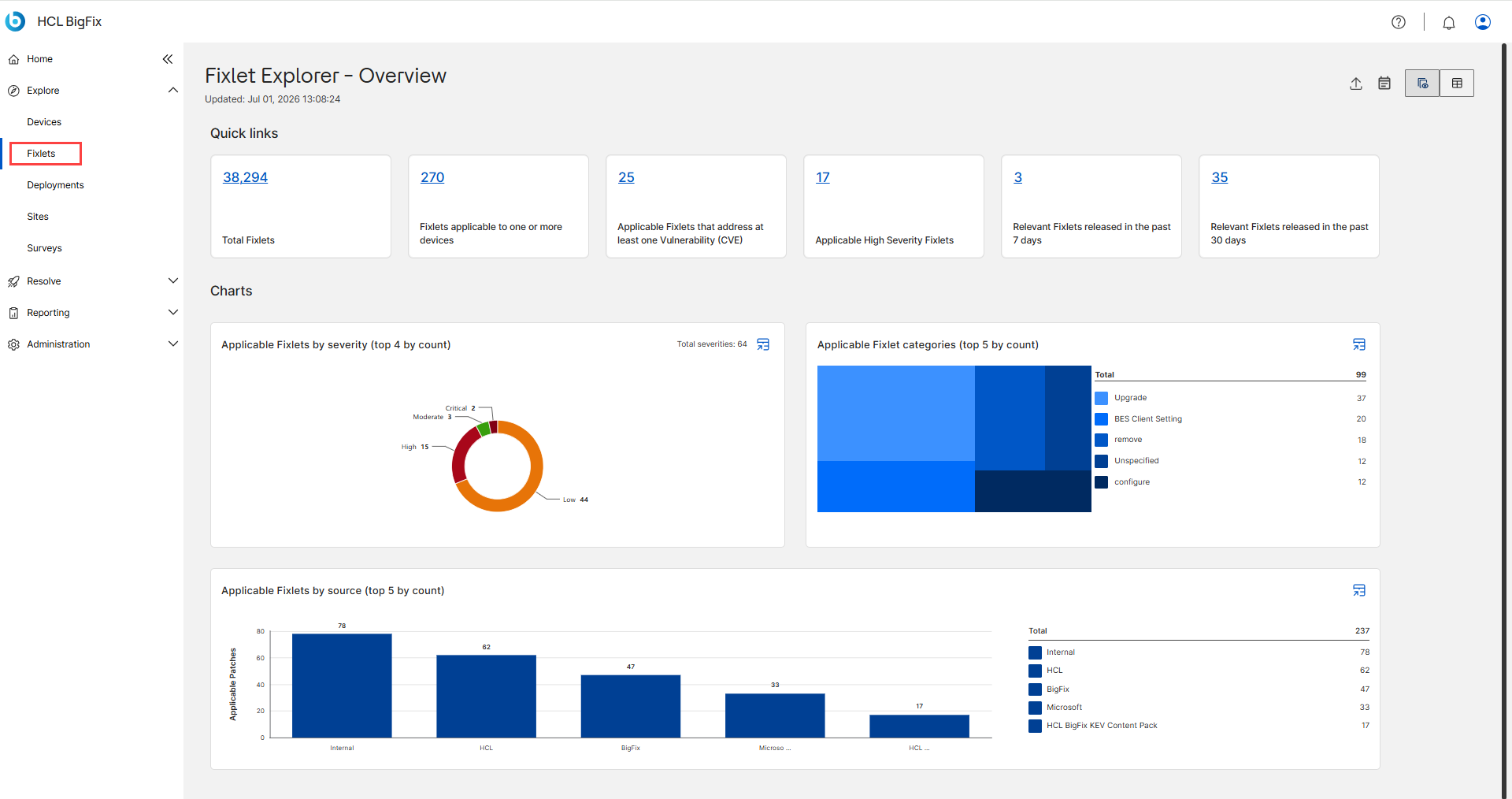
The Overview page is organized into three main areas to help you manage your inventory:
View and utility bar:
Located at the top right, this bar contains Export report icon to manage the overall page. Also, you can toggle between the List view and Chart view.
Quick links:
The Quick links section presents key Fixlet counts as clickable tiles — total, applicable, CVE-related, high-severity, and recently released Fixlets — each linking to the matching filtered list.
- Total Fixlets – Displays the total number of Fixlets available in the environment.
- Fixlets applicable to one or more devices – Shows the number of Fixlets that apply to at least one device.
- Applicable Fixlets that address at least one vulnerability (CVE) – Displays the number of applicable Fixlets associated with one or more CVEs.
- Applicable High Severity Fixlets – Shows the number of applicable Fixlets with high severity.
- Relevant Fixlets released in the past 7 days – Displays recently released Fixlets from the last 7 days.
- Relevant Fixlets released in the past 30 days – Displays recently released Fixlets from the last 30 days.
Charts:
The Charts section gives visual summaries of applicable Fixlets — by severity, category, and source — and each chart can show its data as a table you can copy or export.
- Applicable Fixlets by severity (top 4 by count) – Shows applicable Fixlets grouped by severity levels such as Critical, High, Medium, and Low.
- Applicable Fixlet categories (top 5 by count) – Displays the top five Fixlet categories based on the number of applicable Fixlets.
- Applicable Fixlets by source (top 5 by count) – Shows the
top Fixlet sources or vendors that contribute the most applicable Fixlets.Note: Each chart has an icon in its top-right corner that opens the chart's data as a table, with options to copy or export it. For more information, see Viewing chart data in a table.
Fixlet Explorer – List View
The Fixlet Explorer – List View page displays Fixlets in a tabular format, allowing you to review, filter, and manage Fixlets from a single location. This view is designed to help administrators quickly identify Fixlets, examine their properties, and create charts for visual analysis.
The page is organized into four main areas to help you manage your inventory:
- View and utility bar: Located at the top right, this bar contains Export report, Prescriptive Guidance, Filter, and Manage report tools to manage the overall page. Also, you can toggle between the List view and Chart view.
- Charts section: Use this collapsible area to create and view visual data summaries.
- Device list table: The table displays the available Fixlets in a customizable grid.
- Command bar: The command bar is located directly above the Fixlet list. It contains tools to act on selected Fixlets.
View and utility bar
Located at the top right of the Fixlet explorer - List view page, this bar contains buttons that manage the overall display and reporting features.
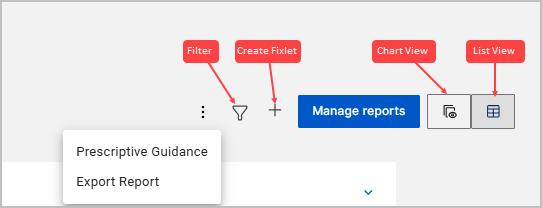
- Prescriptive Guidance (three vertical dots) provides actionable recommendations to users based on best practices, industry standards, and specific organizational policies. For detailed steps, see Prescriptive Guidance.
- Export report (three vertical dots): this export data option used to download tabular report information from list view pages for offline analysis or record-keeping. For detailed steps to export report, see Common functionalities.
- The Filter icon brings up the filter sidebar. In this sidebar, users can narrow down the displayed Fixlets using a variety of parameters. For detailed steps to filter, see Common functionalities.
-
Create Fixlet: Select the Create Fixlet icon (+ icon) to open the Create fixlet wizard and create a custom Fixlet. For more information, see Managing custom Fixlets.
- The Manage Reports feature allows users to save, load, and organize custom reports generated within the BigFix UI. For detailed steps, see Common functionalities.
Configure Chart in the Fixlet Explorer list view to create custom visualizations. Use this collapsible area to create visual summaries of Fixlet data. You can define charts based on properties such as Source Severity, Category, or Source Release Date to identify high-priority vulnerabilities at a glance.

Chart Settings:
- Chart Name: Enter a descriptive name for the chart. This helps you identify it later.
- Chart's Property: Select the device attribute you want to visualize (such as CVE, Source Severity, Category, or Source Release Date) from the dropdown menu.
- Chart type: Select the visual format for the data, from the dropdown: Horizontal chart, Vertical chart, or Pie chart.
- (Optional) Select Cancel to close the Configure chart pane without saving your changes.
- Create chart: Select this button to generate the chart and add it to your
dashboard view. This button remains dimmed until you provide information
for all required fields.
- The new chart appears as a tile in the Charts section. If the selected property contains no data for the current device list, the tile displays No Data Available.
Manage chart tiles
After you create a chart, you can modify or remove it from the display:
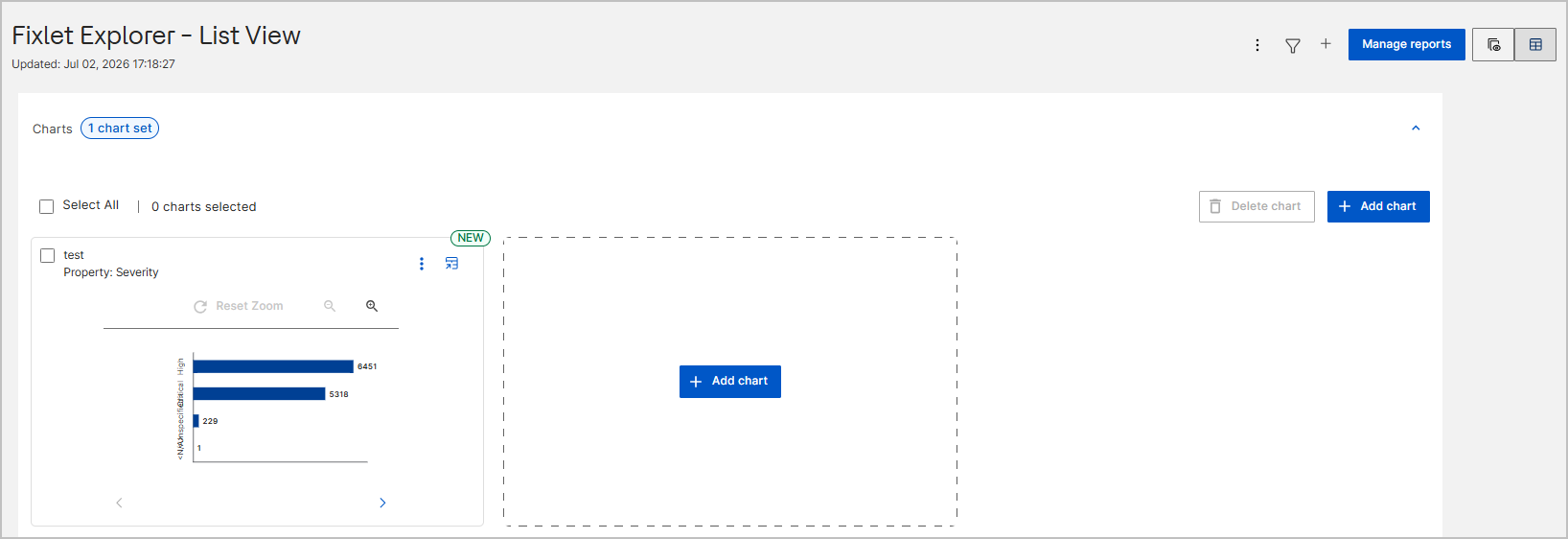
- To edit a chart: Select the More options icon (three vertical dots) on the chart tile to Edit or Delete the chart.
- To delete multiple charts: Select the checkbox on the specific chart tile, or select Select All to choose all charts, and then select Delete chart.
- A NEW badge marks a recently added chart. Each tile shows the chart name and the property it visualizes.
- To hide the chart section: Select the Collapse icon (upward arrow) in the top-right corner of the Charts section.
- Add Chart: Allows you to create multiple charts in the same view.
Chart Interaction with Global Filter
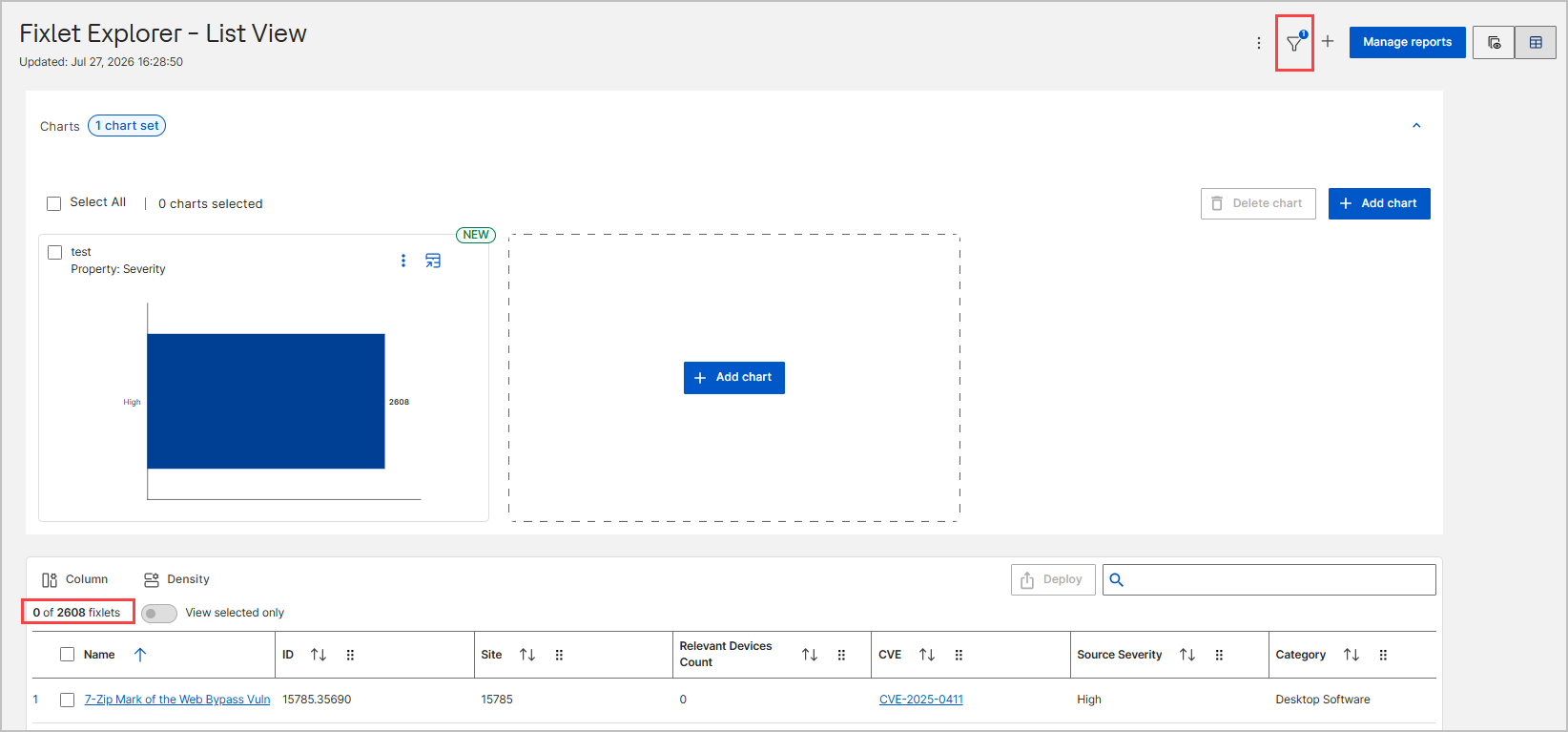
Charts on the Fixlet Explorer – List View are interactive and work together with the Global Filter and the Fixlet table. When you select a chart segment, BigFix filters the Fixlet table to the matching Fixlets; when you clear the filter, the chart and the table return to their default views.
To filter the Fixlet table from a chart:
- Create a chart from a Fixlet property, such as Severity. The chart
appears as a tile that shows each value as a segment—for example, High,
Critical, and <Unspecified>—with its Fixlet count.
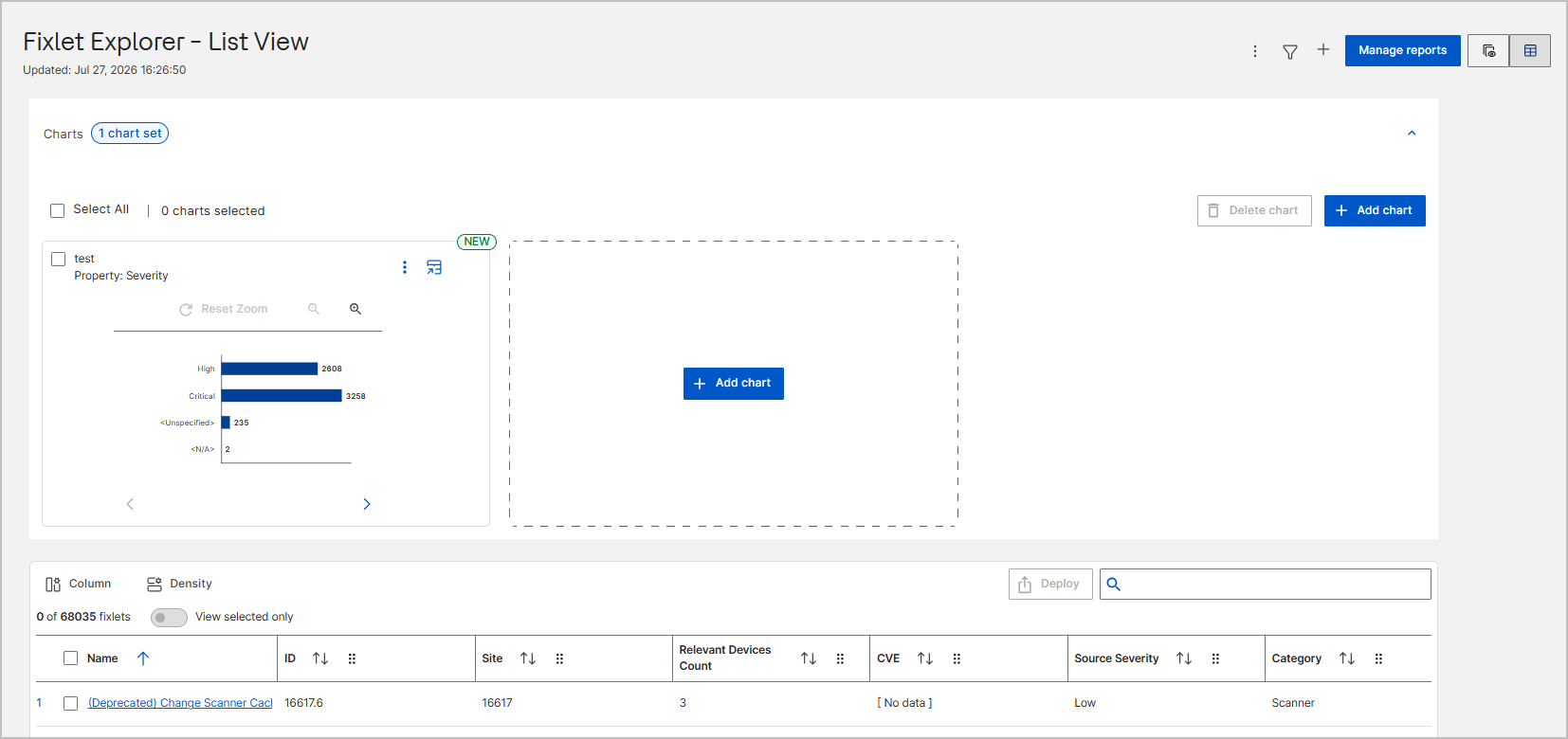
- Select a segment, such as the High bar. The chart updates to show only
the selected segment and hides the rest. BigFix adds the value to the Global
Filter—the Filter icon shows a badge with the number of active
conditions—and refreshes the Fixlet table to show only the matching Fixlets. For
example, the count changes from 0 of 68035 fixlets to 0 of 2608
fixlets.
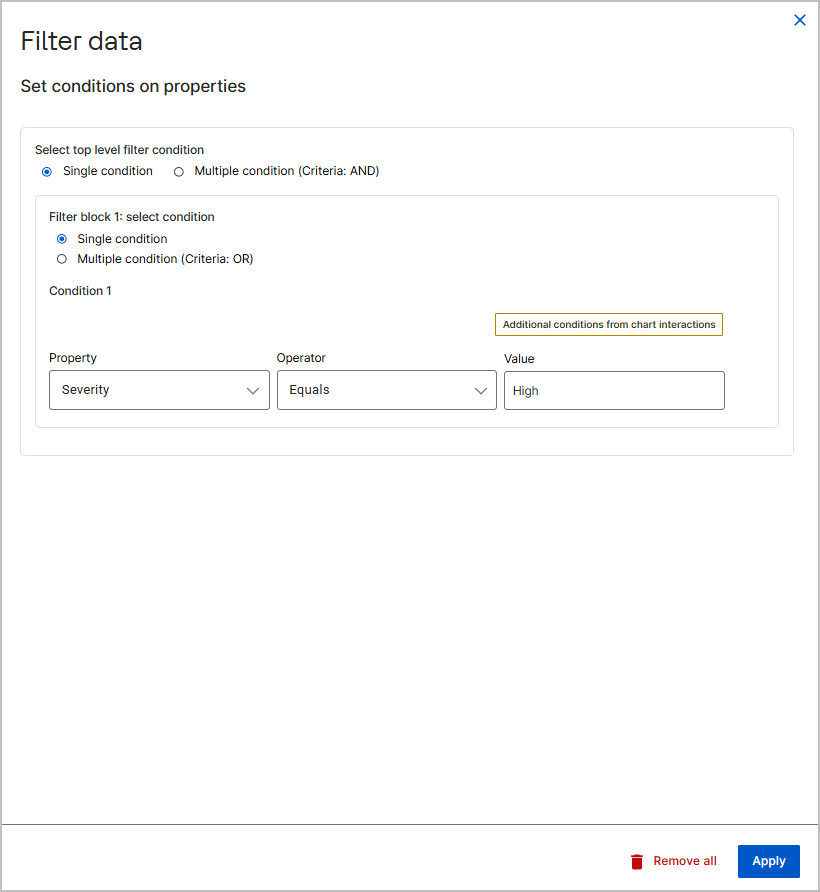
- Optional: To review the applied condition, select the Filter icon. The
Filter data panel opens and shows the condition that the chart
interaction added—for example, Property Severity, Operator Equals,
Value High—marked with the Additional conditions from chart
interactions tag.
-
To clear the filter, remove the condition in the Filter data panel—or select Remove all—and then select Apply. The chart returns to its default view and shows all segments, and the Fixlet table shows the complete, unfiltered list.
When you delete a chart while its filter is still active, BigFix removes the associated condition from the Global Filter and updates the Fixlet table to show the unfiltered data.
Note: Use the zoom controls on a chart tile—Reset Zoom, zoom in, and zoom out—to adjust how much of the chart is visible; zooming doesn't filter the table.
Fixlet List table
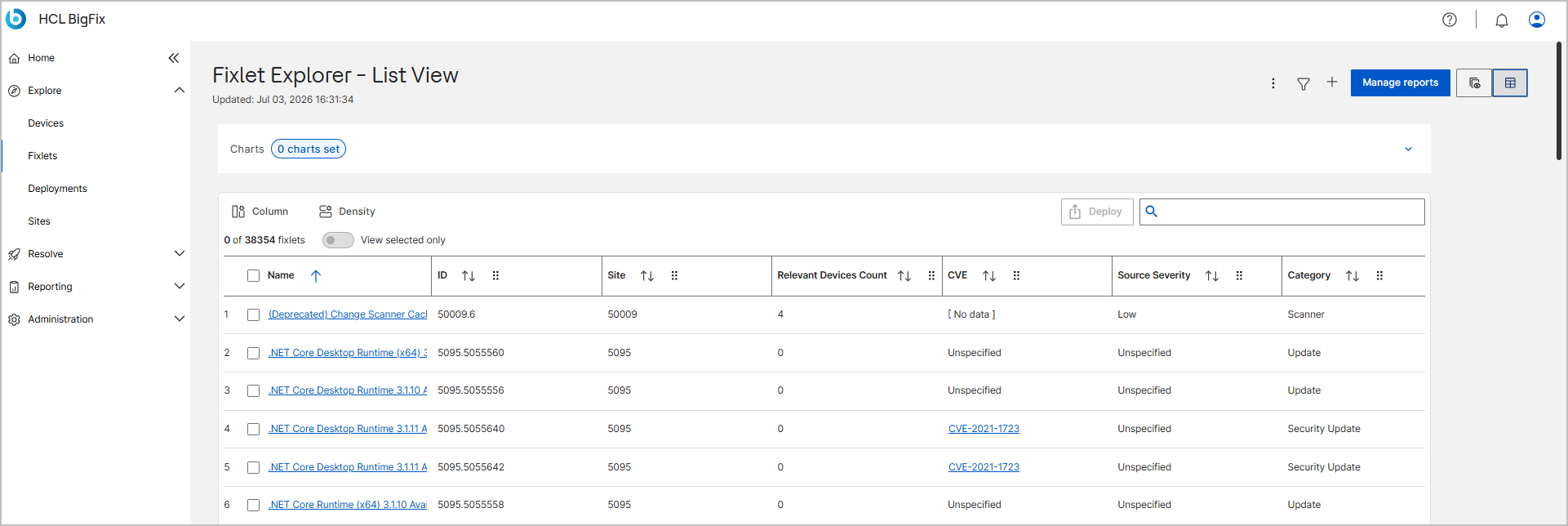
When accessing the Fixlet Explorer app, a data table with 100 Fixlets is displayed. Click More button to display more fixlets.
There can be thousands of Fixlets relevant to the devices associated with an account. The design focuses on filtering to enable customers to explore the Fixlets relevant to their account and specific associated devices.
Columns in the List View data table:
| Column | Description |
|---|---|
| Name | The title of the Fixlet. The name is a link; select it to open the Fixlet detail page. This is the primary column and is always shown. |
| Category | The classification of the Fixlet, such as Update, Security Update, or Configuration. |
| CVE | The Common Vulnerabilities and Exposures (CVE) identifiers associated with the Fixlet. Each CVE ID is a link to its vulnerability details. |
| Deployed Action Count | The number of deployed actions that originate from this Fixlet. |
| Download Size | The size of the patch or update file associated with the Fixlet. |
| ID | The unique numeric identifier assigned to the Fixlet. |
| Open Action Count | The number of currently open, active actions for this Fixlet. |
| Progress | The remediation progress for the Fixlet across its relevant devices. |
| Relevant Devices Count | The number of devices for which the Fixlet is currently relevant. |
| Remediated Devices Count | The number of relevant devices on which the Fixlet has been successfully applied. |
| SANS | The SANS security classification associated with the Fixlet. |
| Site | The identifier of the site that provides the Fixlet. |
| Sitename | The display name of the site that provides the Fixlet. |
| Source | The origin or vendor of the Fixlet, such as Microsoft, HCL, or BigFix. |
| Source ID | The vendor-specific reference identifier for the Fixlet. |
| Source Release Date | The date the Fixlet was released by its source. |
| Source Severity | The severity level assigned by the source, such as Critical, Important, or Unspecified. |
| Type | The Fixlet type or content type. |
| Unlocked Computer Count | The number of unlocked devices among those relevant to the Fixlet. |
Working with the Fixlet List Table
- The Fixlet Data table only shows a summary of the Fixlet. Click on the Fixlet name to bring up a more focused Fixlet detail page with additional details for the Fixlet. For more information, see Fixlet Explorer Details page.
- Select Fixlets: Select the checkbox next to a Fixlet name to prepare it for deployment. For more information, see Deploying Fixlets.
- Sort fixlet list: Each column in the fixlet list table includes a Sort icon (double arrows) that allows you to organize your data alphabetically or numerically. for more information, see Sorting Data.
- Column: Use the column chooser to choose which columns appear in the Fixlet list view and in what combination, showing up to 63 columns at a time. For more information, see Columns.
- Density: Use the density control to set the row spacing of the Fixlet list view — Compact, Standard, or Comfortable. For more information, see Density.
Working with Fixlet List table Command bar
The command bar is located directly above the Fixlet list. It contains tools to act on selected Fixlets:
-
Deploy: Select this
 button to start the deployment process for the
selected Fixlets. This button is disabled until you select at least one
Fixlet. For users whose local administrators have not granted deployment
rights, the Deploy button may remain permanently disabled.
button to start the deployment process for the
selected Fixlets. This button is disabled until you select at least one
Fixlet. For users whose local administrators have not granted deployment
rights, the Deploy button may remain permanently disabled.- The number of Fixlets that have been selected in the data table. The Deploy button brings up the deployment menu, which enables users to turn Fixlets into deployments that will be run on relevant devices. Users must select Fixlets by checking the box next to the Fixlet name in order to access the deployment menu. For detailed steps, see Deploying Fixlets.
-
Search: Enter keywords, such as a Fixlet name, ID, or CVE number, into the Search box to filter the list in real time.