

Managing Device Maintenance Windows
The Device Maintenance Window feature enables administrators to schedule specific time frames for executing actions on devices, ensuring controlled and predictable deployments, updates, and remediations. It supports daily, weekly, and monthly schedules with configurable time zones and execution conditions, minimizing disruptions while allowing flexibility for urgent remediations when needed.
Key capabilities
-
Scheduled Execution: Define daily, weekly, or monthly maintenance windows based on client time, UTC, or a custom day to ensure actions run only within designated periods.
-
Time-Based Validation: Prevent actions from running outside the window unless explicitly configured, ensure accurate execution at the window’s start, and handle invalid time entries.
-
Flexible Execution: Allow scheduled actions to bypass the maintenance window when permitted and enable multiple actions to run simultaneously outside window constraints.
-
End-to-End Workflow Verification: Validate full remediation behavior with and without maintenance windows, ensuring correct execution in all scenarios.
-
Integration: Ensure proper application of maintenance window settings within Fixlet Explorer, Fixlet Streams , and CyberFocus Remediation workflows.
Accessing the maintenance window widget
-
Log in to BigFix UI using your Admin credentials.
-
Go to the Device Explorer Section
- In the BigFix UI application, expand Explore from the side navigation, and then select Devices.
- Click the List icon to view the Device explorer - List View.
- Select the devices that you want to target, the Set
maintenance window becomes active.
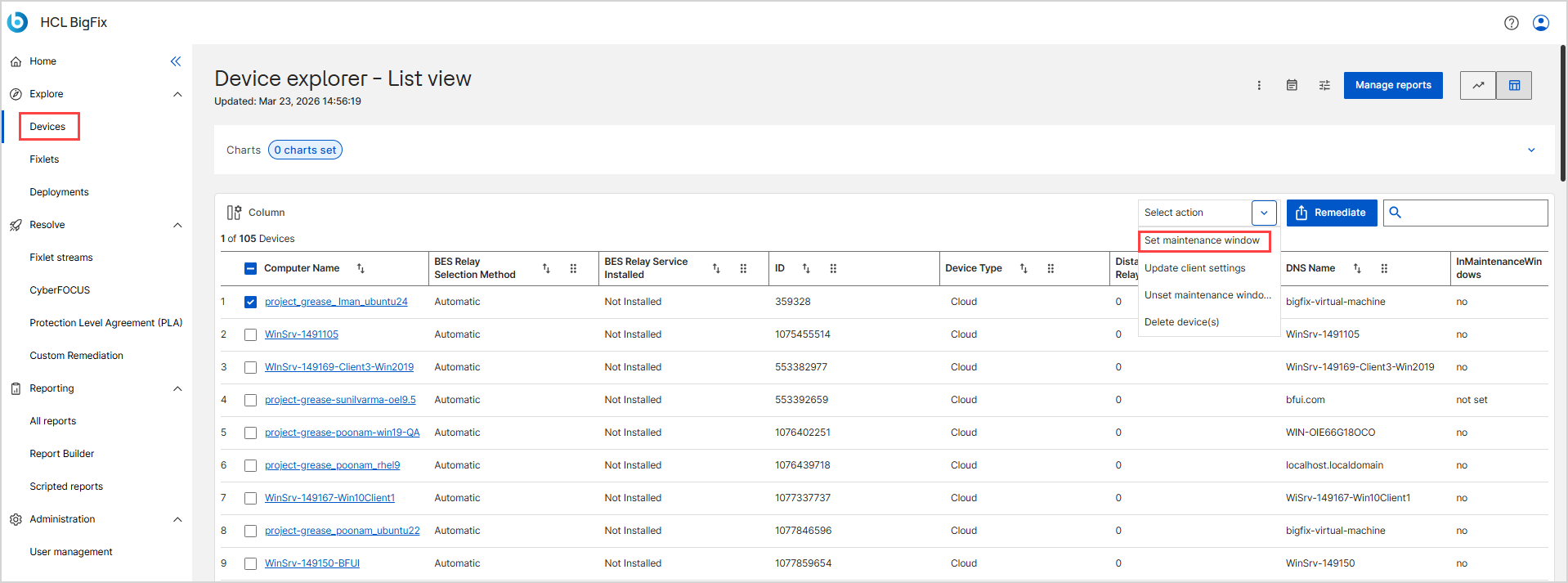
Setting up maintenance window
- Click the Select action drop-down and select the
Set Maintenance Window to open the
widget.
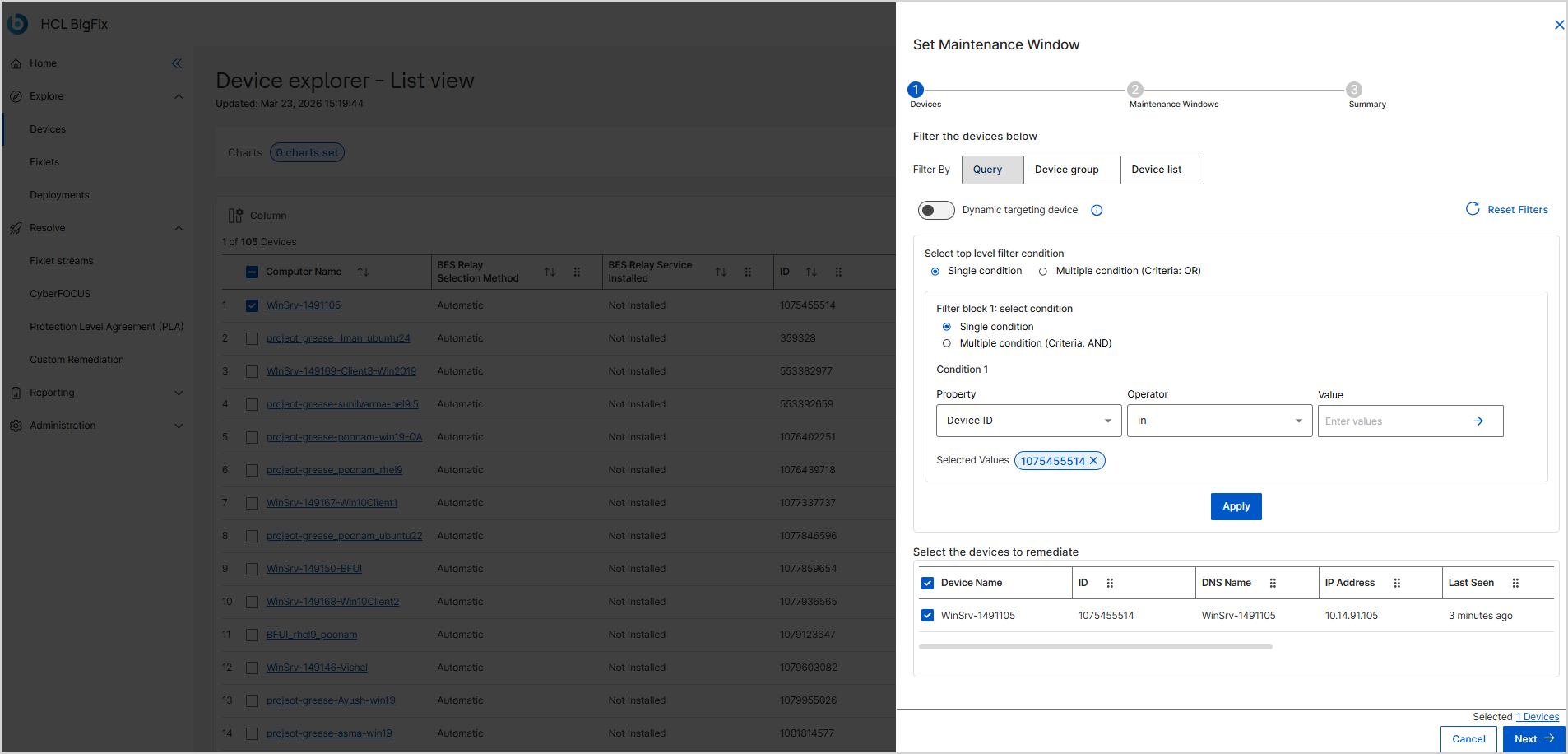
- Devices
- Review the selected devices.
- Use Filter By (Query,
Device group, or Device
list) to refine your selection.
- Query: Targets devices dynamically based on defined properties.
- Device group: Targets members of existing static or dynamic groups.
- Device list: Targets a manually entered, fixed list of devices.
- If using Query, the Dynamic
targeting device toggle determines how the list of
targeted devices is managed throughout the maintenance period:
- When the Dynamic targeting device toggle is enabled, the maintenance window uses dynamic filters to evaluate your environment continuously until the scheduled event ends.
- When the Dynamic targeting device toggle is disabled, the system applies static filters, which define a fixed list of devices at the exact time of creation.
- Click Next.
- Maintenance Windows
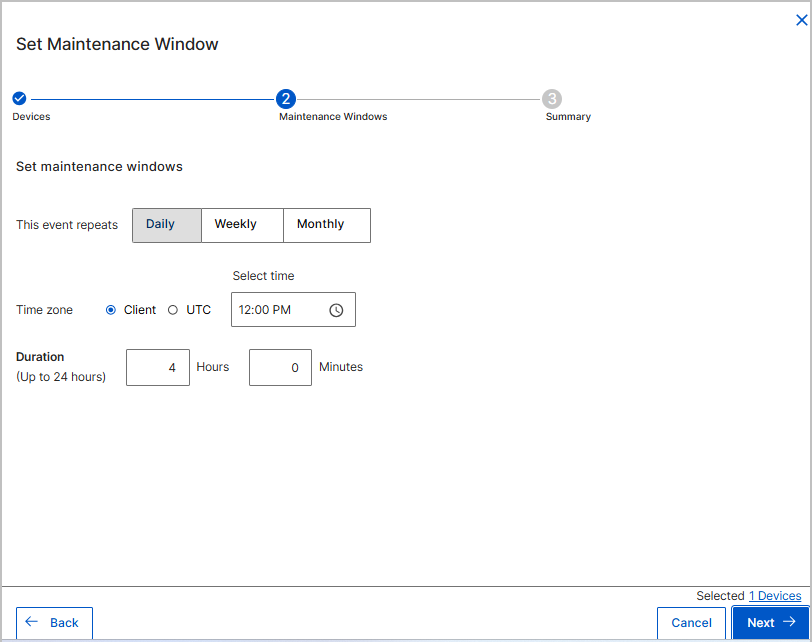
-
Occurrence: Choose if the event repeats Daily, Weekly, or Monthly.
- If you selected Daily: Proceed to select the time and
duration.
-
Time zone: Select Client (local endpoint time) or UTC.
-
Select time: Set the window start time.
Tip: Click to set time.
 -
Duration: Define the window length in Hours and Minutes (up to 24 hours).
-
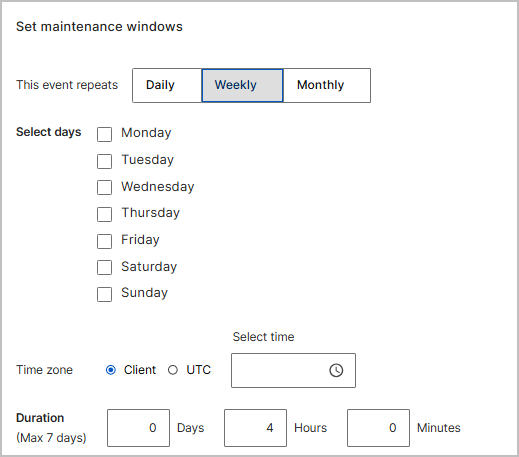
- If you selected Weekly: In the Select days section,
select the checkboxes corresponding to the days of the week you want
the window to open (for example, Saturday and Sunday).
-
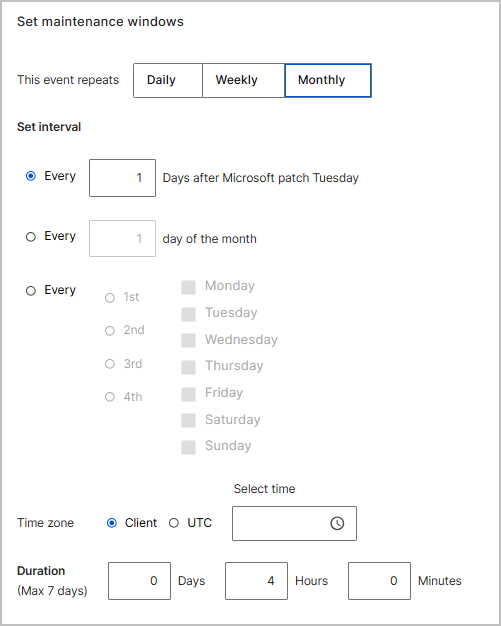
If you selected Monthly: In the Set interval section, select one of the following radio buttons to define the monthly pattern:
-
Every [ X ] Days after Microsoft patch Tuesday: Type the number of days to delay the window after Patch Tuesday.
-
Every [ X ] day of the month: Type the exact calendar date (for example, the 15th day of the month).
-
Every [ 1st / 2nd / 3rd / 4th ]: Select the week of the month, and then select the checkboxes for the specific days of the week (for example, Every 3rd Saturday).
-
-
In the Time zone section, select the time reference used to trigger the window:
-
Select Client to use the local time of the targeted endpoint.
-
Select UTC to use Coordinated Universal Time for simultaneous global execution.
-
-
In the Select time field, click the clock icon to set the exact start time for the maintenance window.
-
In the Duration (Max 7 days) section, define how long the maintenance window remains open by typing values in the Days, Hours, and Minutes fields.
-
Click Next to proceed to the Summary step.
-
- Summary
-
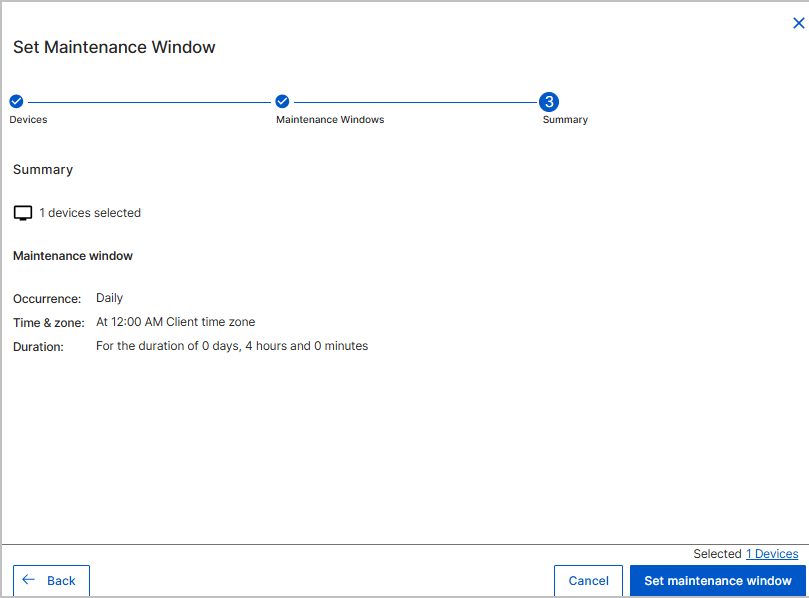
Review the occurrence, time zone, and duration configuration.
-
Verify the number of selected devices.
-
-
Click Set maintenance window. The maintenance window is successfully created.
-
Execution Handling:
-
Updates and remediations occur within the scheduled window.
-
If a failure occurs, it retries in the next available window.
-
-
Deployment Integration:
-
While deploying Fixlet Streams, select "Run during agent’s configured maintenance window".
-
Verify execution status within the Deployments.
-
-
Monitor and Modify as Needed: Adjust schedules based on system needs.
Unsetting a Maintenance Window
Use this task to remove maintenance window configurations from targeted devices.
- Navigate to Explore > Devices and click the List
 icon to view the
Device explorer - List View
icon to view the
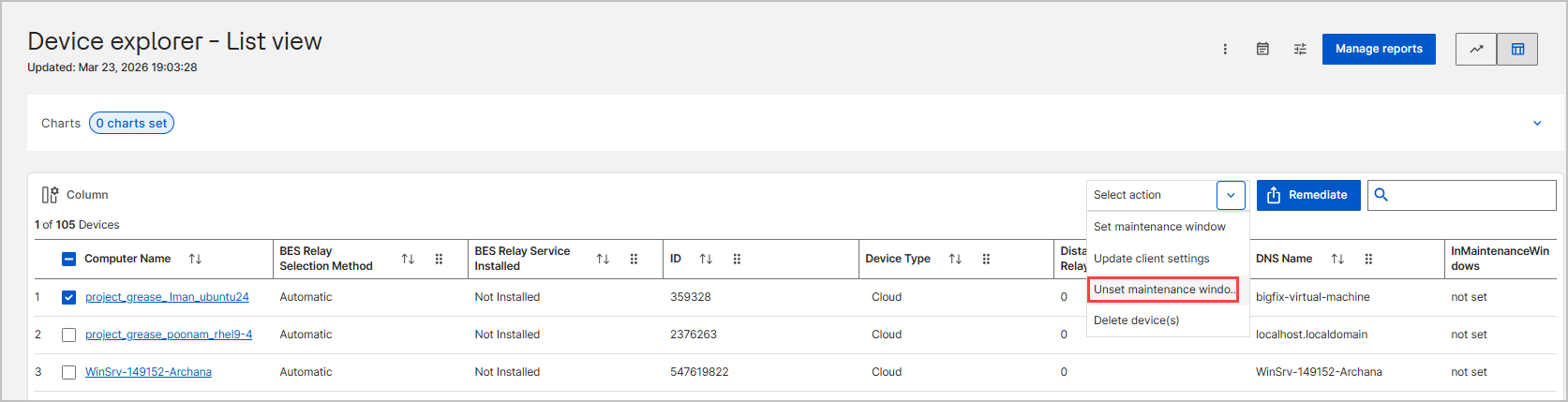
Device explorer - List View - Select the check box next to the devices from which you want to remove the maintenance window.
- Click the Select action drop-down and choose
Unset maintenance window to open the widget.
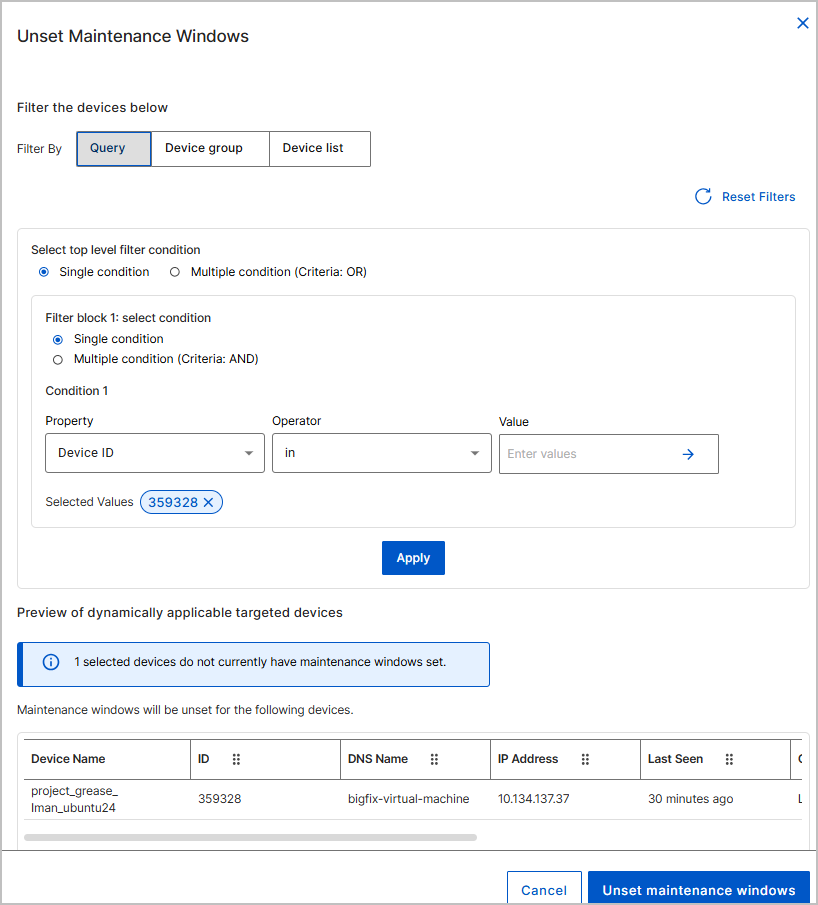
- Verify the targeted devices in the list.
- (Optional) Use Filter By (Query, Device group, or Device list) to target specific devices for unsetting.
- Review the info message indicating which selected devices do not currently have a window set.
- Review the list under "Maintenance windows will be unset for the following devices".
- Click Unset maintenance windows.
The maintenance window configuration is removed from the selected devices. These devices will no longer defer actions based on a maintenance schedule.
Editing maintenance window
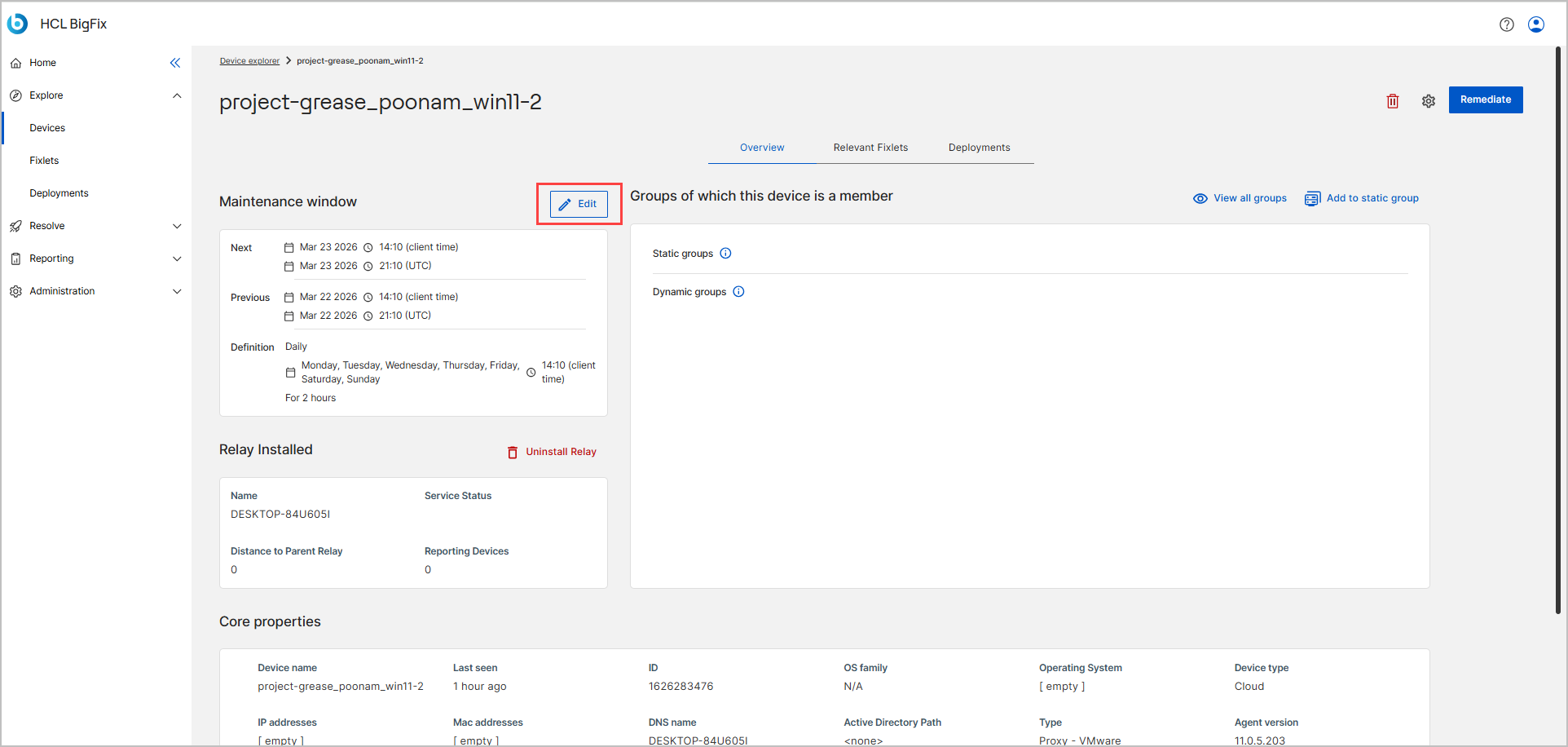
- From the list of devices in the Device Explorer, click on the device to which you want to edit the maintenance window.
- If a maintenance window was previously set, the Maintenance windows section
of the device details page displays the Edit button.
Click the Edit button and make the necessary changes, and click
Set maintenance window.
Integrations
-
Fixlet Streams: Configure Fixlet deployments to run only within maintenance windows.
-
CyberFOCUS Remediation: Align critical security updates within maintenance windows.
-
Deployments: Monitor action execution and reschedule if needed.
- Fixlets: Identify and schedule Fixlets to run within defined maintenance windows for controlled and compliant deployments.
Next steps
-
Monitor and adjust maintenance windows based on device availability and update requirements.
-
Explore integration with deployment workflows for better automation.
-
Refer to the detailed configuration guide for step-by-step instructions on defining maintenance windows.
Frequently Asked Questions
- 1. What happens if a device is powered off during a maintenance window?
- If the device is offline, the action will retry in the next available maintenance window as long as the action is still open.
- 2. Can I run actions outside the maintenance window?
- Yes, if the "Run during agent’s configured maintenance window" option is not selected, actions will execute immediately.
- 3. Can I configure different maintenance windows for different devices?
- Yes, you can apply maintenance windows to individual devices or groups of devices as needed.
- 4. What happens if an update fails during the maintenance window?
- The update will retry in the next scheduled maintenance window, provided the action is still open.
- 5. How long does it take for a new maintenance window to take effect?
- Once set, the maintenance window is applied after the server processes the action, which may take a few minutes.