

Other Device Actions
The Other Device Actions dropdown on the Device Details page gives you additional ways to interact with a device without leaving the BigFix UI. Use it to start a remote control session or to send a notification message to the user of the device.
The Other Device Actions dropdown is in the top-right corner of the Device Details page, next to the Settings icon. Select Other Device Actions to display the available actions.
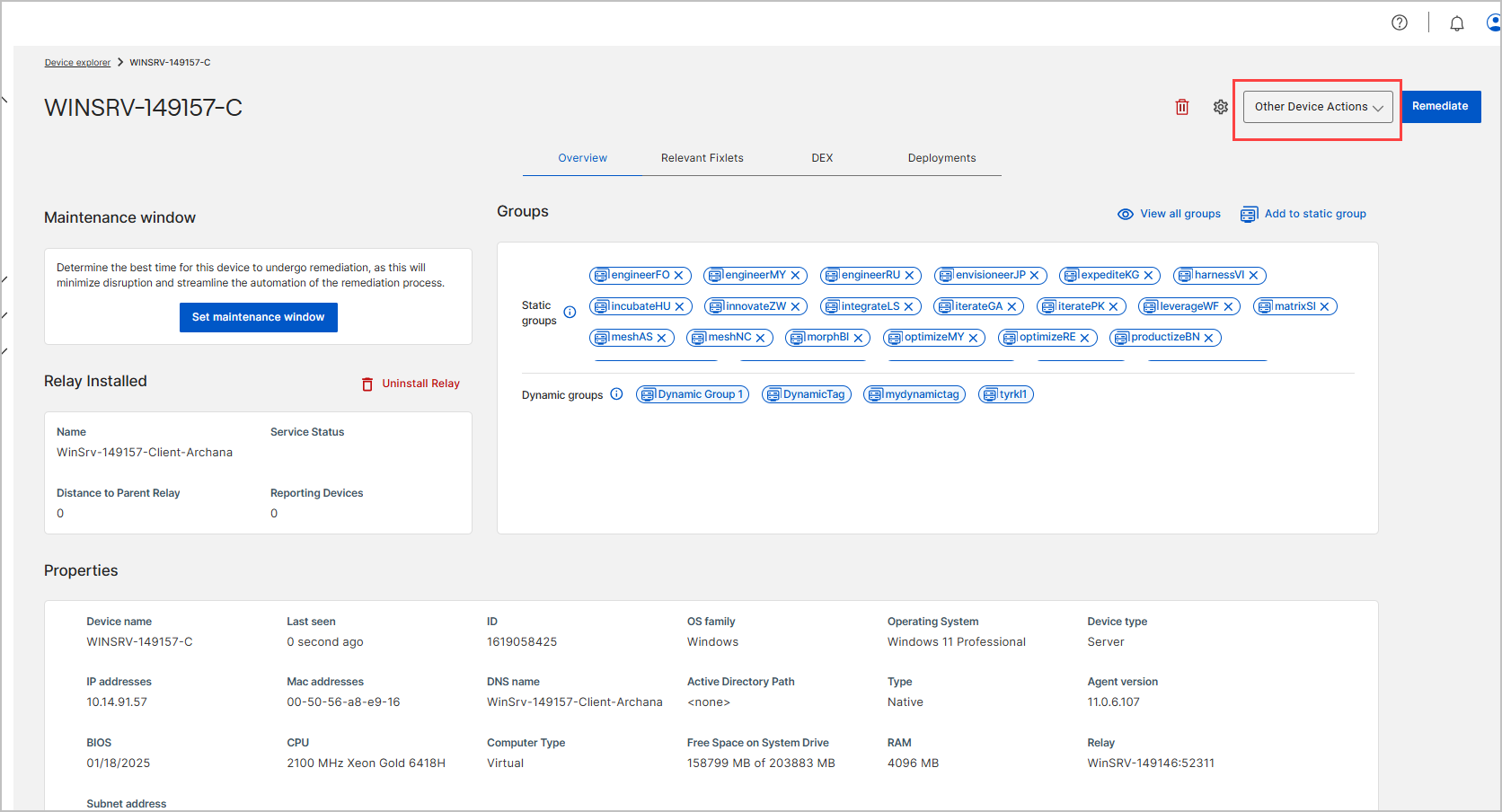
| Action | Description |
|---|---|
| Open Remote Control | Starts a web-based remote control session with the device. See Open Remote Control. |
| Send Message | Sends a notification message that appears to the user of the device. See Send Message. |
Open Remote Control
Use Open Remote Control to start a remote control session with the device directly from the Device Details page. This action opens the BigFix Remote Control Lite Web Portal in a new browser tab, where you can control the device without installing a standalone controller application.
Open Remote Control appears in the Other Device Actions dropdown only when the device is eligible for a remote control session. Eligibility depends on your BigFix environment being configured for Remote Control and on the device being a valid remote control target.
To start a remote control session
- Open the Device Details page for the device that you want to control.
- In the top-right corner, select Other Device Actions.

- Select Open Remote Control. The BigFix Remote Control Lite Web
Portal opens in a new browser tab.
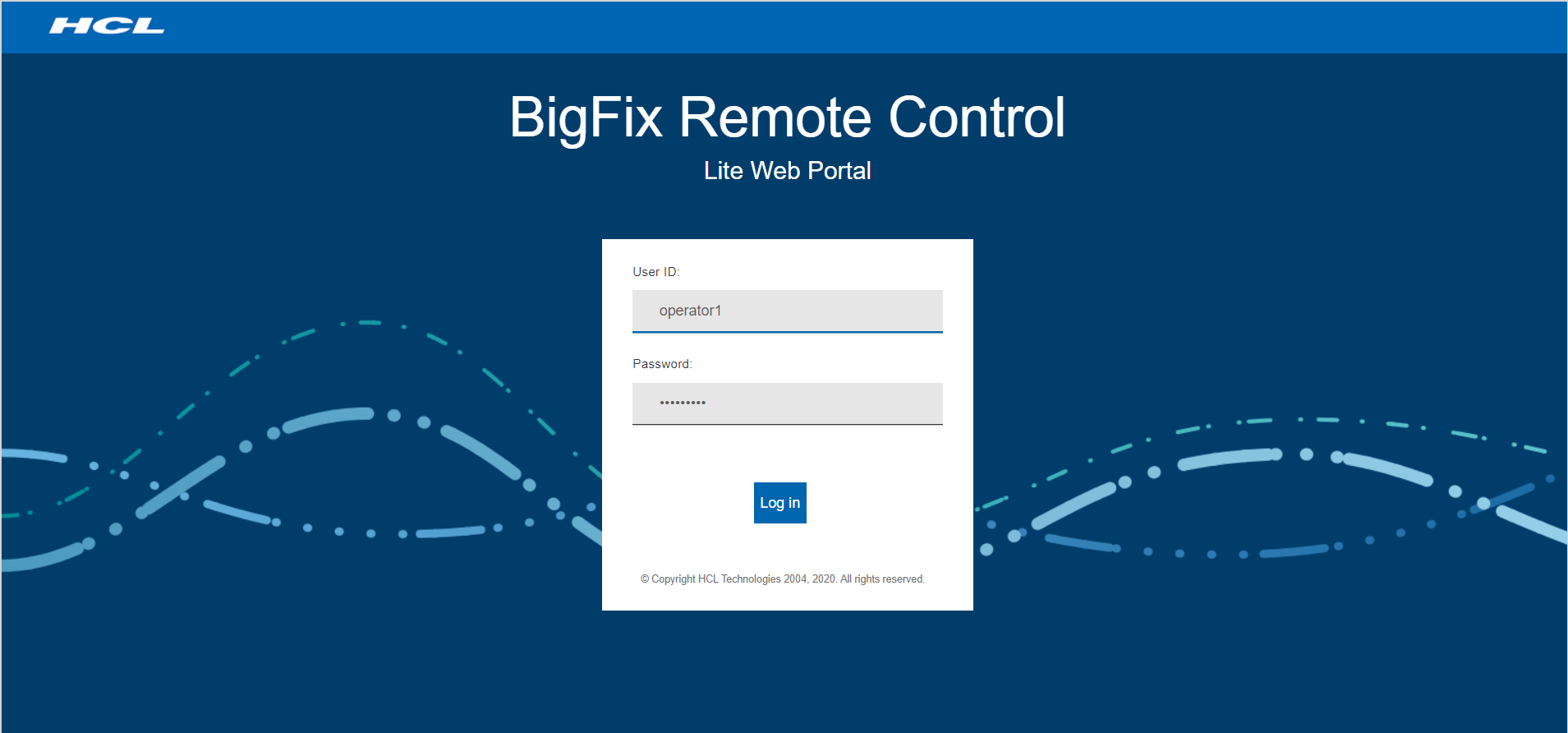
- If you're prompted, sign in to Remote Control with your credentials. The remote control session starts for the selected device. For more information about the BigFix Remote Control Lite Web Portal, see Remote Control Lite user guide.
Send Message
Use Send Message to send a real-time notification that appears as a pop-up to the user of the device. Send a message to notify users about upcoming maintenance, or to communicate with them during support and troubleshooting, without switching to another tool.
When you select Send Message, the Send Message dialog opens. The dialog notes that all fields are required and contains the following elements:
| Field | Description |
|---|---|
| Subject | The title of the notification. Required. Enter up to 240 characters; the dialog shows the number of characters remaining. |
| Message | The text that appears to the user of the device. Required. Use the formatting toolbar to style the text, including alignment, bold, italic, underline, strikethrough, bulleted and numbered lists, indentation, font size, and undo or redo. |
| Send | Sends the message to the device. This button is enabled only after you complete both the Subject and Message fields. |
| Cancel | Closes the dialog without sending a message. |
To send a message to a device
- Open the Device Details page for the device that you want to send a message to.
- In the top-right corner, select Other Device Actions, and then
select Send Message.
The Send Message dialog opens.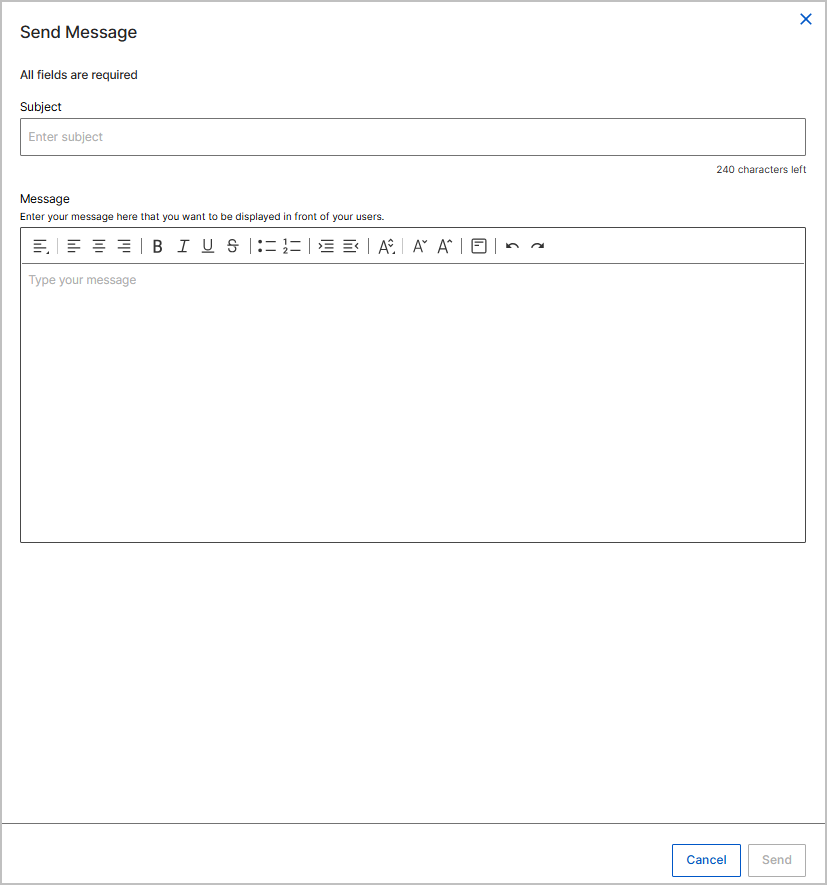
- In Subject, enter a title of up to 240 characters.
- In Message, enter the text to display to the user. Use the formatting toolbar to style the text as needed.
- Select Send. BigFix delivers the message as a pop-up notification on the device, and a confirmation indicates that the message was sent successfully.