

Devices
The Device Explorer lets you view, monitor, and act on all the devices connected to your BigFix environment. Use the Overview page for a high-level, chart-based summary, and the List view page to work with device inventory in a customizable table.
To open the Device Explorer, expand Explore in the side navigation and select Devices. Use the view icons in the top-right corner to switch between the Overview (charts) page and the List view page. Both pages show an Updated timestamp that indicates when the data was last refreshed.
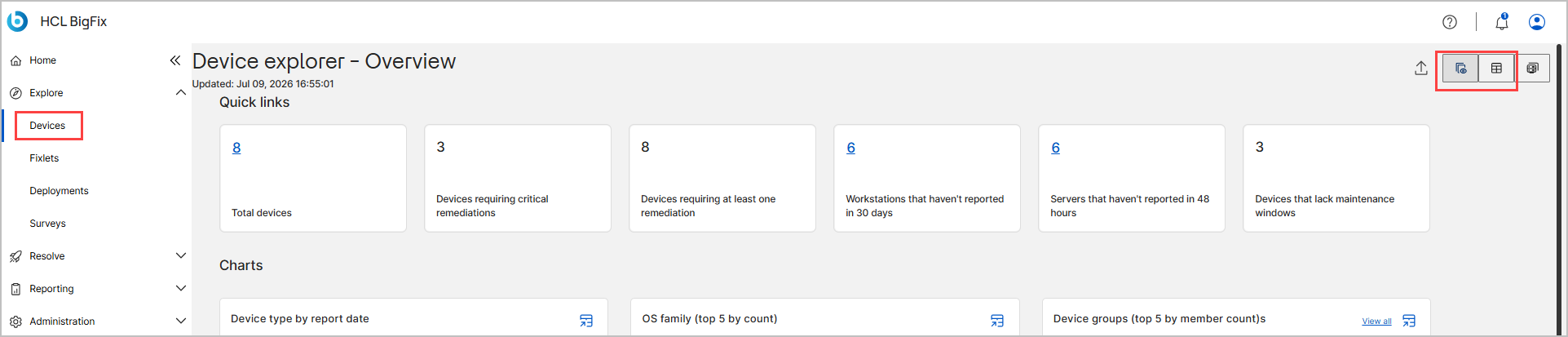
Device Explorer – Overview page
The Overview page provides a high-level summary of your device environment through quick links and interactive charts. Use it to monitor device health, reporting status, remediation needs, and group distribution before you drill down into individual device data.
The top-right corner includes an Export (share) icon that exports the current page data and a Device groups icon that opens the Device Groups page. For more information, see Device Groups.

Quick links
The Quick links section at the top of the page provides fast access to commonly monitored device conditions. Each tile shows a count.
| Quick link | Description |
|---|---|
| Total devices | The total number of devices that BigFix currently manages. |
| Devices requiring critical remediations | The number of devices that are missing security-critical patches or updates and require immediate attention. |
| Devices requiring at least one remediation | The number of devices that require any remediation, both critical and non-critical. |
| Workstations that haven't reported in 30 days | Workstation devices that haven't reported to BigFix in the last 30 days. |
| Servers that haven't reported in 48 hours | Server devices that haven't reported to BigFix in the last 48 hours. |
| Devices that lack maintenance windows | Devices that don't have an associated maintenance window. |
Charts
The Charts section presents high-level metrics as interactive chart widgets.
| Chart | Description |
|---|---|
| Device type by report date | Shows device counts grouped by device type based on their most recent report date, over a selected period such as the last 7 days. |
| OS family (top 5 by count) | Displays the top five operating system families in your environment, ranked by the number of devices. |
| Device groups (top 5 by member count) | Shows the five device groups with the most member devices, with the group name and member count. Select View all to open the Device Groups page. |
| Devices in maintenance Windows | Shows the number of devices in active maintenance windows. Select a month tab to view the distribution across the days of that month. |
Each chart has a See data in data table format with download options icon in its top-right corner. Select it to view the chart's data as a table that you can copy or export. for more information, see Viewing chart data in a table.
Device Explorer – List view page
The List view page is the central workspace for managing and monitoring the endpoints in your environment. Use it to view inventory data in a customizable table, build charts from device properties, and run administrative actions on one or more devices. The page is organized into a view and utility bar, a collapsible Charts section, a command bar, and the device list table.
View and utility bar
The view and utility bar in the top-right corner manages the overall display and reporting features.
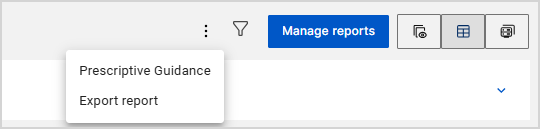
| Control | Description |
|---|---|
| More options (three vertical dots) | Opens a menu with Prescriptive Guidance, which provides
actionable recommendations based on best practices, and Export
report, which downloads the tabular report for offline analysis.
For more information, see Prescriptive Guidance and Exporting Data. |
| Filter (funnel icon) | Displays a subset of devices based on criteria that you define. For more information, see Filtering Data. |
| Manage reports | Saves, loads, and organizes custom reports that you generate in the BigFix UI. For more information, see Manage Reports. |
| Device groups (icon) | Opens the Device Groups page, where you view and manage static and dynamic device groups. For more information, see Device Groups. |
| View icons | Switch between the Overview (charts) page and the List view page. |
Charts and Configure chart
The collapsible Charts section creates and displays custom visualizations from device inventory data. A badge next to the title, such as 0 charts set or 1 chart set, shows how many charts are defined. Select the collapse icon (upward arrow) to hide the section. Use the Configure chart pane to create a chart. All fields are mandatory.

| Field | Description |
|---|---|
| Chart's name | A descriptive name that identifies the chart. Required. |
| Chart's Property | The device property to visualize, such as OS, CPU, or device type. Required. The dropdown lists all available properties. |
| Chart type | The visual format for the data, selected from the dropdown: Horizontal chart, Vertical chart, or Pie chart. Required. |
| Create chart | Generates the chart and adds it to the Charts section. This button stays dimmed until you complete all required fields. If the selected property has no data, the tile shows No Data Available. |
| Cancel | Closes the Configure chart pane without saving. |
- After you create a chart, it appears as a tile that shows the chart name and the property it visualizes, such as Property: OS Family. A NEW badge marks a recently added chart. Select the More options icon on a chart tile to Edit or Delete it. To delete multiple charts, select the checkbox on each tile, or Select All, and then select Delete chart.
- To add another chart, select Add chart or the empty Add chart placeholder tile.
- Each chart has a See data in data table format with download options icon in its top-right corner. Select it to view the chart's data as a table that you can copy or export. For more information, see Viewing chart data in a table.
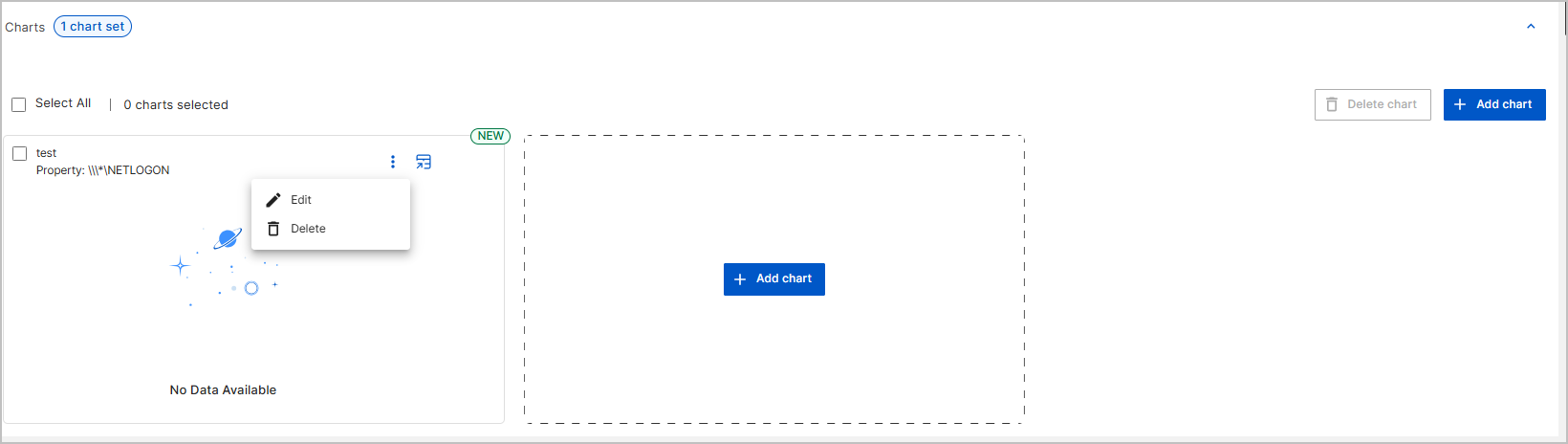
Chart Interaction with Global Filter
Charts on the Device Explorer – List view are interactive and work together with the Global Filter and the device list table. When you select a chart segment, BigFix filters the device list table to the matching devices; when you clear the filter, the chart and the table return to their default views.
To filter the device list table from a chart:
- Create a chart from a device property, such as OS Family. The chart appears as a
tile that shows each value as a segment—for example, Windows, Linux, and N/A—with its
device count.
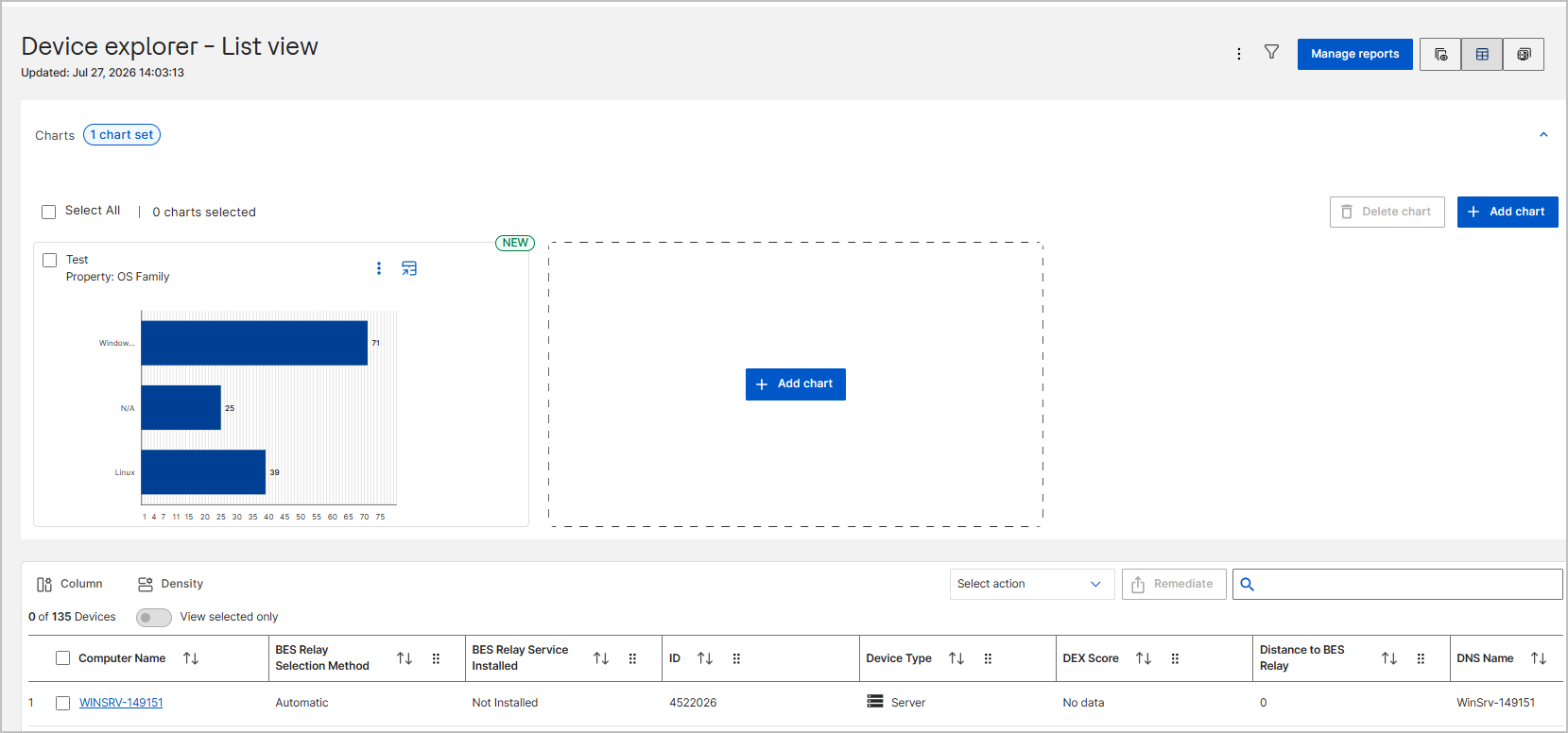
- Select a segment, such as the Windows bar. The chart updates to show only the
selected segment and hides the rest. BigFix adds the value to the Global Filter—the
Filter icon shows a badge with the number of active conditions—and refreshes the
device list table to show only the matching devices. For example, the count changes from
0 of 135 Devices to 0 of 71 Devices.
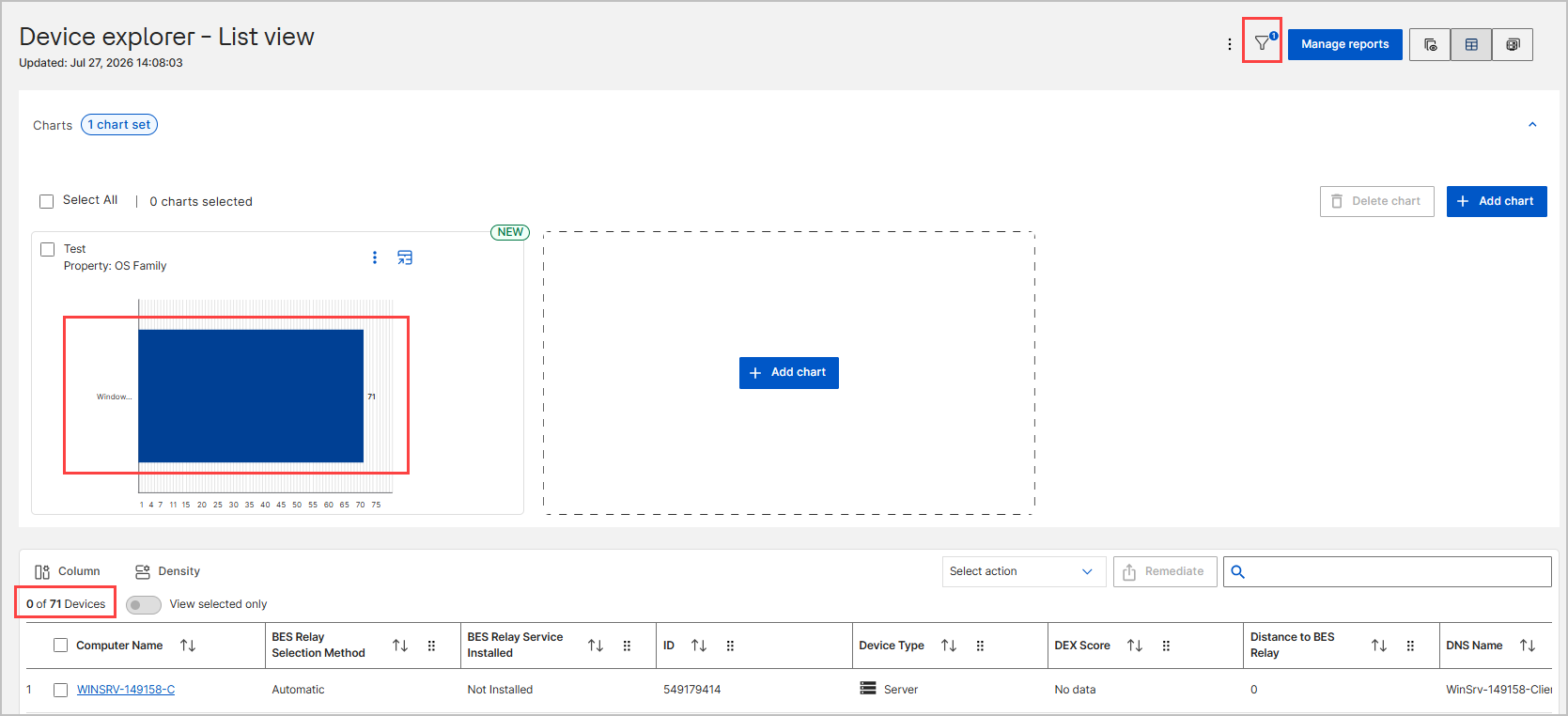
- Optional: To review the applied condition, select the Filter icon. The Filter
data panel opens and shows the condition that the chart interaction added—for
example, Property OS Family, Operator Equals, Value Windows—marked
with the Additional conditions from chart interactions tag.

- To clear the filter, remove the condition in the Filter data panel—or select
Remove all—and then select Apply. The chart returns to its default view
and shows all segments, and the device list table shows the complete, unfiltered list.Note: When you delete a chart while its filter is still active, BigFix removes the associated condition from the Global Filter and updates the device list table to show the unfiltered data.
This synchronization keeps the charts, the Global Filter, and the device list table consistent, for an accurate and intuitive filtering experience.
Command bar
The command bar, directly above the table, is the primary area for adjusting the table and acting on devices.

| Control | Description |
|---|---|
| Column | Chooses which device attributes appear as columns. Search for a property, select or clear checkboxes to show or hide columns, select Reset to restore the default columns, and select Apply to save. You can display a maximum of 63 columns. |
| Density | Adjusts the row spacing of the table. |
| View selected only | When turned on, limits the table to the devices that you selected. A counter, such as 1 of 8 Devices, shows how many devices are selected. |
| Select action | Runs a command on the selected devices. Select at least one device checkbox to enable the commands. See #device-explorer__select-action-table. |
| Remediate | Deploys a fix or configuration task to the selected devices. This button stays dimmed until you select at least one device that requires remediation. |
| Search | Filters the list as you type a keyword, such as a computer name or ID. |
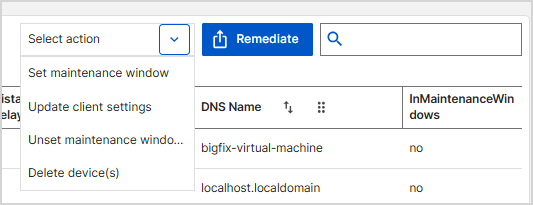
The Select action dropdown provides the following commands for the selected devices.
| Command | Description |
|---|---|
| Set maintenance window | Defines a period for updates or maintenance on the selected devices. For more information, see Managing Device Maintenance Windows. |
| Update client settings | Modifies configuration settings for the BigFix client on the selected devices. For more information, see Update Client Settings. |
| Unset maintenance window | Removes an existing maintenance schedule from the selected devices. For more information, see Managing Device Maintenance Windows. |
| Remove device(s) | Removes the selected devices from the inventory. Delete devices. |
| Add to static group | Adds the selected devices to a static device group. For more information, see Device Groups. |
Device list table
The device list table displays details about the discovered devices in your environment. Select a device's Computer Name to open its Device Details page.
Each column header includes a sort icon: select it once to sort ascending, again to sort descending, and again to clear the sort. The table can include the following columns.
| Column | Description |
|---|---|
| Number | The order in which BigFix added the device. |
| Computer Name | The BigFix computer name assigned to the device. Select it to open the Device Details page. |
| BES Relay Selection Method | How the device selected its relay: Automatic (selected by BigFix) or Manual (manually configured). |
| BES Relay Service Installed | Whether a BES Relay service is installed on the device, such as BES Root Server or Not Installed. |
| Device Type | The type of device, such as Server or Workstation. |
| Distance to BES Relay | The distance between the device and its assigned relay. |
| DNS Name | The fully qualified DNS name of the device. |
| ID | The unique BigFix identifier assigned to the device. |
| In Maintenance Windows | Whether the device is currently associated with a maintenance window, such as yes, no, or not set. |
| IP Address | The IP address reported by the device at its last check-in. |
| Last Report Time | When the device last reported to BigFix. |
| MAC Address | The MAC address of the device network interface. |
| OS Family | The operating system family, such as Windows or Linux. |
| OS Name | The specific operating system installed on the device. |
| OS Version | The operating system version number. |
| Relay | The relay server currently assigned to the device. |
| Relay Name of Client | The relay name as reported by the client. |