

Update Client Settings
The Update Client Settings feature in BigFix UI allows administrators to modify the configuration of BigFix Agents on one or more devices. This tool provides a streamlined way to manage relay selection methods and apply, edit, or delete custom configuration settings (client settings) directly from the Device Explorer.
Use this feature when you need to reconfigure a group of endpoints to use a specific secondary relay or when you need to deploy a custom configuration tag across multiple devices for reporting and filtering purposes.
-
Changes to client settings are persistent on the endpoint until explicitly modified or deleted.
-
When using manual relay selection, you must specify a valid Primary and/or Secondary relay.
-
Updating client settings creates a deployment action that can be monitored in the Deployments manager.
Key Capabilities
-
Relay Selection Management: Switch between automatic, manual, or no change for relay selection methods.
-
Custom Settings Deployment: Add new name-value pairs to configure specific agent behaviors.
-
Settings Modification: Search for and edit existing client settings on targeted devices.
-
Bulk Deletion: Identify and remove unnecessary client settings to maintain agent hygiene.
-
Flexible Targeting: Target devices using specific queries, predefined device groups, or a fixed device list.
Updating Client Settings
- Expand Explore from the side navigation and select Devices.
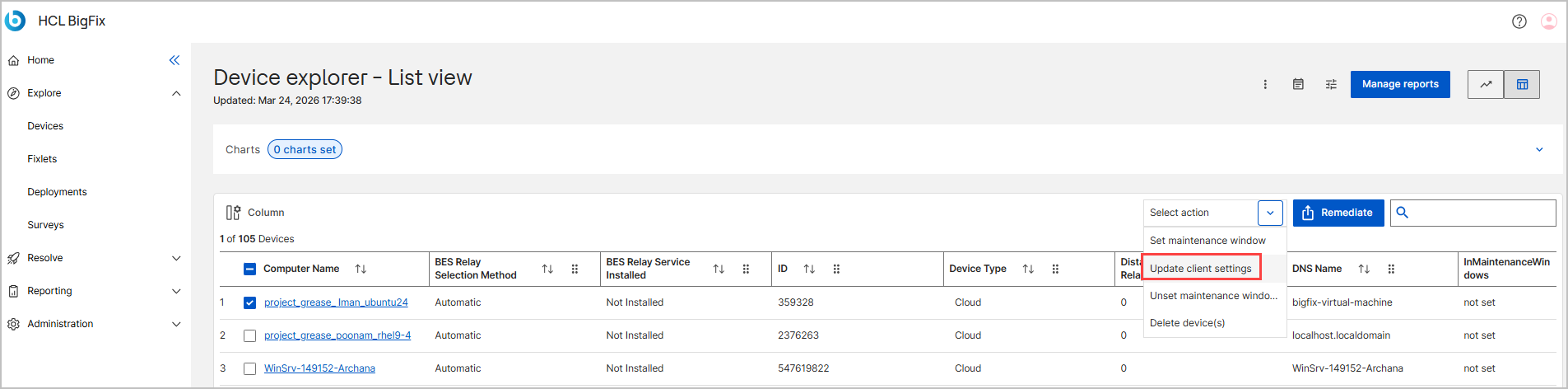
- In the Device explorer - List view, select the checkbox for one or more devices.
- Click the Select action dropdown and choose
Update client settings.
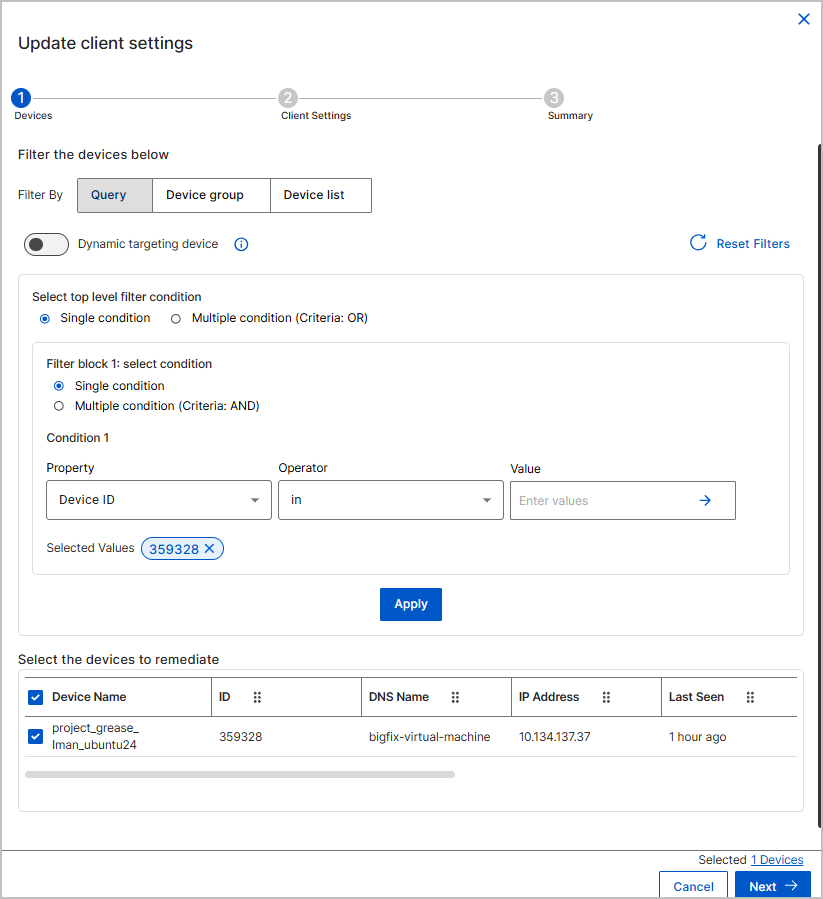
- On the Devices step, confirm your targets:
-
Use Filter By to refine the list by Query, Device group, or Device list.
- Query: Targets devices dynamically based on defined properties.
- Device group: Targets members of existing static or dynamic groups.
- Device list: Targets a manually entered, fixed list of devices.
-
(Optional) Configure the Dynamic targeting device toggle based on your deployment need.
- When the Dynamic targeting device toggle is enabled, it will define matching criteria that evaluate devices continuously until the deployment ends. Any device that matches the filter after the deployment is created will have the settings applied automatically.
- When the Dynamic targeting device toggle is disabled, it will define a fixed list of devices at the time of deployment creation. This list remains unchanged for the duration of the deployment; new matching devices are not added, and devices that stop matching the filter will still apply the deployment.
-
Click Next.
-
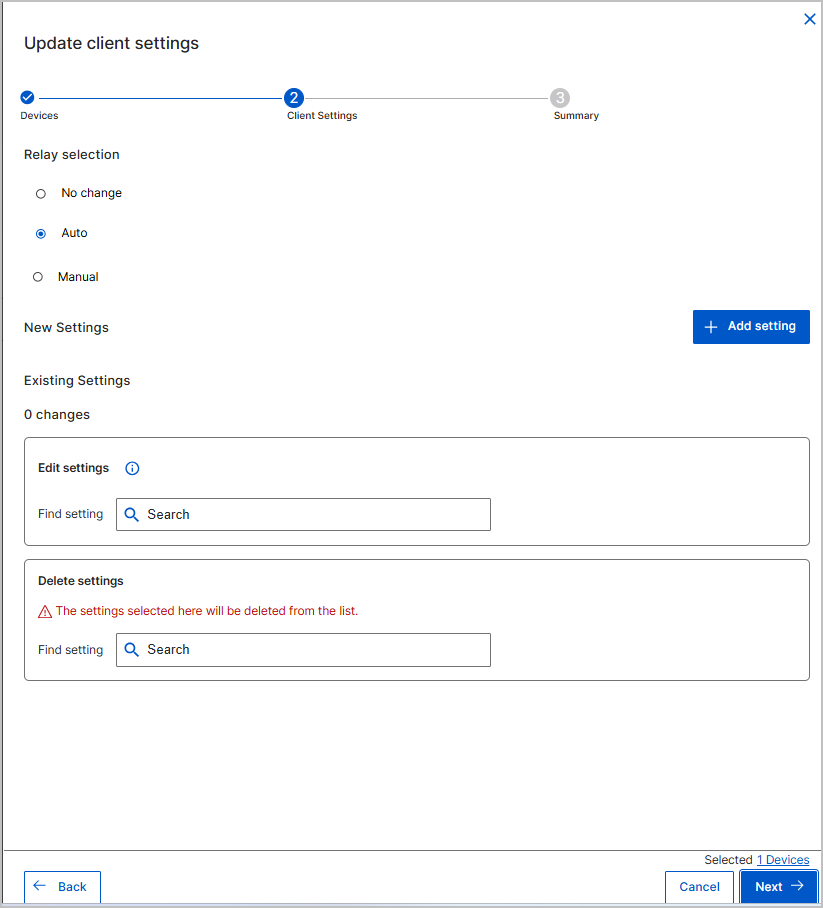
- On the Client Settings step, configure the following:
-
Relay selection: Select No change, Auto, or Manual. If Manual is selected, choose a Primary and/or Secondary relay from the dropdowns.
-
New Settings: Click Add setting to enter a Name and Value for a new configuration pair.Note: If user adds a settings name which already exists, an error message is shown below the text box.
-
Existing Settings: Use the Edit settings search bar to find and modify current settings, or use Delete settings to select properties for removal.
-
Click Next.
-
- On the Summary step, review your configurations and the number of
targeted devices.
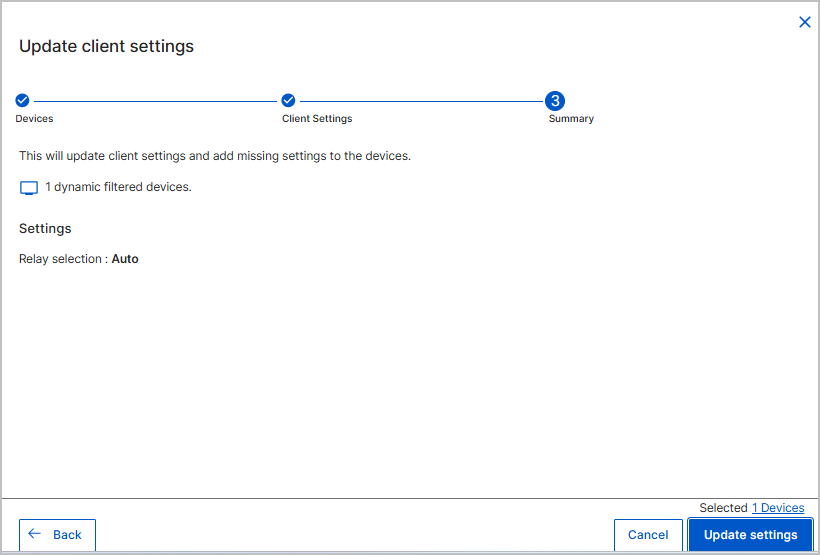
- Click Update settings to submit the action. The confirmation will be
shown as toast success notification on the main page.
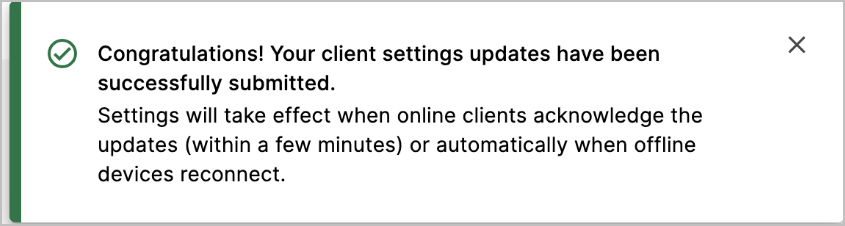
Result
The client settings are sent to the targeted devices. You can monitor the progress of this task by navigating to the Deployments page.