

Device Group Details Page
The Device Group Details page provides a comprehensive, focused view of a specific device group. You access this page by clicking a group name from the Device Groups data table. Use this page to review group properties, view member endpoints, identify relevant vulnerabilities, and track deployment history.
The page includes a Manage group button in the top-right corner, which allows you to edit the group's name or filter conditions. The information is organized into three tabs: Overview, Relevant Fixlets, and Deployments.
Overview Tab
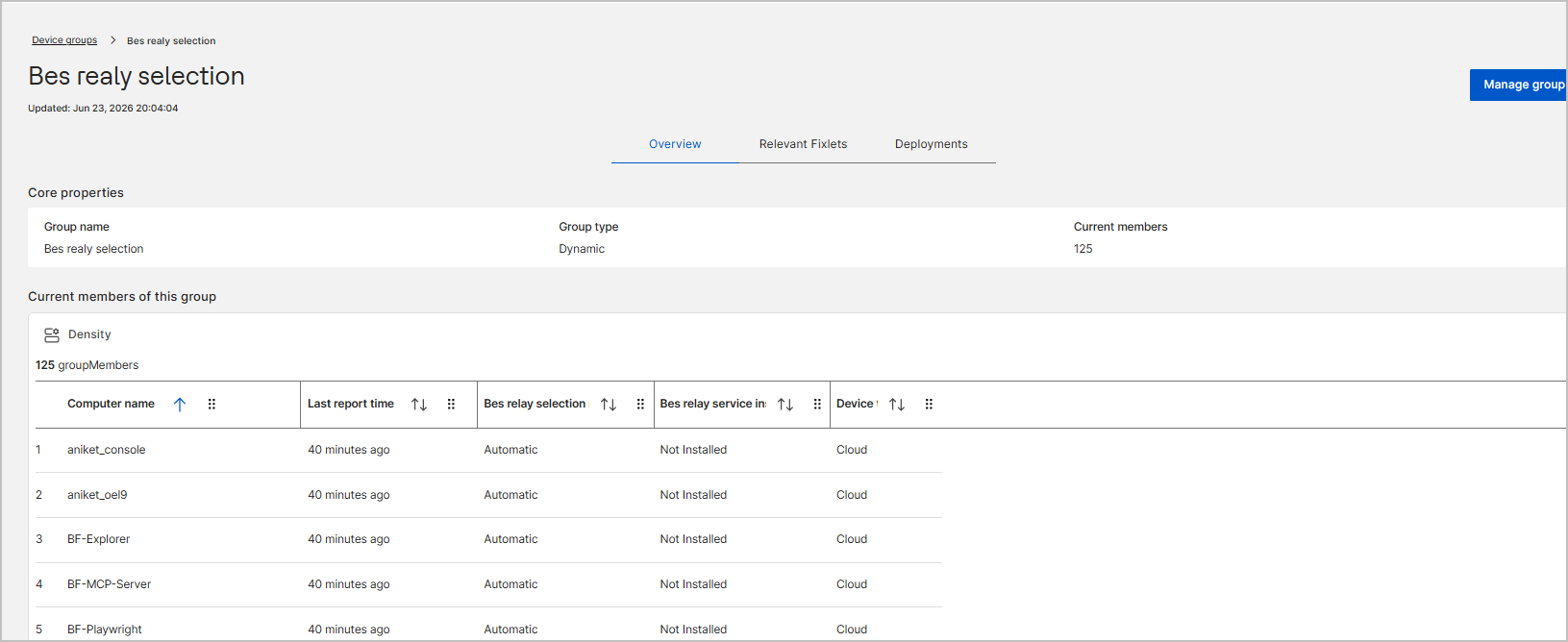
The Overview tab provides a summary of the group's configuration and a list of its current members.
-
Core properties: Displays the Group name, the Group type (Dynamic or Static), and the total number of Current members.
-
Current members of this group: A data table that lists all endpoints currently belonging to the group. Use this table to review individual device details, including Computer name, Last report time, Bes relay selection, Bes relay service in (installed status), and Device (type). You can adjust the row spacing using the Density drop-down.
Relevant Fixlets Tab
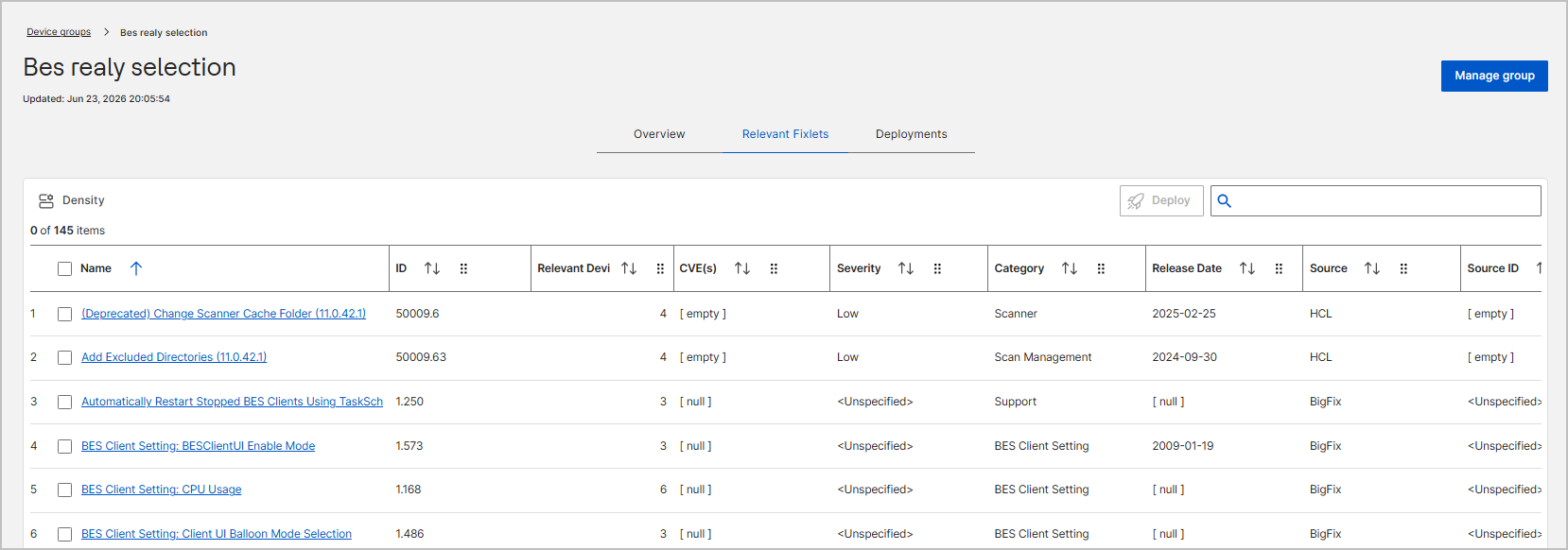
The Relevant Fixlets tab identifies pending actions, patches, or configuration changes applicable to the devices within the group.
-
Data Table: Displays all Fixlets relevant to the group's members, including details like the Fixlet Name, ID, Relevant Devices count, CVE(s), Severity, and Category.
-
Search and Filter: Use the search bar to quickly locate specific Fixlets by name, ID, or CVE.
-
Deploy Actions: Select the checkbox next to one or more Fixlets and click the Deploy button to initiate a remediation action directly to the devices in this group.
Deployments Tab
The Deployments tab displays the history and current status of actions or patches deployed to the devices in this group.
-
Data Table: Review deployment records, including the deployment Name, State (such as Active, Expired, Stopped, or Failed), Start date, and End date.
-
Manage Deployments: Select one or more active deployments and click the Stop button to halt them. Select expired deployments and click the Delete button to remove them from the list.
-
Search and Filter: Use the search bar to locate specific deployment records quickly.