Device Details Page
The Device Details page provides in-depth information about an enrolled device and lets you act on that device. Use it to review the device's configuration, maintenance settings, group memberships, relevant Fixlets, and deployments, and to run remediation and other device actions.
To open the Device Details page, select a device name in the Device Explorer – List View. The page is divided into three tabs: Overview, Relevant Fixlets, and Deployments. Each tab presents a different aspect of the selected device's status and activity.

Page actions
The device name appears at the top of the page. The following actions are available in the top-right corner of the page on every tab.
| Action | Description |
|---|---|
| Delete (trash icon) | Removes the device from management. After you delete the device, you can no longer manage or remediate it, and its associated data is removed. |
| Settings (gear icon) | Opens the device settings, where you configure computer settings for the device. |
| Other Device Actions | Opens a dropdown of additional actions that you can run on the device, such as Open Remote Control and Send Message. For more information, see Other Device Actions. |
| Remediate | Opens the Remediate widget so that you can deploy a fix or configuration task to the device. This button appears when relevant content is available for the device. |
Overview tab
The Overview tab summarizes key information about the selected device in the following panels.

| Panel | Description |
|---|---|
| Maintenance window | Displays the configured maintenance schedule for the device, including the next and previous windows and the schedule definition. Select Edit to change the maintenance window parameters. |
| Groups | Lists the static and dynamic groups that the device belongs to. Select View all groups to see every group, or Add to static group to add the device to a static group. |
| Relay Installed | Indicates whether a BigFix relay is installed on the device and shows the relay name, service status, distance to the parent relay, and number of reporting devices. When a relay is installed, Uninstall Relay is available. |
| Properties | Displays key system information collected from the device to help you identify and assess device health. |
The Properties panel provides a quick overview of the device's configuration, performance, and connectivity in the BigFix environment. The following fields are available.
| Field | Description |
|---|---|
| Device name | The name of the device. |
| Last seen | The time when the device last reported to BigFix. |
| ID | The unique BigFix computer identifier for the device. |
| OS family | The operating system family, such as Windows, Linux, or Mac. |
| Operating System | The specific operating system and version, such as Ubuntu 20.04.6 LTS. |
| Device type | The device role, such as Server or Workstation. |
| IP addresses | The IP addresses assigned to the device. |
| Mac addresses | The hardware (MAC) addresses of the device's network interfaces. |
| DNS name | The fully qualified domain name of the device. |
| Active Directory Path | The Active Directory path for the device, or <none> if the device isn't joined to a domain. |
| Type | The agent type, such as Native. |
| Agent version | The version of the BigFix agent installed on the device. |
| BIOS | The BIOS version or date reported by the device. |
| CPU | The processor type and speed. |
| Computer Type | The hardware type, such as Physical or Virtual. |
| Free Space on System Drive | The available and total space on the system drive. |
| RAM | The amount of installed memory. |
| Relay | The relay that the device reports through. |
| Subnet address | The subnet that the device belongs to. |
Relevant Fixlets
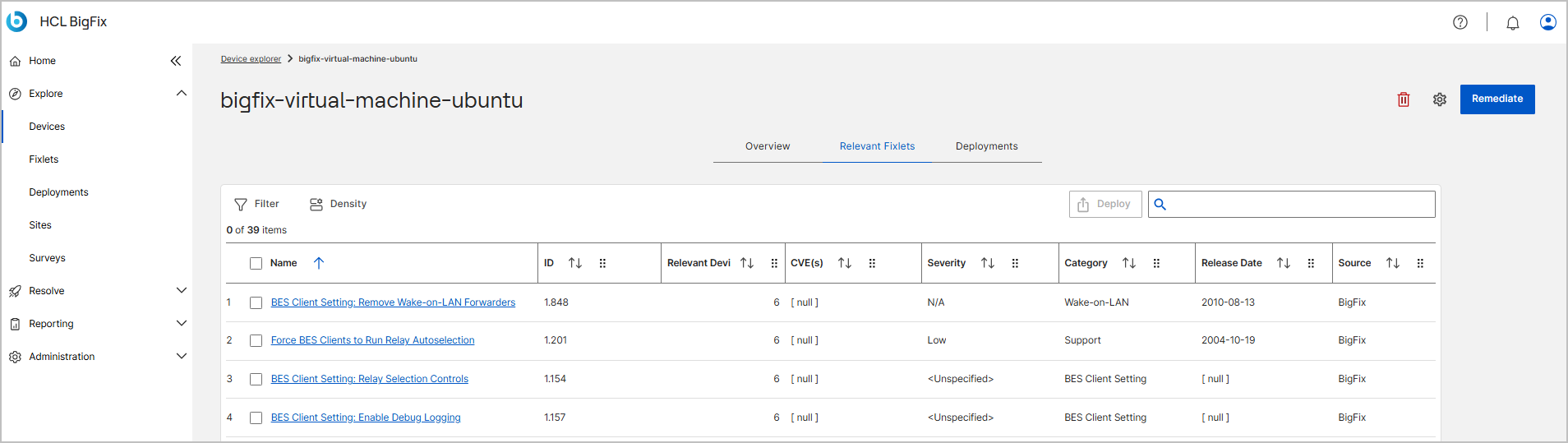
The Relevant Fixlets tab lists the Fixlets that apply to the selected device. Use this tab to see the pending actions, patches, or configuration changes that the device qualifies for, based on its current state. You can filter the list, adjust the table Density, search for a specific Fixlet, and select Fixlets to Deploy.
Deployments
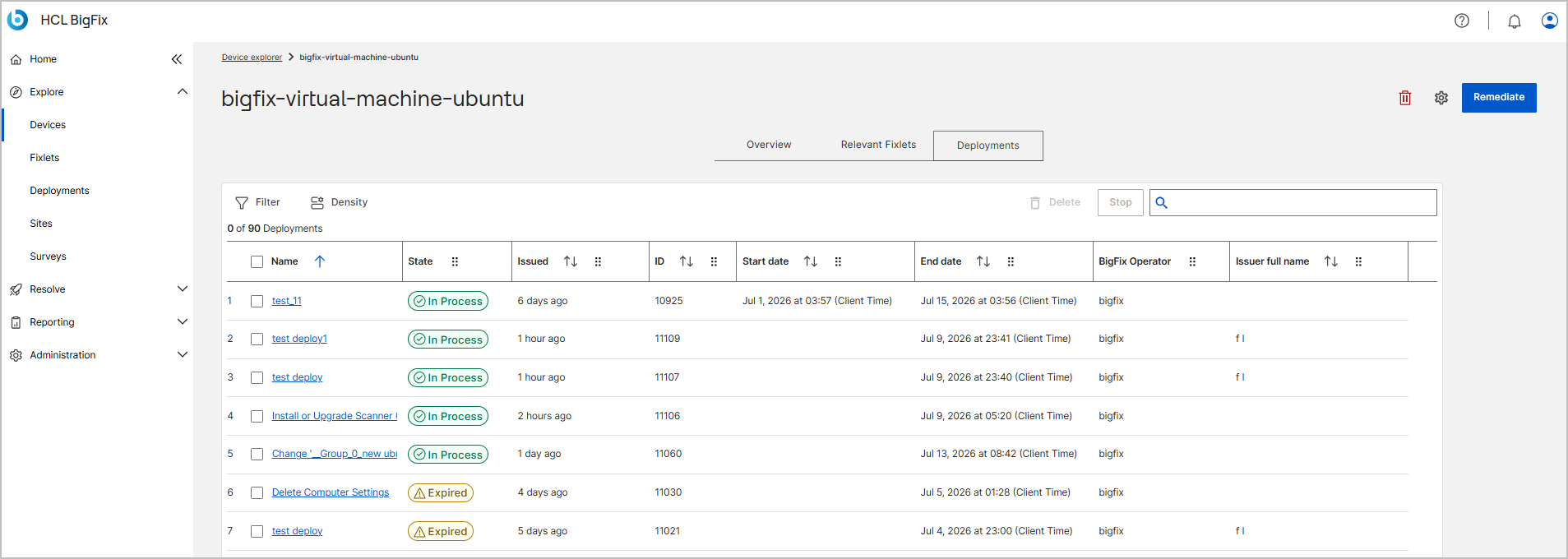
The Deployments tab displays the actions and patches that have been deployed to the selected device, along with each deployment's state, issued time, ID, start and end dates, and operator. Use this tab to verify that targeted actions are applied successfully and to troubleshoot failed deployments. You can filter and search the list, and select a deployment to Stop or Delete it.