

Installation
This topic explains how to install the BigFixUI.exe file to initiate the BigFix UI Setup. It also outlines the steps to configure settings using the BigFix UI Configuration Manager tool.
Before you begin
Downloading the BFUI installer: Customers entitled to DEX (Workspace and Workspace + entitlements) can log in to My HCL Software and download the BFUI installer.
About this task
Procedure
-
Navigate to the folder containing the BFUI.exe file.
Unzip the BigFixUI-<build_number>.zip file and navigate to the cmd\BfReports folder.
-
Run the executable. To launch the setup, open a command prompt as an
administrator (right-click Command Prompt and select Run as administrator), and
then enter:
BFUI.exe --setup
-
After execution, the browser opens the Legal Notes page.
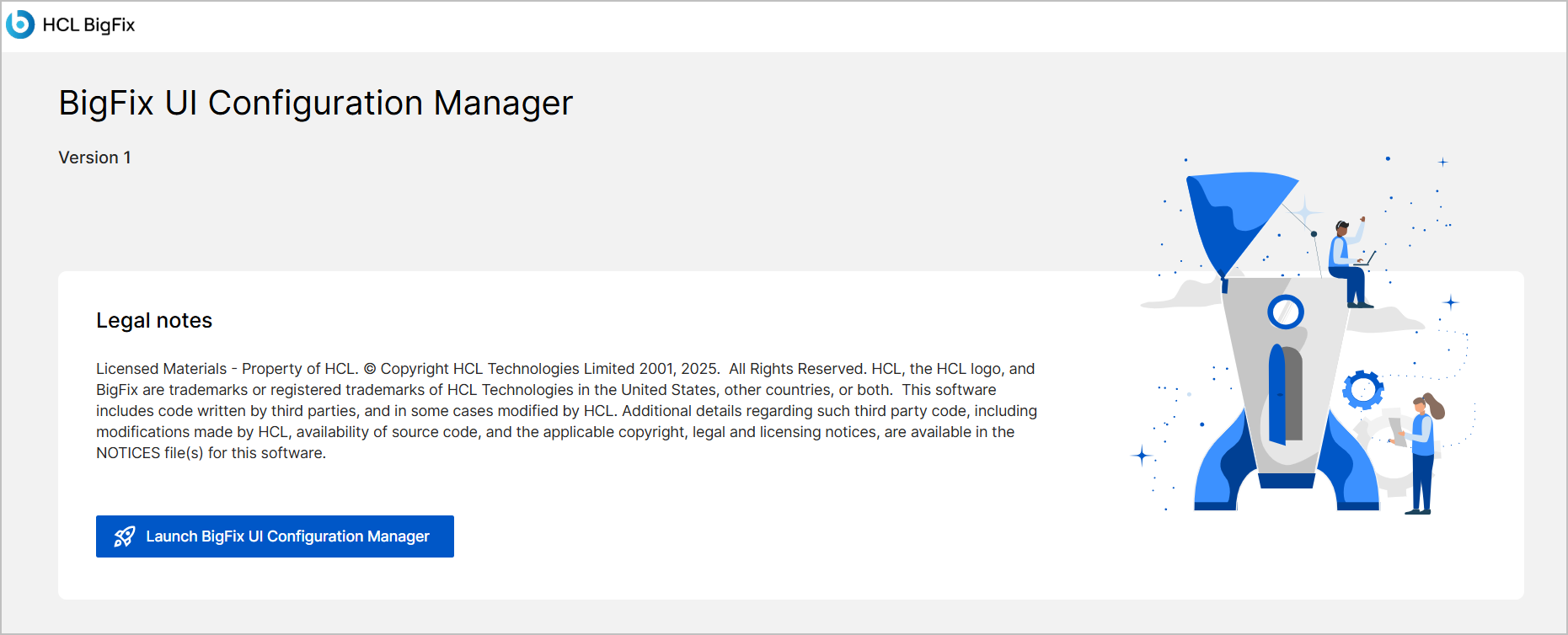
- Click Launch BigFix UI Configuration Manager.
- The BigFix UI Configuration stepper process starts, beginning with the Application instance credential page.