Configure Application Settings
Use this step to define application-level settings such as communication protocol, web server port, CORS origins, and security mode for the BigFix UI.
About this task
Procedure
- After completing Certificate Configuration, click Next button to open the Application Configurations screen.
-
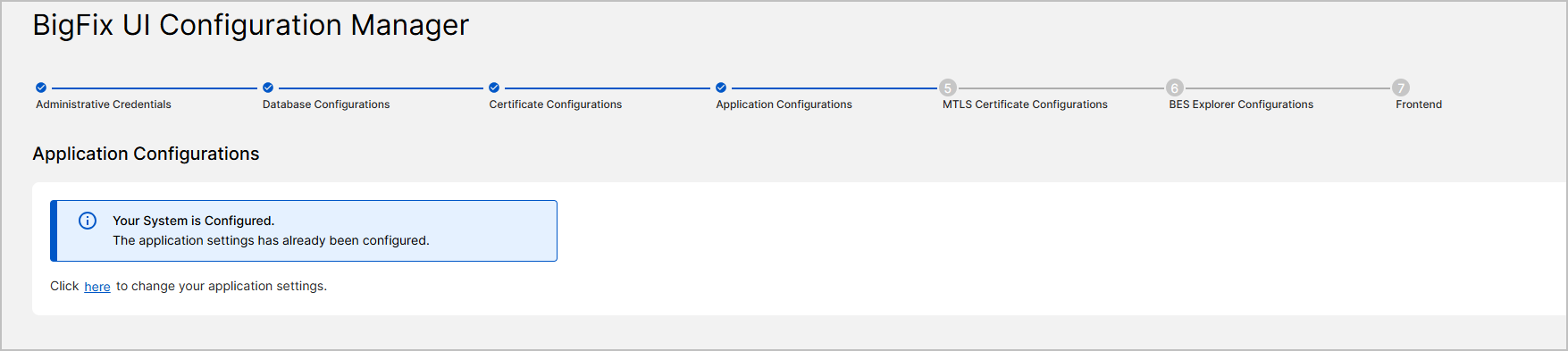
If the system detects existing application settings, a message is displayed
indicating that the application is already configured with certificates.
Click the provided link to change your application settings, if needed.
-
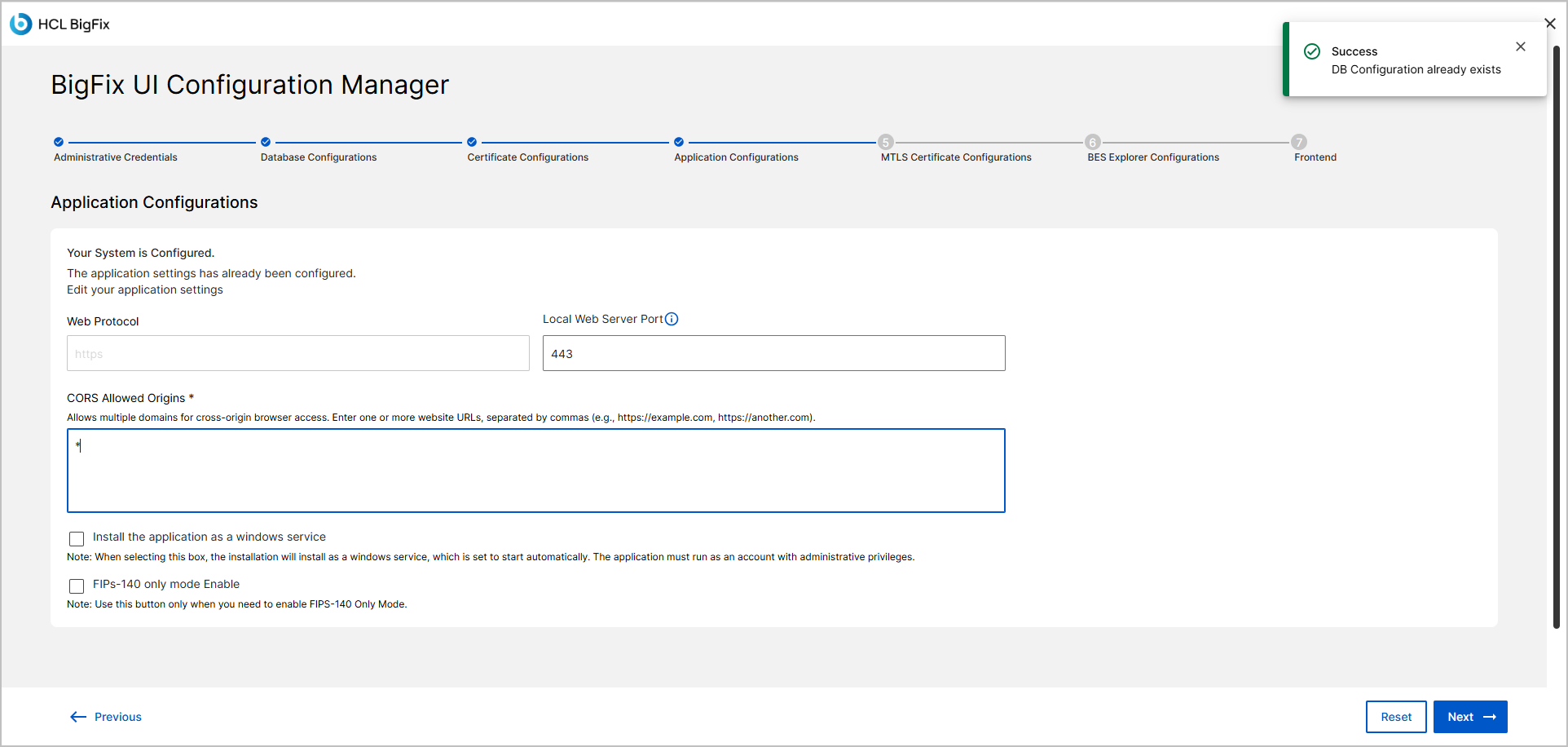
If there is no existing application settings, a Application Configurations
setup screen displayed.
-
In the Web Protocol section, select the protocol for
communication.
- HTTPS is enabled by default.
- HTTP is not recommended and is disabled by default.
-
In the Local Web Server Port field, review or enter a
port number.
- The default port is 443.
- You can provide a custom port if required.
-
In the CORS Allowed Origins field, enter one or more
website URLs that are permitted to access this application.
- Example: https://example.com
- Separate multiple origins with commas.
- Each value must exactly match the origin that the browser sends, including scheme, host, and port. HTTP and HTTPS are different origins, and a value must not include a trailing slash or path.
Important: By default, this field is set to*(all origins) to ensure access during initial setup. Do not retain the wildcard in production. Set the allowed origins according to your organization's security policy before production use. For detailed guidance, see CORS allowed origins configuration. -
(Optional) Select Installation as a Windows Service
checkbox if you want the application to run in the background as a Windows
service.
Note: This checkbox will automatically disappear once the service is successfully installed. If the service is uninstalled, the checkbox will reappear. This behavior is intentional and is designed to reflect the current installation status of the service.
- (Optional) Select the FIPS-140 only mode Enable checkbox to enforce FIPS-140 compliant cryptography. Use this option only if your environment requires strict FIPS-140 only compliance.
-
Review all settings and click Next to save the configuration and proceed to the next step in the setup process.
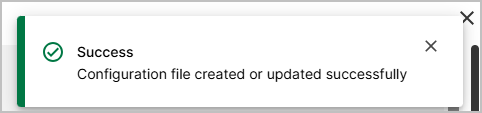
If the application configuration is accepted, a success message is displayed.