Assign User
This action enables us to assign users to roles created in the environment.
- Click on Customer 🡪 Customer Name🡪 Group.
Figure 1. Assign Users in a Group 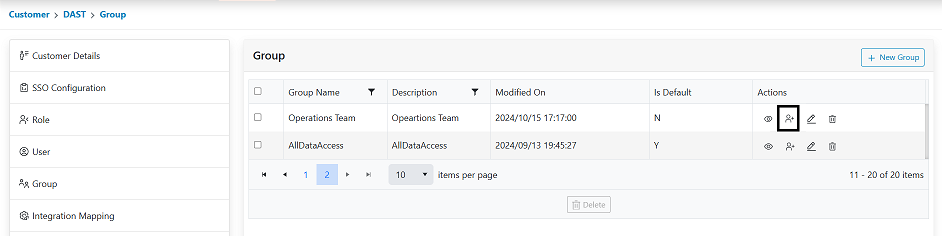
- The Action tab contains Assign User option, click on the Assign User option to assign the Group to a particular user in the environment.
- After clicking on the Assign User option, a pop up will be opened which will ask for User
Email ID input.Note:
Users can only be assigned by adding the User Email ID.
Figure 2. Assign User Pop-up 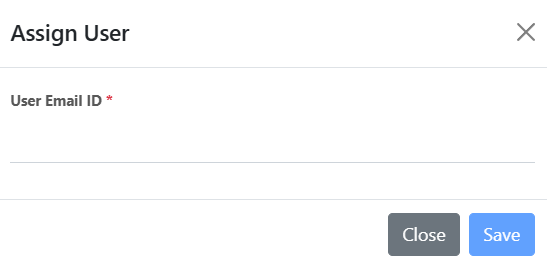
- After adding the required User Email ID, click on the Save Button.
Figure 3. Assign User Email ID 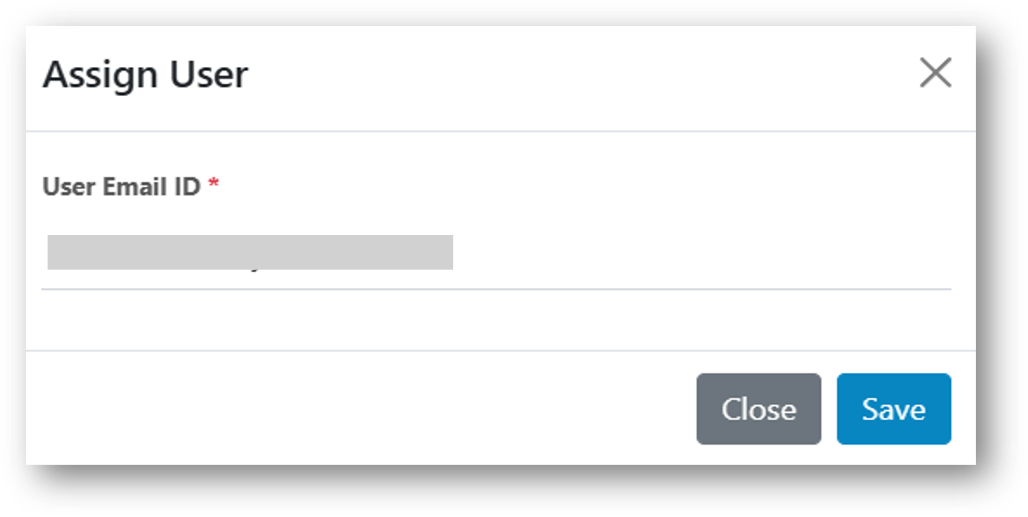
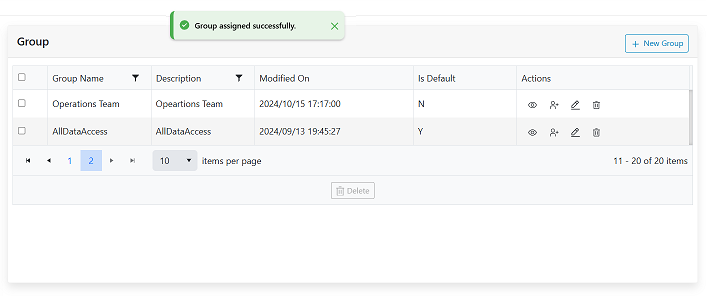
- On successful assignation, a confirmation pop-up is displayed as shown in the following
figure. The user will be assigned successfully to that group.
Figure 4. Confirmation Pop-up Message