Automation Configuration
Manage Data Source
- Manage Data Source page will help to make the required configurations in order to communicate with ITSM tools for different purposes.
- This page contains 5 sections.
- Organization
- This section contains the ITSM tool details for which datasource configuration is creating
- Fetch Data
- This section contains all the required details to fetch the tickets from ITSM tool using API calls.
- Release Rules
- This section contains all the required details to update (releasing the ticket) the tickets in ITSM tool using API calls
- Close Rules
- This section contains all the required details to update (closing the ticket) the tickets in ITSM tool using API calls.
- InProgress Rules
- This section contains all the required details to update (make to Inprogress) the tickets in ITSM tool using API calls.
- Organization
- Following actions can be done on manage datasource page
- create datasource
- update datasource
- view/list datasource
- delete datasource
Manage Data Source List
- Navigate to the customers list
Figure 1. Customer Navigation 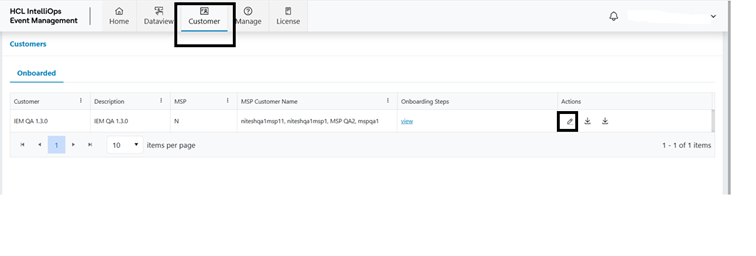
- Click on customer edit
- Expand the Automation Menu
- Click on Manage Data Source menu
Figure 2. Manage Data Source 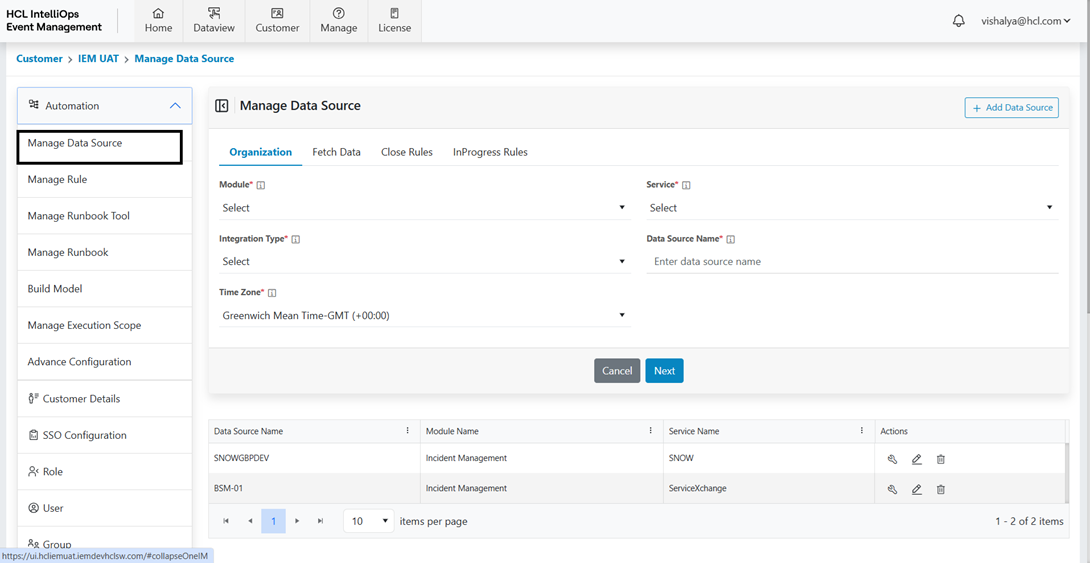
Figure 3. Manage Data Source (Cont.) 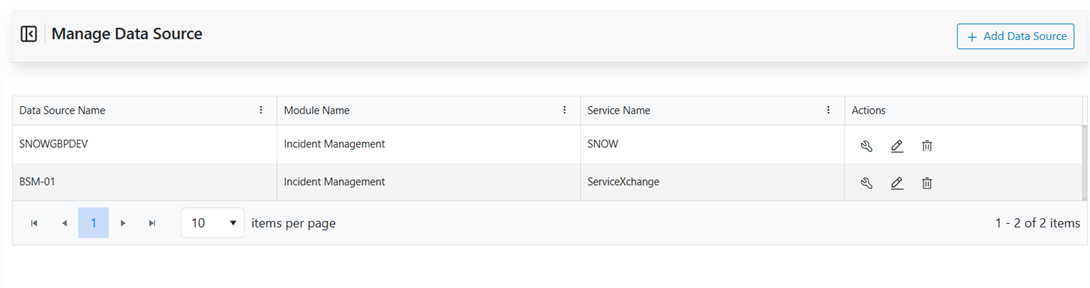
Create Manage Data Source
- Click on Add Data Source.
- Select the Module ,Service Integration type and timezone , and enter the data source name for which combination needs to create a new Data source.
- Need to fill all the section map the tool data.
Figure 4. Create Manage Data Source 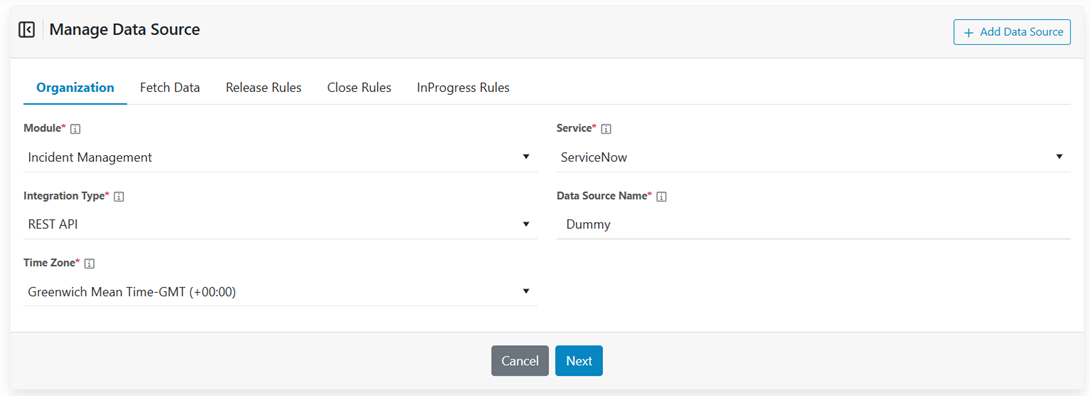
- Need to fill all the tab for the map tool data.
Figure 5. Create Manage Data Source (Cont.) 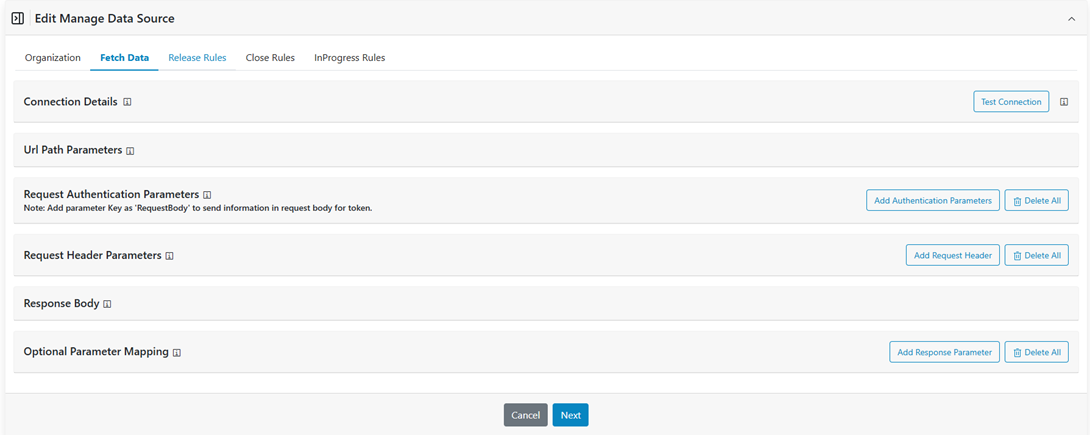
- Need to fill Connection details.
Figure 6. Create Manage Data Source (Cont.) 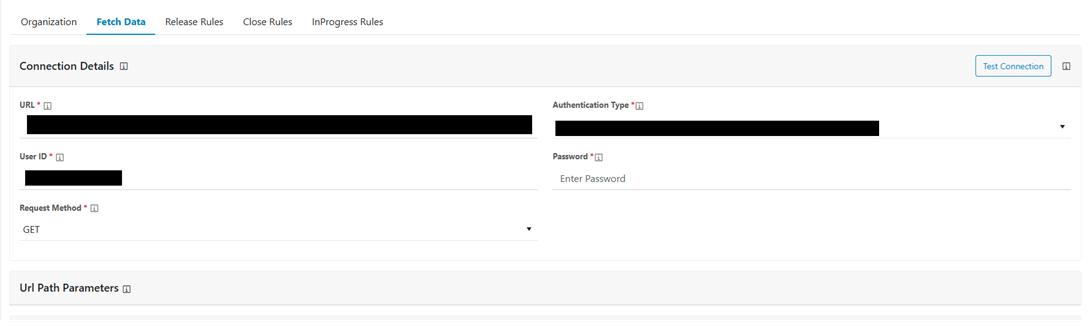
- After filling the connection details you can test the connection for test
connection click on Test connection button.
Figure 7. Create Manage Data Source (Cont.) 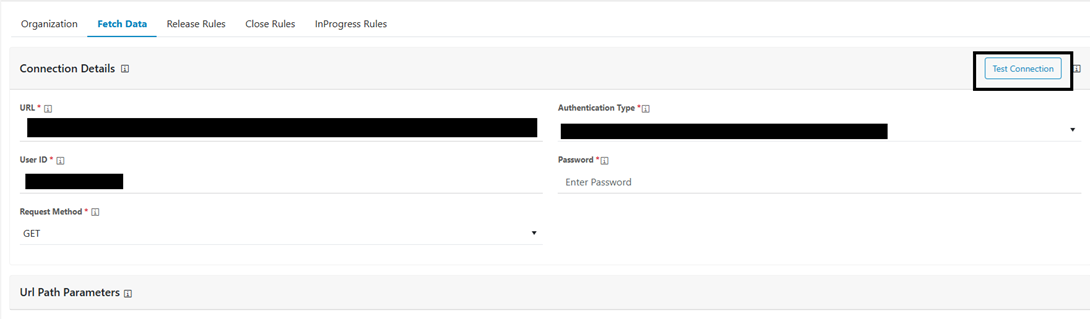
- Need to fill URL path Parameter.
Figure 8. Create Manage Data Source (Cont.) 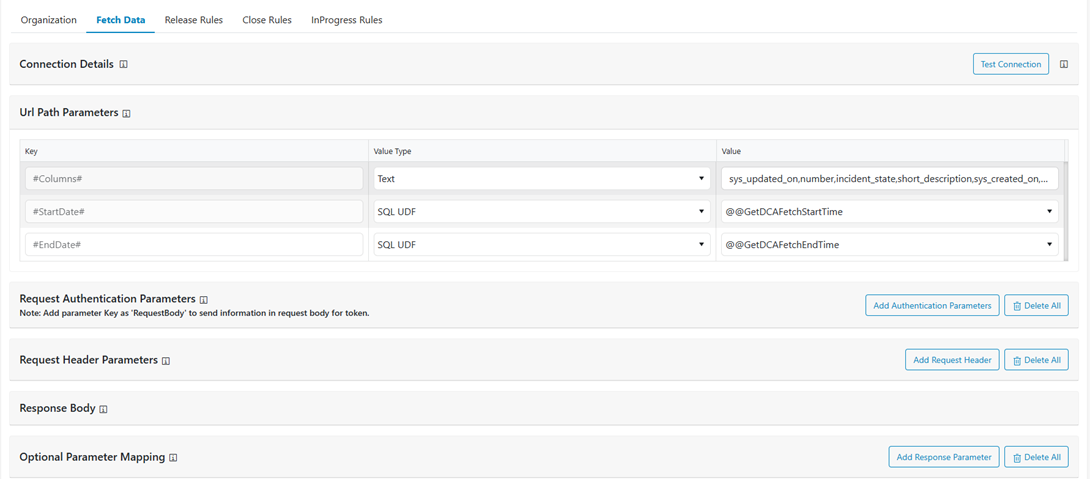
- Need to add the data which is respective to the tool.
Figure 9. Create Manage Data Source (Cont.) 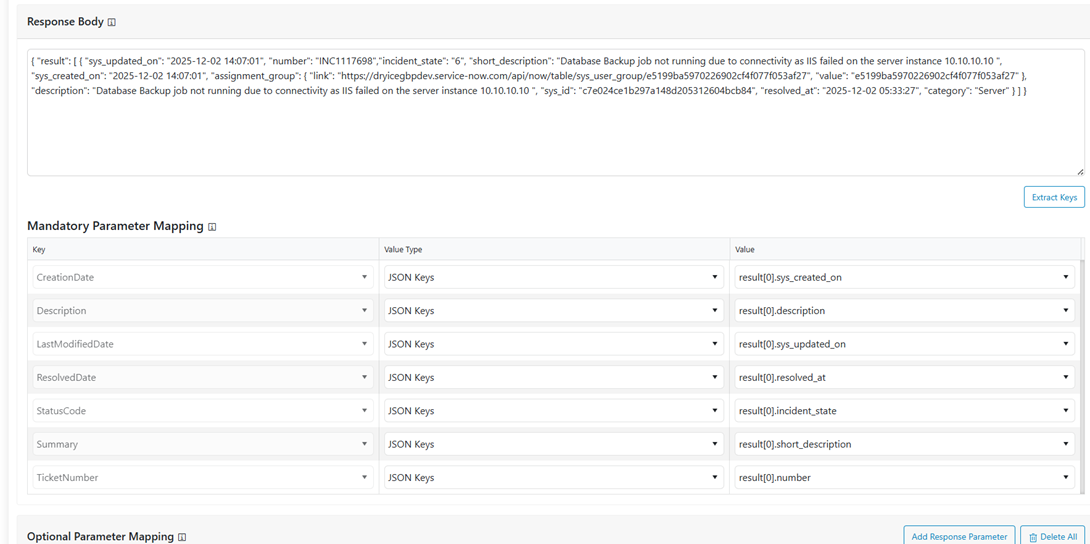
Figure 10. Create Manage Data Source (Cont.) 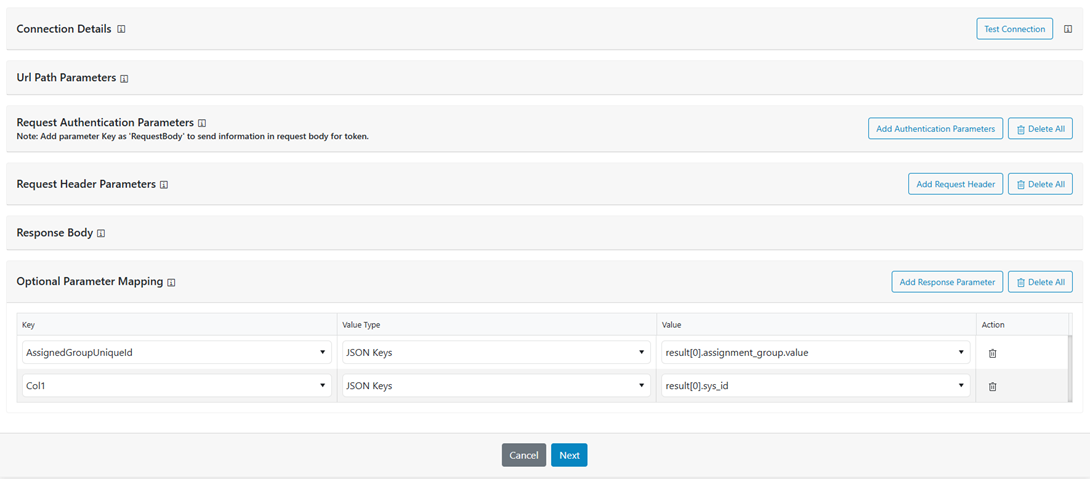
- After filling all the data click on submit to save the details.
Figure 11. Create Manage Data Source (Cont.) 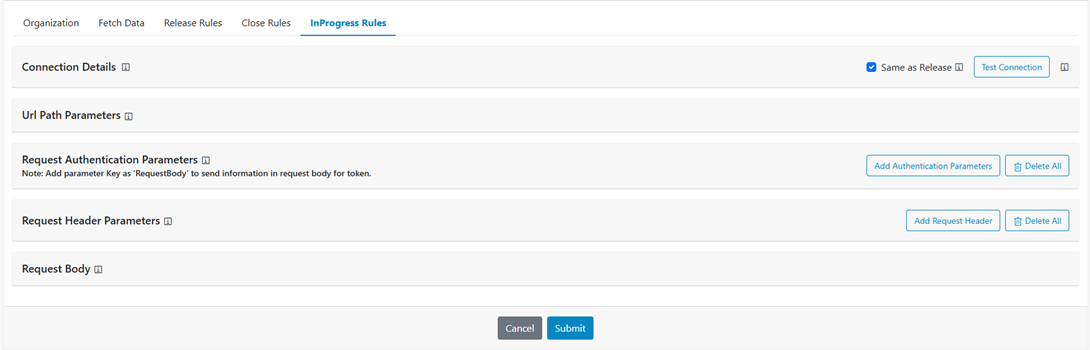
Edit Manage Data Source
Select the specific datasource those need to update Delete Manage Data Source Entry
Exit Criteria.
- On the dataSource Listing page click on the Entry Exit Criteria filter .
Figure 12. Edit Manage Data Source 
- After filling all the data click on submit/Update button .
Figure 13. Manage Data Source Entry Exit Criteria 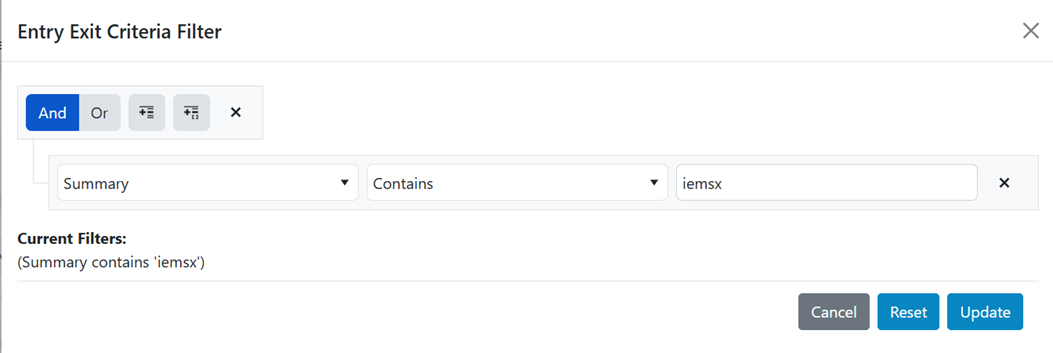
- Data Successfully updated .
Figure 14. Manage Data Source Entry Exit Criteria 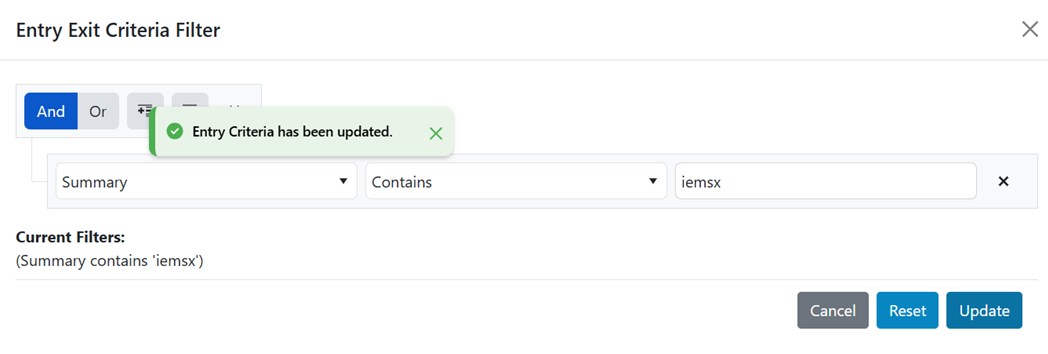
Delete Manage Data Source
- Delete the specific datasource click on delete icon.
Figure 15. Delete Manage Data Source 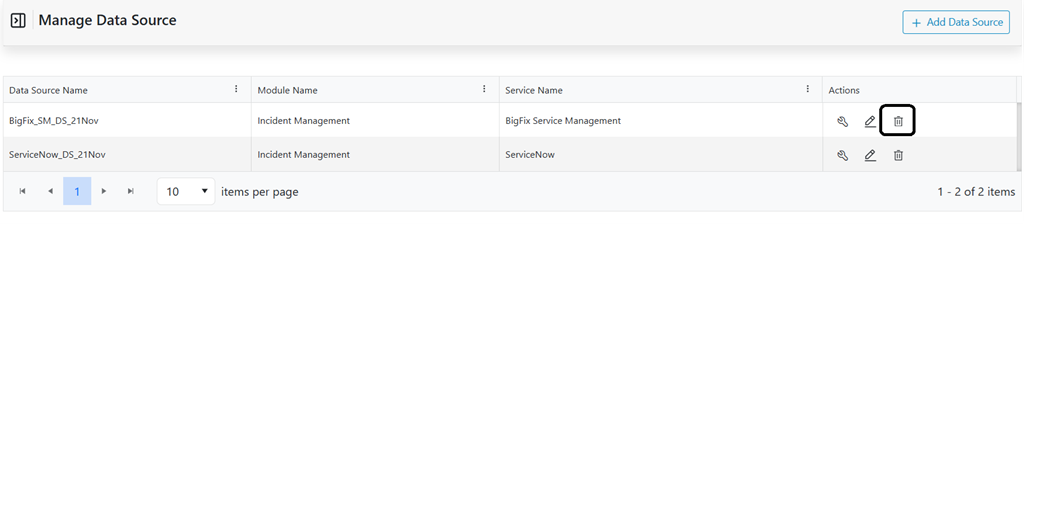
Figure 16. Delete Manage Data Source (Cont.) 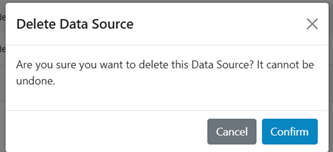
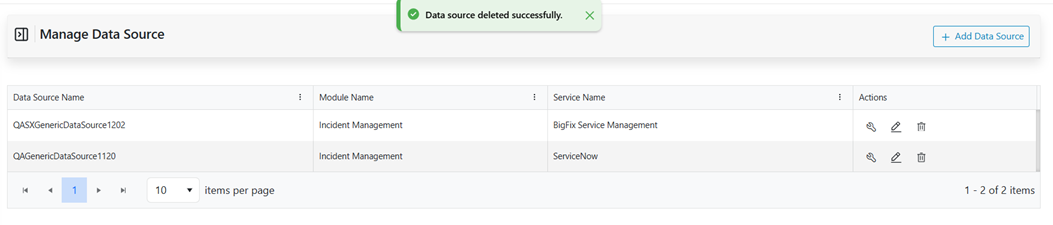
- After clicking on Confirm data will be deleted.
Figure 17. Delete Manage Data Source (Cont.)