
Manage Runbook
- Runbook configuration will help to identify and execute the runbooks (Ansible/BigFix) to resolve the ticket
- When executing the runbooks, set of parameters has to be passed
- Those parameters can be configured along with runbook configuration
- Following actions can be performed on the “Manage Runbook” page.
- Create Runbook (Individual, Bulk upload)
- Edit Runbook
- Delete Runbook
- Search Runbooks
- Download Runbooks
- Enable Auto Execution
- Disable Auto Execution
Runbooks List
- Navigate to the customers list
Figure 1. Customer Navigation 
- Click on customer edit
- Expand the Automation Menu
- Click on Manage Runbook menu
Figure 2. Manage Runbook Menu 
- Select the Runbook tool from dropdown
Figure 3. Runbook Tool Selection 
- Available Runbooks can be seen in list
Figure 4. Runbooks List 
Create Runbook
- Runbooks can be created in two ways a) Individual b) Bulk upload
- Individual options can be helpful to create one runbook at once using a runbook creation page.
- Bulk upload option can be helpful to create multiple runbooks at once using file upload.
- Individual
- Click on “New Runbook”
Figure 5. Create Runbook Option 
- Select a Runbook tool against which runbook needs to be created
- Provide the mandatory details for following fields.
- Provide other optional details
Figure 6. Create Runbook Page 
- Add parameters to be passed for runbook execution by using the “Add
New Parameter” option.
Figure 7. Add Runbook Parameter Option 
- For each parameter provide relevant details like name, description, type, etc..
- Save each parameter against runbook using “save” option
Figure 8. Save Runbook Parameter 
- After providing the runbook and parameter details click on “Submit”
to save a runbook.
Figure 9. Save Runbook 
- Click on “New Runbook”
-
Bulk Upload
- Click on “New Runbook”
Figure 10. Create Runbook Option 
- Select “bulk upload” option
- Click on “download template” option to get a file format
Figure 11. Download Template Option 
- Download file success
Figure 12. Download Template Success 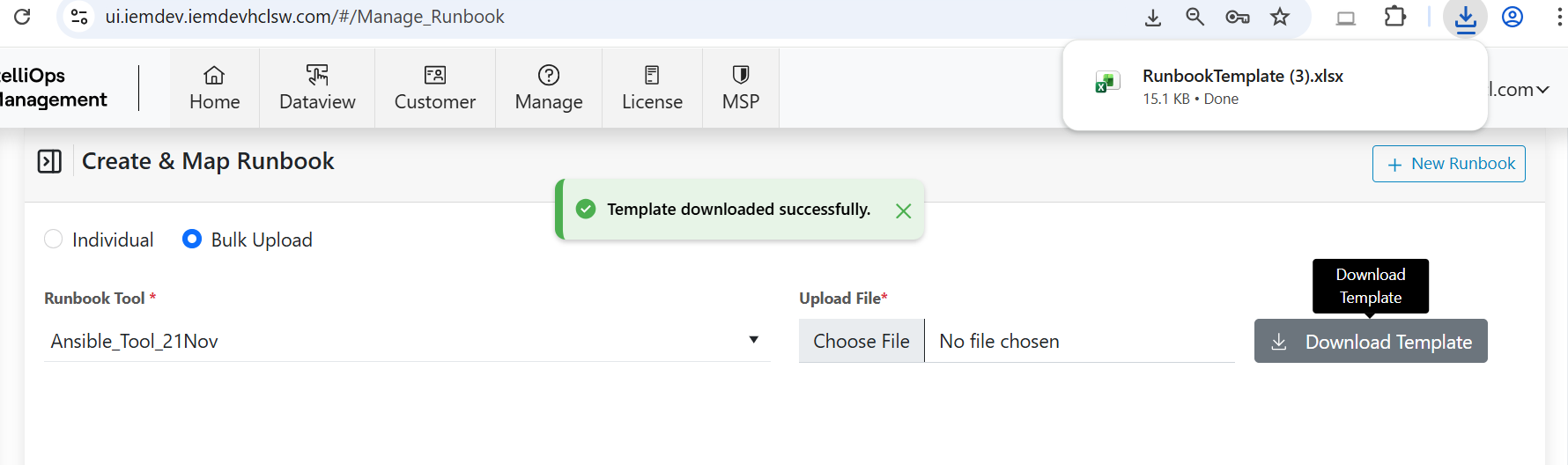
- Provide all the required details in a file
- Select a Runbook tool on the bulk upload page against which runbook needs to be created.
- Click on “Choose file” and select a file to be uploaded.
- Click on “Upload”
Figure 13. Upload File Option 
- Upload runbooks success and can be seen in the list.
Figure 14. Bulk Upload Success 
- Click on “New Runbook”
Edit Runbook
- Select a Runbook tool and get the available runbooks
Figure 15. Runbook Tool Selection 
- Click on “Edit” option on respective Runbook
Figure 16. Edit Runbook Option 
- Runbook Name and Runbook Tools are readonly fields.
- Provide if any other details to be updated on the edit page.
Figure 17. Edit Runbook Page 
- If existing parameters need to be updated click on the “Edit” option on
respective parameters.
Figure 18. Edit Runbook Parameter 
- If existing parameter needs to be removed click on “delete” option on
respective parameter
Figure 19. Delete Runbook Parameter 
- Add new parameters if required to be passed for runbook execution by using
the “Add New Parameter” option.
Figure 20. Add New Runbook Parameter 
- For each parameter provide relevant details like name, description, type, etc..
- Save each parameter against runbook using “save” option
Figure 21. Save Runbook Parameter 
- After providing the runbook and parameter details click on “Update” to save
a runbook.
Figure 22. Update Runbook 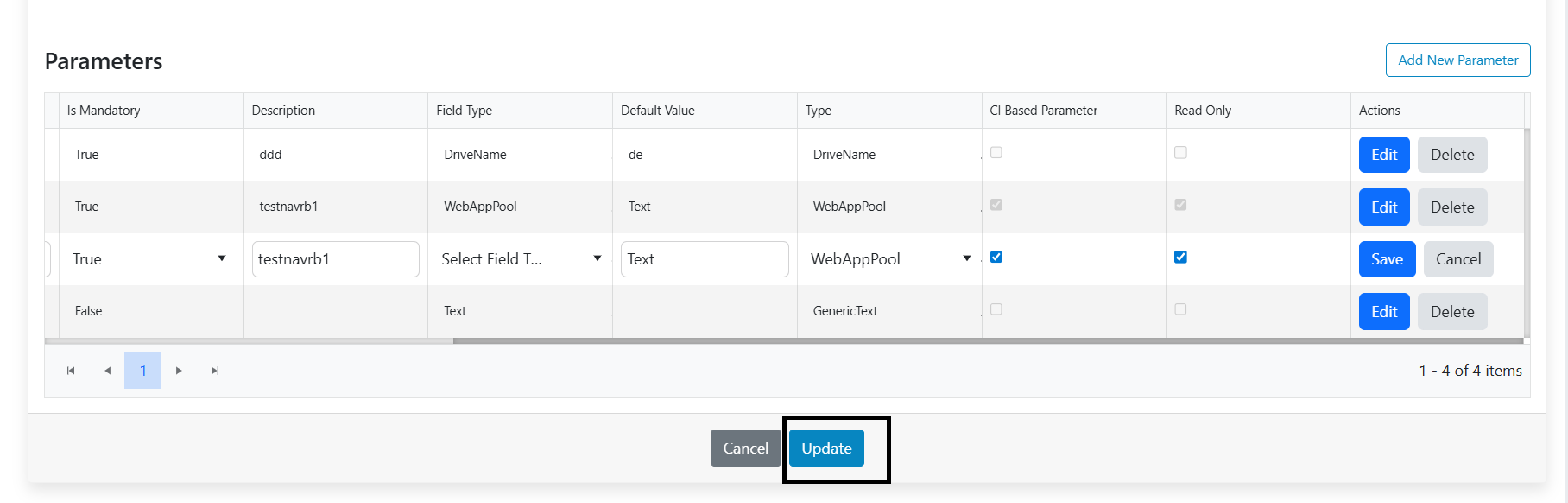
- Update runbook successful
Figure 23. Runbook Update Successful 
Delete Runbook
- Select a Runbook tool and get all the available Runbooks.
Figure 24. Runbook Tool Selection 
- Click on the “Delete” option against runbook to be deleted.
Figure 25. Delete Runbook 
- Confirm the delete action
Figure 26. Delete Runbook Confirmation 
- Runbook deletion success.
Figure 27. Runbook Delete Success 
Search Runbooks
- Select a Runbook tool and get all the available Runbooks.
Figure 28. Runbook Tool Selection 
- Select a column name from the dropdown against which we need to filter the runbooks.
- Provide a filter value for the selected column.
- Click on the Search button.
Figure 29. Runbooks Search Option 
- Specific runbooks will be visible which are matches filter criteria.
Figure 30. Filtered Runbooks List 
Download Runbooks
- Select a Runbook tool and get all the available Runbooks.
Figure 31. Runbook Tool Selection 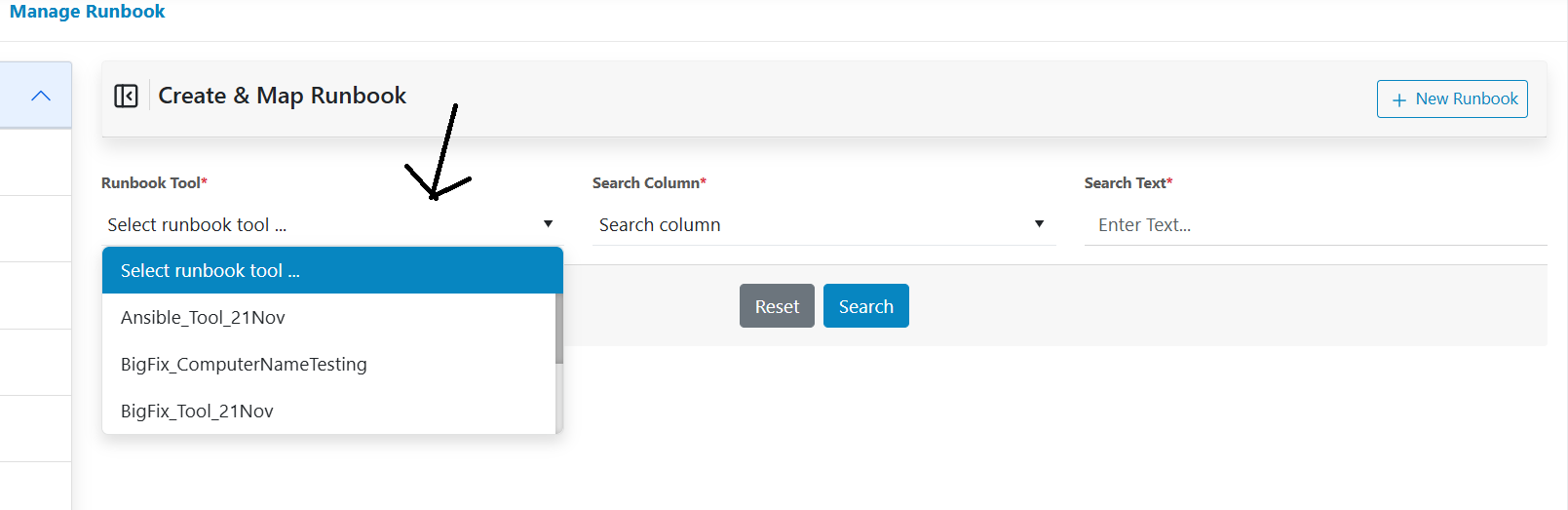
- Click on “Download Runbooks” option
Figure 32. Download Runbooks Option 
- It will download all the available runbooks for a tool.
Figure 33. Download Runbooks Success 
- The downloaded file contains all the runbooks details along with parameter details.
Enable/Disable Auto Execution
- Select a Runbook tool and get all the available Runbooks.
Figure 34. Runbook Tool Selection 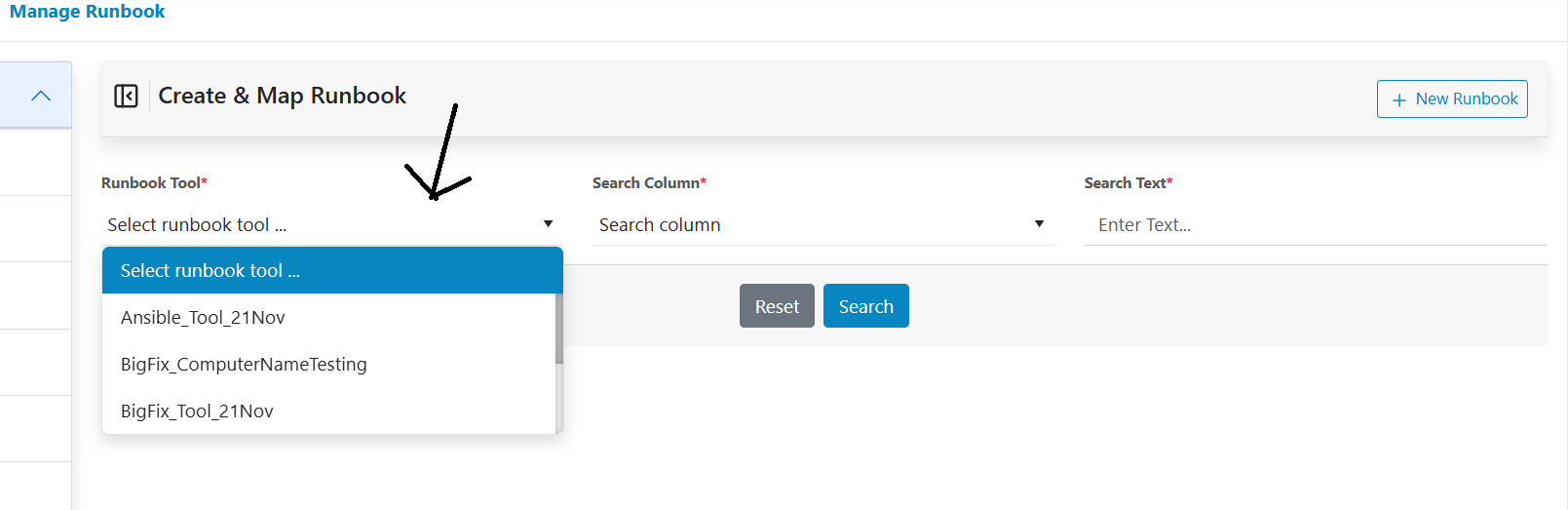
- Select the Runbooks from a list for which need to perform enable/disable auto execution.
- Click on “Enable Auto Execution” if needs to be enabled
Figure 35. Enable Auto execution 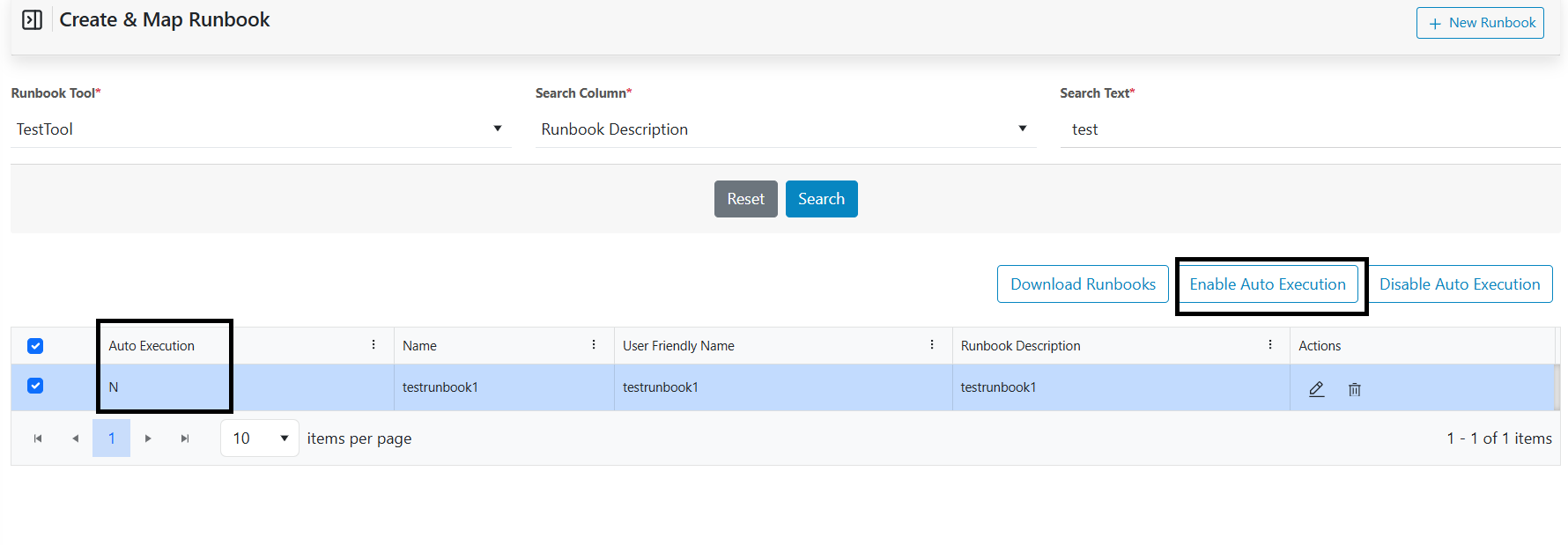
- Click on “Disable Auto Execution” if needs to be disabled
Figure 36. Disable Auto Execution 
- After updating, it can be visible on Runbooks list with the latest modifications.