Manage Rule
- Manage Rules has to be configured to provide dynamic values in the request body which is defined in Manage Data source page for Release/Close/Inprogress ticket actions.
- For each rule we provide the filter conditions and parameter mapping.
- Whichever the rule condition will get satisfied for the ticket, respective parameters will be considered to pass in the request body.
- If none of the custom rules are satisfied, then the default rule will be considered for parameter mapping.
- Following actions can be performed on the manage rules page.
- Create rule
- Edit rule
- View rule
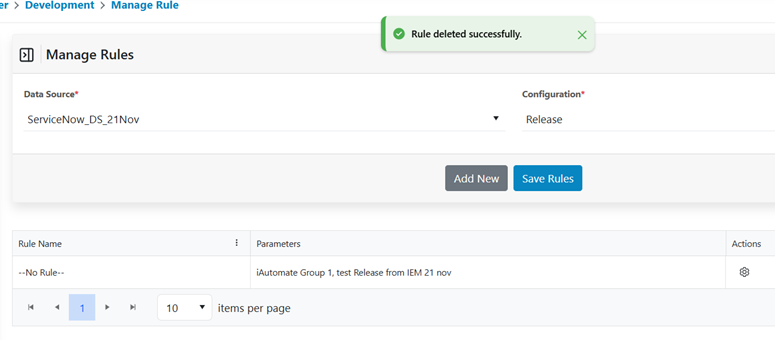
- Delete rule
Manage Rules List
- Navigate to the customers list
Figure 1. Customer Navigation 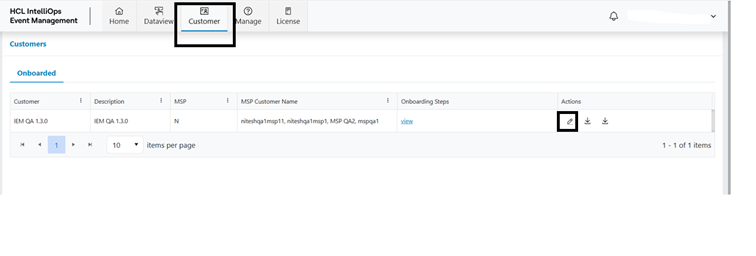
- Click on customer edit
- Expand the Automation Menu
- Click on Manage rules menu
Figure 2. Manage Rule Menu 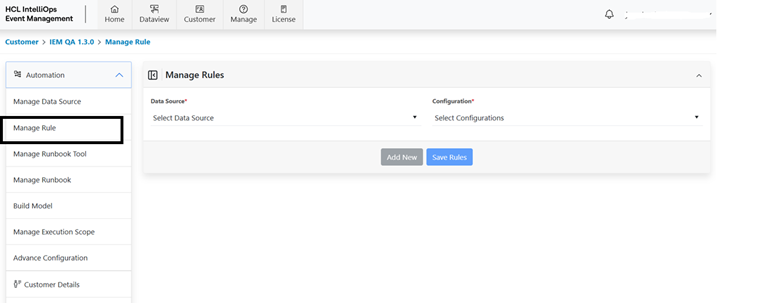
- Select the datasource name and configuration type .
Figure 3. Datasource Selection 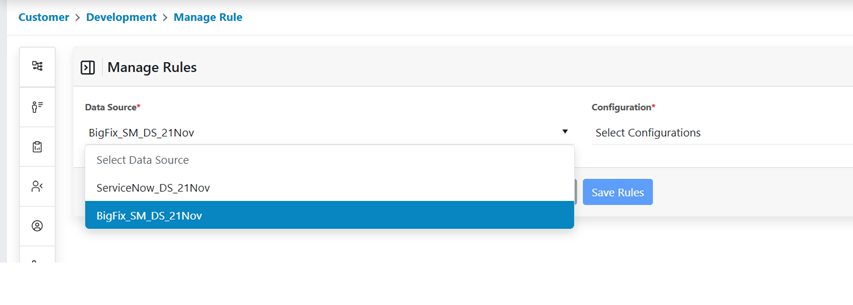
Figure 4. Configuration type Selection 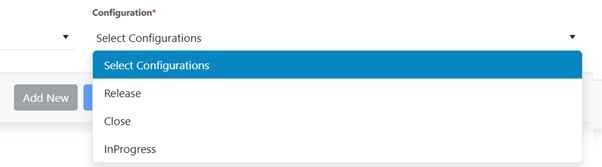
- View the available rules list based on selection
Figure 5. Manage rules list 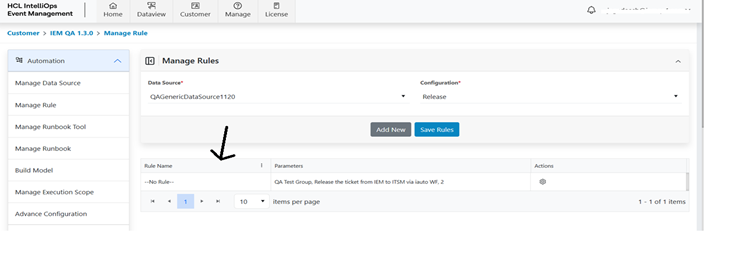
Create Manage Rule
- Select the datasource name and configuration type for which combination need
to create new rule
Figure 6. Datasource Selection 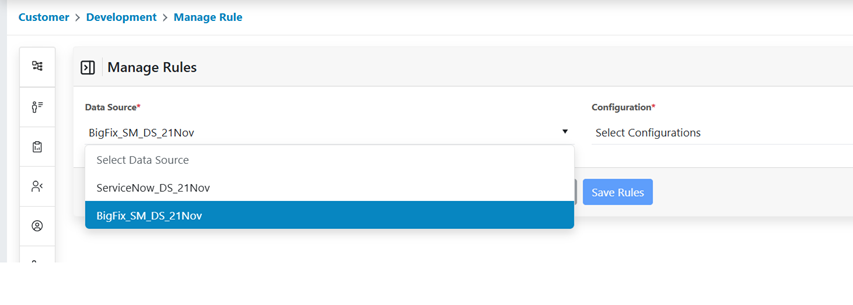
Figure 7. Configuration type Selection 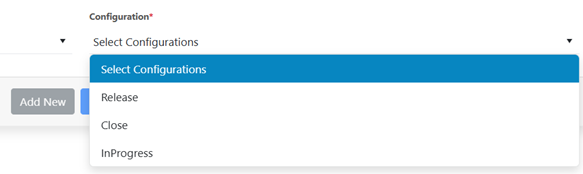
- Click on “Add New”
Figure 8. Create New Manage Rule 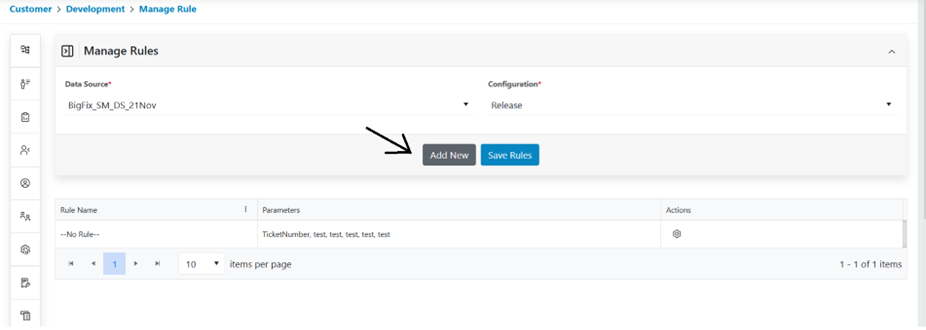
- Provide Rule Name
Figure 9. Provide Manage Rule 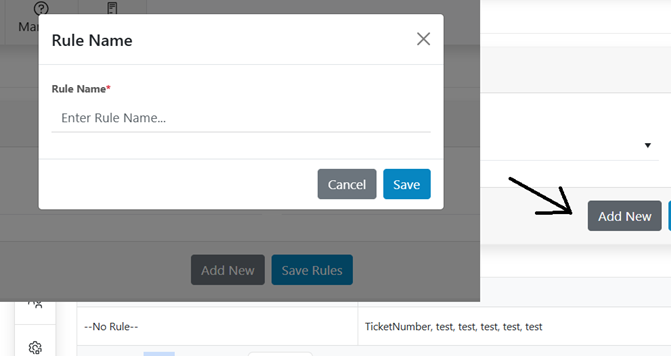
- Provide filter conditions
Figure 10. Manage Rule Filters 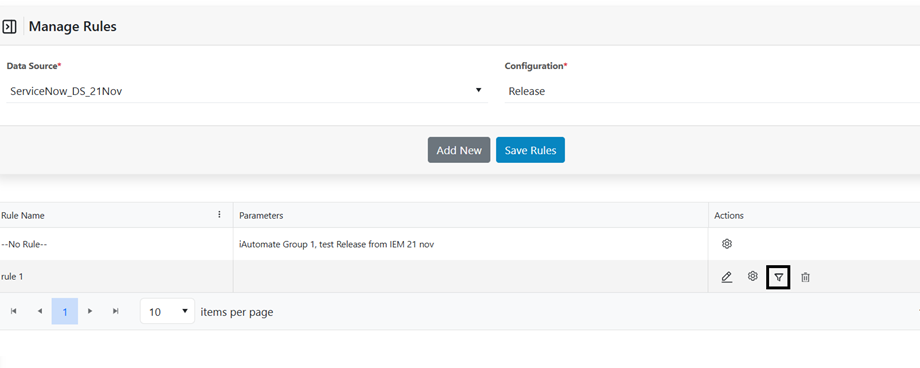
Figure 11. Save Manage Rule Filters 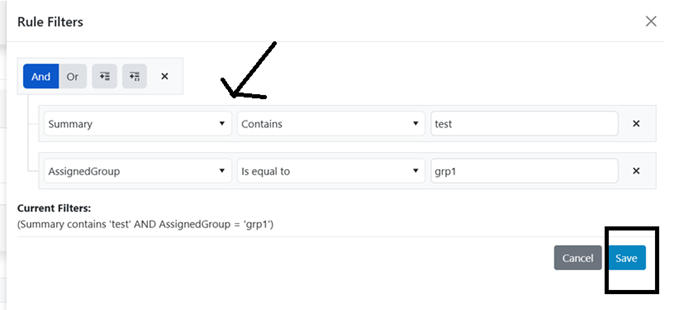
- Provide parameter values
Figure 12. Manage Rule Parameters 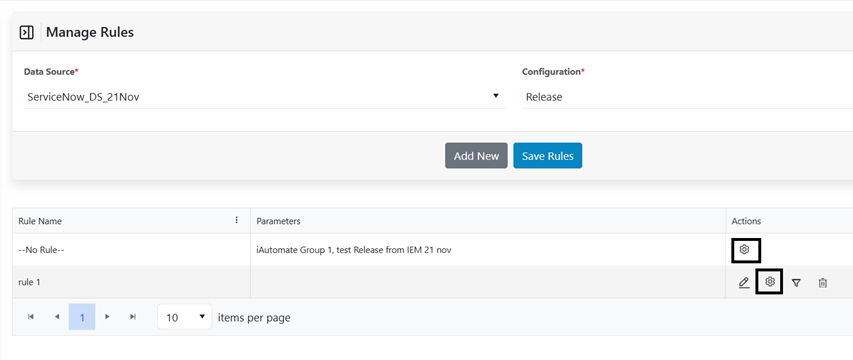
Figure 13. Save Manage Rule Parameters 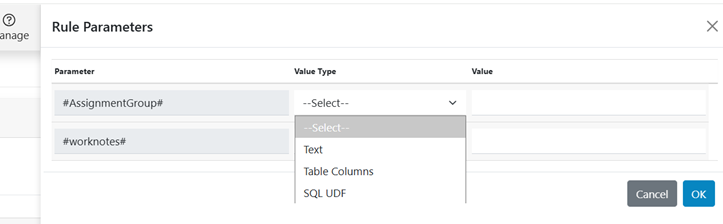
- Click on “Save Rule”
Figure 14. Save Manage Rule 
- View the new rule in list
Figure 15. New Rule Creation Successful 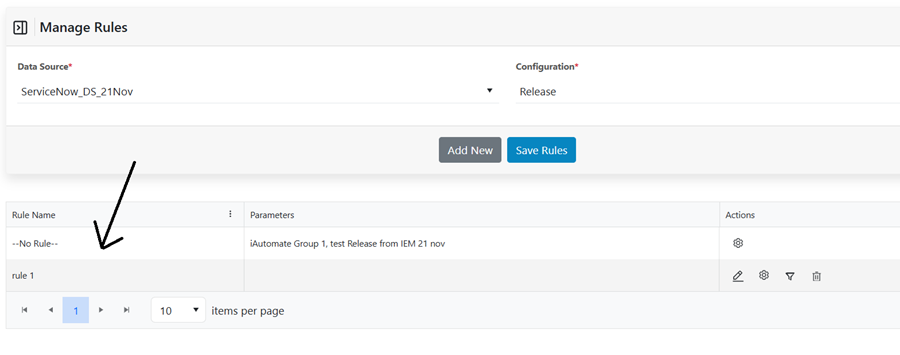
Edit Manage Rule
- Select the datasource name and configuration type for which combination need
to update the rule
Figure 16. Datasource Selection 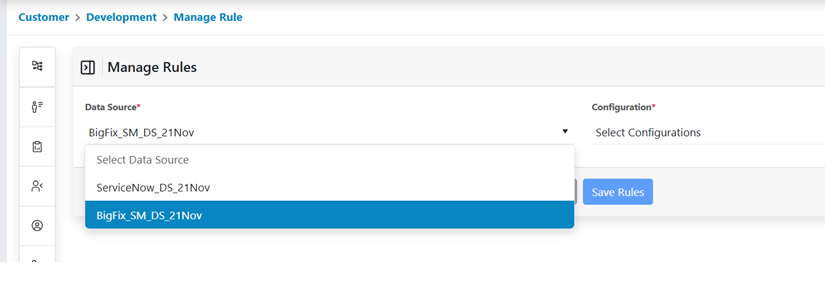
Figure 17. Datasource Config Type Selection 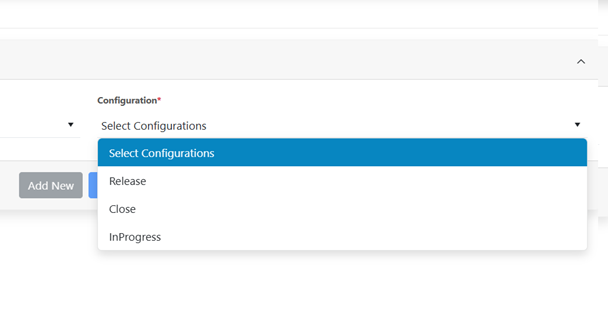
- Click on Edit on respective rule to be modified
Figure 18. Edit Manage Rule 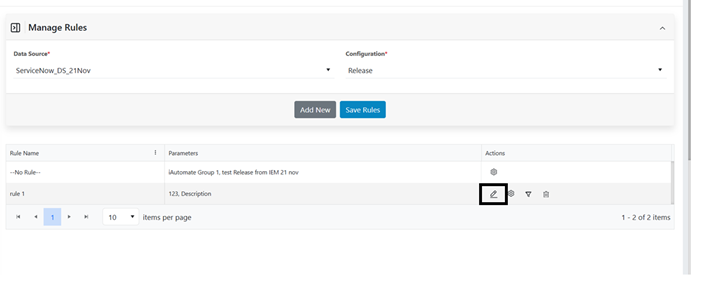
- Provide Rule Name
Figure 19. Edit Manage Rule Name 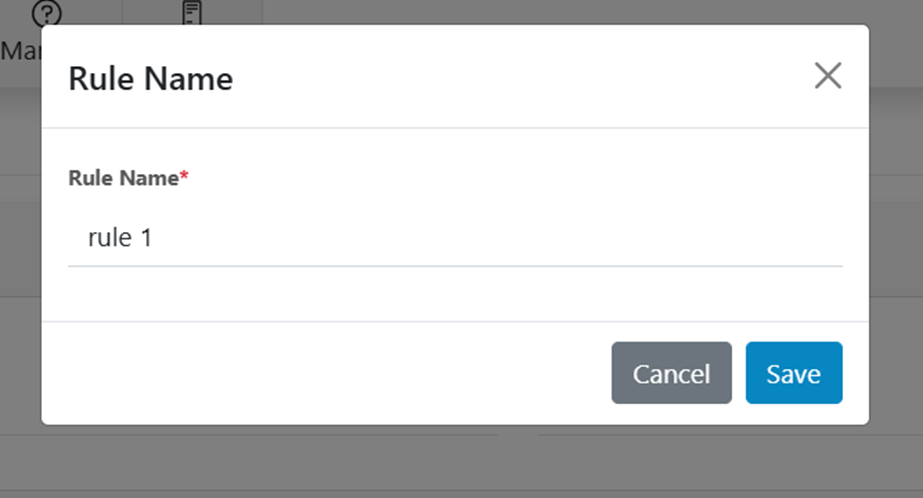
Figure 20. Manage Rule Name Update Successful 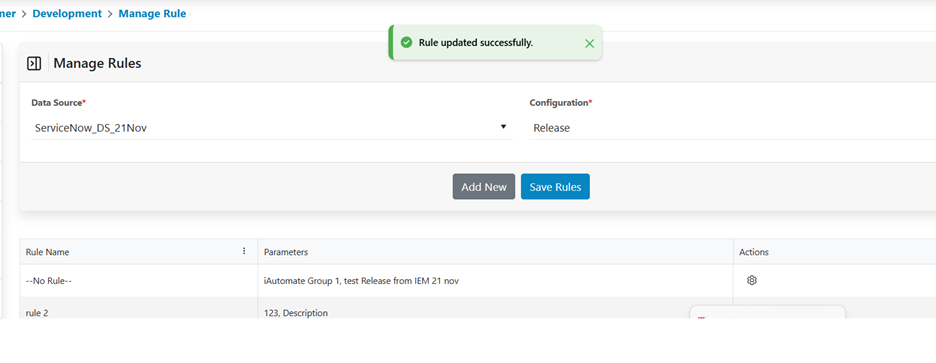
- Provide filter conditions
Figure 21. Edit Manage Rule Filter Conditions 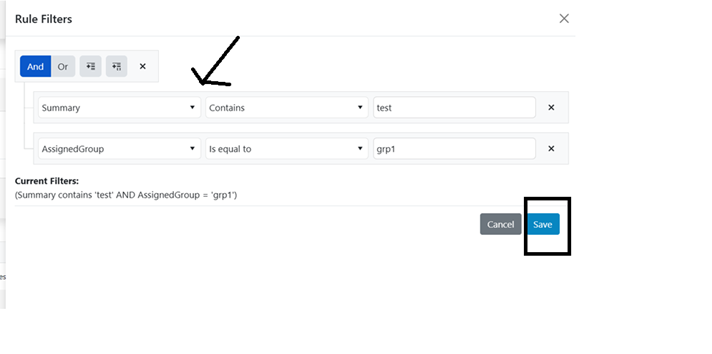
- Provide parameter values
Figure 22. Edit Manage Rule Parameter Option 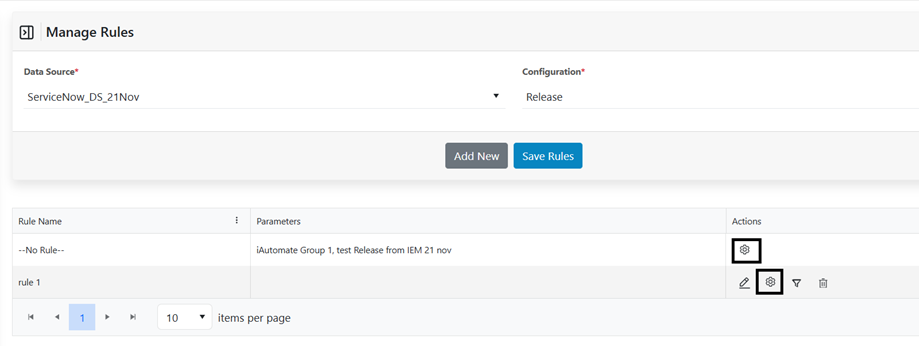
Figure 23. Edit Manage Rule Parameters 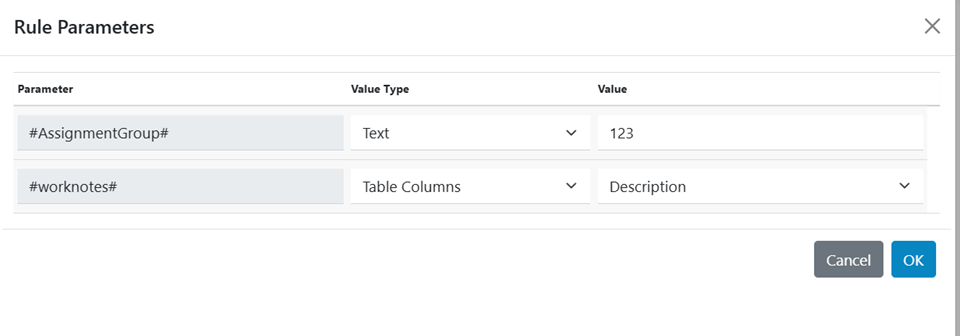
- Click on “Save Rule”
Figure 24. Save Manage Rules 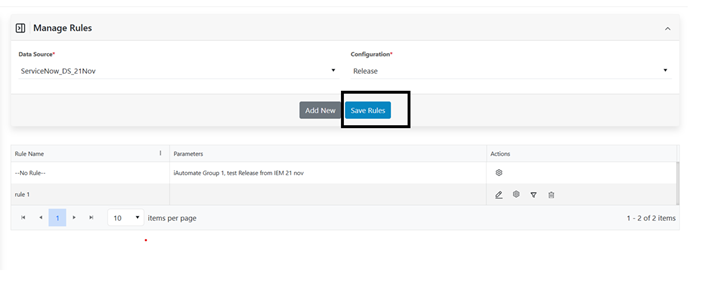
Figure 25. Manage Rule Update Success 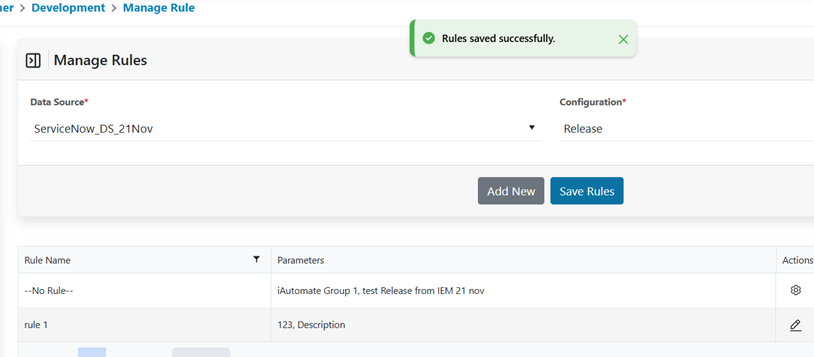
- View the modified rule in list
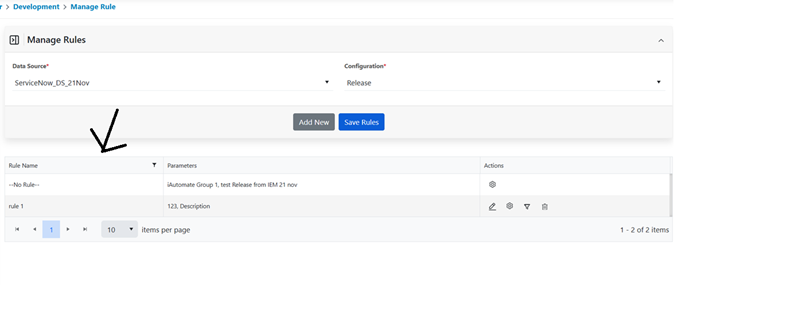
Delete Manage Rule
- Select the datasource name and configuration type for which combination need
to delete the rule
Figure 27. Datasource Selection 
Figure 28. Datasource Config Type Selection 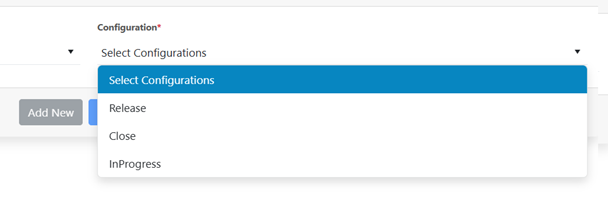
- Click on “delete” button
Figure 29. Delete Manage Rule Option 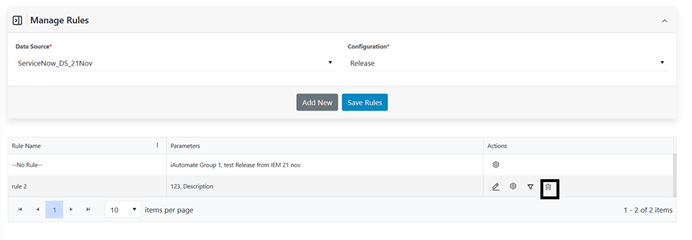
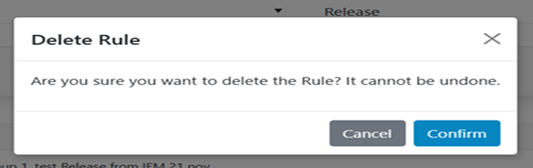
- Confirm the delete action