Build Model
The Build Model page allows users to view, build, manage, and publish machine learning models used by the recommendation module.
It provides end-to-end visibility into model lifecycle management, including runbook association, build execution, status tracking, version control, and publishing.
This page acts as the primary interface for triggering model builds and making trained models available for recommendation usage.
The Build Model page is directly integrated with the Manage Runbook tool. Whenever a new runbook tool is created or configured in the Manage Runbook section, a corresponding model entry is automatically created in the Build Model page. This ensures consistency between runbooks and models and eliminates the need for manual model registration.
The Build Model page displays a grid with the following columns:
| Column | Description |
| Module Name | Name of the module using the model |
| Runbook Tool | Associated runbook name |
| Runbook Tool Type | Type of runbook |
| Status | Current build status |
| Last Build | Timestamp of the last build |
| Model Type | Type of model |
| Remarks | Additional information or comments |
| Latest Version | Latest trained version |
| Published Version | Currently published version |
| Actions Available | Available actions (Build, Reset, Publish, etc.) |
- Actions:
The Actions column in the main Build Model grid provides two buttons:
- Build: Start a training/build job for the model.
- Locate your model in the grid.
- Click Build in the Actions column.
- Success message for initiating model training will appear on screen.
Figure 1. Build Model Button 
Figure 2. Success message for Model training initiation 
- Reset: Return the model to Default state.
- Click on the button
- Success message shall appear on the screen
Figure 3. Reset Model State Button 
Figure 4. Model Reset Successfully 
- Expandable Row:
- “+” button (first column): Click to open a sub-table with all versions that
were built successfully. From here, you can publish or view details.
Figure 5. Build Model Page 
- “+” button (first column): Click to open a sub-table with all versions that
were built successfully. From here, you can publish or view details.
Find and Inspect a Model
- Search or scan the grid for your model by Module, Runbook Tool, or Model Type.
- Click the “+” button to expand the row and view all Successfully built versions.
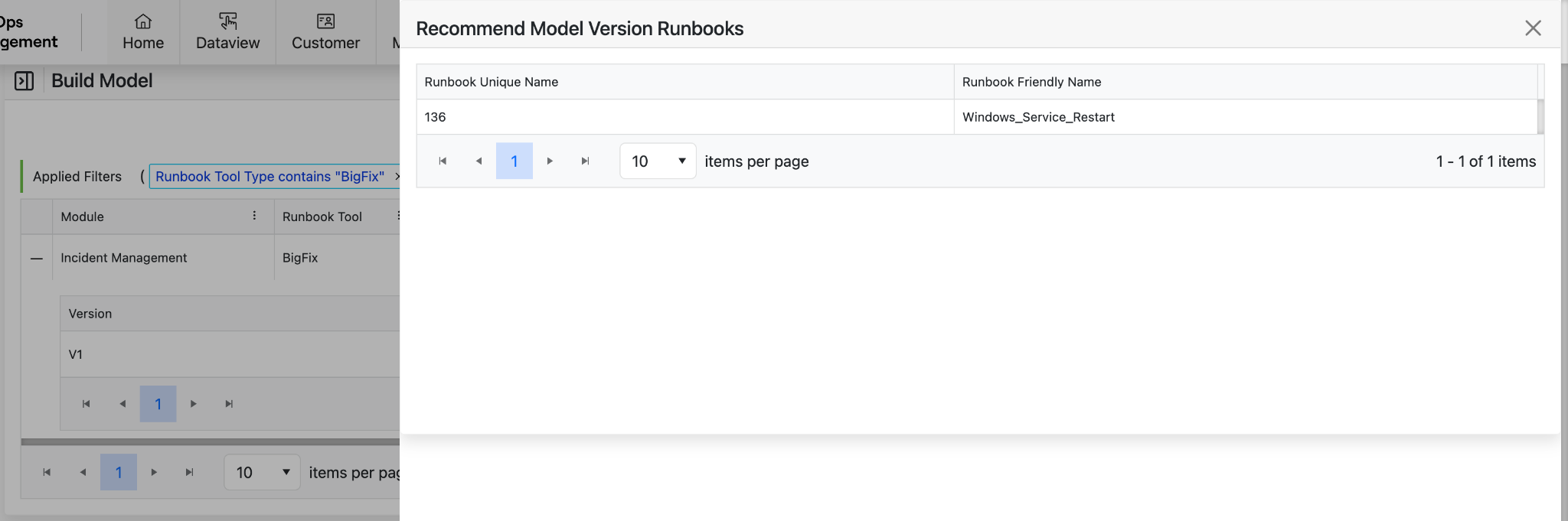
- Click View Runbooks in Actions to open the runbook details if you need to
review parameters.
Figure 6. Search or Scan Build Model Page 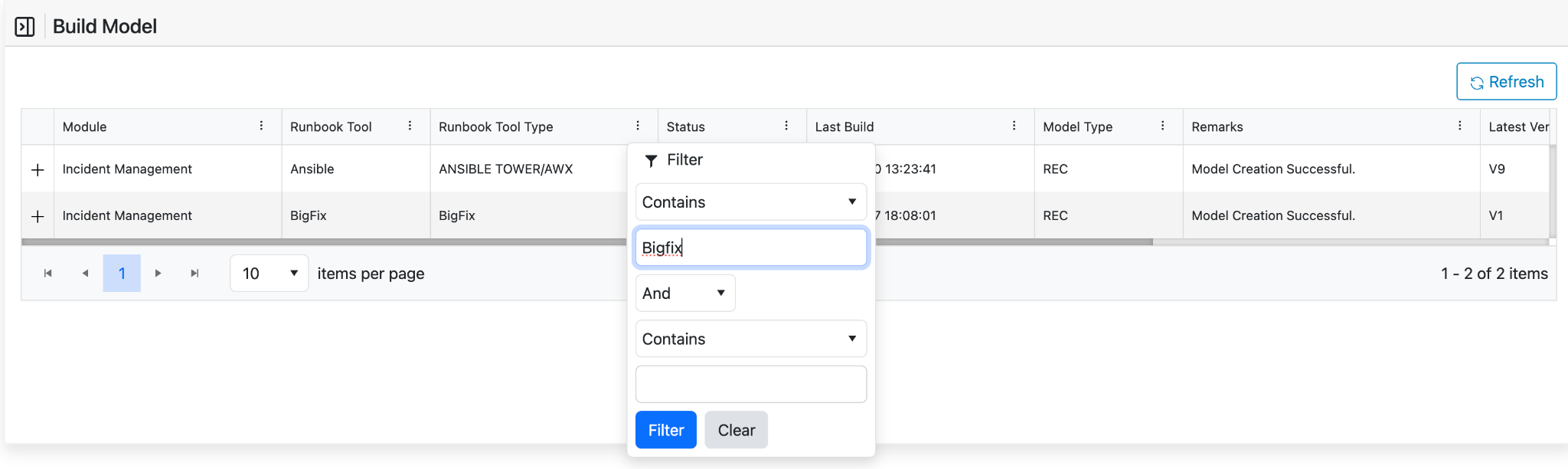
Figure 7. Search or Scan Result Build Model Page 
Figure 8. Expand Button Build Model Page 
Expand (“+”) Button

- Click Publish next to the version you want to promote.
- Confirm the main grid updates the Published Version field.Note:Only versions with Successful status can be published.
Figure 10. PublishModel Button 
Figure 11. Successful Message 
Inspect Runbook and Version Details
- Click View Runbooks in the main row’s Actions to open the associated runbook
details.
Figure 12. View Runbook Button 
Figure 13. Associated Runbook Details