
Manage Column
The Manage Column tab is used to configure which columns are used for Parsing and
Recommendations.Figure 1. Manage Column Tab

Module Selection
- The user shall select a Module.
- Currently, only Incident Management is supported
Figure 2. Module Selection 
Table and Column Selection
- User shall select a Table.
- Currently supported table: Incident
- The system will display all columns for the selected table
- For each column, user shall configure:
- Use for Recommendation
- Base (Checkbox)
- Secondary (Checkbox)
- Use for Parsing
- Checkbox
- User shall click Save to apply the configuration.
- A success message will appear on completion.
- Use for Recommendation
This configuration is displayed in a table format for easy input.Figure 3. Table and Column Section


Configured Columns List
A secondary table lists all configured columns with the following details:
- Name – Column name
- Use for Parsing – Y or N
- Base (Recommendation) – Y or N
- Secondary (Recommendation) – Y or N
- Actions – Delete
Figure 7. Configured Columns List 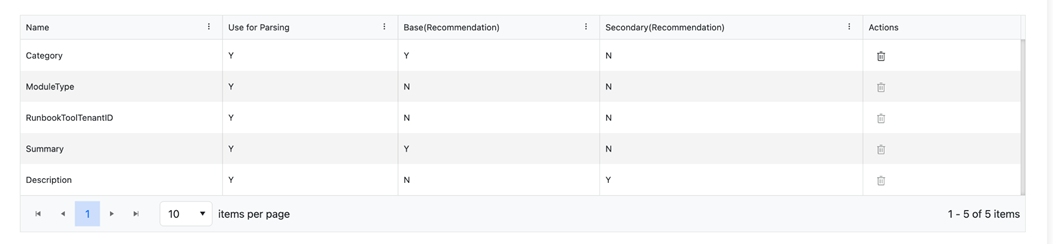
Delete Column Configuration
- The user shall click the Delete action to remove a column configuration.
- A confirmation Prompt will come click on confirm.
- A success message will appear on the screen.


This configuration ensures accurate and flexible parameter extraction within the system.