
Manage Configuration
If the user wants to configure the entire setup and customize the default configuration, the user will need to perform the following additional configuration tasks:
To manage advanced configuration, perform the following steps:
- On the main menu bar, click Configuration, and then click Manage
Configuration. The Manage Configuration page appears.
Figure 1. Manage Configuration 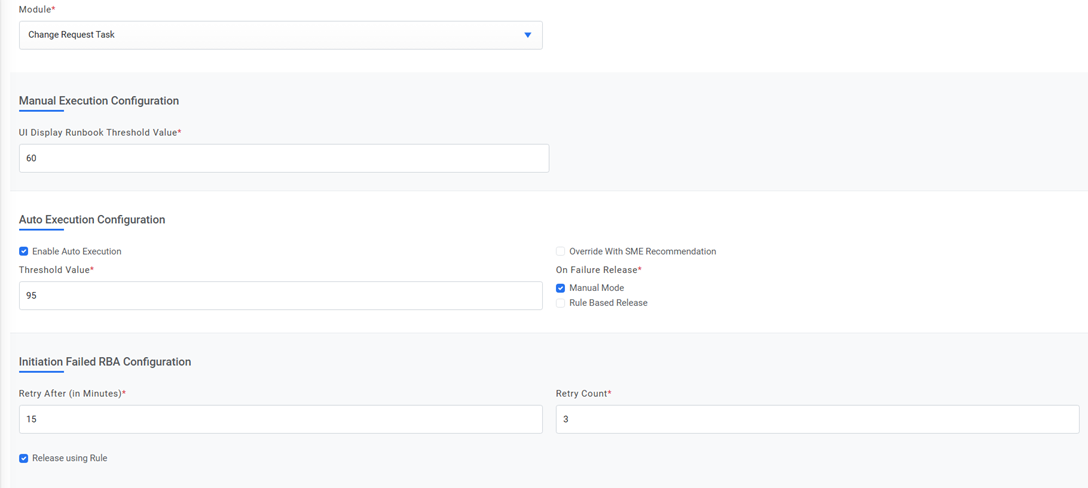
Figure 2. Manage Configuration 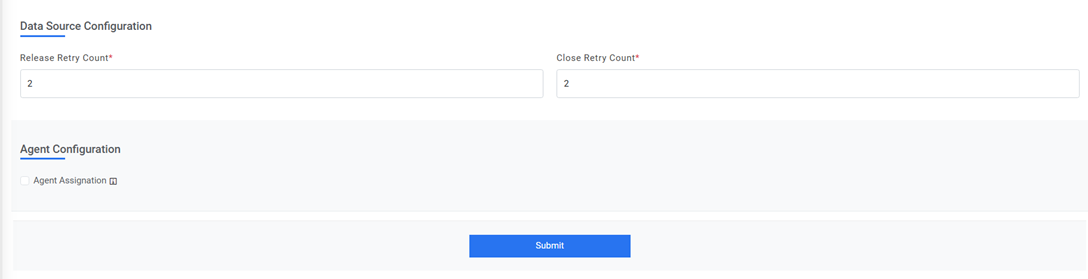
- Select the module where the organization fetches the data from the data source in
iAutomate in the Module field.
Figure 3. Manage Configuration (Cont.) 
iAutomate receives the recommended runbook as output based on the confidence score. It suggests which runbook needs to be executed against a ticket. However, the execution of the runbook can be done in two modes:
- Manual Execution- The user selects the most appropriate runbook from the list of runbooks suggested by iAutomate.
- Auto Execution- iAutomate executes the runbook from the solution without any human intervention.
Manual Execution Configuration
To configure manual execution for tickets, perform the following steps:- Type the threshold value next to the UI Display Runbook Threshold Value field.
- It filters the list of relevant runbooks based on the threshold value. If the runbook’s confidence score is greater than the threshold value, it is made available to the user for manual execution based on their knowledge.
Note:Confidence score is a value which is dynamically updated for a runbook based on the ticket description and the outcomes of the past ticket resolutions.Figure 4. Manage Configuration (Cont.) 
Auto Execution Configuration:
To configure auto execution of tickets, perform the following steps:- To auto execute runbook based on the recommended solution, select Enable Auto Execution.
- To execute with the SME recommendations irrespective of the confidence score, select Override with SME recommendation. The application will ignore all the above selections and will execute runbooks recommended by the SME.
- Type the Threshold Value manually for runbook auto execution.
- Select On
Failure Release if a ticket does not get a solution and does not execute. The
ticket may show the Failure
Status for the following reasons:
- A ticket does not get a recommendation.
-
A ticket gets a recommendation but is not parsed.
-
A ticket gets a recommendation and is also parsed, but runbook execution fails. In such a case, iAutomate enables user to proceed with the following actions:
- Select Manual Mode if the user wants to release failed ticket from auto execution mode to manual intervention mode for execution.
- Select Rule-Based Release if user wants to release the failed tickets from
auto execution mode to the respective group for execution and moves ticket out of
iAutomate. These rules are specified in Manage Rules.Note:If a user opts for manual mode, then the failed ticket moves for manual intervention and cannot be released based on release rules.
Figure 5. Manage Configuration (Cont.) 
Initiation Failed RBA Configuration
Users can define the solution for a sleeping or paused runbook. If the API is unreachable and the runbook has reached the maximum number of unsuccessful execution attempts, it goes to the sleep/pause mode.
If a runbook does not execute in either the conditions, then provide the details to perform the below-mentioned activities:
- Retry After (In Minutes) - Specifies the wait time to retry the runbook execution after execution failure.
- Retry Count- Specifies the count to retry runbook execution according to the scheduled frequency.
-
Release using Rule- If the attempts for manual release of the runbook have failed
multiple times (as defined in the Retry Count parameter) , then select Release using
Rule to auto-execute the runbook after the retry count over.
Figure 6. Manage Configuration (Cont.) 
Manual Release
In case of a failed ticket, the user can immediately move a ticket out of the iAutomate queue from the manual and auto execution mode.
- Select Release Using Rule to manually release a ticket from iAutomate. These
rules are specified in Manage Rules
section.
Figure 7. Manage Configuration (Cont.) 
- In the Data Source Configuration field, enter the Release Retry Count. This indicates the maximum number of retry attempts for releasing the ticket.
Agent Configuration
To enable agent assignment on a ticket received in the queue, enable this checkbox. When this checkbox is enabled, and a ticket is opened, it gets assigned to the users available in the shift for the assignment group received in ticket.
Figure 8. Agent Configuration 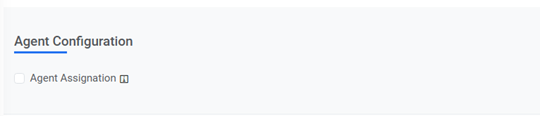 Note:For assignment of tickets, the ticket should have an assignment group and all the assignment steps should be in place.