
Manage Jobs
This section describes how to manage a job in the customer environment.
The 'Enable Push Notification in Execute Job' setting must be enabled for tools like Ansible and GitLab when used with RBA Tools
To manage jobs, perform the following steps:
- On the main menu bar, click Configuration.
- Click Manage Jobs.
- The Manage Jobs page appears.
Figure 1. Manage Jobs 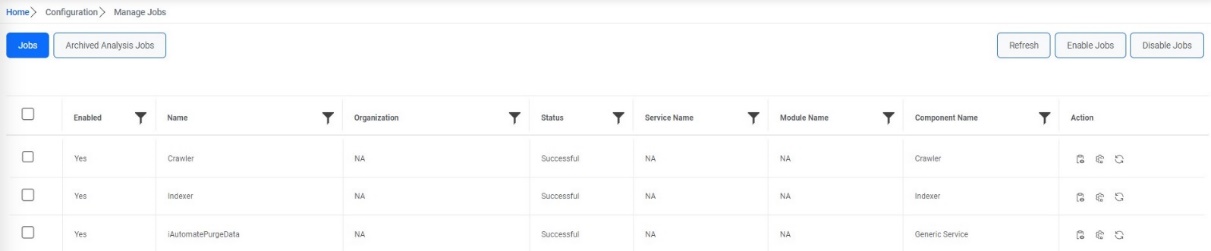
- It lists the job name, organization, and status, assigned service type, module name, and component name in a tabular view. Users can view the job log, modify the properties of jobs and can change the status of the job.
- There are two tabs on this screen-
- Jobs tab lists the job name and status, assigned service type, module name, and component name of all the jobs except successfully completed analysis jobs in a tabular view. Users can view the job log, change the status of the job or edit the job properties.
- Archived Analysis Jobs that list the job name and status, assigned service type, module name, and component name of all the analysis jobs that are completed successfully in a tabular view. Users can only view the job log.
| JobPrefixName | JobSuffixName | JobDescription | ComponentName |
| CollectChangeRequest | OrganizationName | Collects Service Requests | Data Collector |
| CollectChgTasks | OrganizationName | Collects All and Actionable Change TASK Data | Data Collector |
| CollectCMDBData | OrganizationName | Collects CMDB data | Data Collector |
| CollectIncidents | OrganizationName | Collects All and Actionable Incident Data | Data Collector |
| CollectRequestData | OrganizationName | Collects Service Requests | Data Collector |
| CollectRequestItem | OrganizationName | Collects Request Item Data | Data Collector |
| CollectSRTasks | OrganizationName | Collects All and Actionable Service Request Data | Data Collector |
| FetchClusterId | OrganizationName | This job fetches the cluster details used by iUnique Service | Fetch Unique Cluster |
| CreateHistoryAndPopulateFact | OrganizationName | This job moves the eligible tickets to history table and populates fact, using the same for reporting | Generic Service |
| ProcessAuto | OrganizationName | This job picks and process based on the auto criteria | Generic Service |
| PurgeData | OrganizationName | This job purges the tables configured in Organization DB | Generic Service |
| iAutomatePurgeData | This job purges the tables configured in the Configuration DB (delete records from log table) | Generic Service | |
| ScheduleRunbook | OrganizationName | This job creates scheduled Ticket in iAutomate for the Scheduler | Generic Service |
| RunParsing | OrganizationName | This job fetches and parse the tickets | Parsing |
| ExecuteRunbook | OrganizationName | This job is used for processing the tickets based on run book selected | RBA Service |
| FetchUniqueRecommendation | OrganizationName in case of Environment Analysis else Analysis Name Provided by user while creating CSV analysis or workbench Analysis | This job picks recommendation for the unique clusters created (Analysis) | Recommendation |
| RunRecommendation | OrganizationName | This job picks and binds recommendations to the qualifying tickets | Recommendation |
| ReleaseTickets | OrganizationName | This Job picks the applicable tickets and Release in the underlying tool | Release Service |
| ProcessUnique | OrganizationName in case of Environment Analysis else Analysis Name Provided by user while creating CSV analysis or workbench Analysis | This job picks data from all and creates unique clusters | Unique Clustering |
| FetchScriptForUnique | OrganizationName in case of Environment Analysis else Analysis Name Provided by user while creating CSV analysis | This Job fetches scripts for unique tickets identified | Unique Script |
| Crawler | This Job crawls the Document for Advanced Knowledge Service | Crawler | |
| Indexer | This Job processes the Document for Advanced Knowledge Service | Indexer | |
| ActiveDircetory | OrganizationName | This Job fetches user from Active directory | ADSync |
| EmailProcessing | This Job processes the email related tasks | Email Service | |
| ASPState Delete Expired Sessions | This job is responsible to delete active session | Generic Service | |
| iAutomateHangJobReporting | This job is responsible to notify user if any job stuck from a pre-defined time | Generic Service | |
| HangJobReporting | OrganizationName | This job is responsible to notify user if any job stuck from a pre-defined time | Generic Service |
| AgentAssignation | OrganizationName | This job is used to assign tickets to available users of group fetched from GenAI Studio. | Assignation Service |
View Job Log
The job log displays information about job execution. In the Job Log Details view, every row provides details of the job execution. The number of log entries kept depends on the configuration of the scheduled procedure responsible for clearing old log entries. It creates separate log files for each job.
To view the job log details, perform the following steps:
- On the Manage Jobs screen, click
 in
the Action column next to the job user wants to review
in the job log.
in
the Action column next to the job user wants to review
in the job log.Figure 2. View Job Log .jpeg)
- The Job Log Details page appears.
Figure 3. View Job Logs 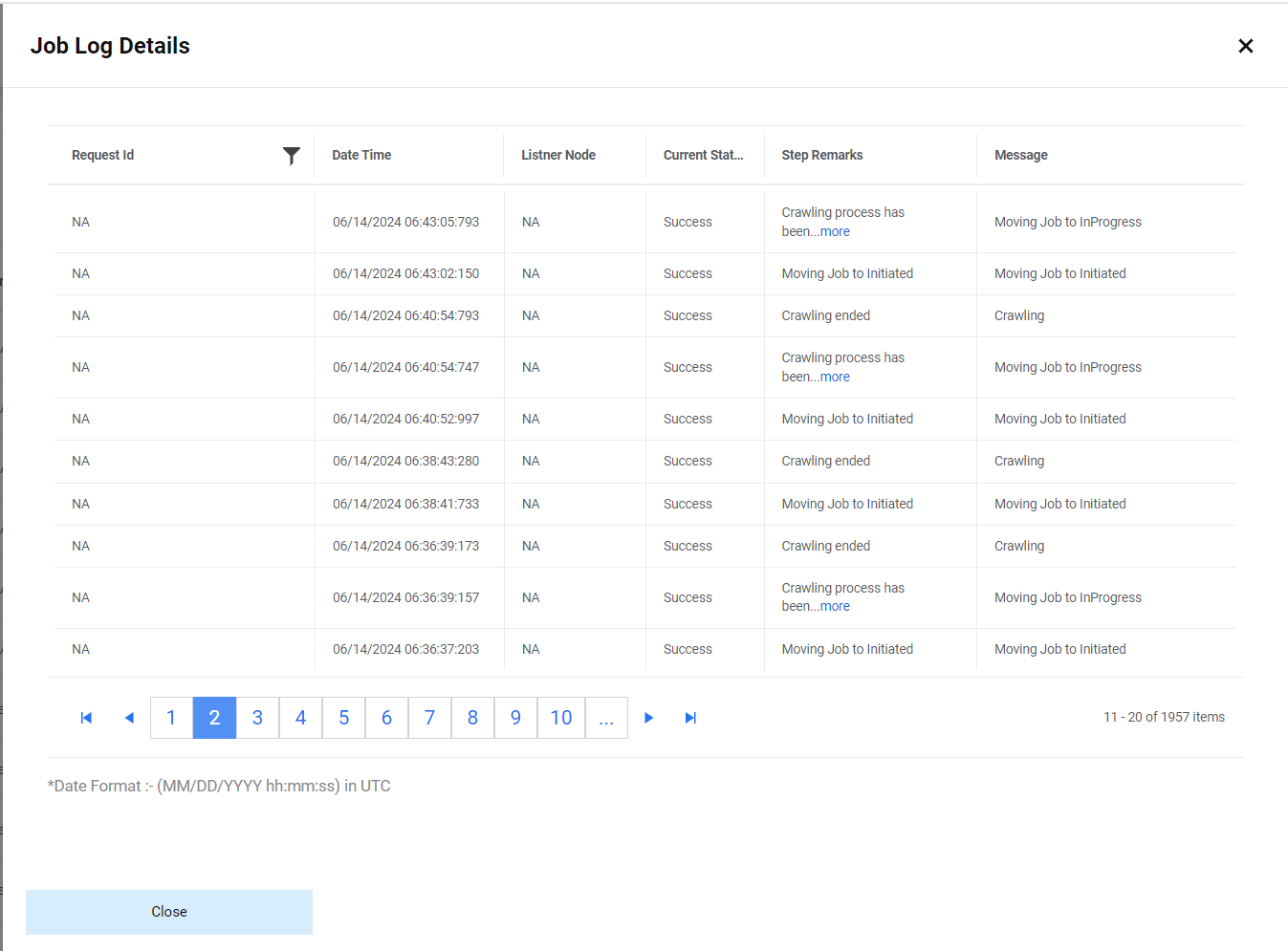
The log contains information about specific job execution, which includes the following:
- The request Id for the job and the user can filter the data based on the request Id
- The date and time when the job was run.
- The listener node that has picked the job for processing.
- The status of each job is displayed with the help of system generated messages relevant to the job execution in the Message column.
- Step Remarks which show the step wise processing of the job.
- Messages that apply to each step in the Step Remarks column.
Manage Job Parameters
Job parameters control which records are to be included or how they are executed when a job runs. A job can have multiple parameters with different data types or no parameters at all.
To manage job parameters, perform the following steps:
- On the Manage Jobs page, click
 in the
Action column next to the job you want to manage.
in the
Action column next to the job you want to manage.Figure 4. Manage Job Parameters 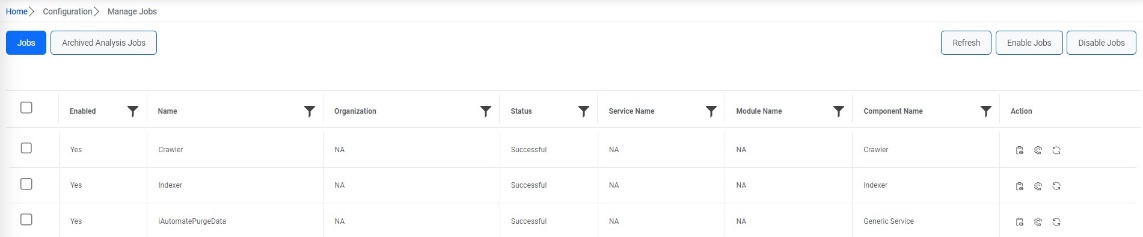
- The Job Actions page appears. It includes the following tabs:
- General
- Schedule
- Parameter
Figure 5. Manage Job Parameters (Cont.) 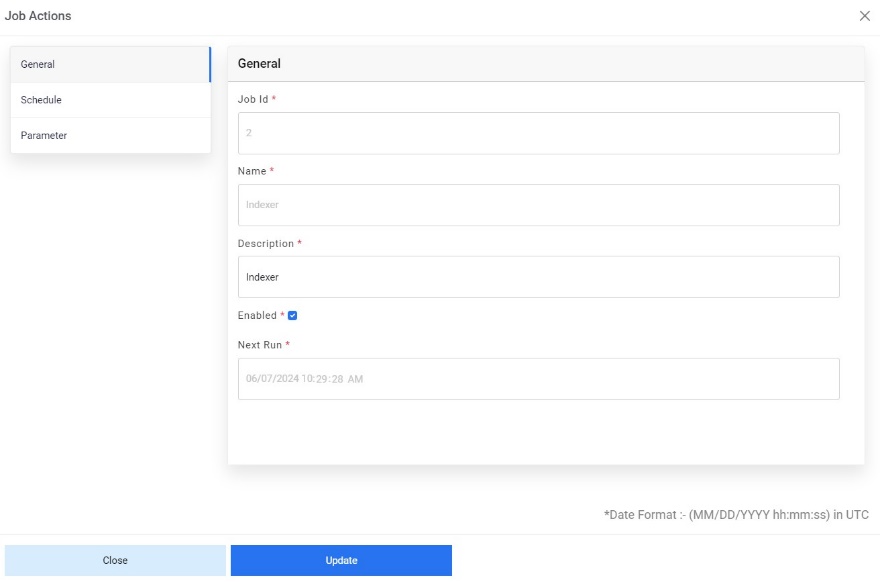
- Click General to configure the general details of a parameter by filling in the
following attributes.
- Type the unique parameter name within the job in the Name field and then type the parameter description in the Description field.
- If the user wants to enable the added parameter for execution, select
Enabled.
Figure 6. Manage Job Parameters (Cont.) 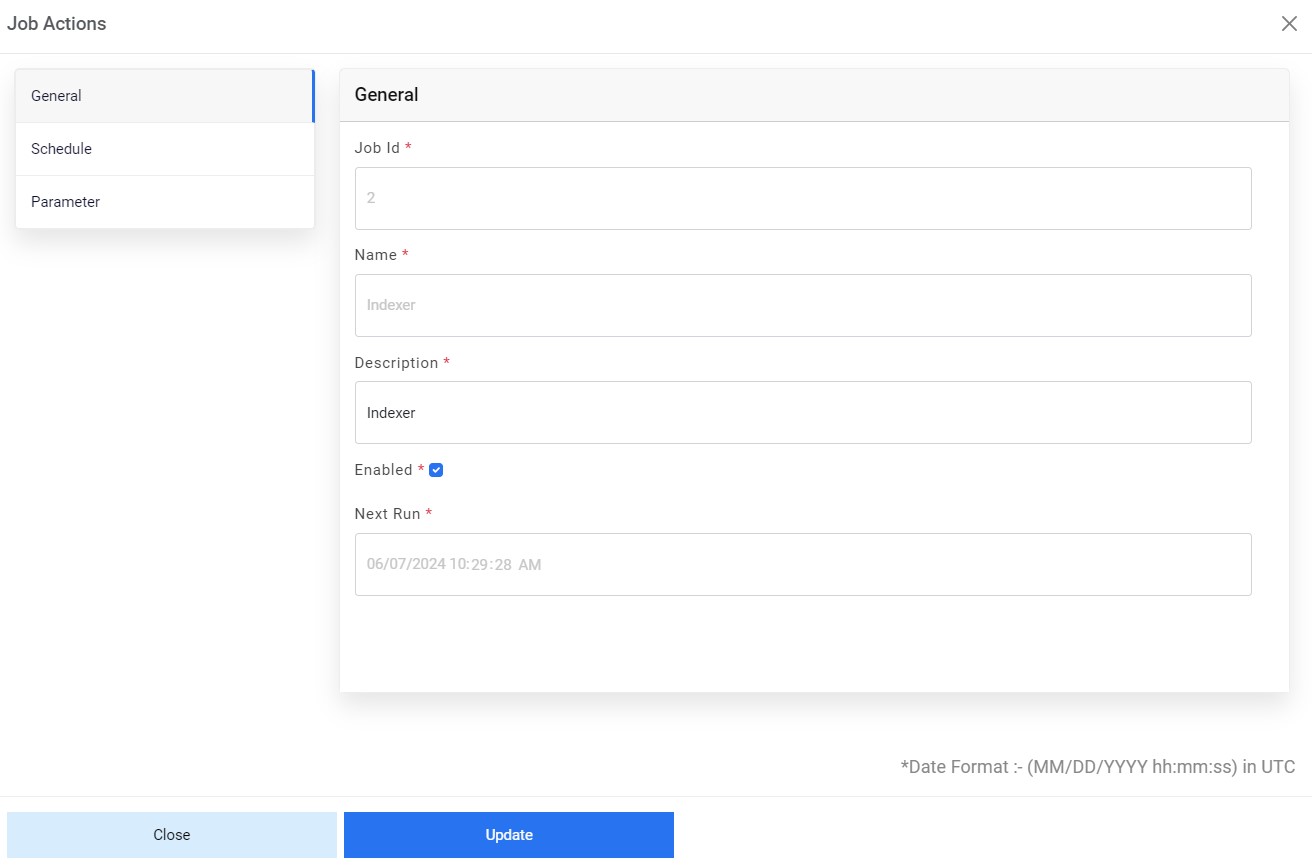
- Click Schedule to provide parameter details to schedule a job. The user can
schedule jobs to automatically run at a particular date or time and/or on a recurring
basis.
- Schedule Type: This allows the user (Organization Admin) to schedule job updates. The drop-down menu lists the following options:
- Select One Time, if you want to schedule the job update only once, then select the
Date and Time to schedule and then click Save to update the schedule.
Figure 7. Manage Job Parameters (Cont.) 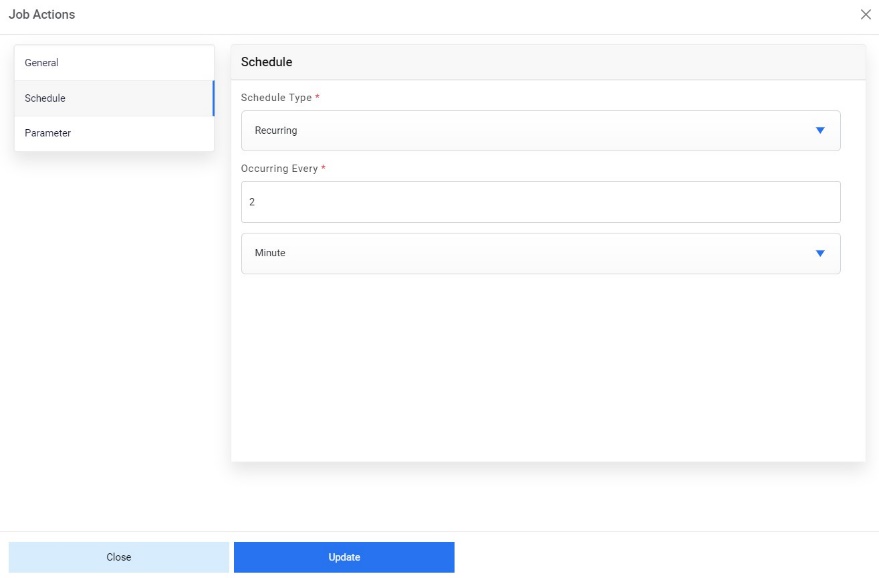
- Select Recurring, to schedule a recurring job update, then type the numerical value
for the schedule next to the Occurrence Every field, and then click the drop-down list
to select the duration in seconds, minutes, hours, monthly, or daily.
Figure 8. Manage Job Parameters (Cont.) .jpeg)
- For the jobs, that are running daily, there is one more field that can be set under
Schedule tab and i.e., User can define the time of the day at which the job should
run.
Figure 9. Manage Job Parameters (Cont.) 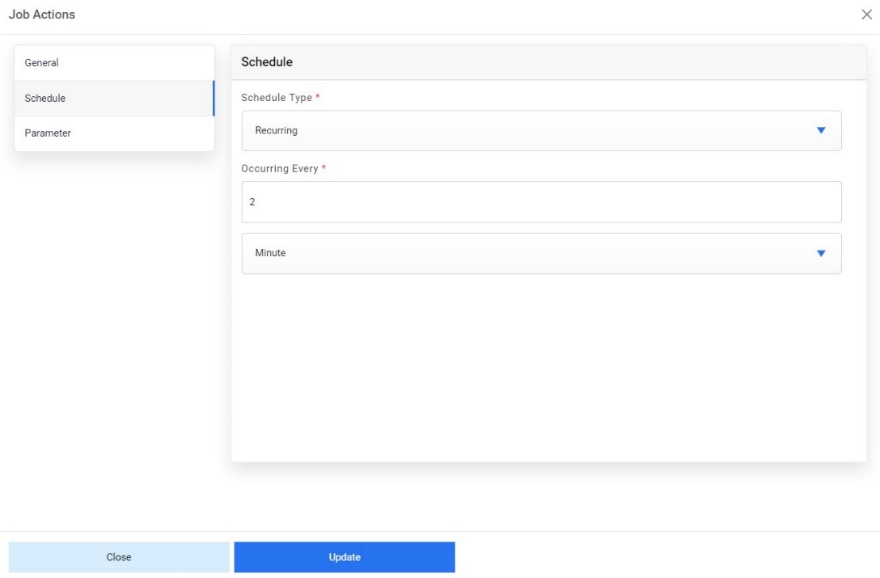
- Click Parameter to enable the added parameter. Switch the value button to
Enable the parameter value.
Figure 10. Manage Job Parameters (Cont.) 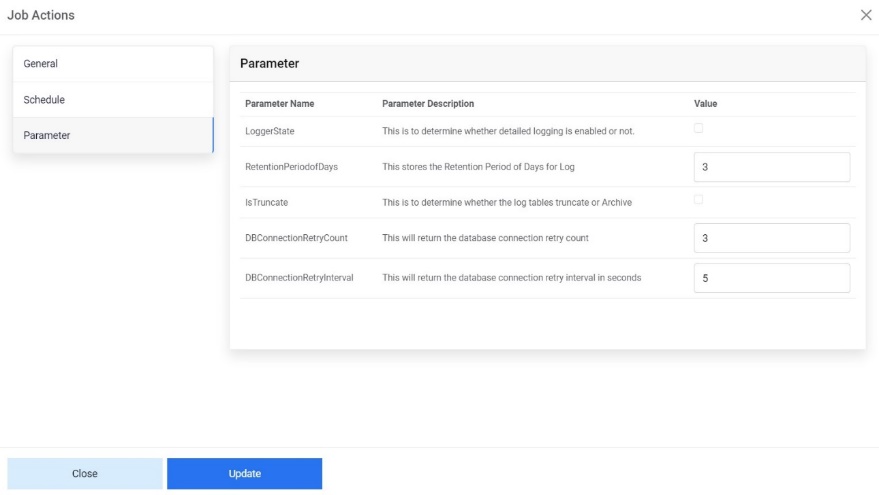
- Click Save.Note:User can click Save after updating General, Schedule, or Parameter tabs and save the updates.
- A confirmation dialog box appears.
Figure 11. Manage Job Parameters (Cont.) 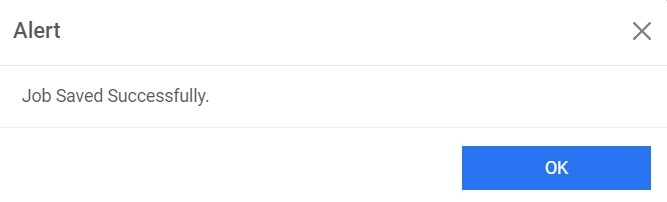 Note:There are few parameters that have significance in ticket execution.
For DataCollector job, there’s a parameter ‘ReassignCount’ which is a number to determine the number of times reassigned ticket will come to queue.
For RunRecommendation job, there’s a parameter ‘IsOrderByPriority’ which on enablement sorts the tickets based on their priority on Tickets screen.
For RunParsing job, there’s a parameter ‘IsReleasedBasedOnNullValue’ which on enablement releases the ticket if any of the runbook parameter value is null.
Reset Jobs
This section describes how to reset a job definition before an execution or resubmission.
To reset a job, perform the following steps:
- On the Manage Jobs page, click
 in the
Action column next to the job user wants to reset.
in the
Action column next to the job user wants to reset.Figure 12. Reset Jobs 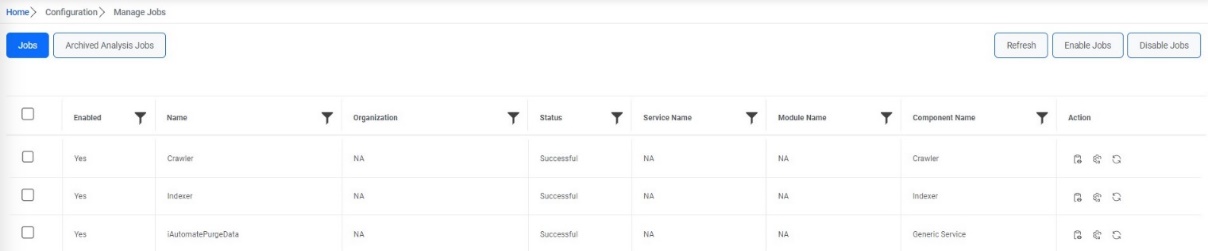
- Click Yes to confirm.
Figure 13. Reset Jobs (Cont.) 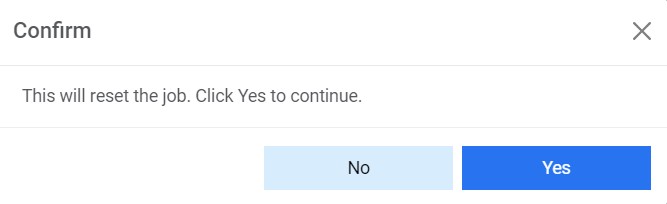 Note:The administrator cannot reset successful jobs and jobs with schedule type selected as One Type.