Build Models
This section describes the procedure to build various types of Machine Learning models in iAutomate.
To build a model, perform the following steps:
- On the main menu bar, click Configuration.
- Click Build Models.
- The Build Models page appears and lists the available build models with their
status, the associated organization, module, and the runbook tool in a tabular view.
Figure 1. Build Models 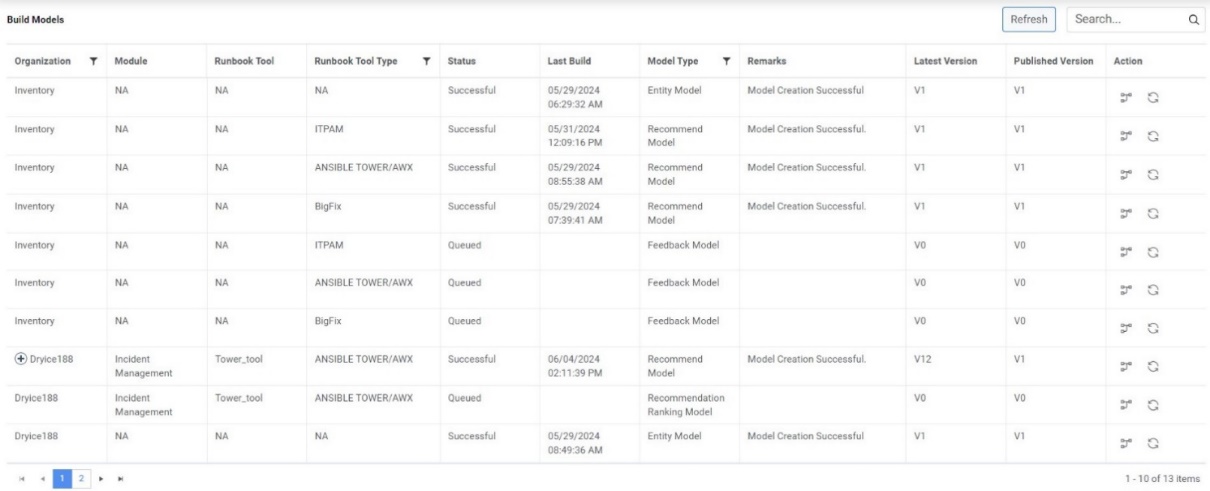
- Using this page, a user can build four types of models:
- Entity Model – This model is used to identify the entities from the runbook description and ticket summary.
- Recommendation Model – This model is used to recommend the list of relevant runbooks based on the ticket summary.
- Recommendation Ranking Model – This model is used to re-rank the list of recommended runbooks based on the resolution status of past executions.
- Knowledge Ranking Model – This model is used to re-rank the list of relevant documents based on the user feedback.
- Feedback Model - This model is used to predict the top runbook amongst the Top-N runbooks (provided by iRecommend model) based on the feedback provided by the SAAS SME users on the feedback screen in SAAS console.
Note:A Recommendation Model cannot be created without creating the Entity Model. Also, a Recommendation Ranking Model cannot be created without the Recommendation Model.A Feedback Model cannot be created without creating the Recommendation Model.
Build Model
User can build any type of model for an organization by performing the following steps. Here, we have used Entity model as reference:
- On the Build Models page, click
 next
to the organization to build the model.
next
to the organization to build the model.Figure 2. Build Models 
- A message confirming the initiation of model build appears.
Figure 3. Build Models (Cont.) 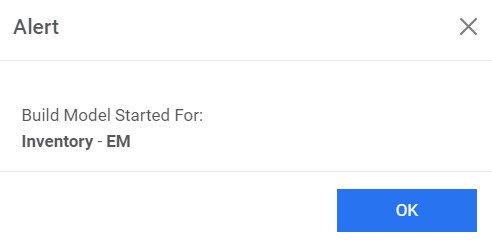
- The status of the build changes from Queued to Initiate.
Figure 4. Build Models (Cont.) 
- Once the build is successfully created, the status changes from Initiate to
Successful and the Remarks column is updated.
Figure 5. Build Models (Cont.) 
For Knowledge Rating, the model will be saved in the MongoDB database
Reset Model
The user can reset the status of the existing build model in an organization to its initial state.
- On the Build Models tab, click
 corresponding to the organization for which you want to reset the model to its initial
state.
corresponding to the organization for which you want to reset the model to its initial
state.Figure 6. Reset Models .png)
- On resetting the model, the status changes to Queued and a confirmation dialog
box appears.
Figure 7. Reset Models (Cont.) 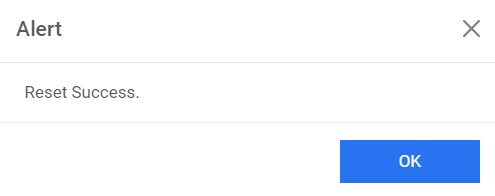
Evaluate Recommendation Model
Through this module, users can evaluate a recommendation model, view its performance report, publish different versions of the model, and view the list of runbooks on which the specific model was created.
To evaluate the recommendation model, perform the following steps:
- On the Build Models tab, click
 corresponding to the recommendation model associated with a tool for the organization for
which you want to evaluate the model.
corresponding to the recommendation model associated with a tool for the organization for
which you want to evaluate the model.Figure 8. Evaluate Recommend Model 
- This opens a model version grid where users can view the different versions of the
models listed. Under the Action tab, multiple options are available to the
user.
Figure 9. Evaluate Recommend Model (cont.) 
- Click
 to trigger the model
evaluation process.
to trigger the model
evaluation process.Figure 10. Evaluate Recommend Model (cont.) 
- Upon completion of the model evaluation process, a success message appears as below.
Figure 11. Evaluate Recommend Model (cont.) 
- After successful evaluation, click
 to view the dashboard.
Figure 12. Evaluate Recommend Model (cont.) 
- On view dashboard popup, three types of charts are available:
- Precision-Recall Graph:
Figure 13. Evaluate Recommend Model (Cont.) 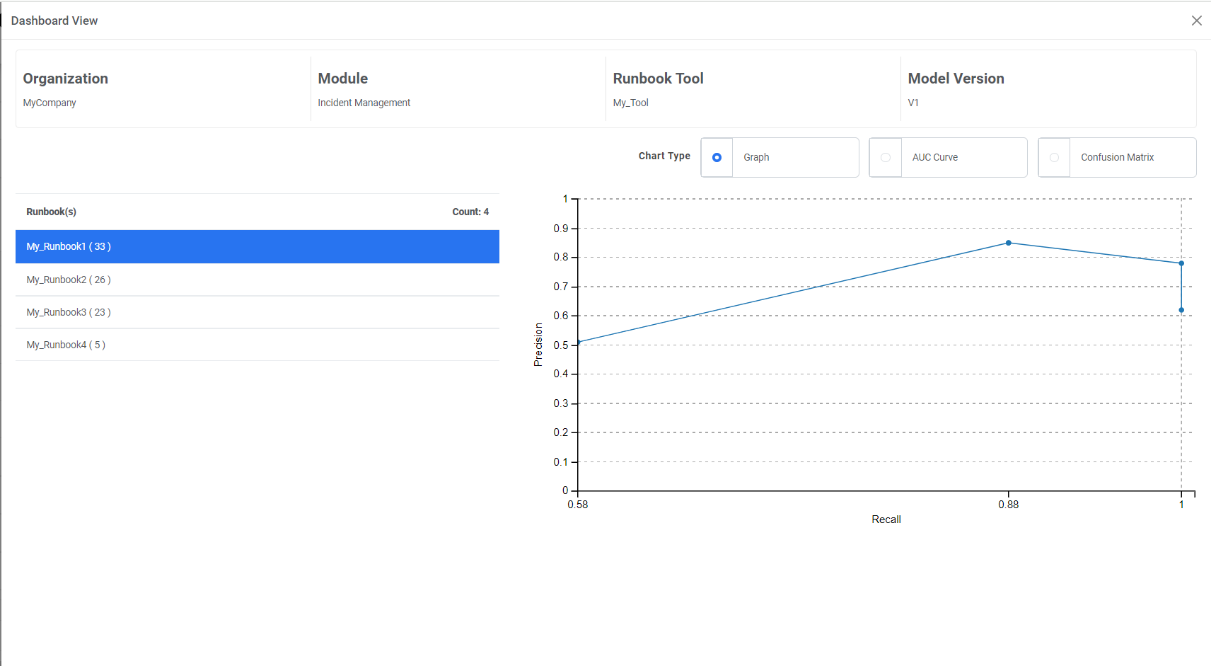
- AUC Curve:
Figure 14. Evaluate Recommend Model (cont.) 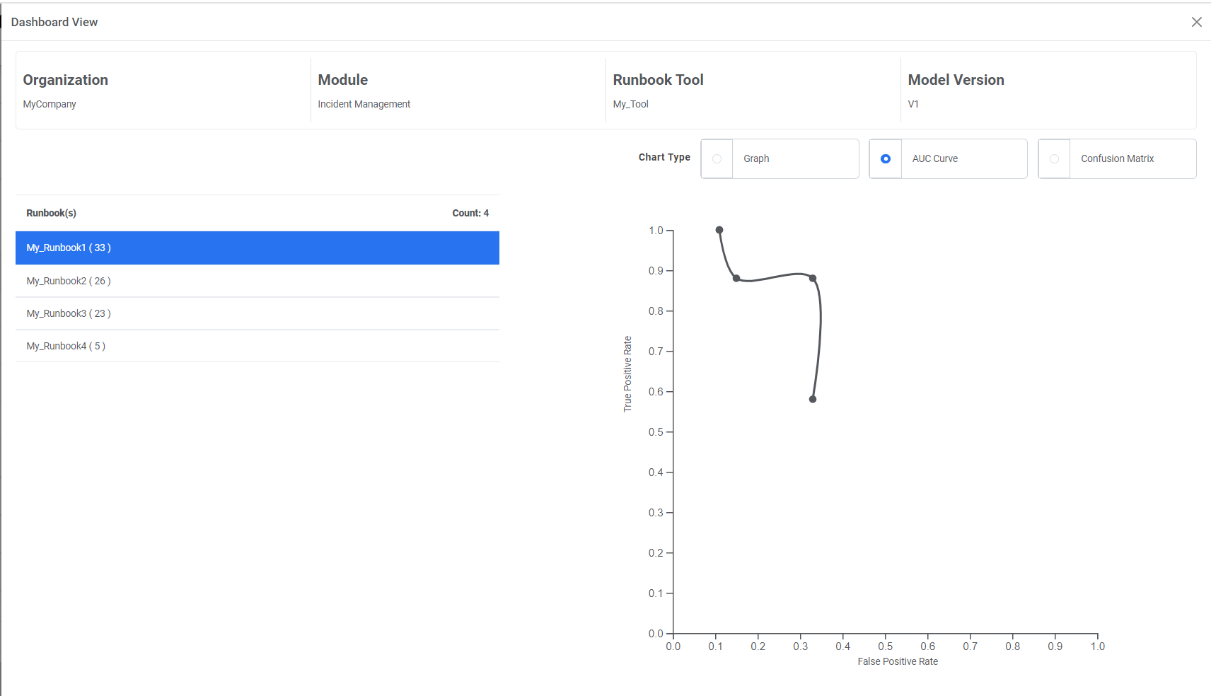
- Confusion Matrix:
Figure 15. Evaluate Recommend Model (cont.) 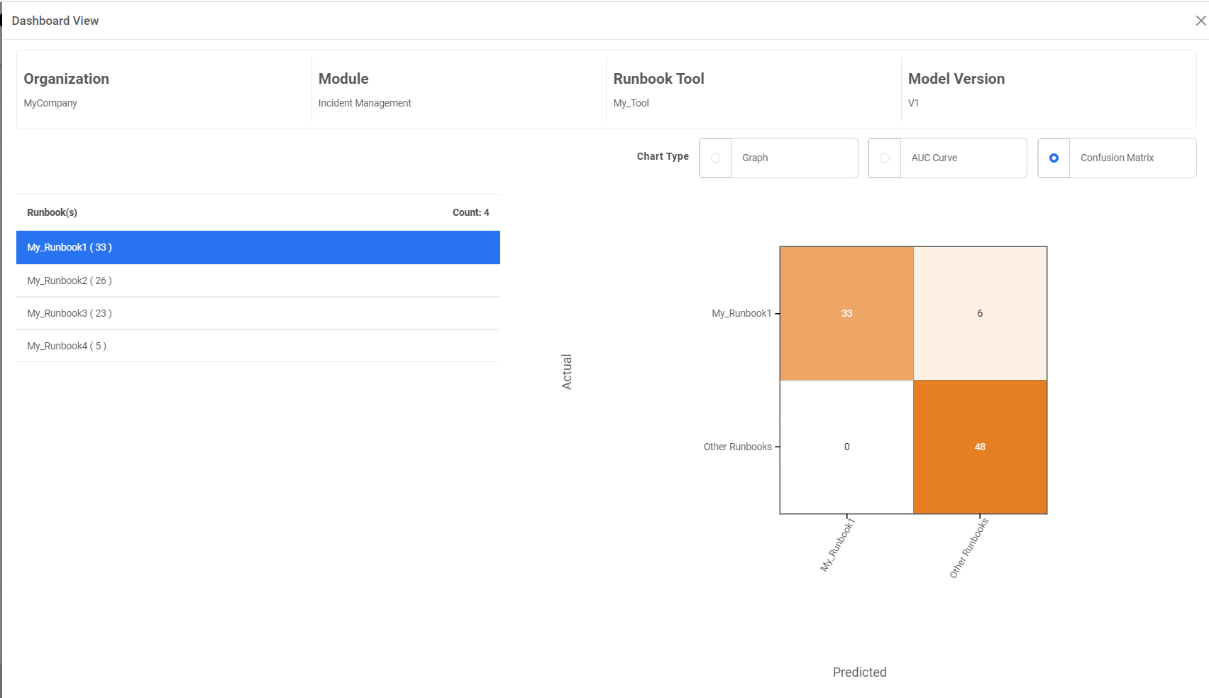
- Precision-Recall Graph:
- Click
 to publish the model
version of choice.
to publish the model
version of choice.Figure 16. Evaluate Recommend Model (cont.) 
- A success message appears after the model is published successfully.
Figure 17. Evaluate Recommend Model (cont.) 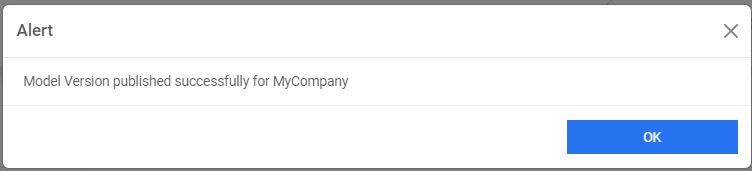
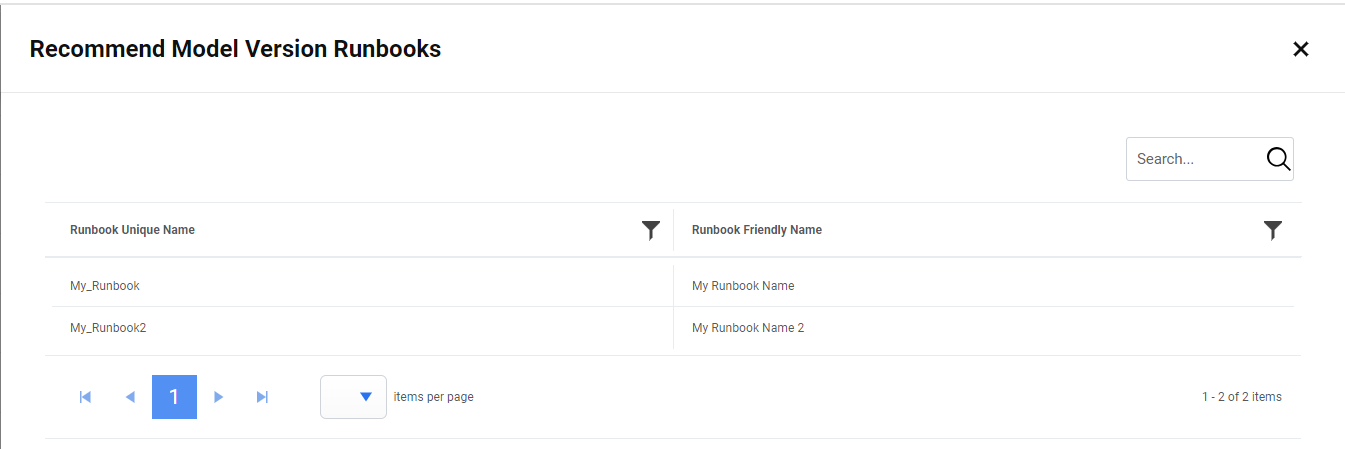
- Users can also view the set of runbooks on which the model was built. Click
 to view the list of runbooks.
Figure 18. Evaluate Recommend Model (cont.) 
Figure 19. Evaluate Recommend Model (cont.)