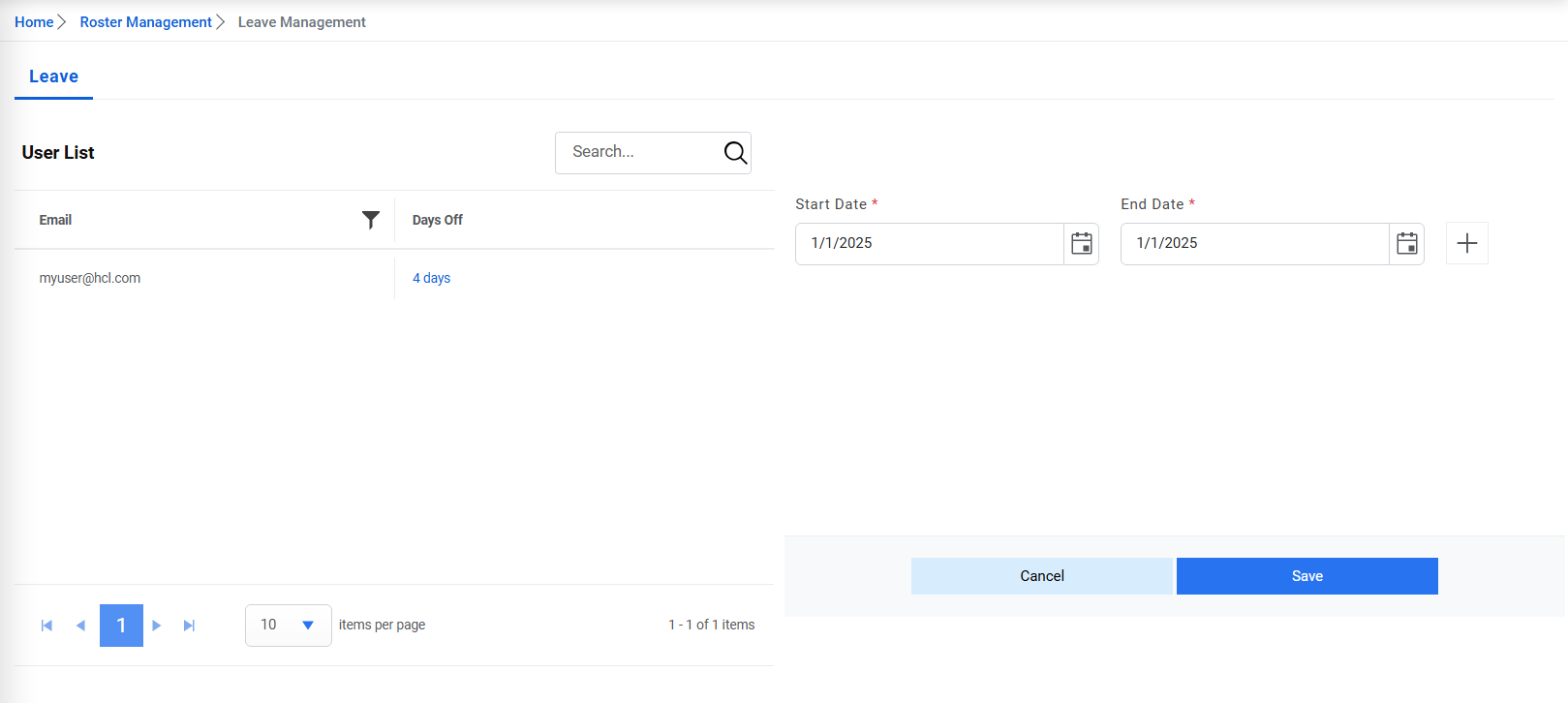
Leave Management
This screen allows the user to apply leave of the users and based on the leave details the tickets will not be assigned to those users which are on leave at that time.
- To apply for leave for user, click on Roster Management->Leave Management.
Figure 1. Leave Management 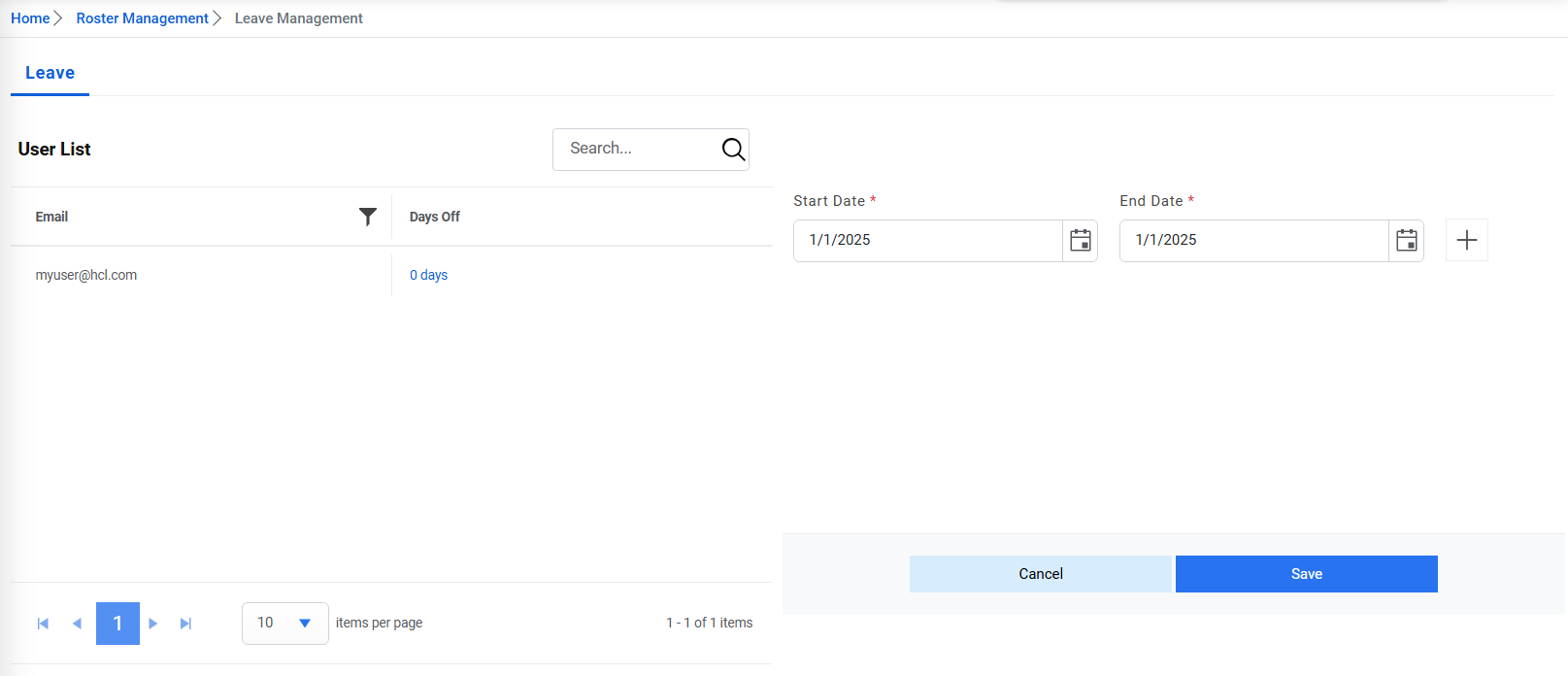
- To apply for leave for user, click on the day off link.
- Select the start date and end date. To add leaves on multiple days, click on
 icon and select all the dates for which
leave needs to be applied.
icon and select all the dates for which
leave needs to be applied.Figure 2. Add Leaves 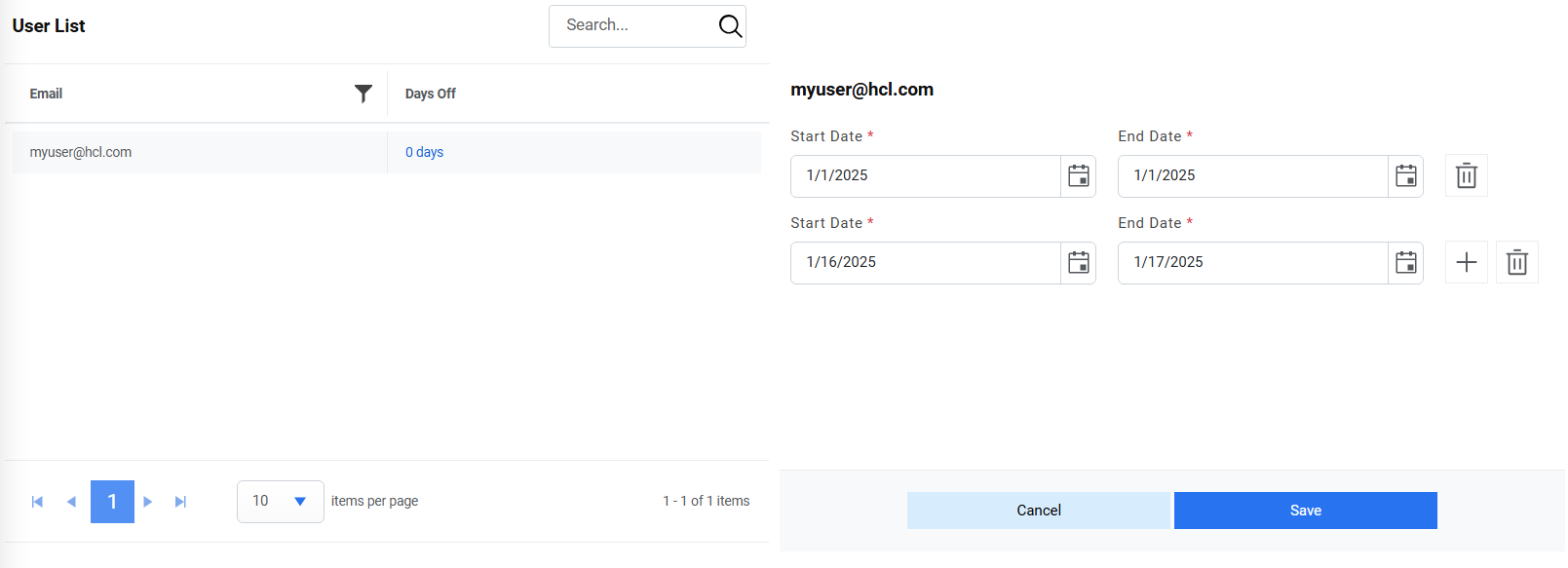
- To delete any added days for leave, click on
 .
. - Click on save. Below alert will be generated.
Figure 3. Success Message 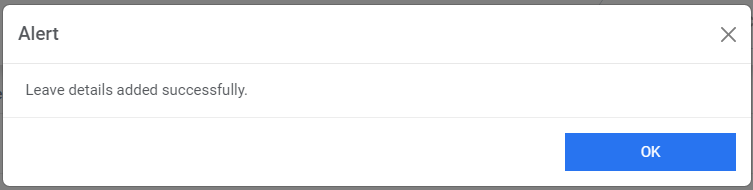
- Based on the number of days for which leaves are applied, the Days off count will be
changed accordingly.
Figure 4. Days Count