Writing Assistant
Log into HCL BigFix Service Management as a support user and navigate to the Work Item Board from the application menu on the left-hand side.
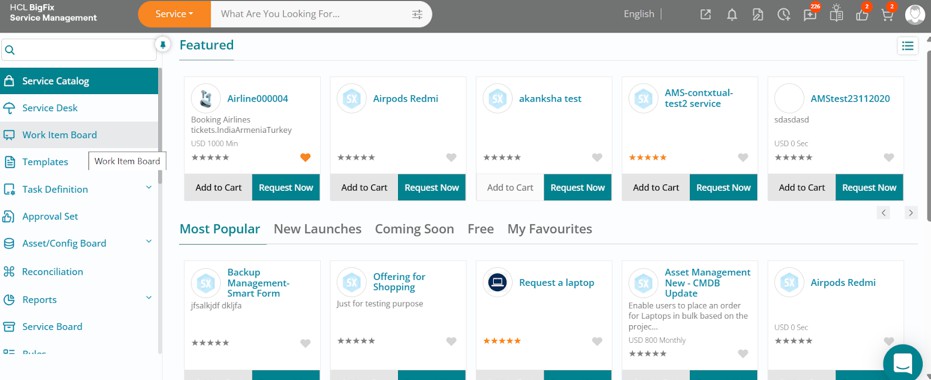
Click on the Work Item Board, then navigate to the Incident section and click on the Request for Support (+) button to begin creating a new incident ticket.
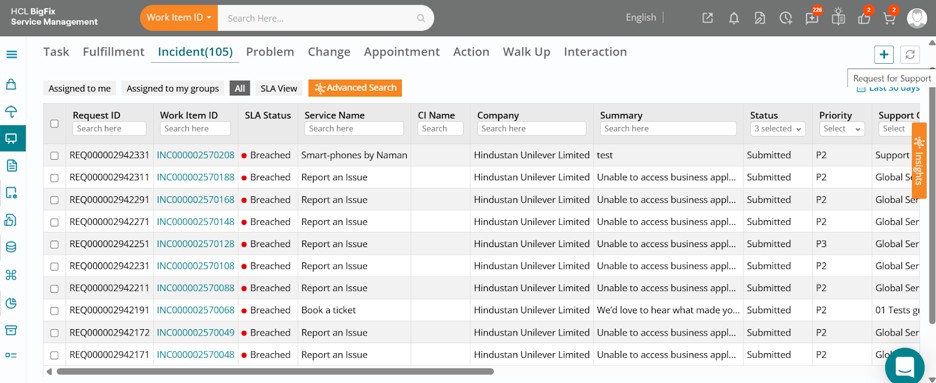
The incident form will open, allowing you to enter details like Company, Consumer, Which Service is Impacted? Issue Description, and Additional Information (if any).
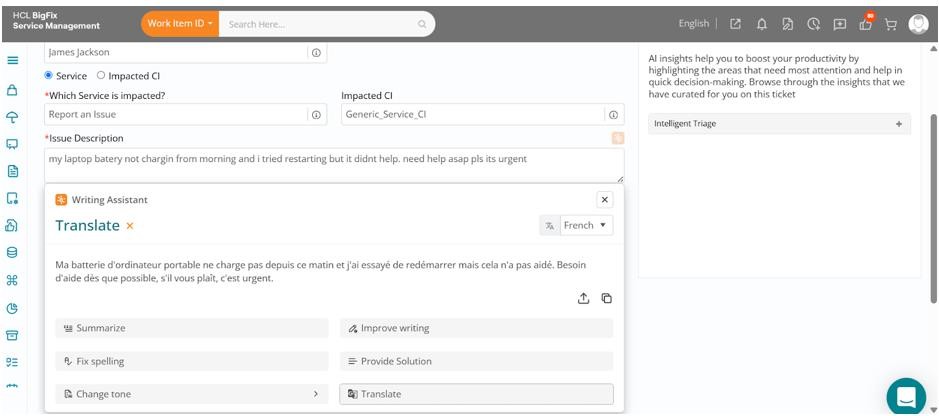
After typing in the Issue Description, click the orange button next to the field to launch the AI-powered writing assistant for suggestions and improvements.
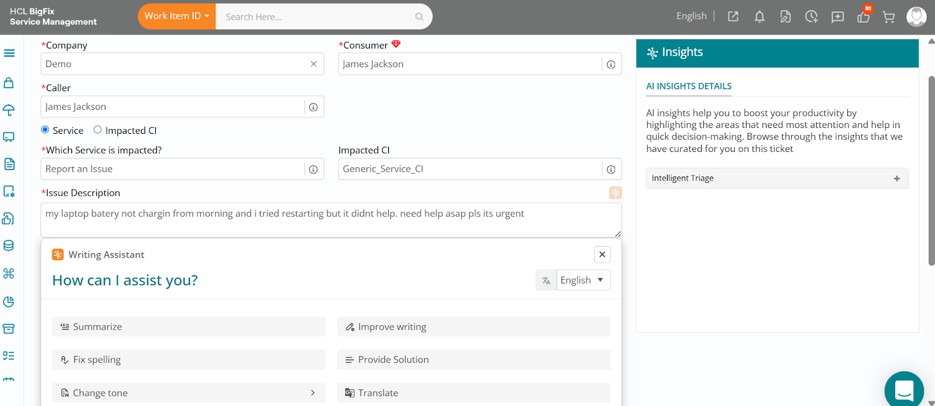
Click on Fix Spelling to see the writing assistant automatically correct common errors, in thiscase, changing ‘batery’ to 'battery' and 'chargin' to 'charging', etc.
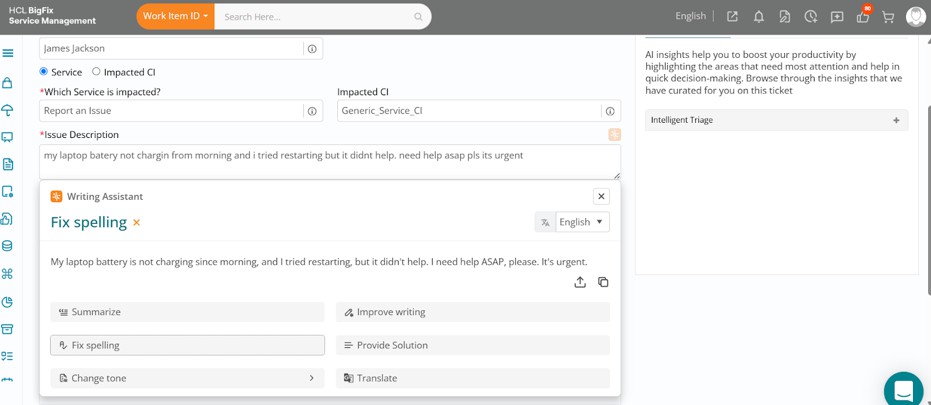
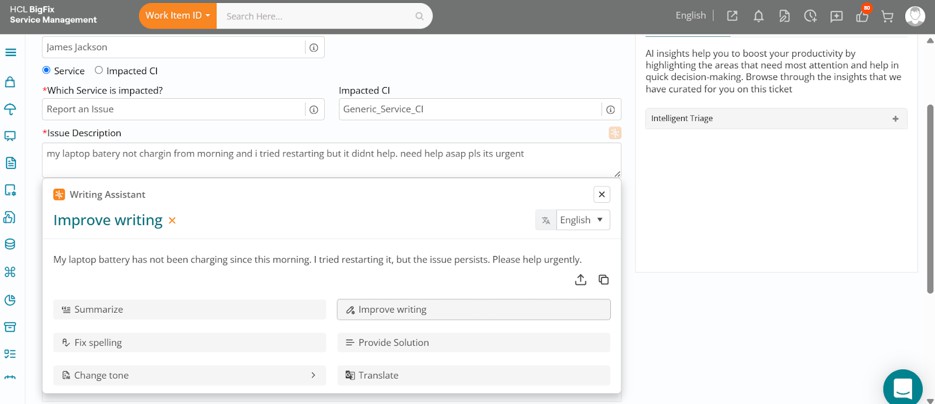
Click the upload button to replace the original issue description with the corrected version, or copy it if you'd prefer to use it elsewhere. To enhance grammar and structure further, use the Improve Writing option next.
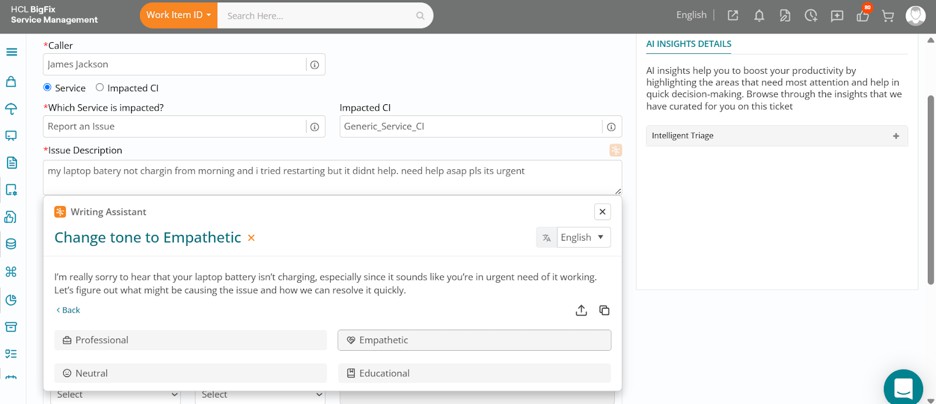
To adjust the tone, click on the Change Tone option. You will see choices such as Professional, Empathetic, Neutral, and Educational. For this example, select Empathetic to see how the message is rephrased with a more compassionate tone.
You can also try summarizing the issue and use the AI-powered Provide Solution option to receive suggested troubleshooting steps.
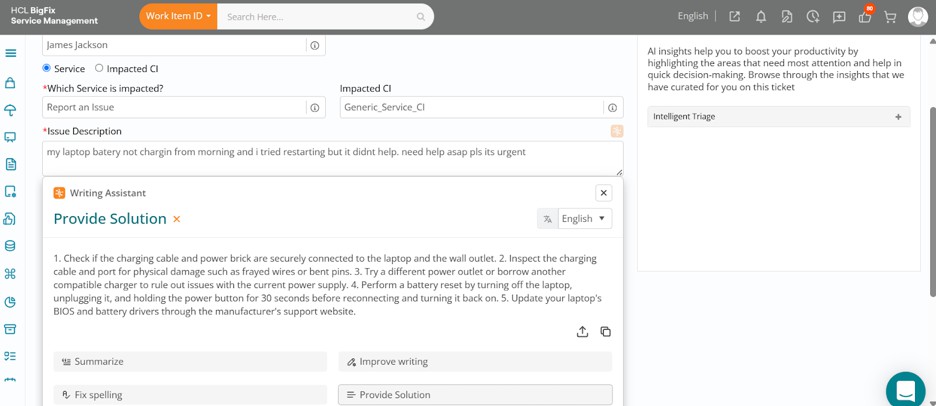
You can also translate the content instantly by clicking on Translate and selecting your preferred language. This demonstrates how the writing assistant supports your communication needs across multiple languages as well.