Intelligent Risk Advisory
Log into HCL BigFix Service Management as a support user and navigate to the Work Item Board from the application menu on the left-hand side.
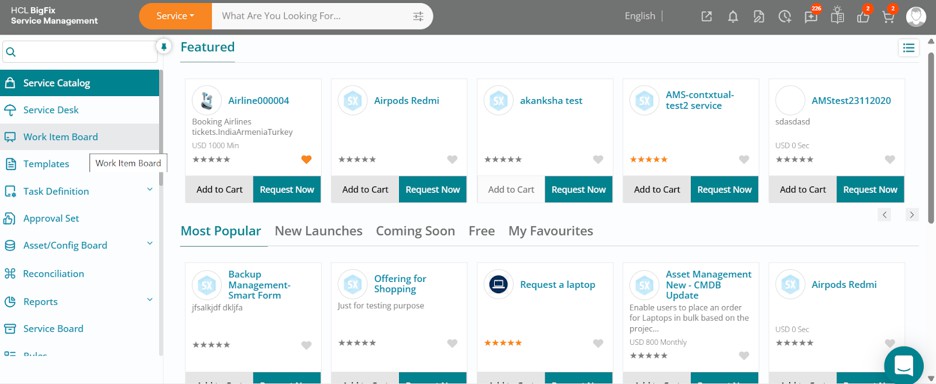
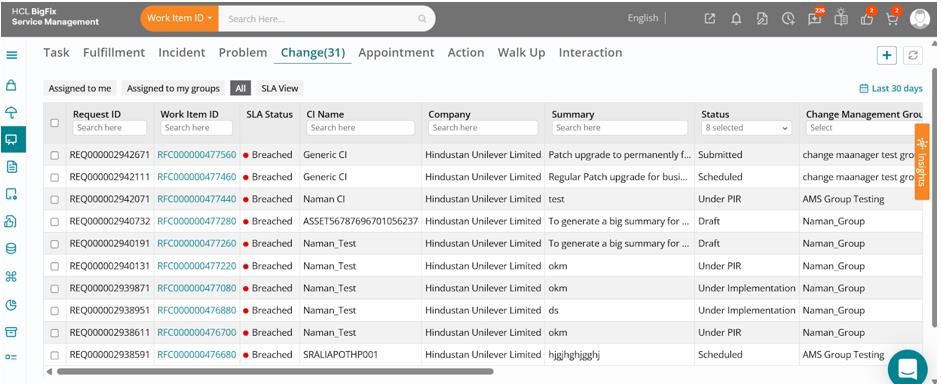
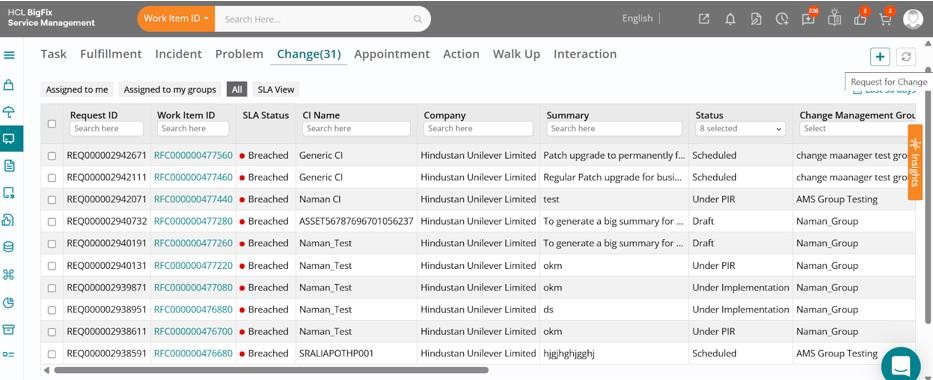
Click on the Work Item Board, then navigate to the Change tab to view the list of all changes.
Let’s begin by reviewing an existing change ticket.
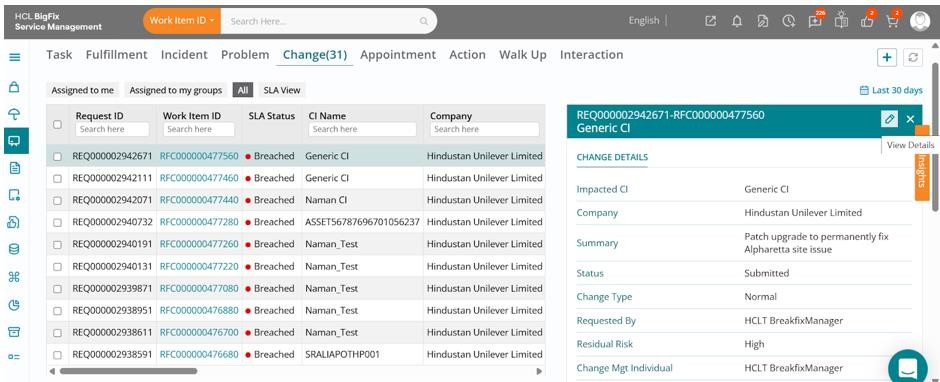
Click on one of the change tickets from the list, then click the Edit button in the drawer that opens on the right-hand side of your screen.
The full change form will open, displaying the ticket details.
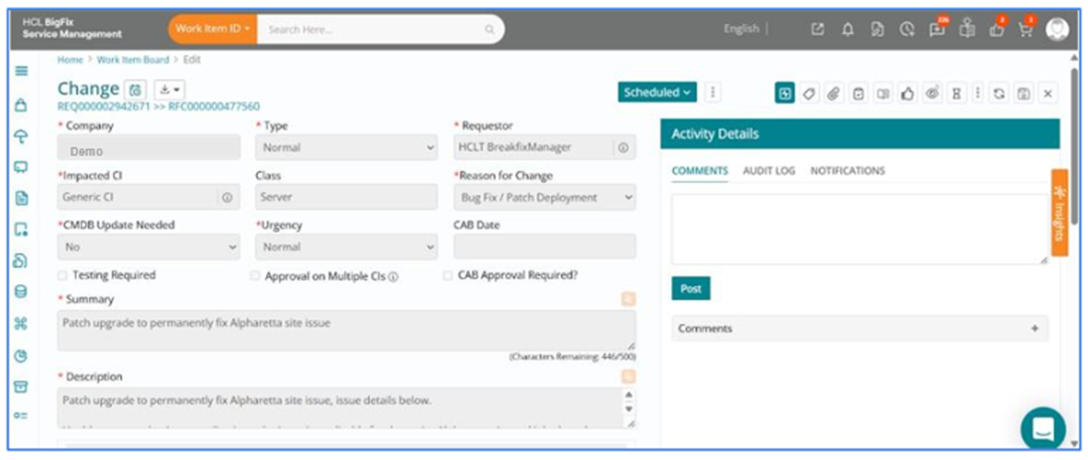
You can scroll through the change form and review its details. In this case, a patch upgrade has been submitted with a high residual risk. This may be due to the upgrade impacting multiple CIs or involving planned downtime.
However, you might want to verify what AI recommends as the appropriate Risk level for this change, based on historical ticket patterns and contextual analysis.
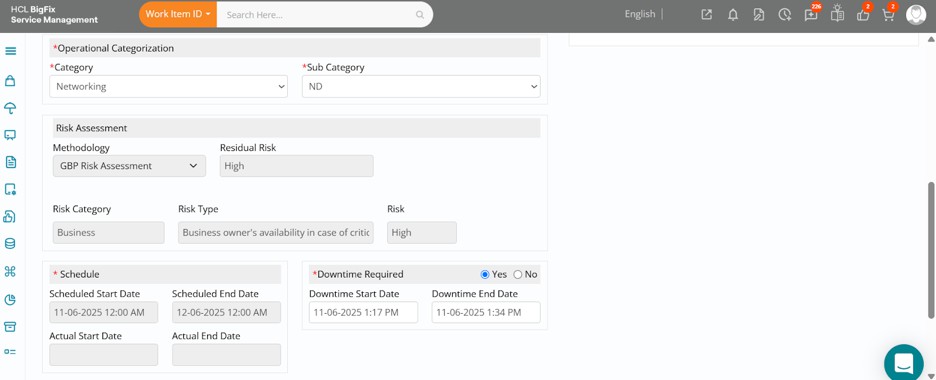
This is where you can navigate to the right of your screen and click on the orange-coloured Insights button, followed by selecting Intelligent Triage to expand that section.
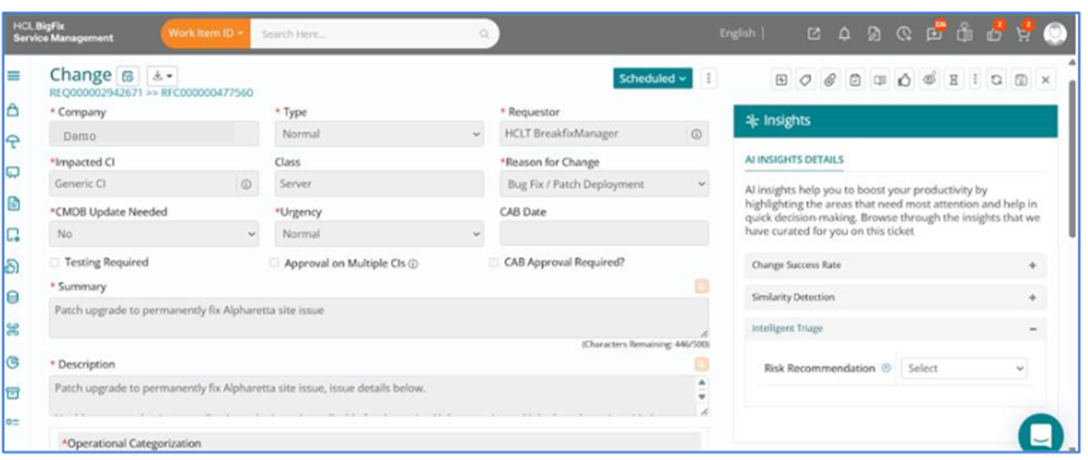
You will see Risk Recommendation listed as an option under Intelligent Triage. All data under the Insights section is AI-generated using machine learning models.
Click on the arrow beside the Risk Recommendation field, then open the dropdown to view the AI-suggested risk recommendation based on this ticket’s context.
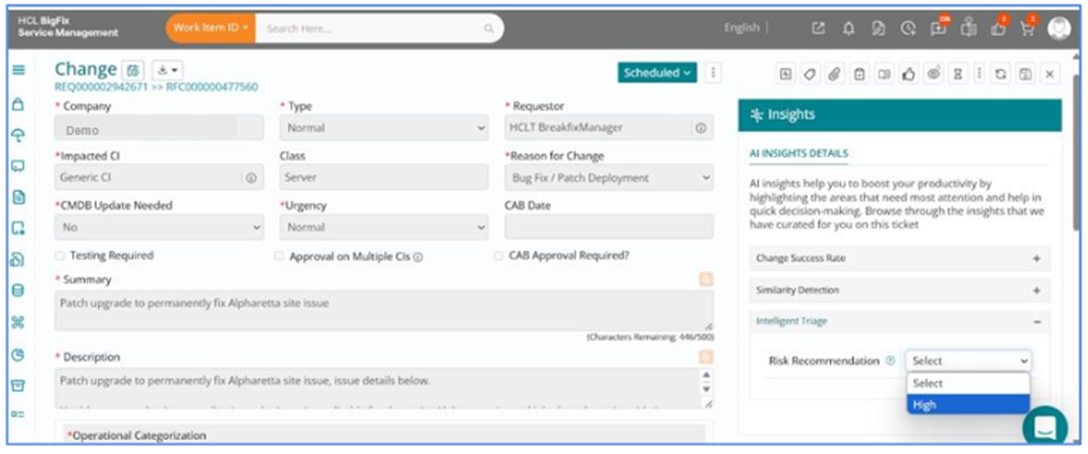
In this case, AI recommends a high risk, which confirms your initial estimation of the Residual Risk. If AI suggests a different risk value, you have the option to accept the AI-suggested risk and update the ticket accordingly.
Let’s next consider a scenario where a new change needs to be created by the support user directly from the Work Item Board, based on a requirement that may have come up through planning discussions, observations, or any identified need.
Navigate to the Change section within the Work Item Board and click on the Request for Change (+) button to begin creating a new change ticket.
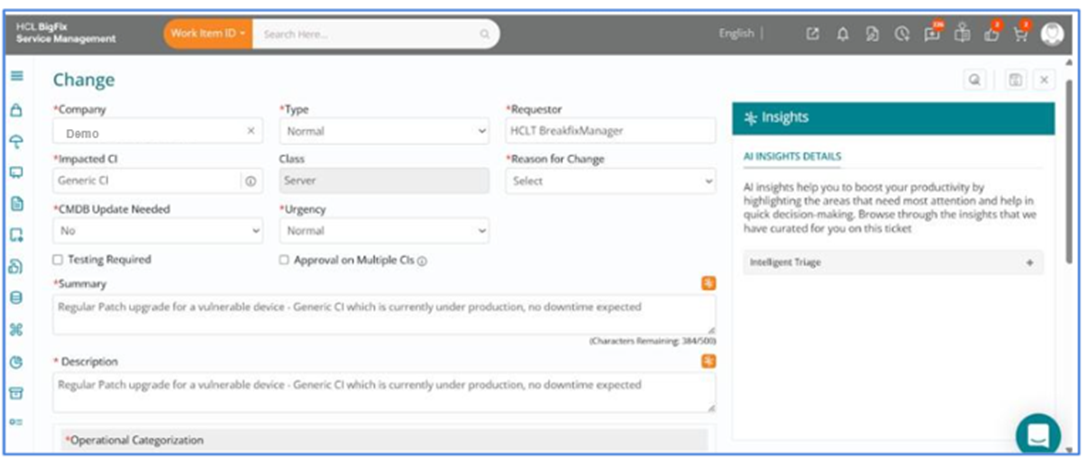
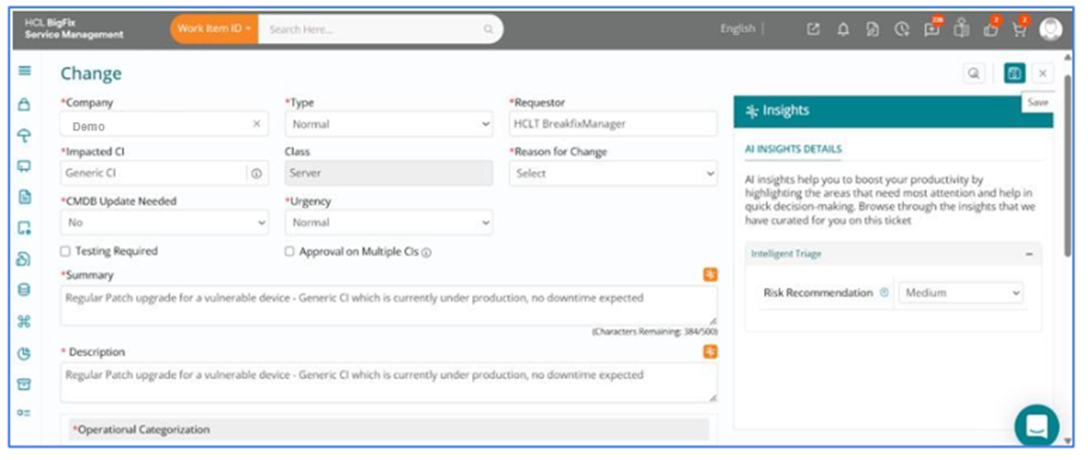
The change form will open, where you can fill in details such as Company, Type, Impacted CI, Summary, and so on. The bare minimum details required for AI to predict the Risk of the change ticket using machine learning are the Company, Type, Impacted CI, Summary, and Description.
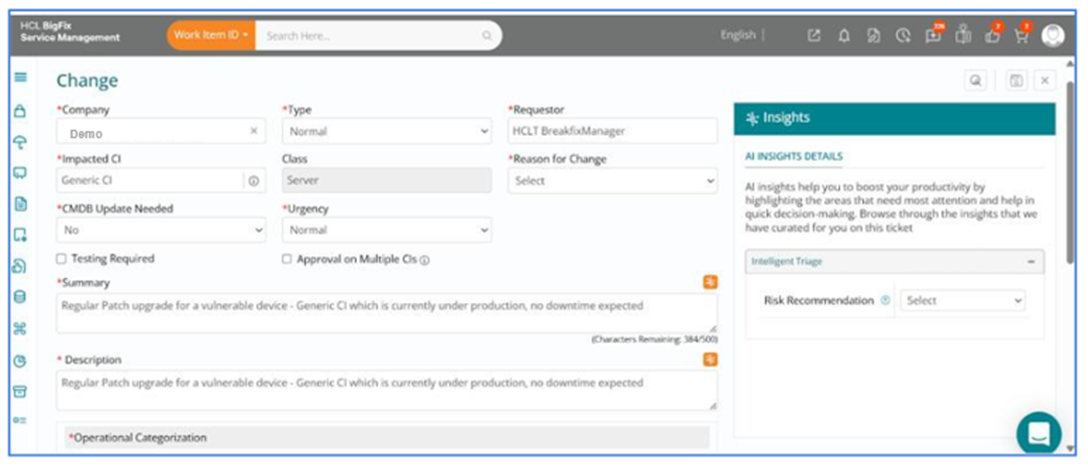
Expand Intelligent Triage under the Insights section on the right side of the screen, and you will see Risk Recommendation listed as an option under Intelligent Triage. The information in the Insights section is AI-generated using machine learning models.
Click on the arrow beside the Risk Recommendation field, then open the dropdown to view the AI-suggested risk based on this ticket’s context.
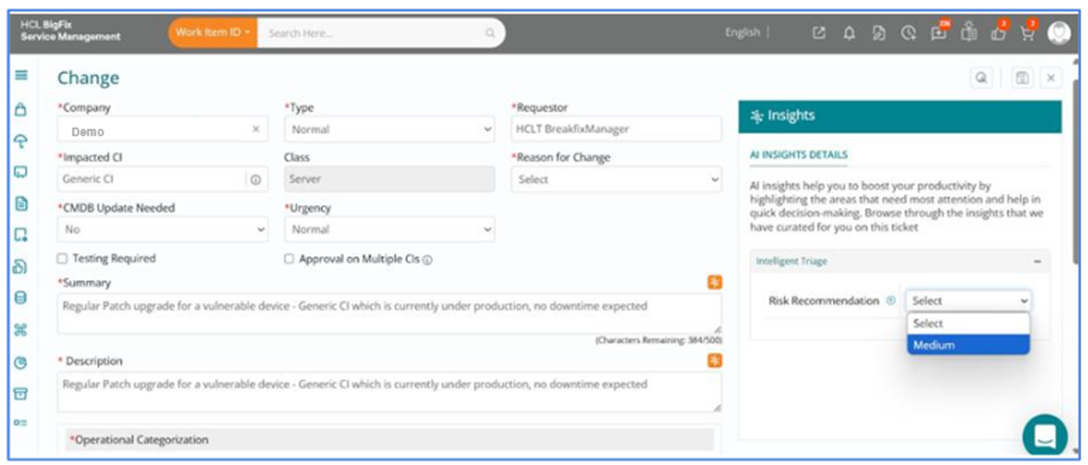
In this case, AI recommends a medium risk, which seems appropriate considering it is a change on a CI currently in production. You can choose to accept the AI-suggested risk, update the field accordingly, then complete the other mandatory fields in the change form.
Finally, scroll to the top and click the Save button in the top-right corner to submit the change.
This feature leverages historical and current contextual data, identifying patterns and similarities with past changes to assess potential risks. It thereby enables more informed decision-making and proactive risk mitigation for upcoming changes.