Cognitive Virtual Assistant
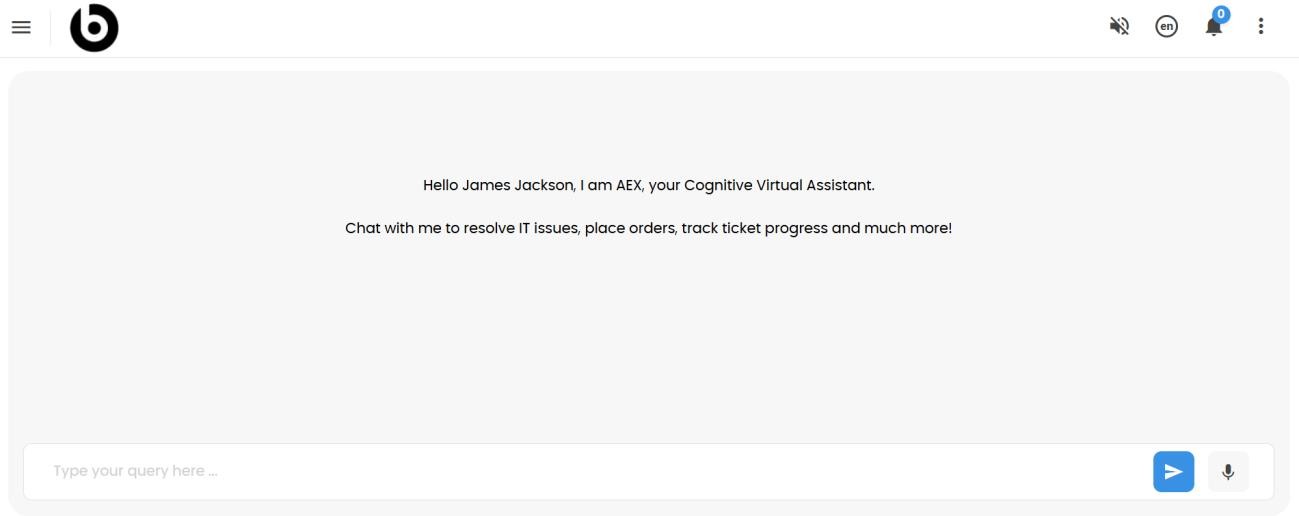
Log into HCL BigFix Service Management and click on the Open Chatbot icon located at the bottom-right corner of your consumer homepage to start interacting with the cognitive virtual assistant.
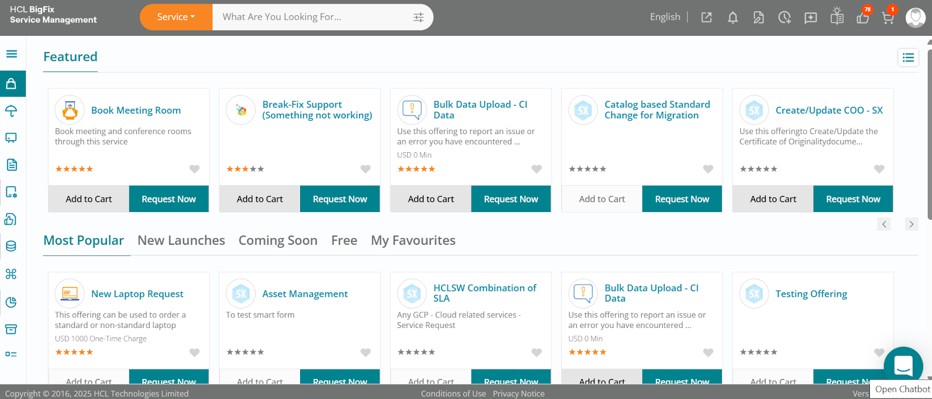
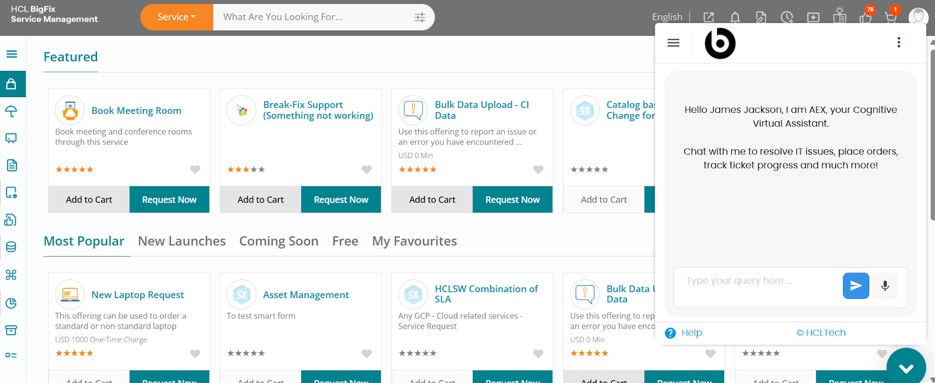
The chatbot will open and you can begin your conversation.
If the chat window feels small, you can open the chatbot in a separate tab or window by clicking the chat icon on the top-right of your consumer homepage. This provides a better viewing experience.
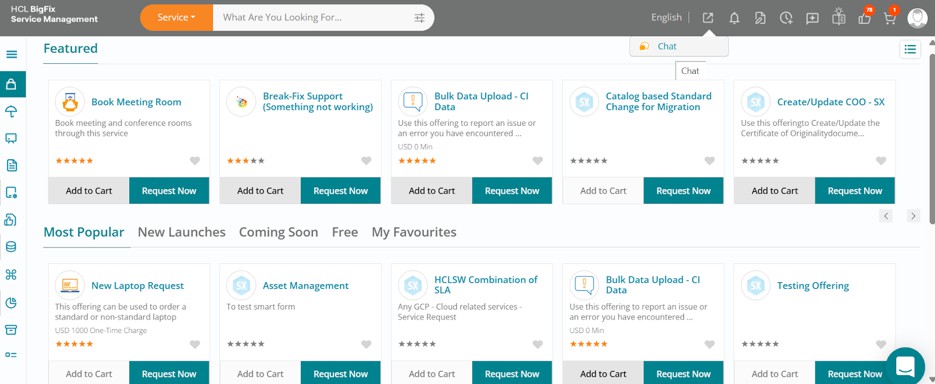
The cognitive virtual assistant will now be available in a new window.
Let us assume that you want to view any past orders you may have placed. Type in a prompt such as: Show my orders or List orders or List tickets. You will immediately be shown your last 5 open tickets.
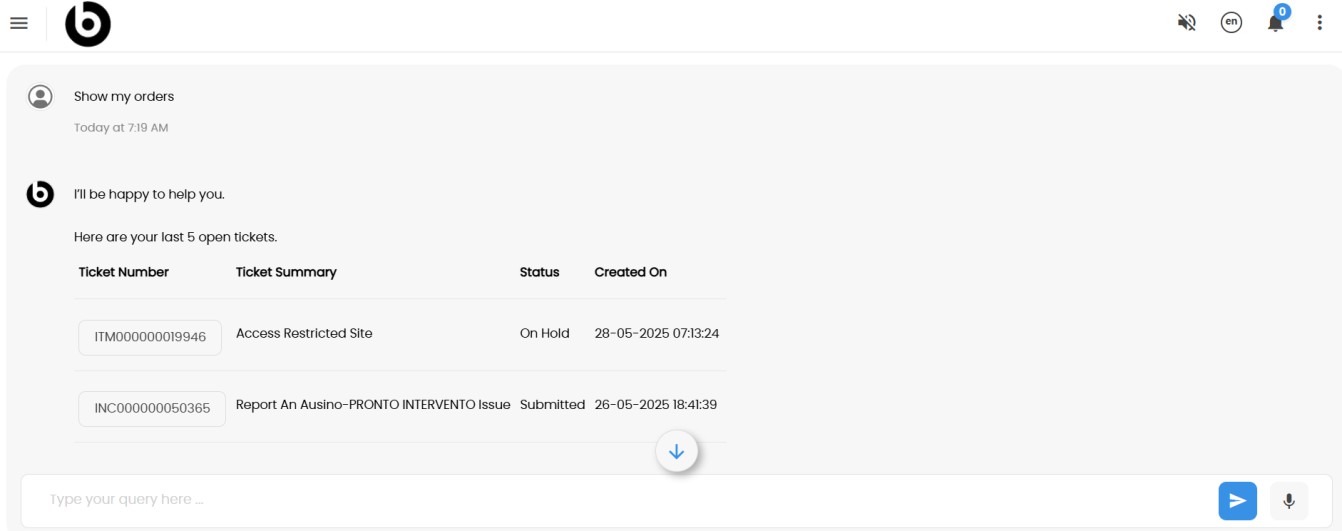
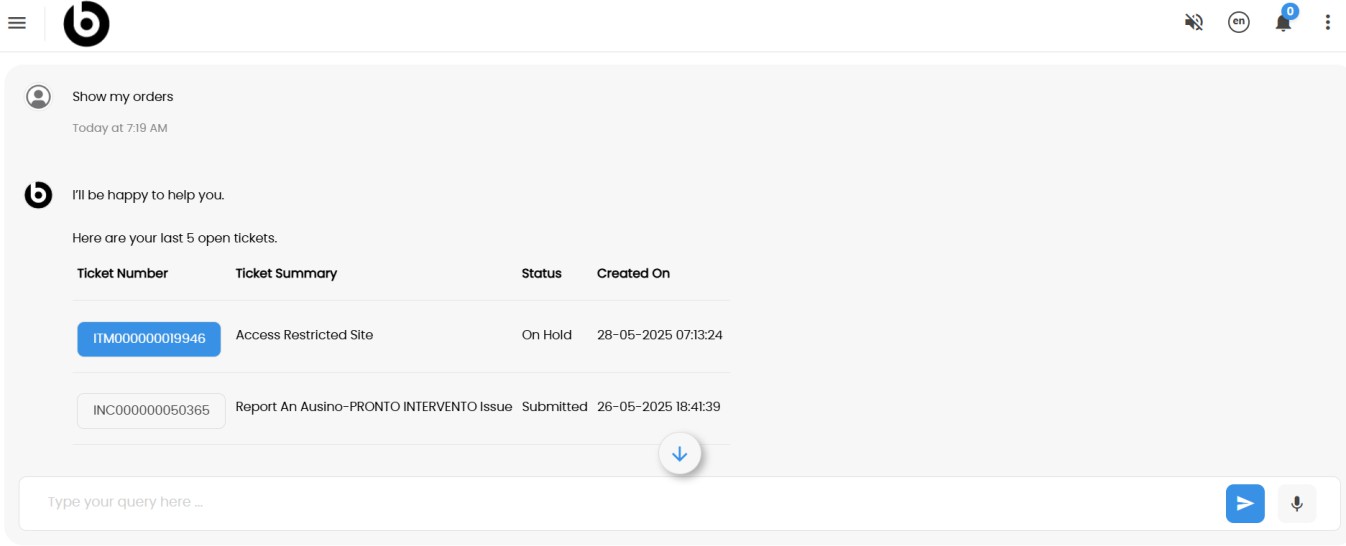
Click on the ticket you wish to interact with.
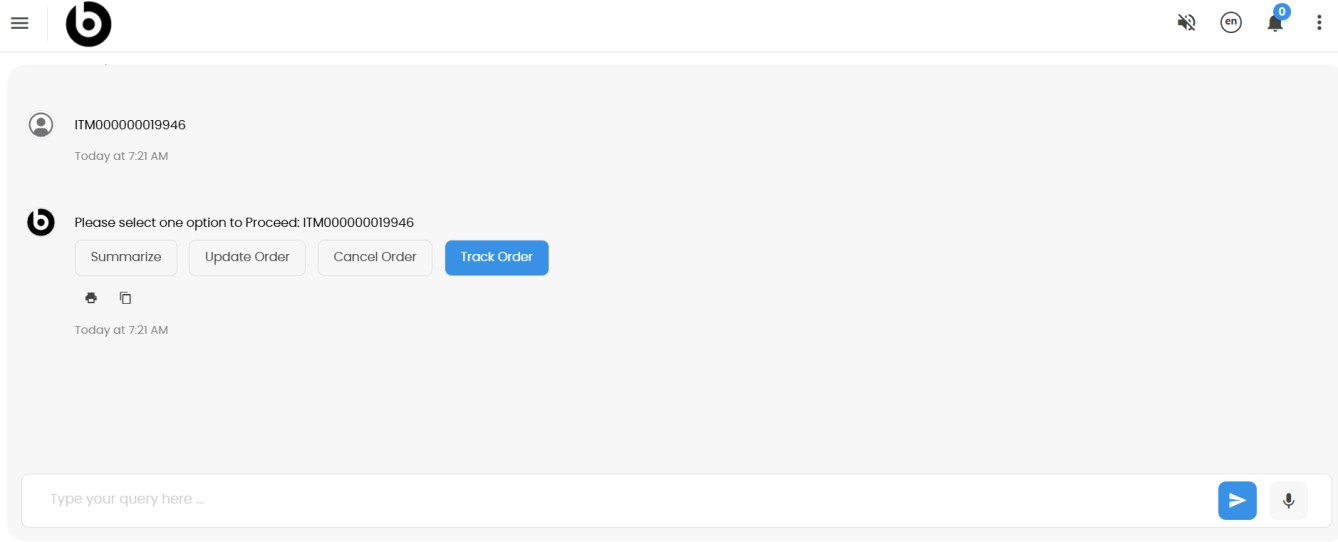
Upon selecting a ticket, the chatbot will prompt you with options such as:
Summarize, Update Order, Cancel Order, or Track Order. Click on the desired action. In this example, let's choose to track the selected order.
Your order details will be displayed on the screen.
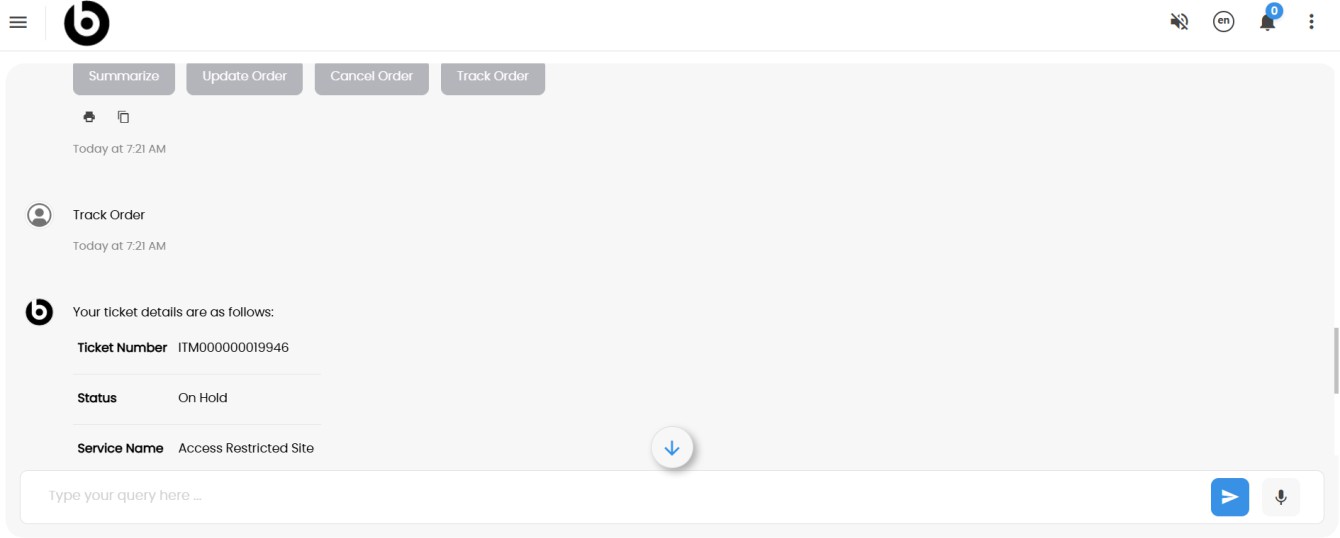
Let’s now try updating the order. Type Update order to proceed.
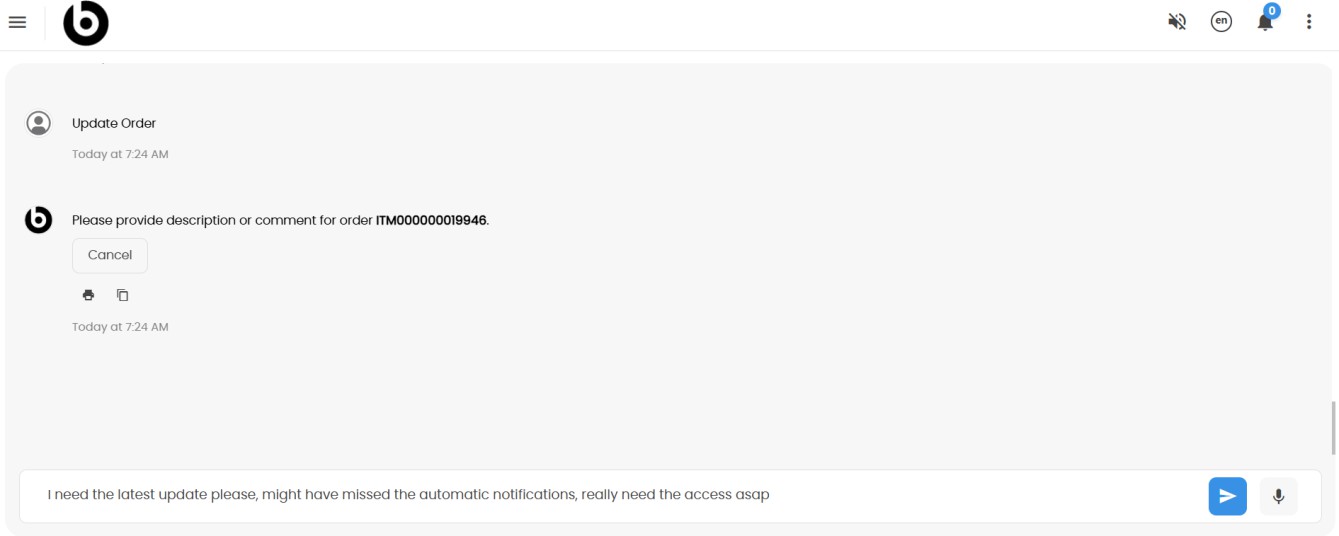
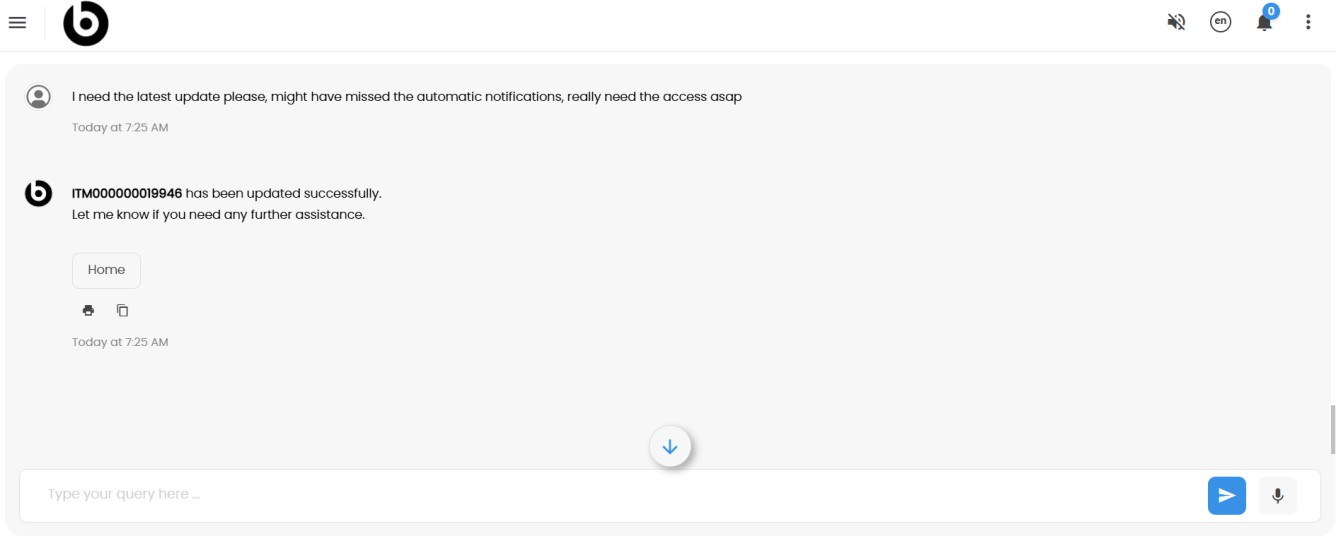
Enter the update you'd like to record against your ticket and the chatbot will automatically log the update. Similarly, you can cancel the order or summarize it based on your preference.
Next, let’s try reporting an issue. Type a prompt such as: Report an issue or Break fix or Raise a bug. You will be prompted to describe the issue in detail.
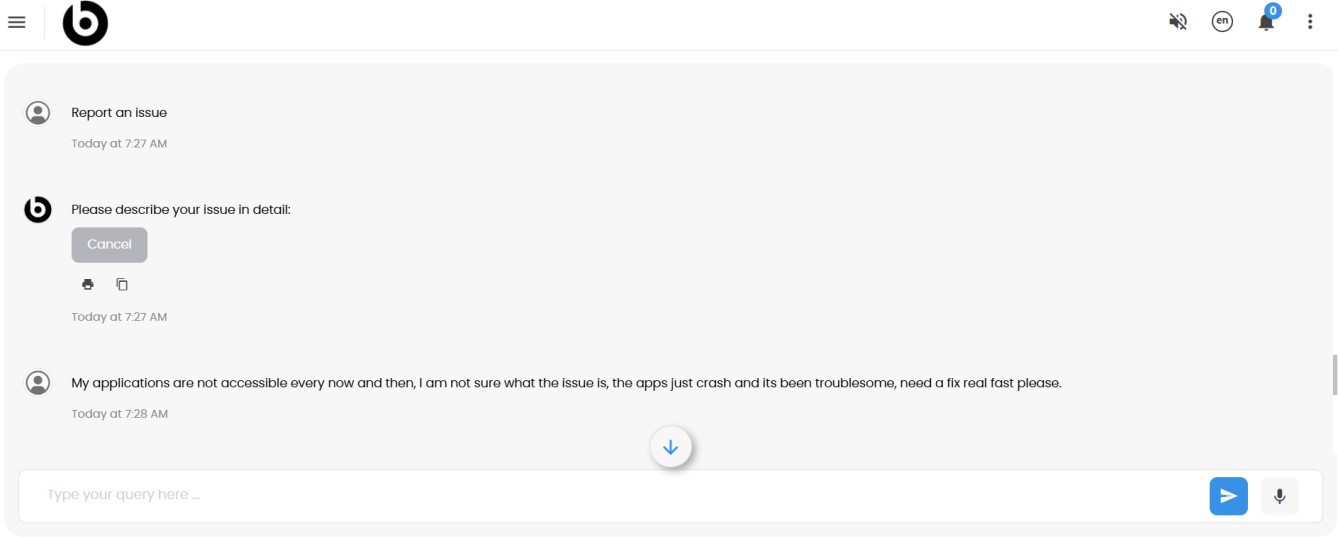
Based on your description, the chatbot will search the knowledge base and display relevant self- help articles that might resolve the issue without needing to raise a ticket.
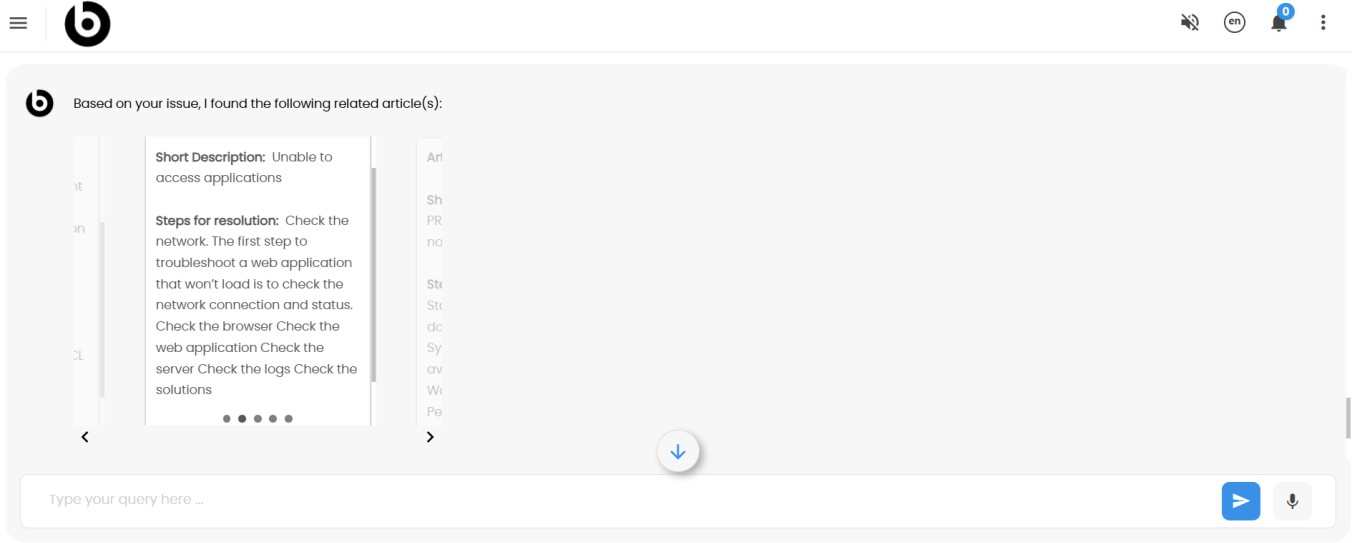
Review the articles and determine whether any of the proposed solutions work for you.
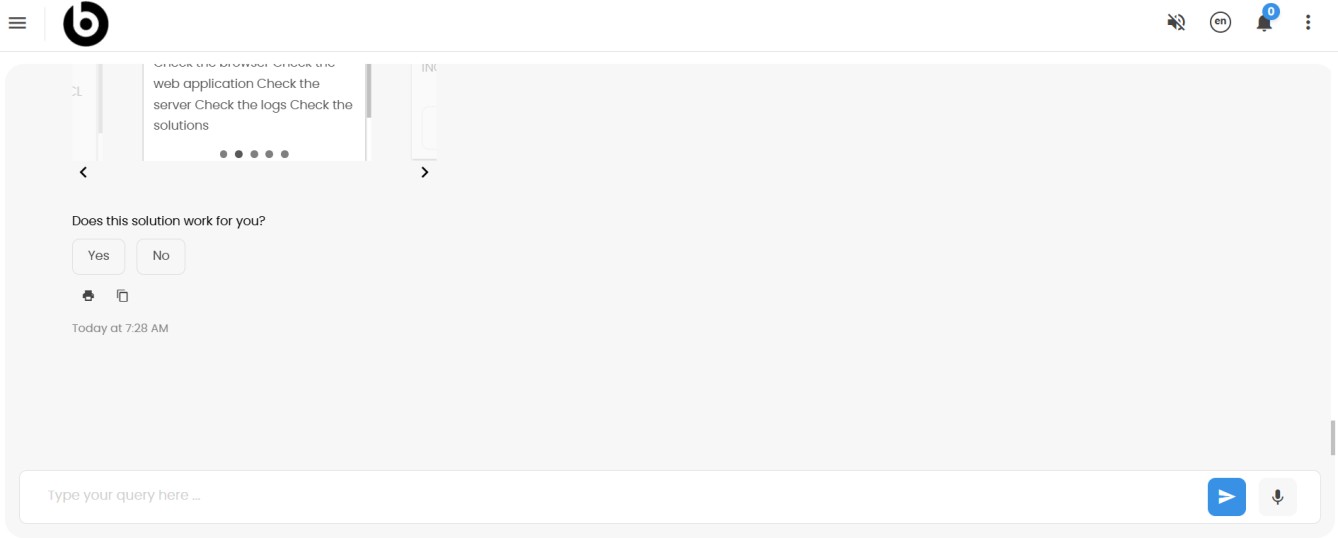
If none of the solutions are suitable, click No, and the chatbot will attempt to generate an alternative knowledge article.
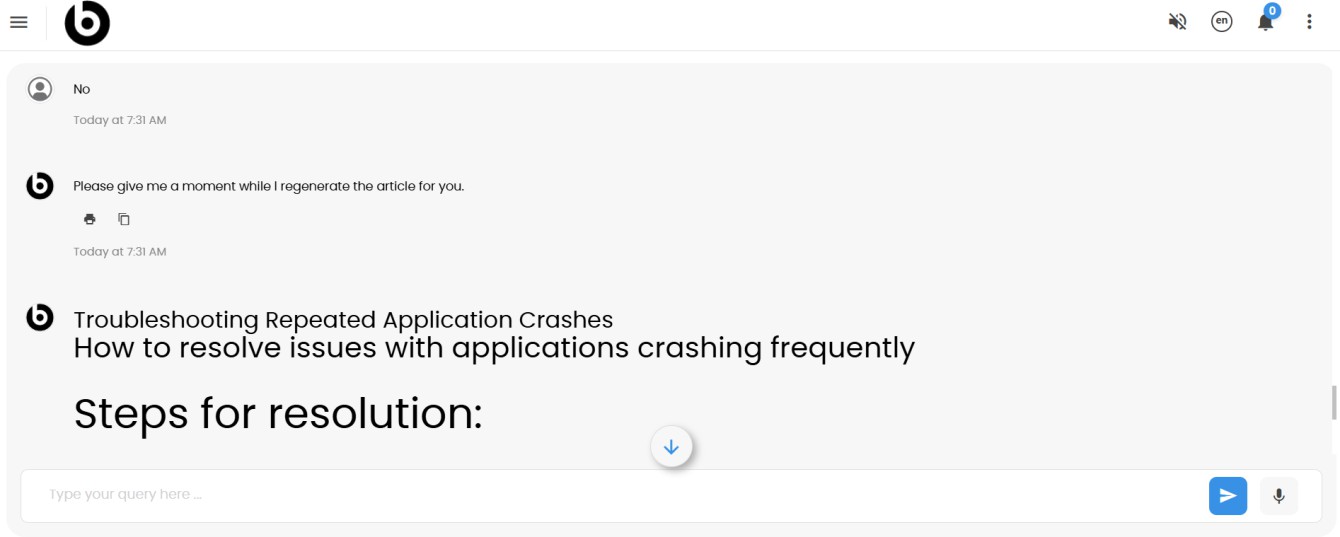
If the new suggestion still doesn't resolve your issue, click No again.
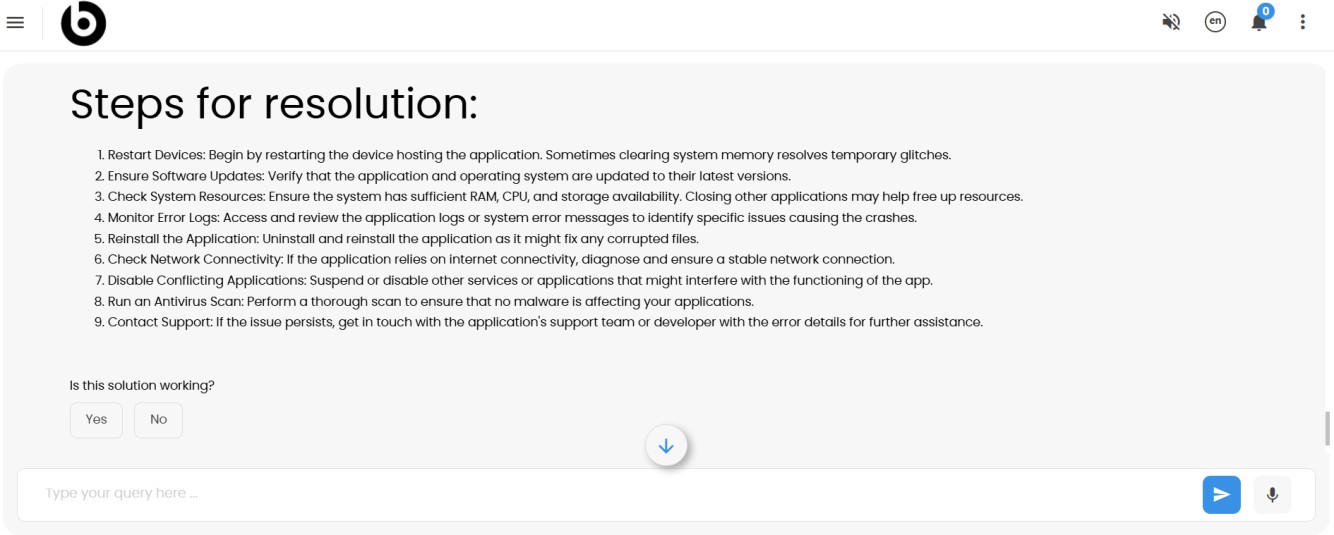
The chatbot will then immediately create a ticket on your behalf for further investigation.
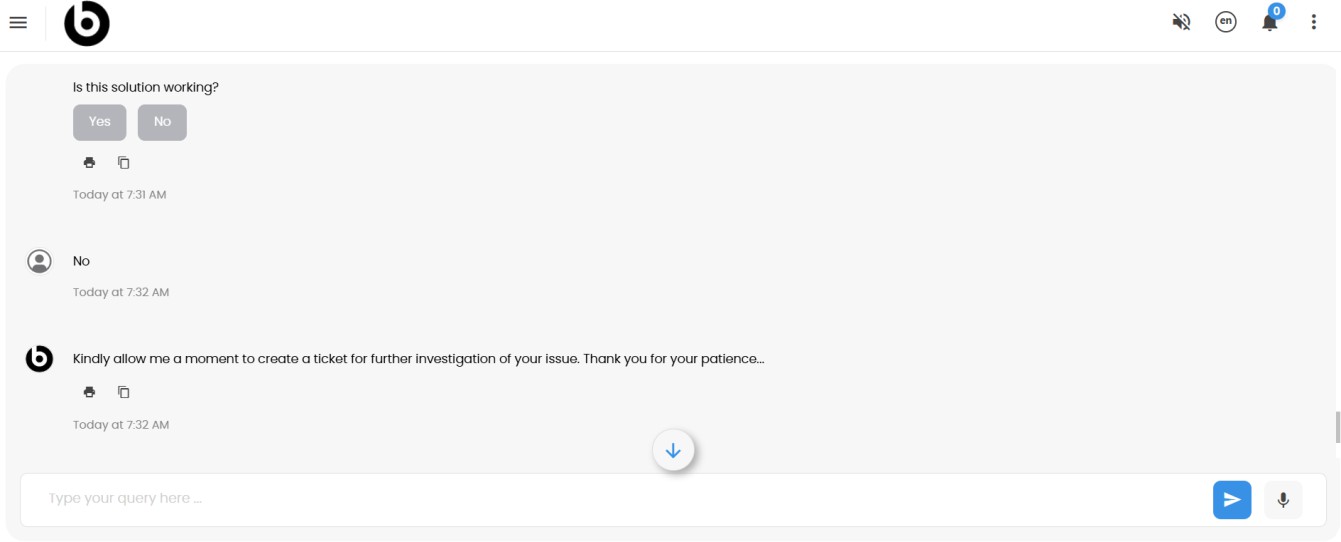
If you choose to select Yes, implying that the solution provided worked for you, then you will be prompted to provide your feedback and rate your interaction experience.
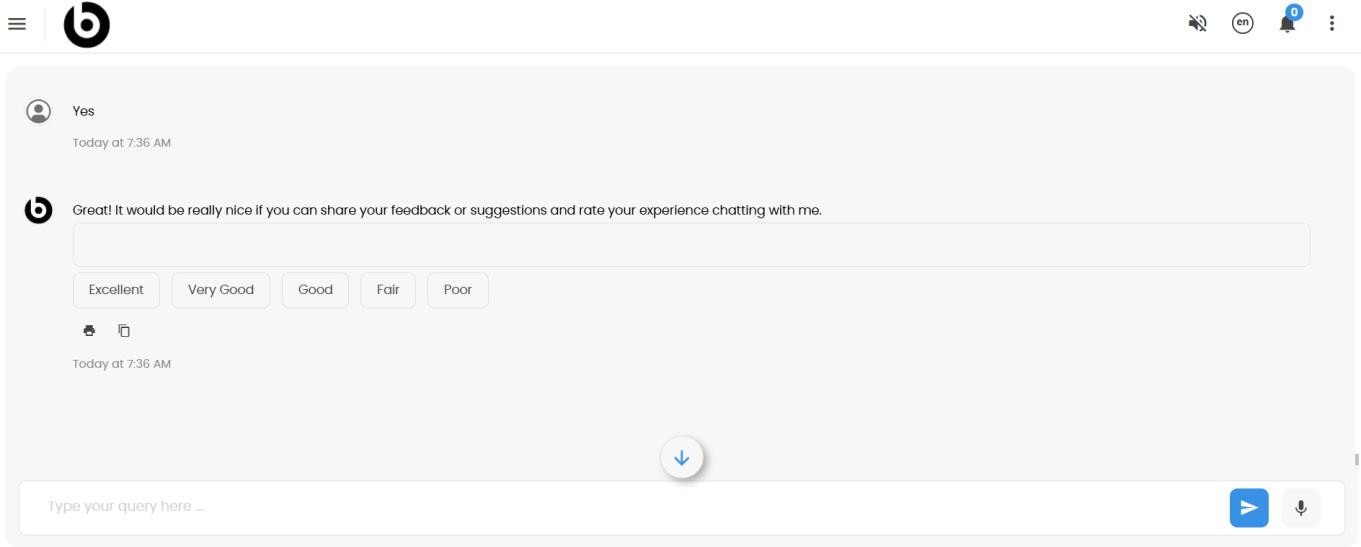
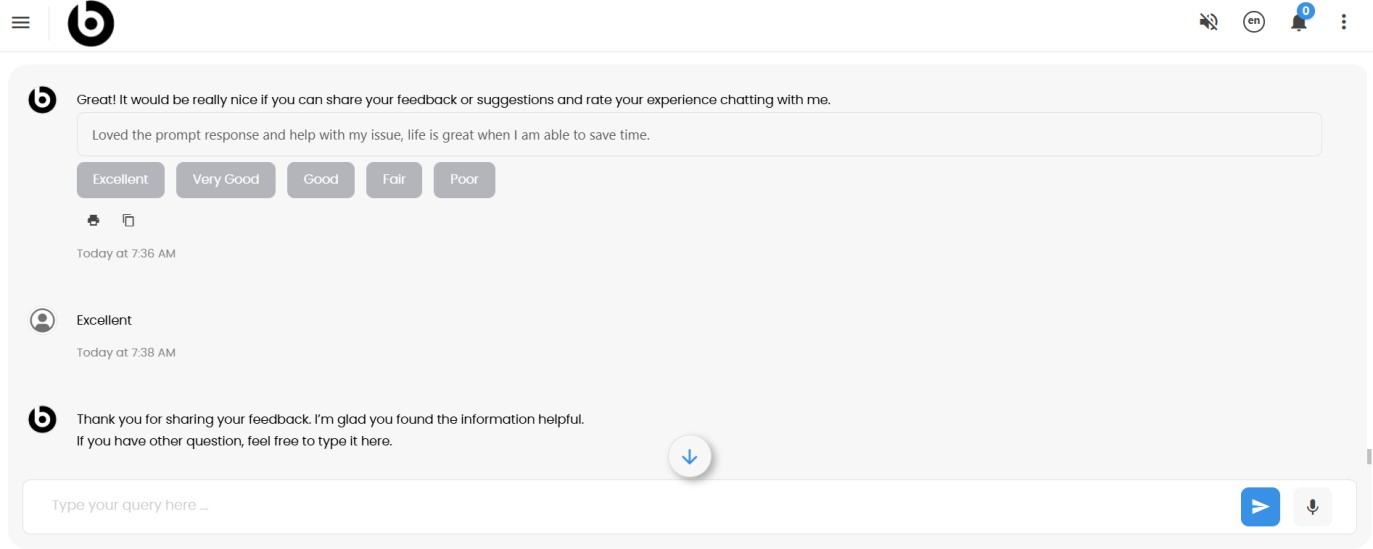
You can add comments and choose a rating from the available options. You’ll be thanked for your feedback and given the option to ask additional questions if needed.
Let’s explore a different scenario, discovering available offerings that you can request. Type a prompt such as: List offerings or list few offerings that I can explore. A list of available offerings, based on your entitlement, will be displayed.
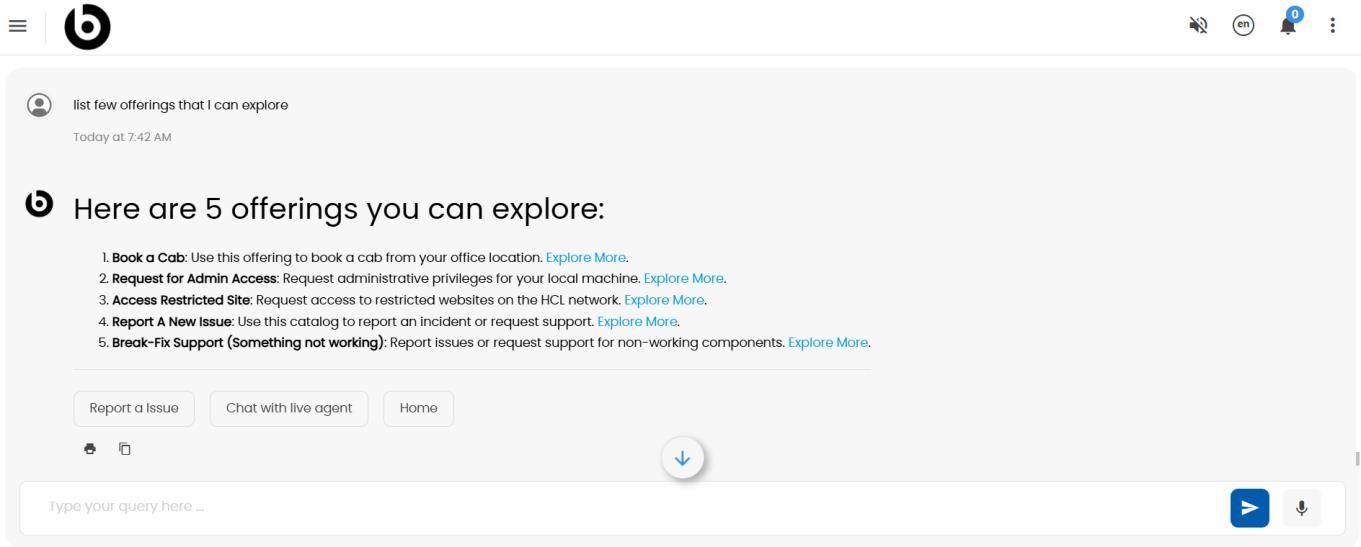
Click Explore More on any of the offerings to open the detailed offering page. From there, you can review the offer and place an order if desired.
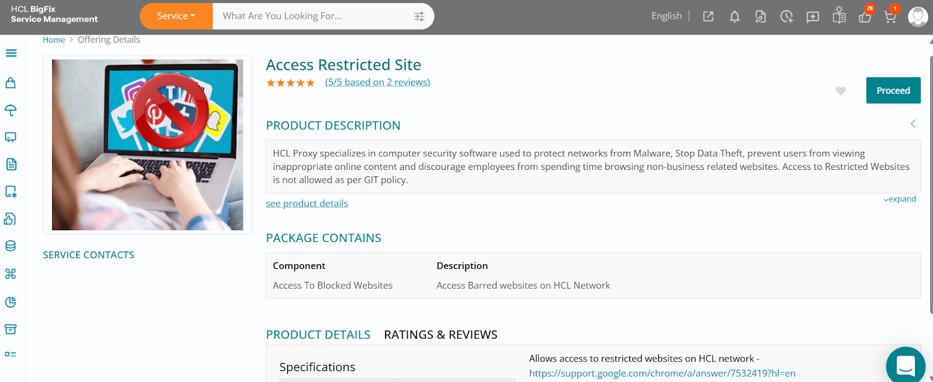
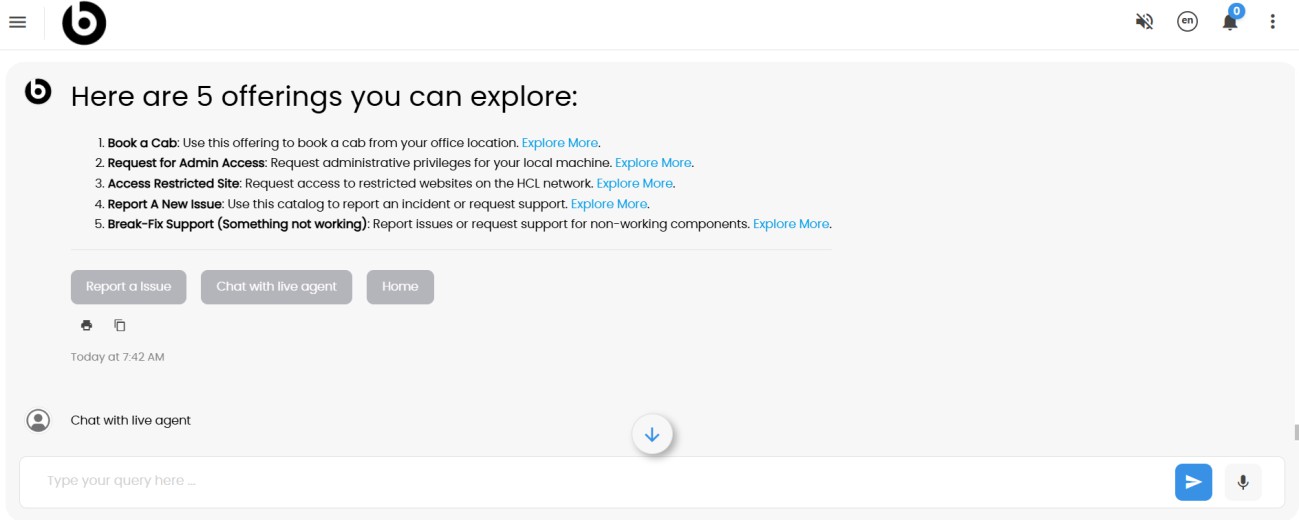
If you're unable to find help using the virtual assistant, simply type a prompt such as: Chat with live agent, assist me to chat with a live agent, or Transfer chat to a live agent.
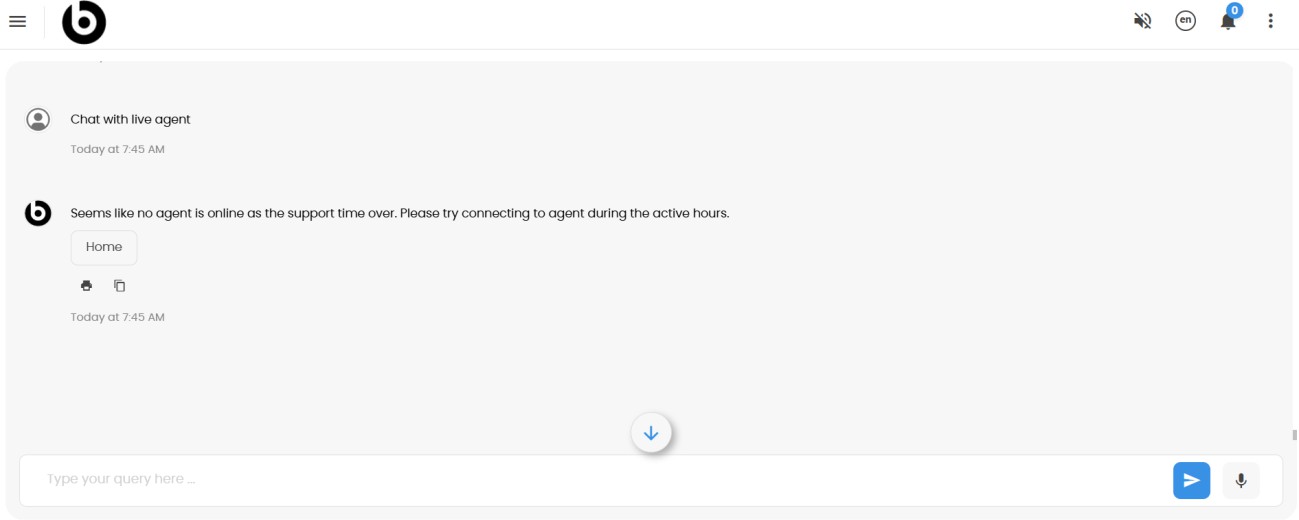
If an agent is available within your organization’s defined support hours, the chat will be transferred. If you're attempting to connect outside of support hours, you'll be notified that no agents are currently available and advised you to try again during active hours.
Let’s now try another use case — providing feedback on a past order. Type a prompt such as: Provide feedback for the order, Provide rating for an order, or Feedback and Review. You’ll be shown a list of past fixed/fulfilled tickets that are awaiting your feedback.
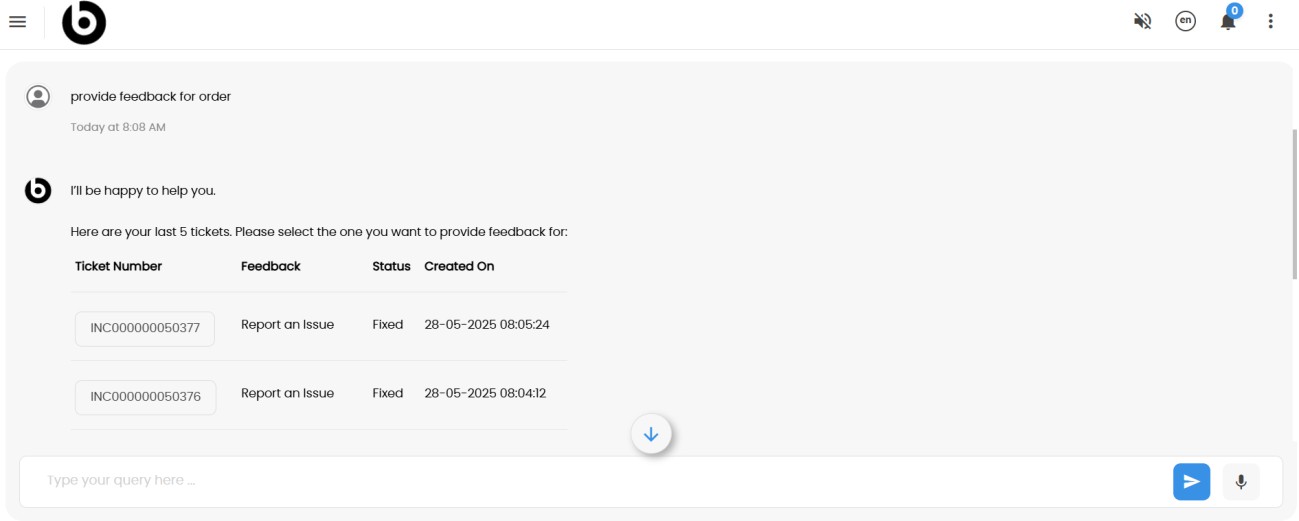
You can select one of the tickets from the list and follow that up by providing the desired rating.
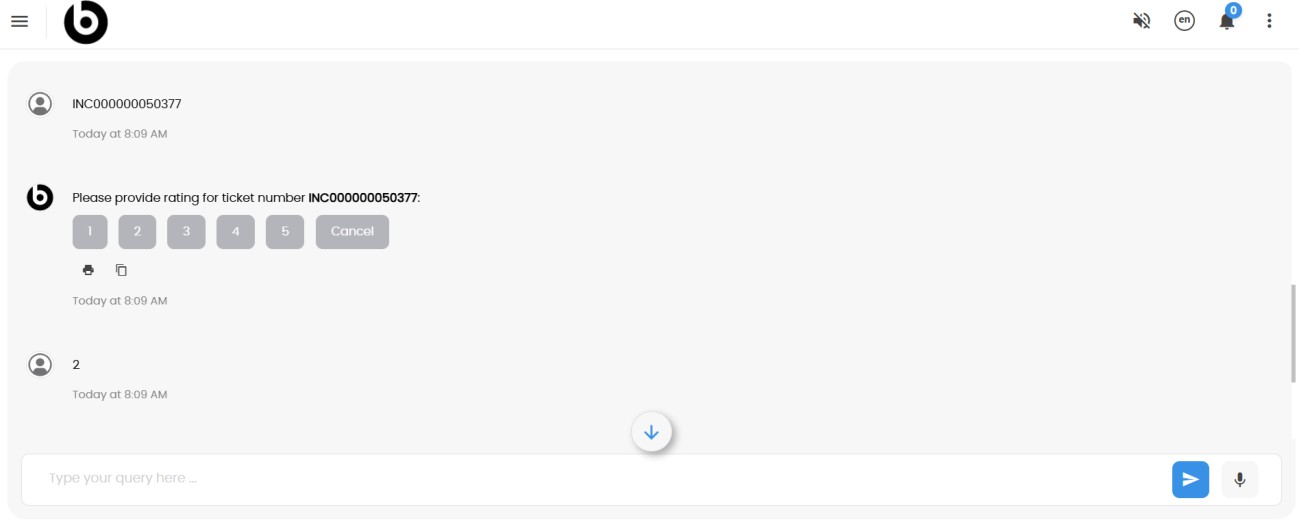
Select a ticket and provide a rating.
- If you give a rating of 3 or below, you’ll be asked to either reopen the ticket with commentsor submit comments without reopening.
- If you give a rating of 4 or 5, you’re rating and any optional comments will be recorded, and the ticket will be closed.
In this example, we give a rating below 3 to test reopening.
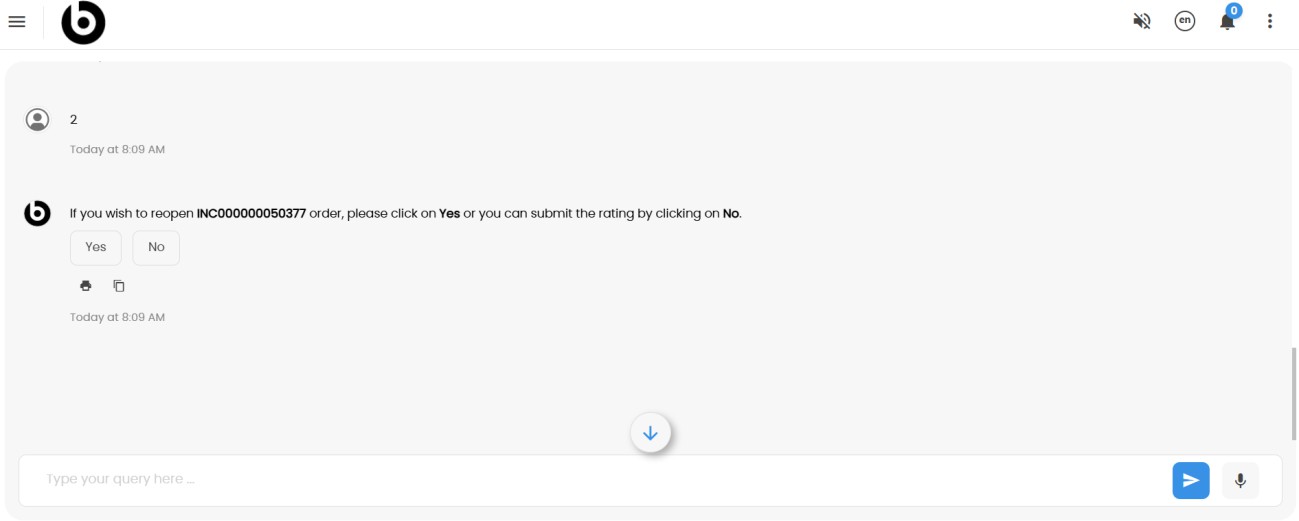
Click Yes when prompted, and you'll be asked to provide a reason. Your comments will be recorded as the reason for reopening and the applicable support team will be notified.
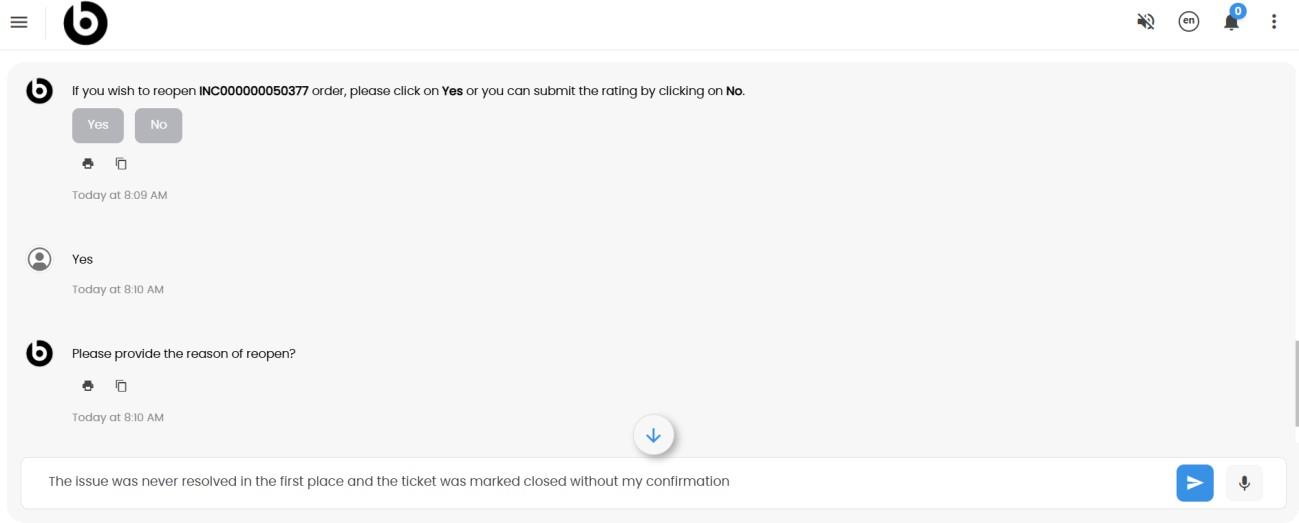
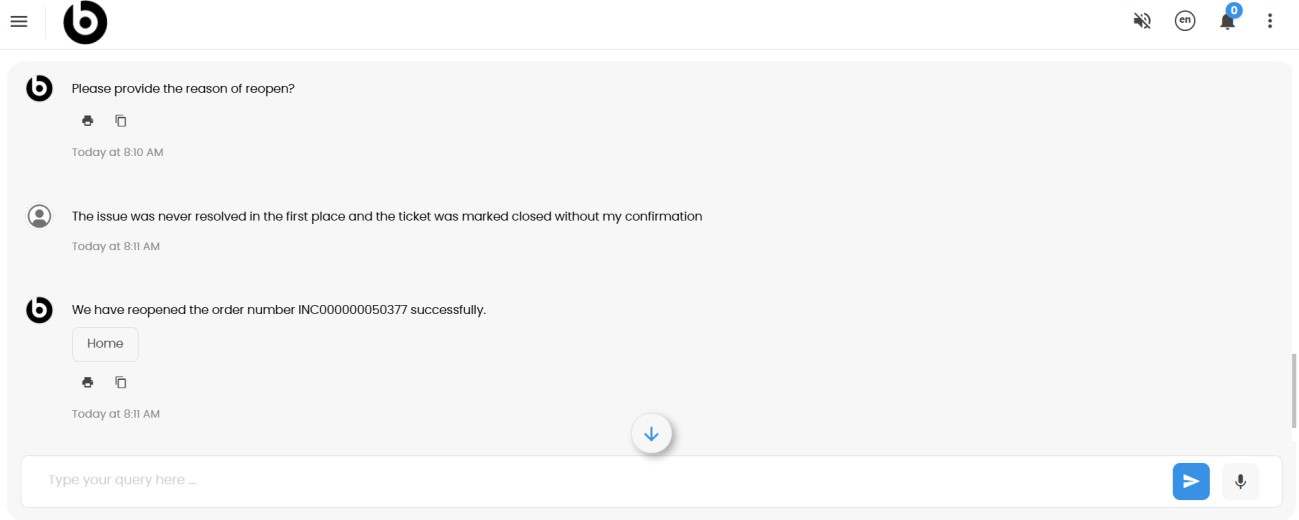
Once you provide the reason, the virtual assistant will instantly reopen the ticket on your behalf.
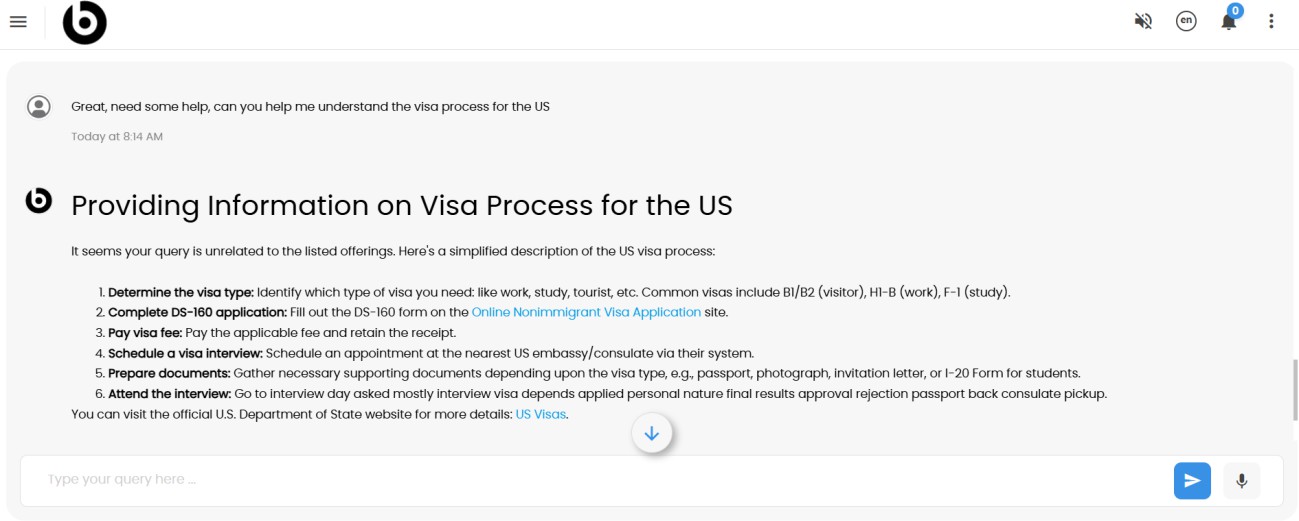
Now, let’s move away from IT-specific scenarios. Try asking for a general query — for example: Help me understand the visa process for the US. The GenAI-enabled virtual assistant will interpret your query and provide relevant guidance.
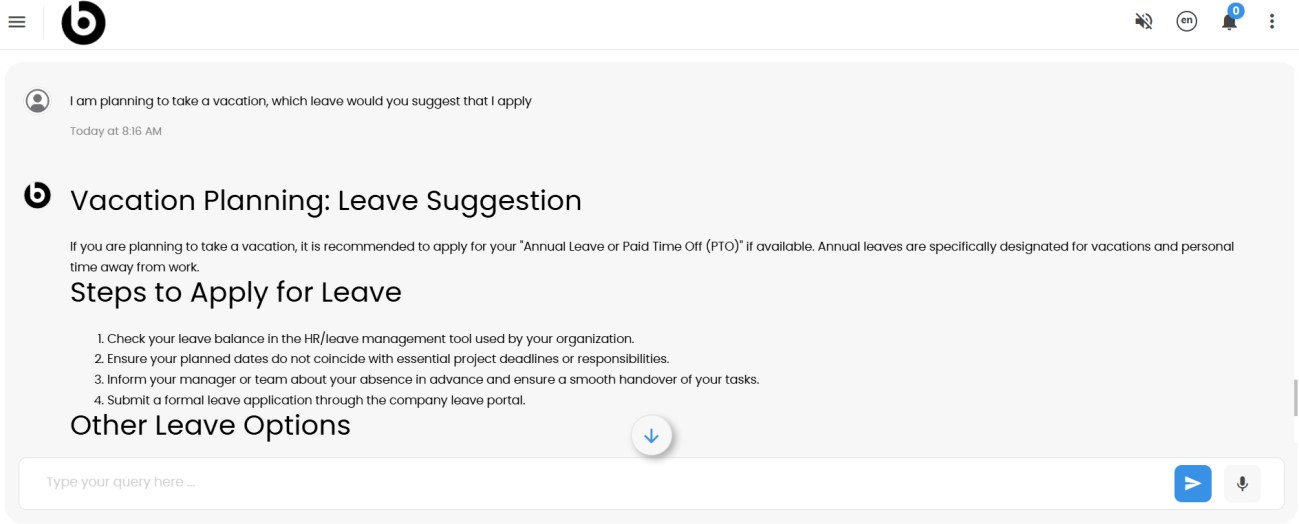
You can also ask enterprise-related questions, such as HR or facilities queries. For instance: What type of leave can I apply for an upcoming vacation? The virtual assistant will immediately respond with helpful information.
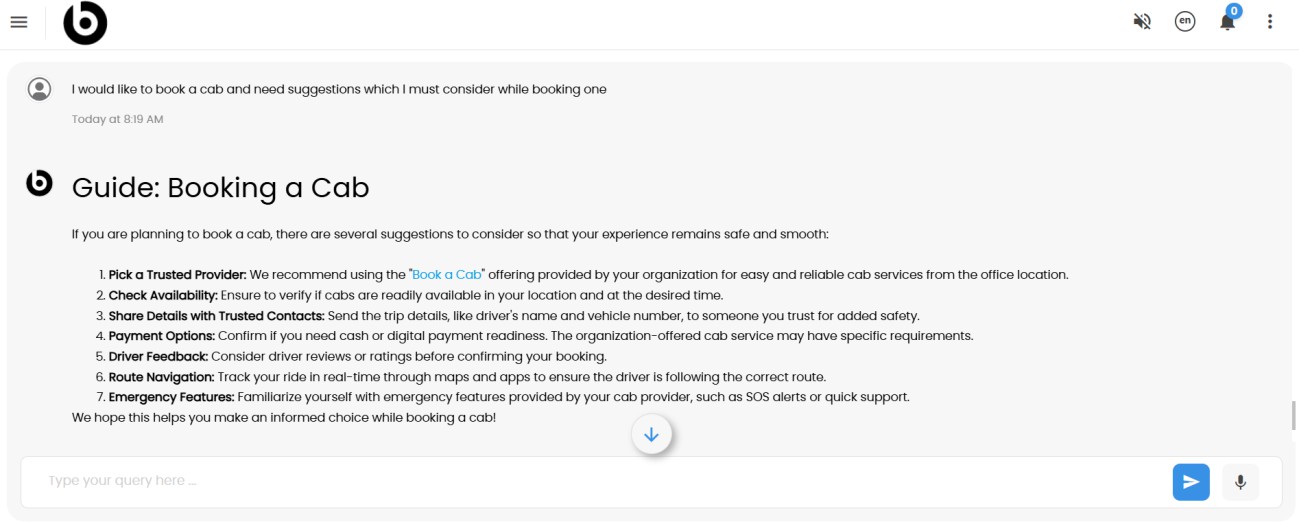
In another scenario, try: Book a cab or help me with the process for requesting a cab. The assistant will guide you with relevant suggestions or available offerings.
You can continue using the virtual assistant for your daily tasks, asking questions as
needed. A compliment at the end like Thanks, you were helpful! will also be
acknowledged.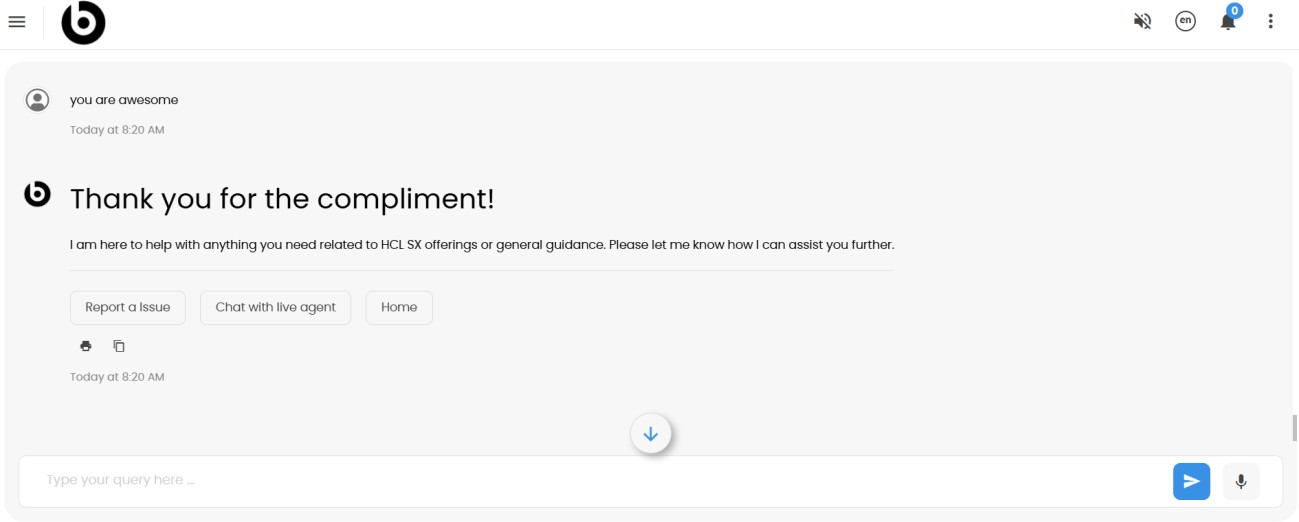
Resolution Time Predictor
Log into HCL BigFix Service Management as a support user and navigate to the Work Item Board from the application menu on the left-hand side.
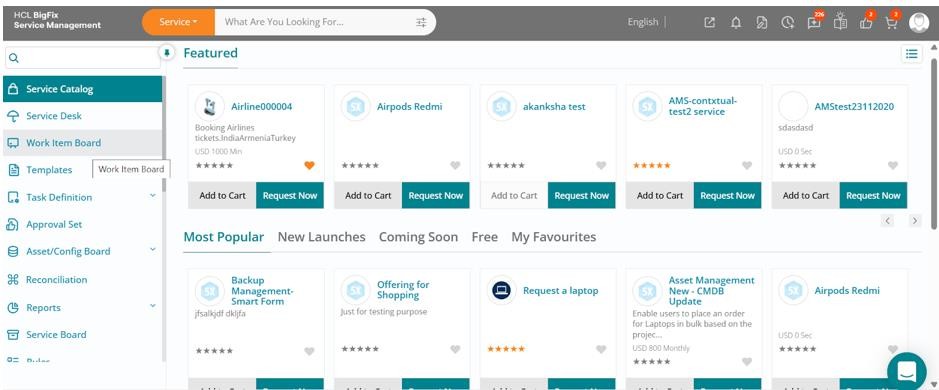
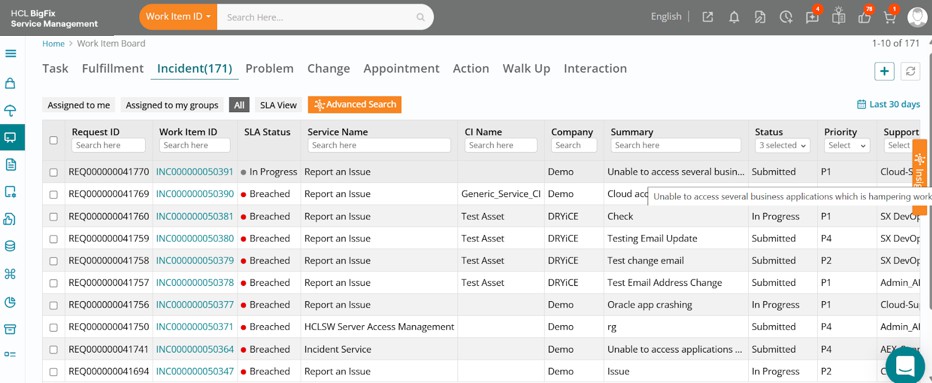
Click on the Work Item Board, then navigate to the Incident tab to view all open incidents.
Click on any incident in the list view to view AI-generated predictions for the estimated resolution date and time. As a support user, these insights, drawn from historical and contextual data, serve as a valuable reference point, nudging you towards faster and more informed resolution efforts.
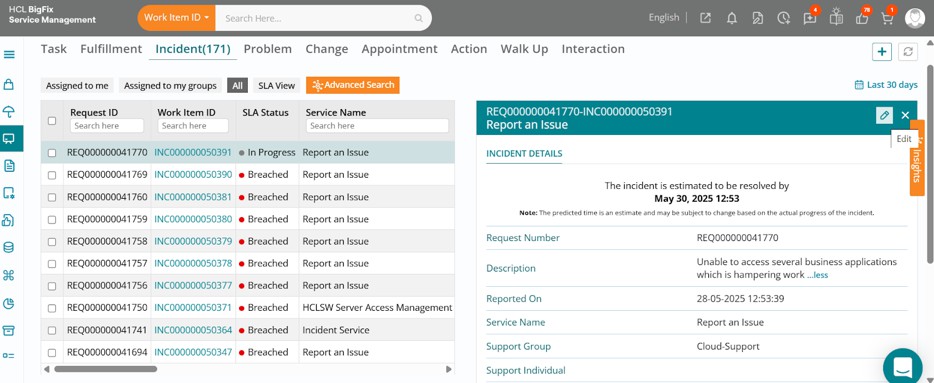
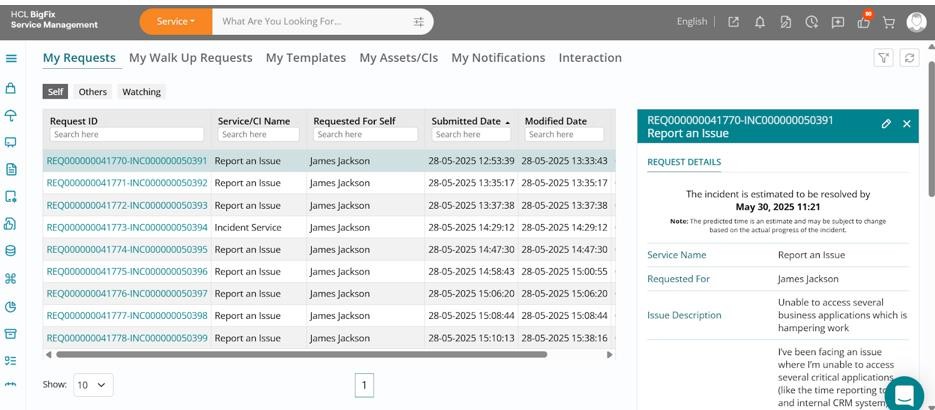
The same estimated date and time of resolution is also visible to you as a consumer through the My Requests section on your homepage. This helps set clear expectations, reduces the need to follow up, and keeps you informed of when your issue is likely to be resolved.